


Connect-SPOService: No valid OAuth 2.0 authentication session exists
October 18, 2026
1 min
ℹ️I updated this article in May 2026 to reflect the latest changes in the Microsoft 365 Archive feature. The article was originally published in April 2024.
ℹ️ This is the first article in my Microsoft 365 Archive series. See also: Archive SharePoint Files Using M365 Archive Feature and Archive Unlicensed OneDrive Accounts Using M365 Archive Feature.
Microsoft 365 Archive is a feature that allows you to archive SharePoint Online sites. When you archive a site, it is not accessible and is also removed from search results.
Archived site goes into an explicitly colder tier, no longer consumes a tenant’s active storage quota, and instead drives Microsoft 365 Archive storage consumption. Being in this colder tier means the site is no longer accessible by anyone in the organization outside of Microsoft Purview or admin search.
Why would you want to archive a site? Well, maybe it’s no longer being used but you still need to keep it for compliance reasons. SharePoint storage is expensive but if you archive a site, you can save money. The archived site will cost about 4 times less than the active site.
Storage for archived sites is metered and charged at a $0.05/GB/month rate vs. the standard SharePoint storage rate of $0.20/GB/month. That’s a savings of 75%!
Restoring the site is free, But beware – it’s is only free within the first seven days. If you restore it after seven days, you’ll be charged $0.60/GB. So restoring a 100 GB site after seven days would only cost $60, but restoring a 1 TB site would cost as much as $600.
Current model (from March 31, 2025 onward):
Reactivating archived content is free of charge, but re-archiving any newly reactivated content is restricted for a four-month period. This change doesn’t apply to OneDrive accounts.
Storage is still charged at a per-GB monthly rate, but only when archived storage plus active SharePoint storage exceeds the tenant’s licensed SharePoint storage capacity limit (i.e., $0.05/GB/month, and only if you’re over quota)
Within 7 days after archiving, the restore is instant; after 7 days, there is a 24-hour reactivation delay; once you’ve reactivated a site, you cannot archive it again for 120 days
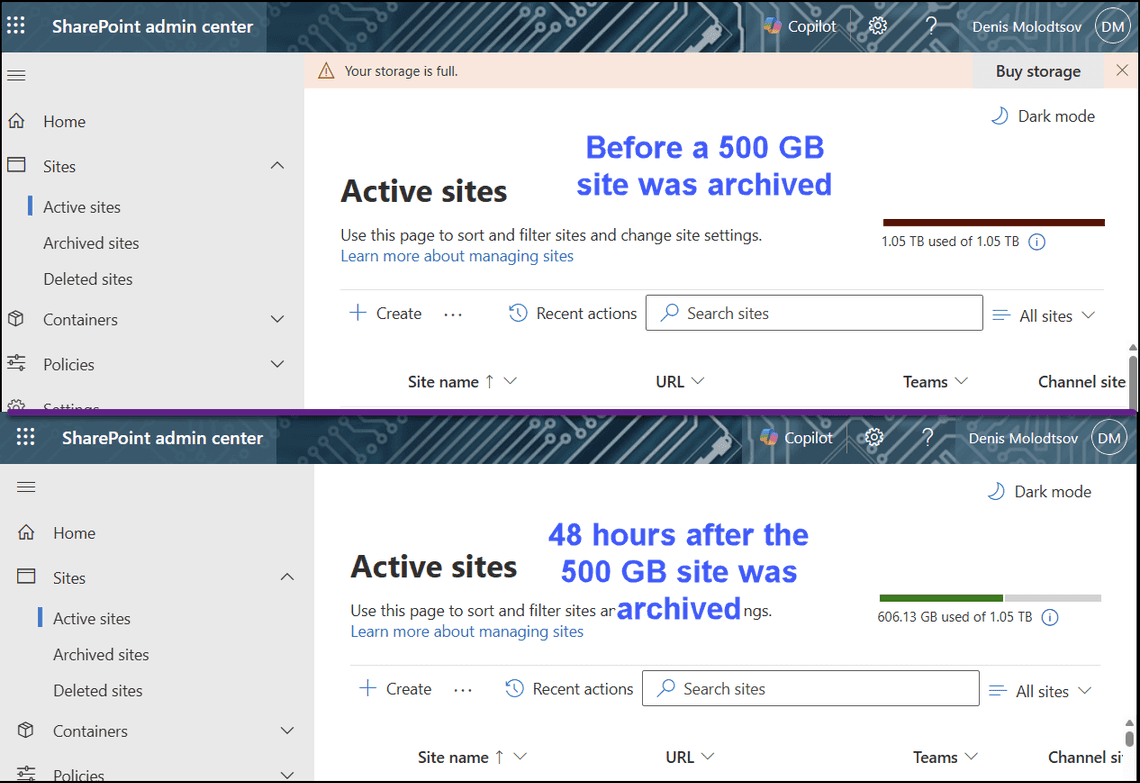
This screenshot is the perfect example of when you should archive a site:
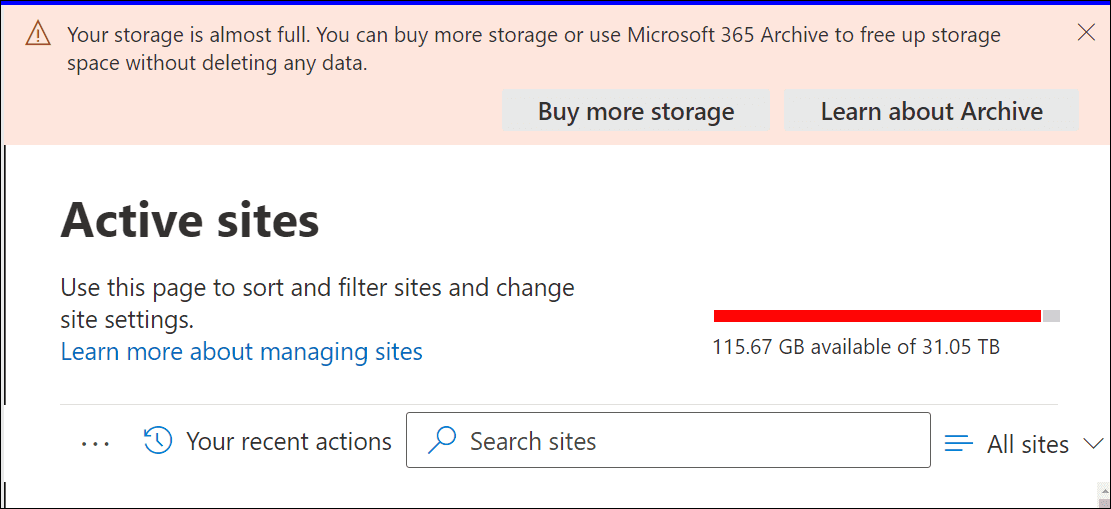
The storage is almost full. Let’s assume your budget can only cover 1 TB of extra storage. You have to options:
The choice is clear. You can save $150/month by archiving a site.
Before you begin, you must ensure you have a resource group in an Azure subscription.
Navigate to the Microsoft 365 Admin center > Setup > Activate pay-as-you-go services > billing.
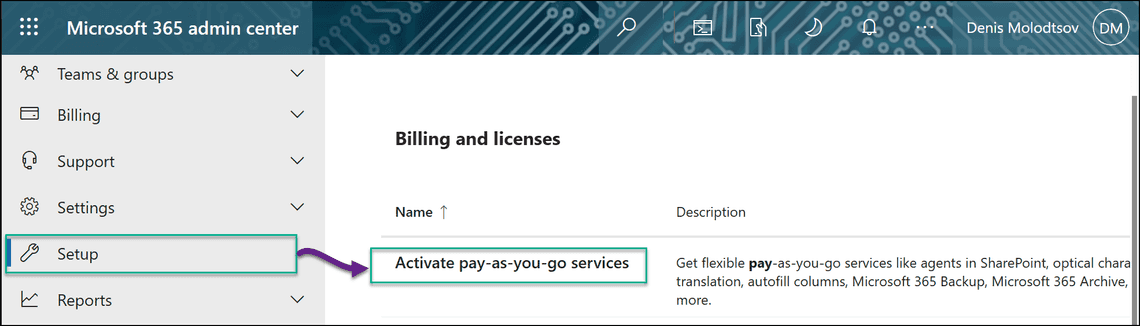
Click Manage billing to enable the feature.
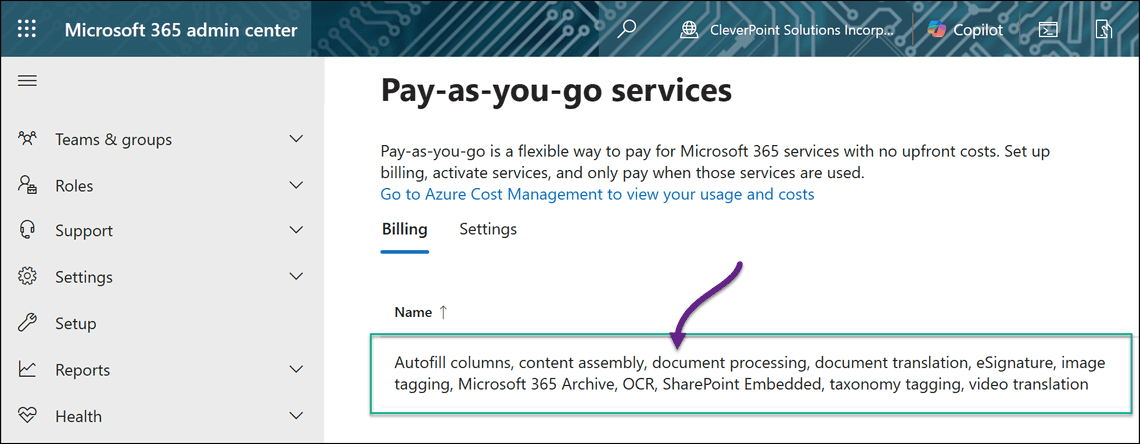
Select your Azure subscription and a resource group to configure pay-as-yo-go billing..
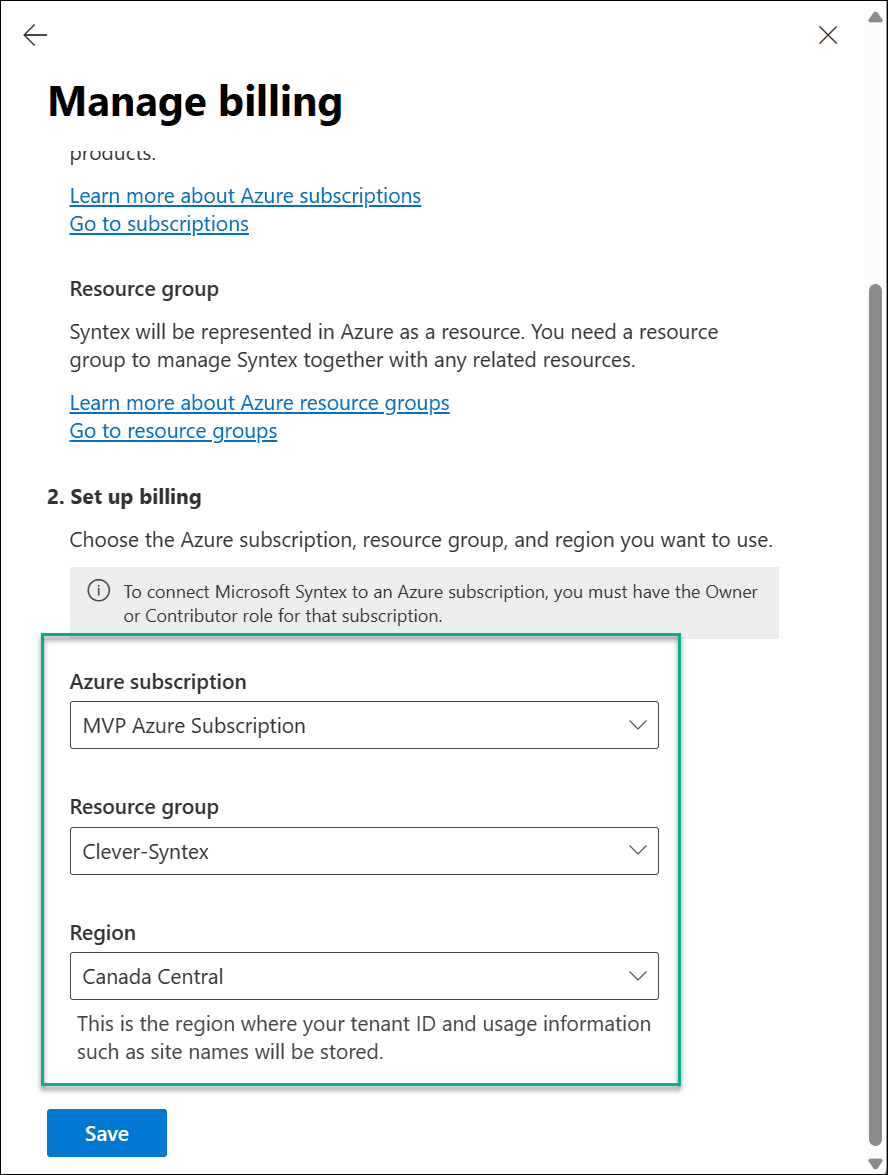
Navigate to the Microsoft 365 Admin center > Setup > Activate pay-as-you-go services > Settings.
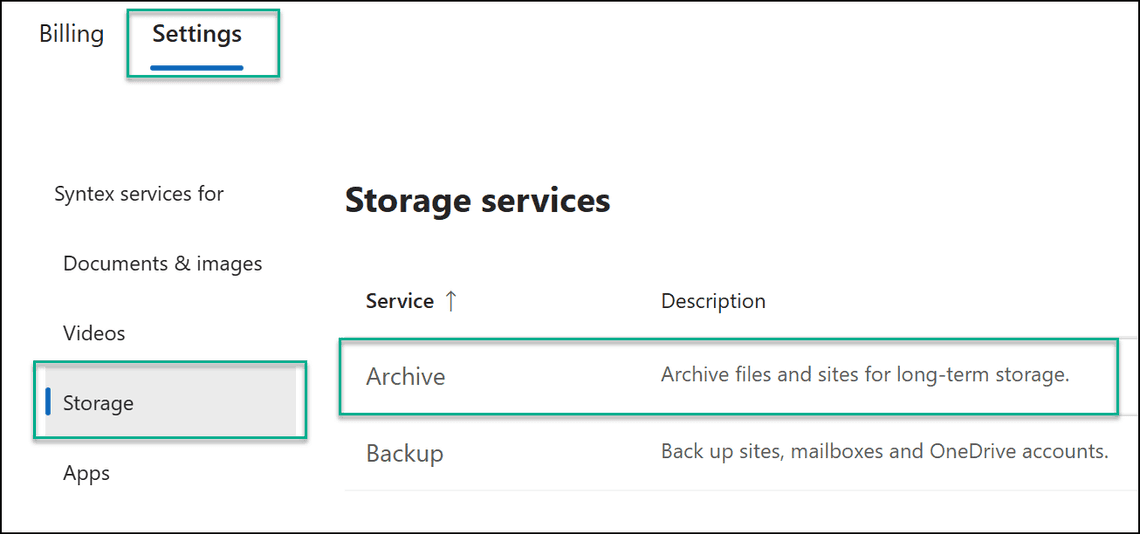
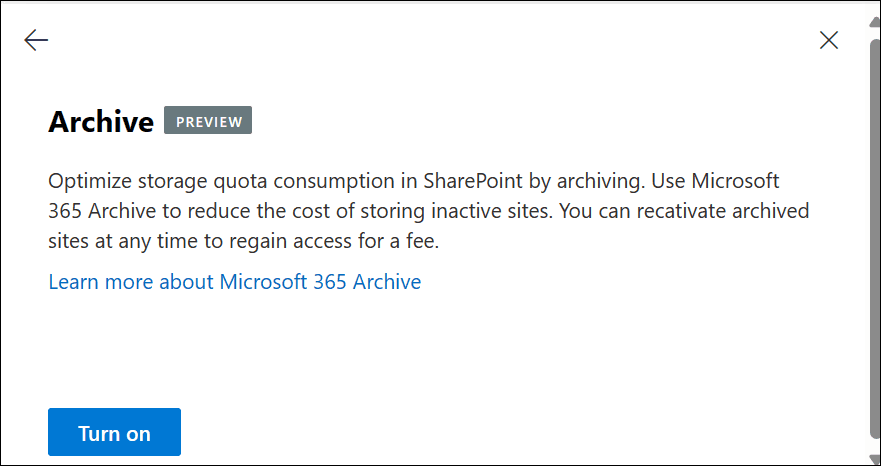
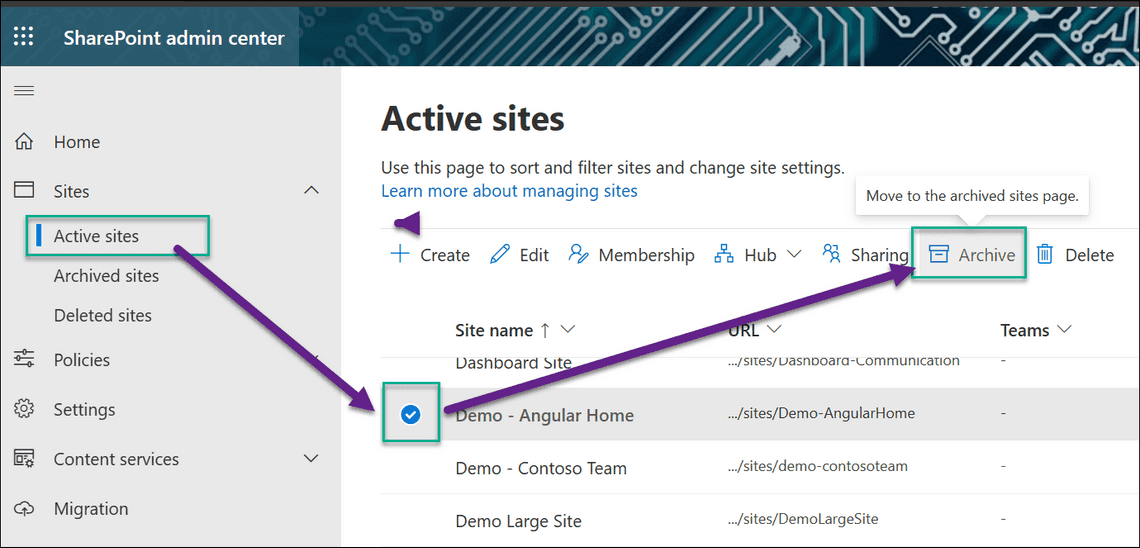
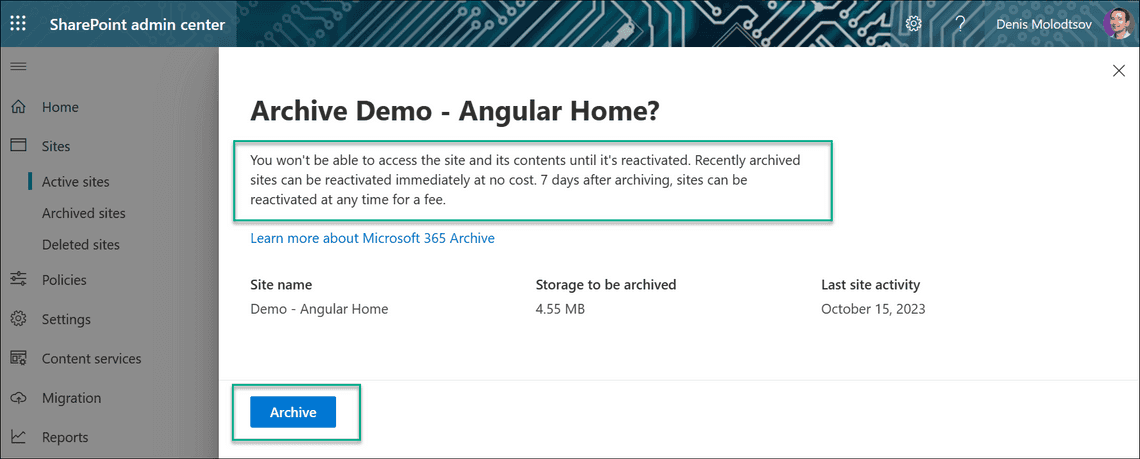
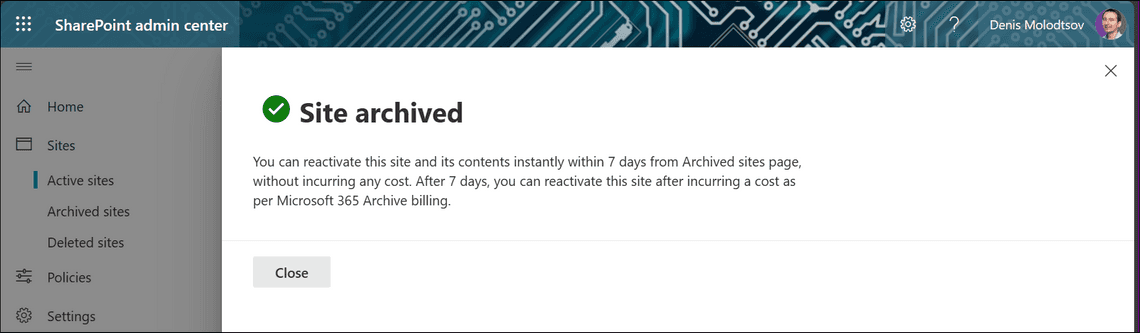
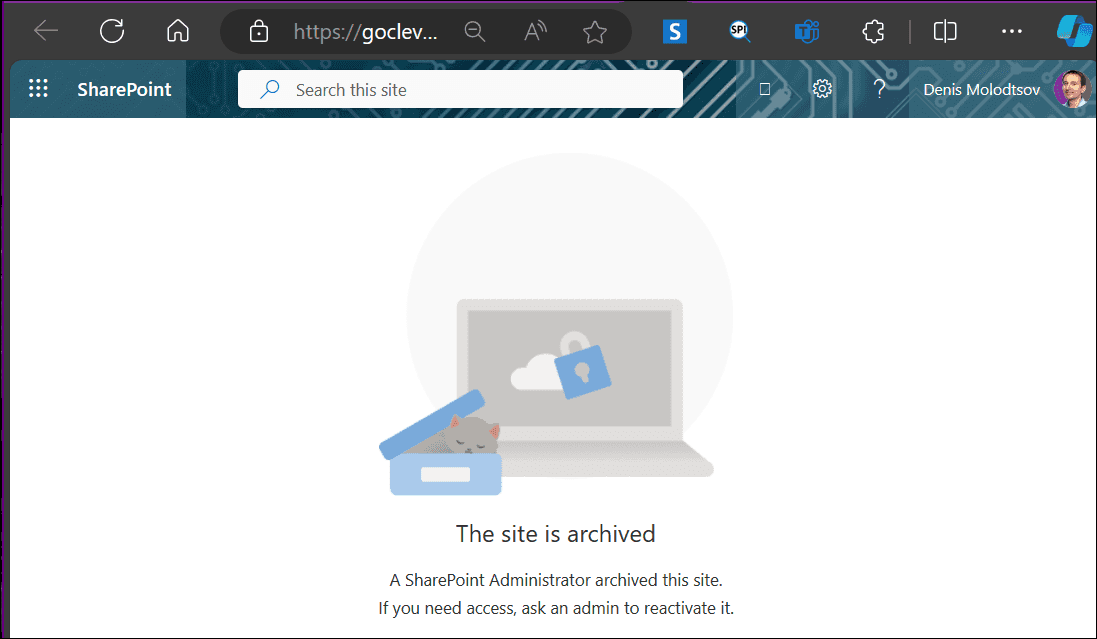
If you navigate to a site that has been archived, you will see the following message:
If you navigate to the Azure portal and check the resource group for the first time, you might notice that the Azure resources are missing.
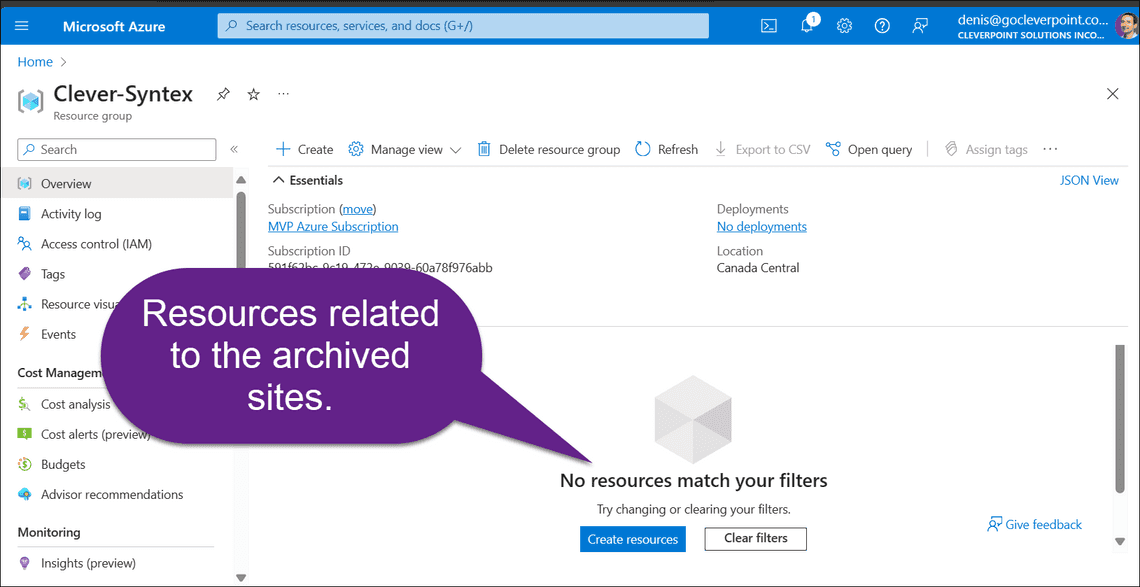
No storage account or other resources are created. That’s because the archive isn’t really stored in Azure. It’s stored somewhere in the Microsoft 365 cloud and it’s not visible in the Azure portal. You probably wonder why we had to create a resource group if it’s going to be empty. The reason is that the Azure group is only used for billing purposes. One lesson I learned is that I should give this resource group a meaningful name that indicates it’s used for SharePoint Premium. Otherwise, someone might assume that it’s an empty, unused resource group and delete it.
According to Microsoft documentation, restoring a site might take up to 24 hours. Here are the steps I followed to restore a site:
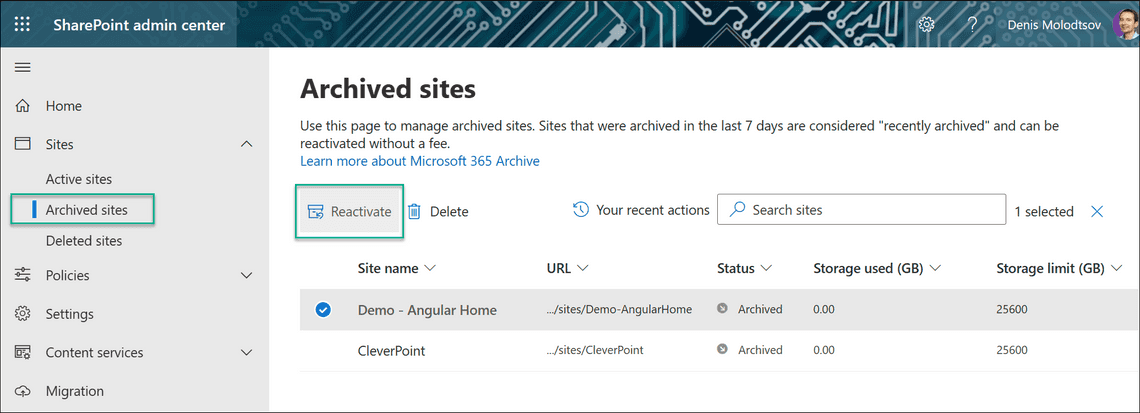
4.55 MB might cost me a dollar to restore. I suspect the price is rounded to the nearest dollar, and I will pay less than a dollar. I will update this article once the site is restored and I get an invoice.
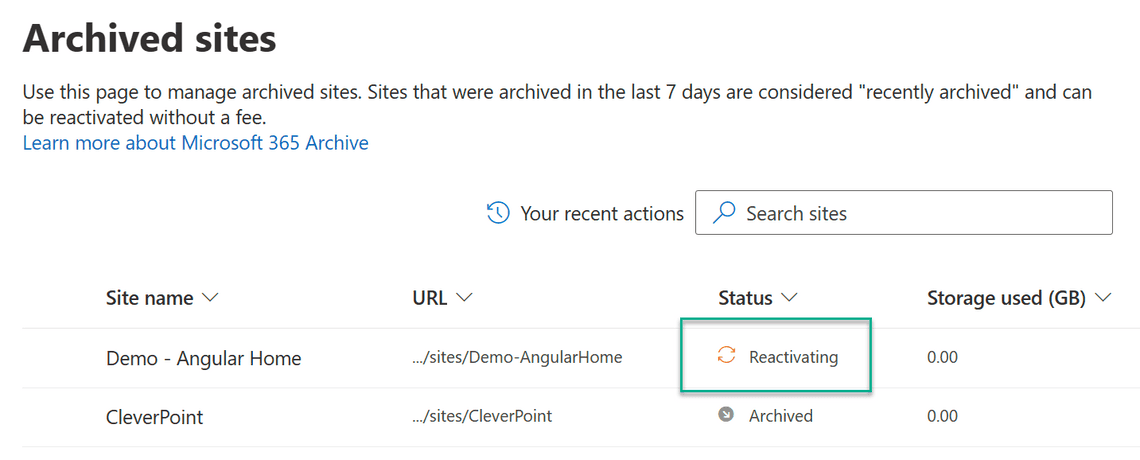
I was presented with this message: Reactivations are now free of charge.
You’ll be charged a reactivation fee. This reactivation fee is based on the retail price for reactivations. Your actual charges may be lesser, and can be seen in Microsoft 365 Archive bill.
The site will move back to Active sites page and start consuming active storage. This action can’t be cancelled once it starts. Estimated reactivation fee $1
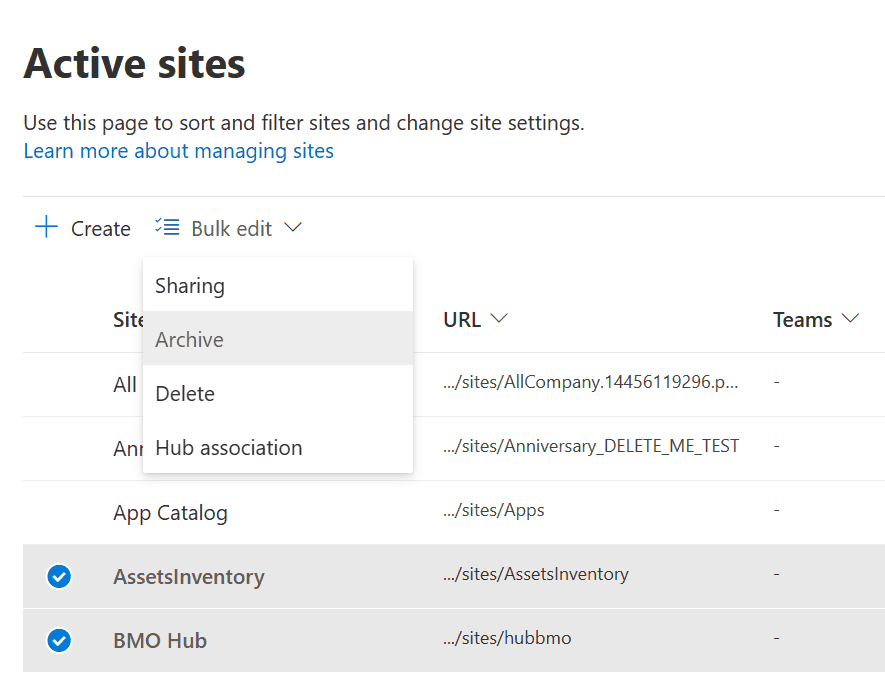
Yes, you can. Select two or more sites and click Bulk edit > Archive.
To archive a site using PowerShell, use the Set-SPOSiteArchiveState commandlet. It’s part of the SharePoint Online Management Shell
Alternatively, you can do the same using PnP.PowerShell:
Yes, you can. When you archive a site, Microsoft Teams-related chats are still accessible. However:

However, you can still create messages within a team’s channel. If you want to archive a Microsoft Teams Team fully, you can use the Set-PnPTeamsTeamArchivedState PnP PowerShell commandlet or archive a Team using the Teams settings
You can still search for the content that was archived. The search works within the archived site. In this case, I searched for “path:< site url >“. As you can see, the search results are still available.
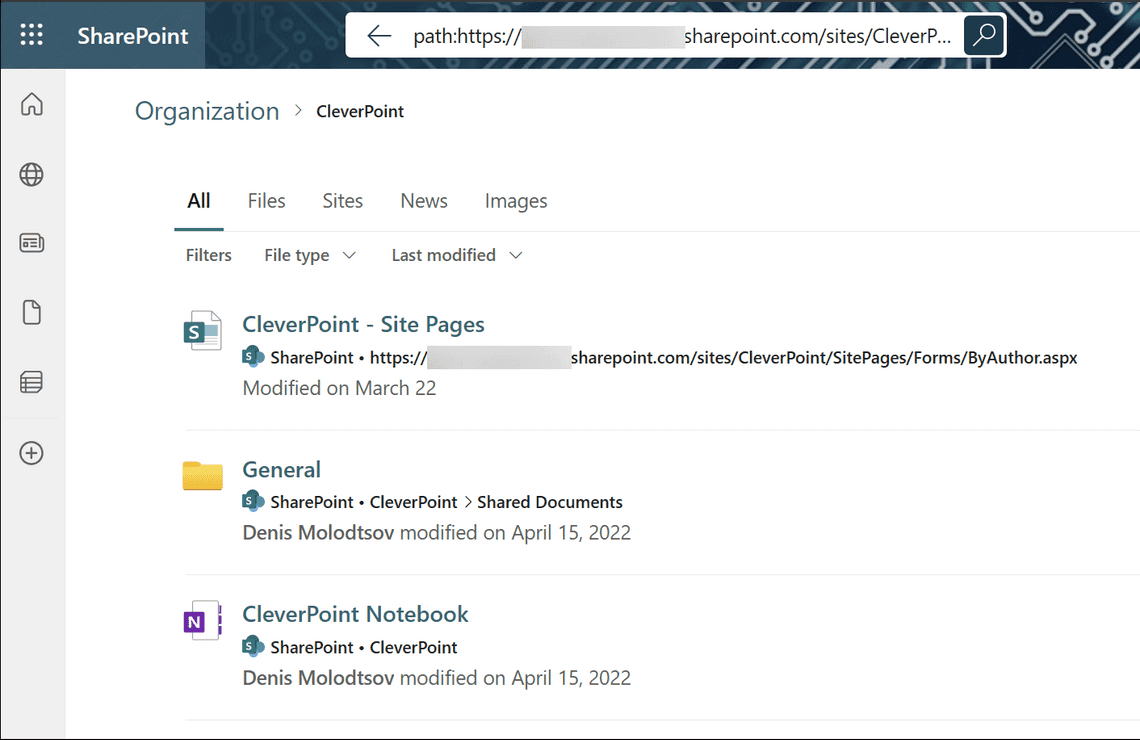
However, when clicking on the search result, you will see the following message:
The site is archived A SharePoint Administrator archived this site. If you need access, ask an admin to reactivate it.
The archived site will not cost you anything if you have enough SharePoint tenant storage. You are only charged for the storage that exceeds the total SharePoint tenant’s capacity.
Checking the storage used by an archived site is a straightforward process. Simply navigate to the SharePoint Admin center, locate the ‘archived sites’ section, and check the ‘Storage used (GB)’ column.
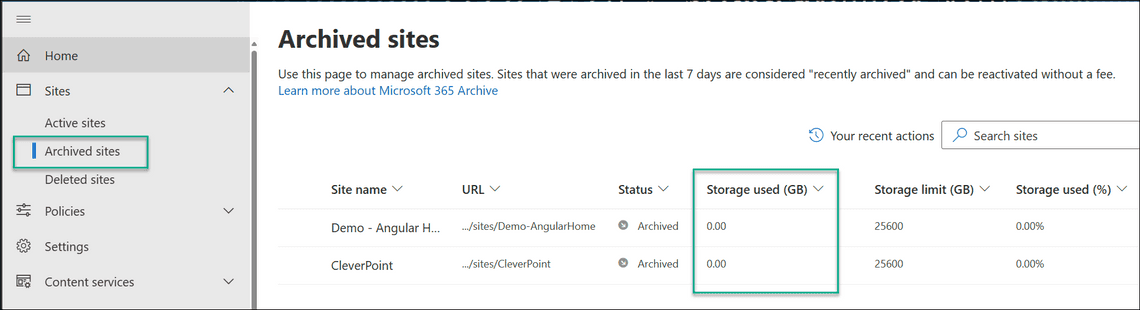
It might take up to 72 hours for the storage report to reflect the change and for the archived site to stop consuming active storage.
No, you can delete the site directly from the “Archived sites” page.
In this article, we learned how to archive SharePoint Online sites using the Microsoft 365 Archive feature.


