


SharePoint HTML pages, what they can and cannot do
August 17, 2026
17 min
ℹ️ File-level archive is currently in public preview. General availability is expected around July 2026.
ℹ️ This is the second article in my Microsoft 365 Archive series. See also: Archive SharePoint Online Sites Using M365 Archive Feature and Archive Unlicensed OneDrive Accounts Using M365 Archive Feature.
Microsoft 365 Archive used to be a site-level feature only. Now you can archive individual files (and folders) without taking the whole site offline. The file stays in place, the metadata is still visible, but the contents cannot be opened or downloaded until the file is reactivated.
Same model as the site-level archive:
You need pay-as-you-go billing enabled and an Azure resource group linked to your tenant. The setup is exactly the same as for the site-level archive, so I won’t repeat it here. See the site archive article for the screenshots and walkthrough.
Short version:
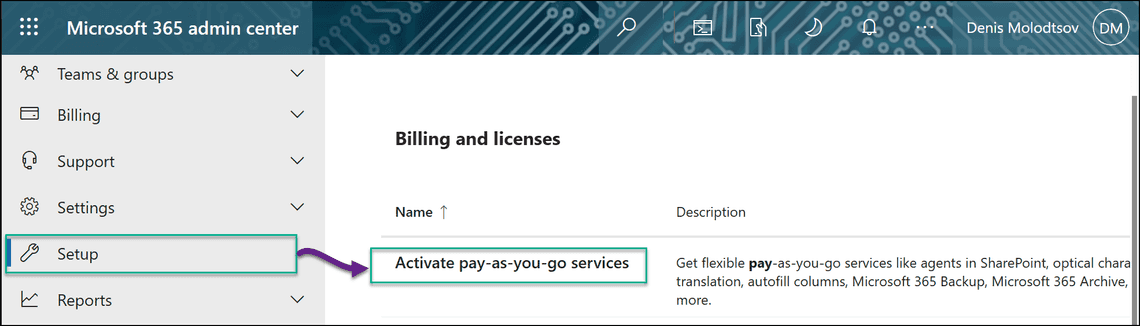
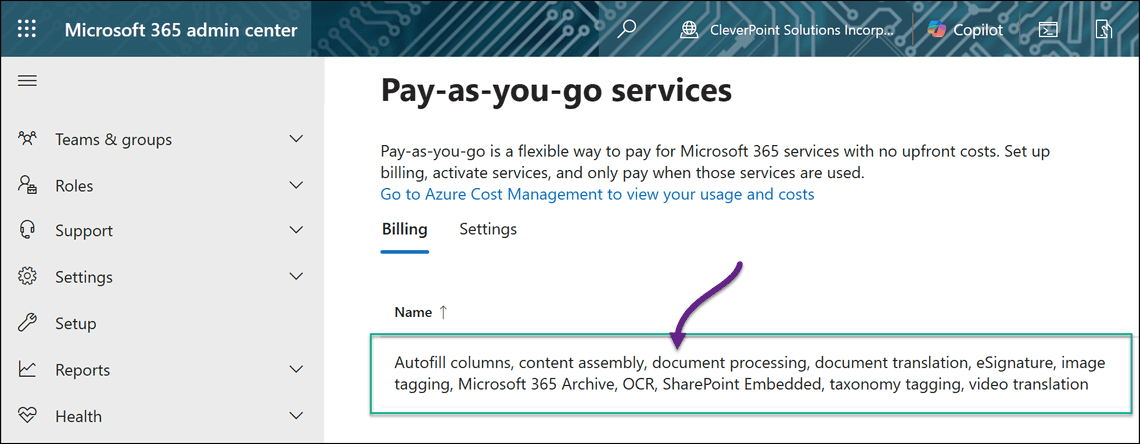
Microsoft 365 Admin center > Setup > Activate pay-as-you-go services > Billing. Link an Azure subscription and resource group.
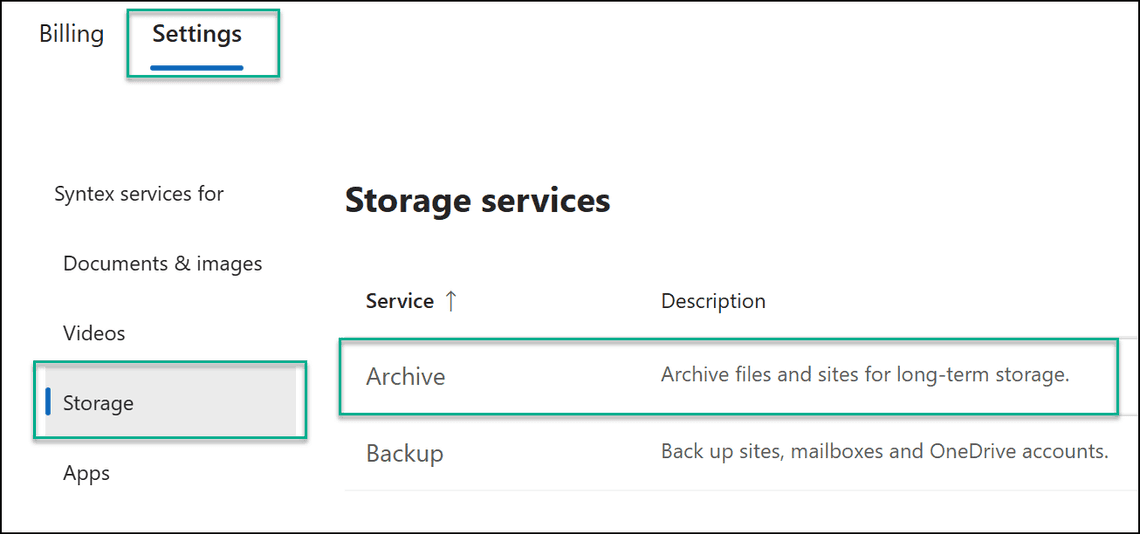
Same page > Settings > Storage > Archive. Turn the service on.
Once the Archive service is active, you still need to flip the file-archive switch at the tenant level. Use PowerShell:
By default, every site inherits this setting. You can opt a sensitive site out:
And you can change the default for newly created sites:
Once the feature is on, anyone with edit permission on a library can archive files. They just select one or more items and click Archive in the command bar.
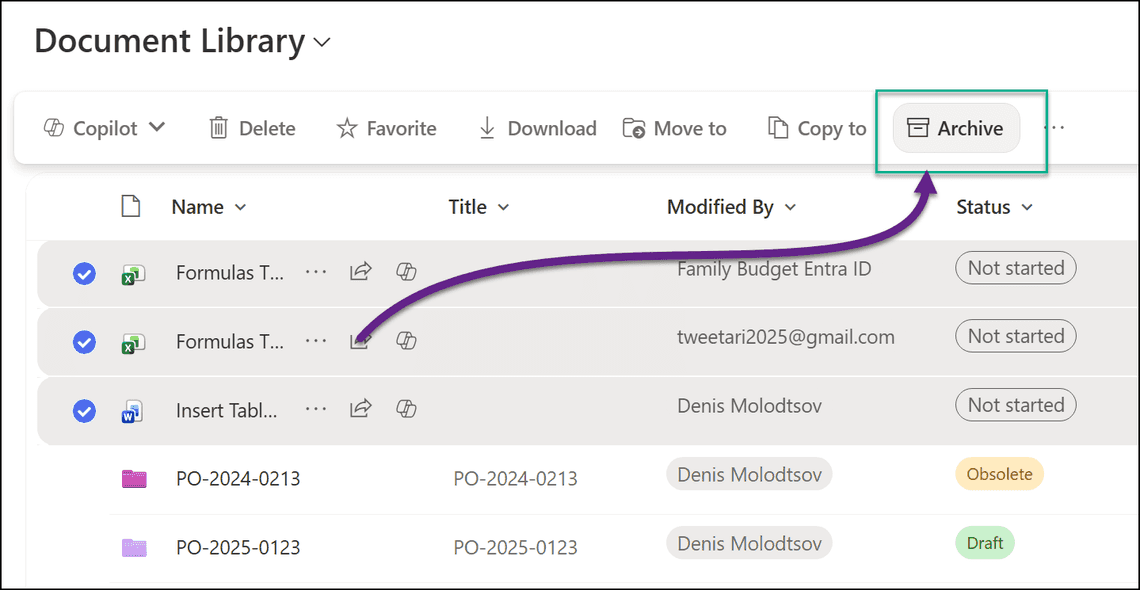
The file stays where it is. The name, path, and metadata remain visible. A small archive icon overlay shows that the contents are no longer accessible. Opening the file fails until somebody reactivates it.
⚠️ Archiving folders is not supported.
Anyone with read permission can reactivate an archived file. No admin ticket required.
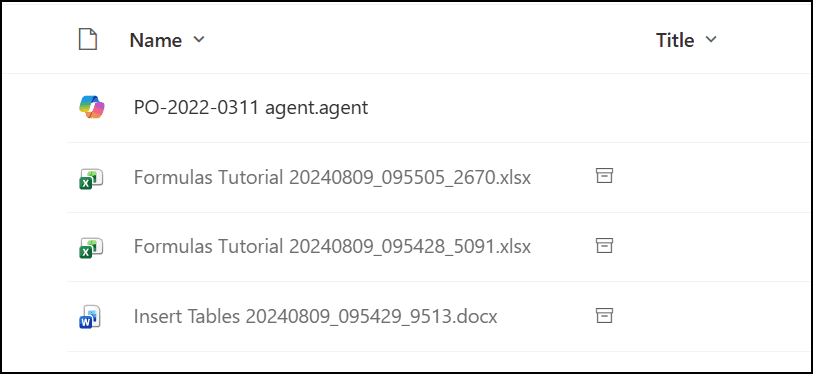
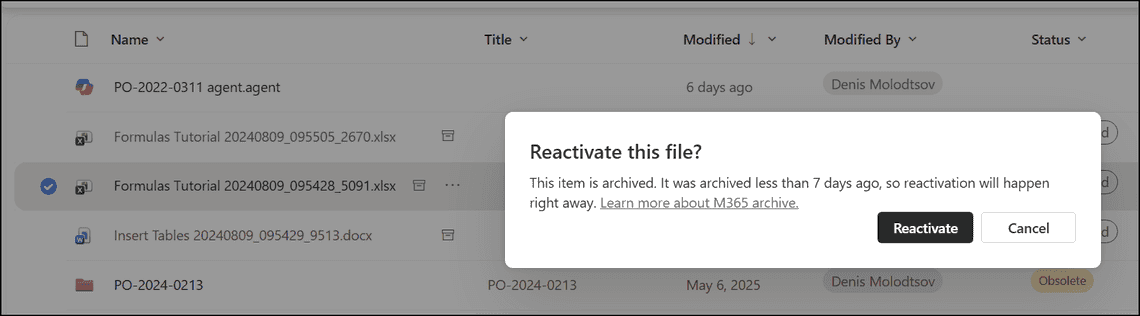
The PnP team shipped Set-PnPFileArchiveState for scripted archiving. Two states are supported: Archived and Active.
Bulk archive everything in a folder:
The cmdlet uses Microsoft Graph beta under the hood (delegated permissions only at the time of writing), so it runs as the signed-in user, not as an app.
Not out of the box. There is no policy-based automatic archiving yet. You have to script it. A typical pattern is a scheduled PnP PowerShell job that walks a library, filters by Modified older than a threshold, and pipes the matching files into Set-PnPFileArchiveState.
The file leaves the active storage tier, but the storage report can take up to 72 hours to reflect the change. Same behavior as the site-level archive.
Metadata stays searchable. The file content does not. Clicking a search result for an archived file lands the user on the file with a message that it needs to be reactivated.
Surprisingly - Yes! You can move or rename an archived file. The archive state is preserved.
Yes. And the copy of the file is archived by default.
Here is the sample flow that archives a file. In your case, you will have to get the drive and the item id dynamically:
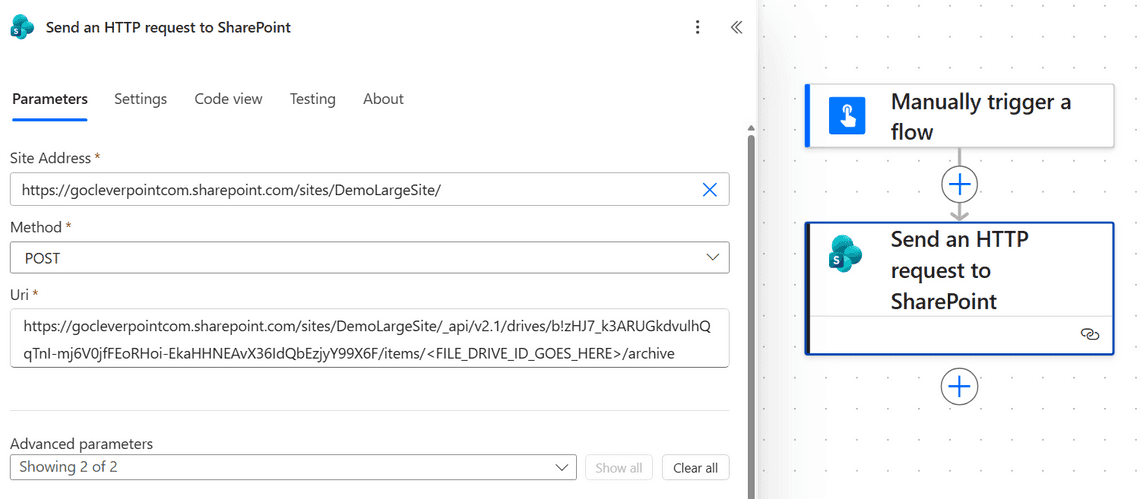
Sadly, no. You have to click into each file and reactivate it separately. Bulk reactivation is not supported at the moment via the UI. But you can do it with PowerShell:
The file remains archived after it’s restored from the recycle bin.
All versions are archived together. When the file is reactivated, the full version history comes back.
On paper - yes, the same cmdlets and the same in-product Archive button should work in OneDrive libraries. However, at the time of writing, file-level archive is not yet available in OneDrive on my tenant. I simply don’t see the Archive button in OneDrive. So if you want to archive files in OneDrive, you might be out of luck for now.
Admins can utilize PowerShell to view usage of file-level archive. SharePoint Administrators or Global Administrators can see how much total storage is consumed by file-level archiving for a given site. The ‘ArchivedFileDiskUsed’ property of the Get-SPOSite cmdlet indicates the storage consumed by all archived files on that site in bytes.
Heads up: the Archive storage used number on the SharePoint Admin Center > Archived sites page only counts site-level archives. File-level archives are not included.
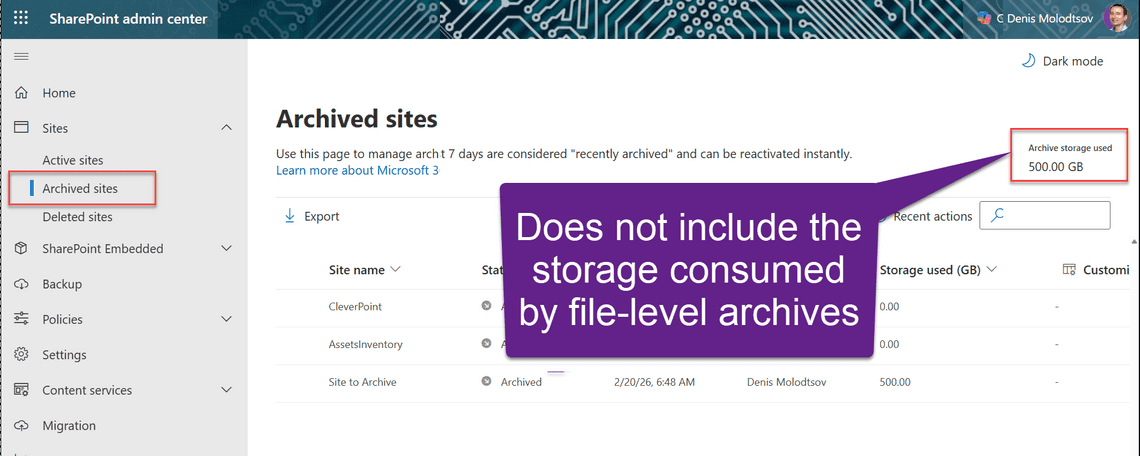
To get the file-archive total, sum ArchivedFileDiskUsed across every site and convert to GB:
Every document library now carries two hidden, read-only lookup columns that point at the Docs table:
_FileArchiveStatus (Display: Archive Status) holds the current state of the file._FileArchiveTimeLastModified (Display: Archive State Last Modified Time) holds the timestamp of the last archive transition.Both are inherited from the base list template (FromBaseType="TRUE" in the schema), so you’ll see them on every document library whether or not file archive is enabled on that site.
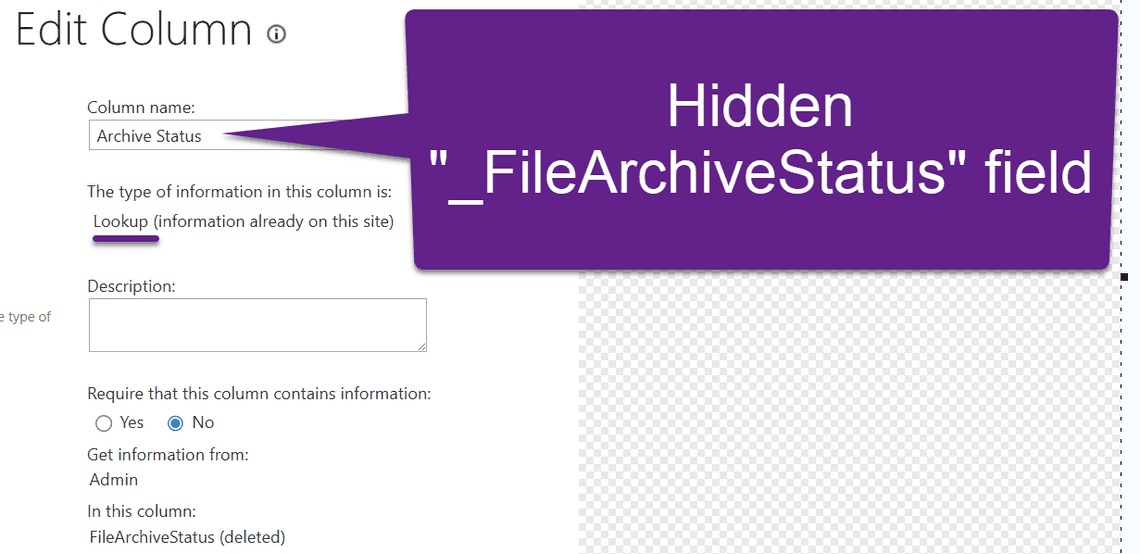

You can’t surface them through the normal “Add column” UI, but they’re queryable. Handy if you want a report of “show me every archived file modified after X”:
File-level archive is the missing piece. Site archive was always too coarse for the real-world cleanup story. Now you can leave the site active for the team that still uses it, and cool down the old stuff at $0.05/GB/month.


