


How to Make OneDrive Sync Faster With a Simple Folder Trick
October 01, 2026
2 min
ℹ️ This is the third article in my Microsoft 365 Archive series. See also: Archive SharePoint Online Sites Using M365 Archive Feature and Archive SharePoint Files Using M365 Archive Feature.
ℹ️ Microsoft started enforcing the unlicensed-OneDrive lifecycle on January 27, 2026. The rollout is gradual, so some tenants are still catching up.
When a Microsoft 365 user loses their license or gets deleted from Entra ID, their OneDrive doesn’t disappear. It runs through a built-in lifecycle that ends in re-activation, archival, or deletion. OneDrive content from former employees often outlives the employee by years, and most admins don’t realize Microsoft is now archiving it automatically. You end up with three choices: re-license (free), pay to reactivate, or let it delete.
Same archive model as the site-level and file-level features:
Rates are Microsoft’s published rates and are subject to change.
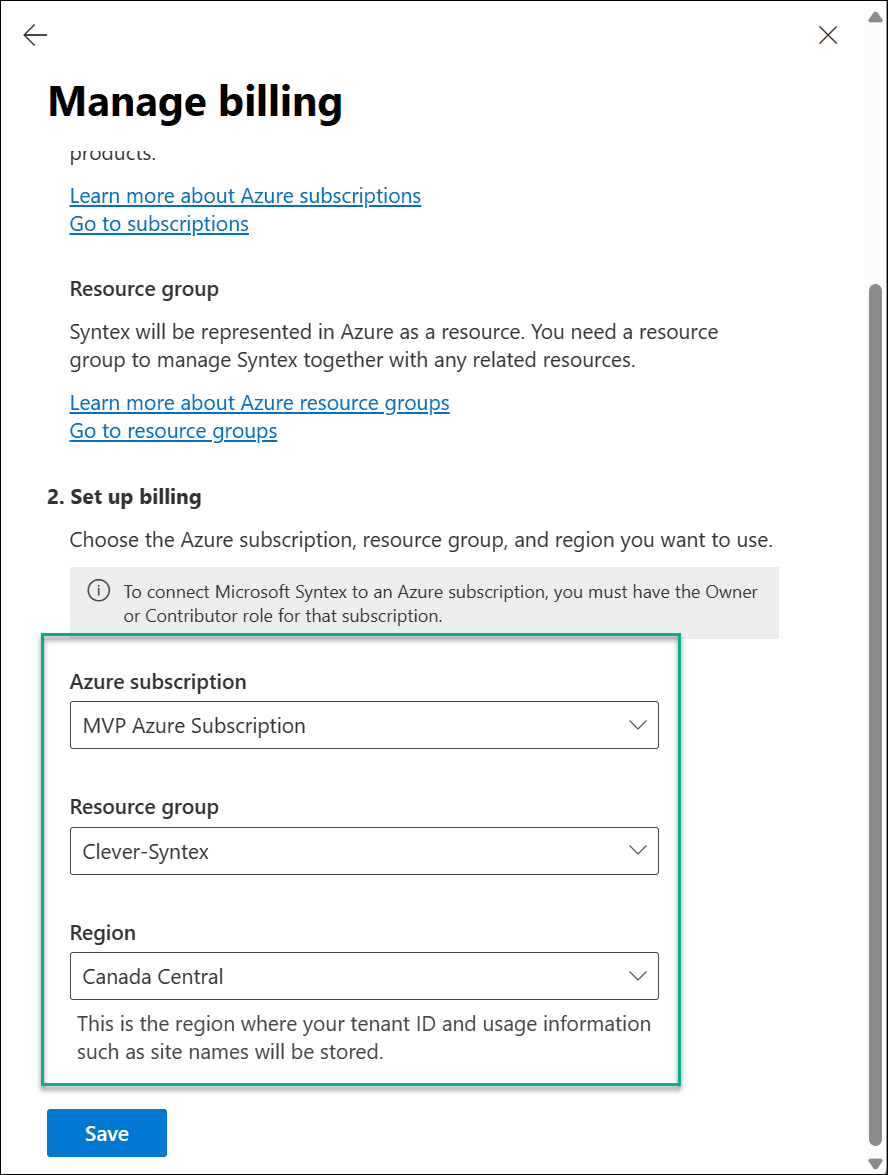
You need pay-as-you-go billing enabled and an Azure resource group linked to your tenant. Same setup as for the site-level and file-level archives, so I won’t go deep on this. Short version:
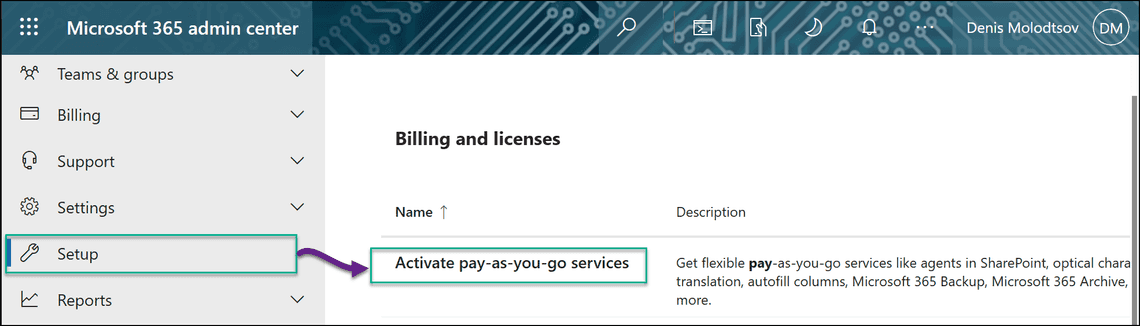
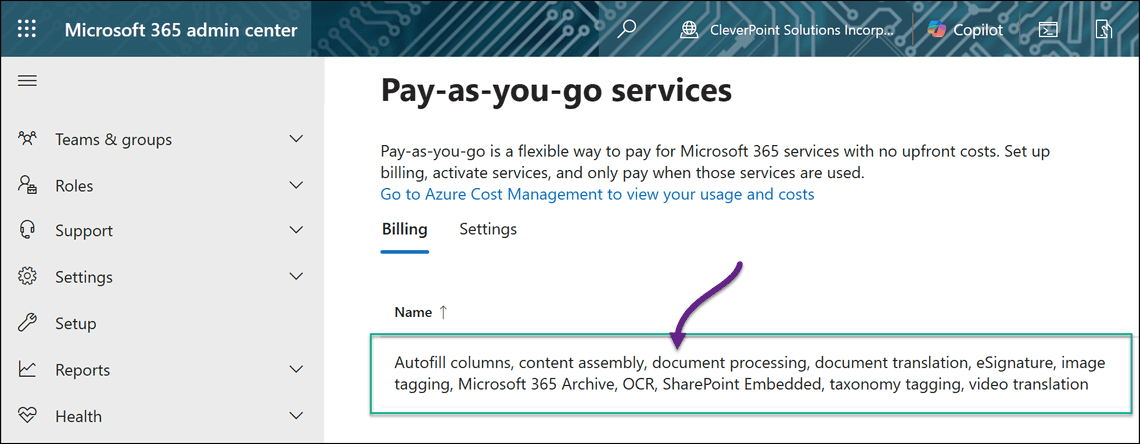
Microsoft 365 Admin center > Setup > Activate pay-as-you-go services > Billing. Link an Azure subscription and resource group.
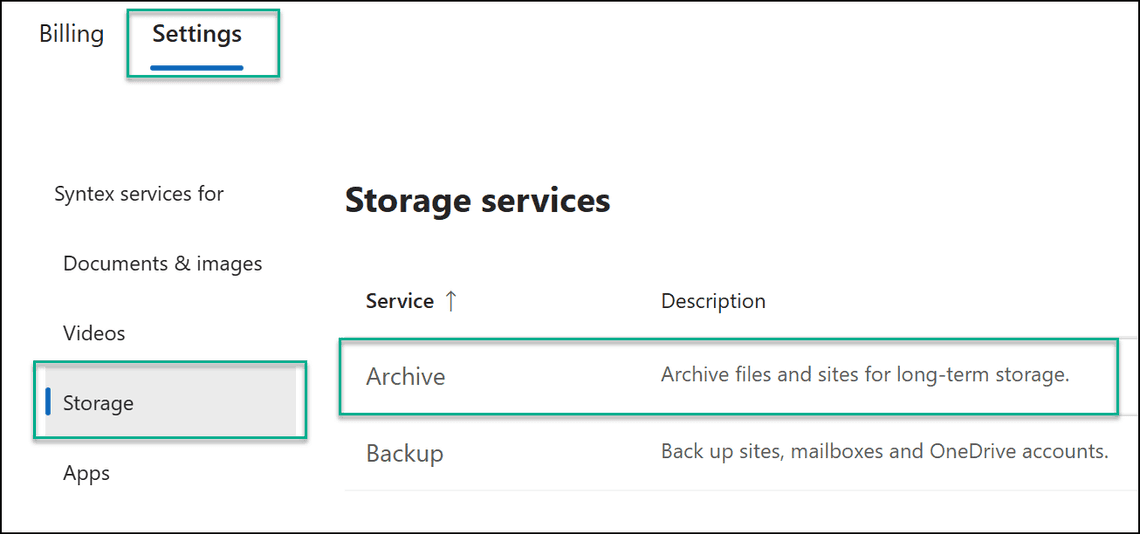
Same page > Settings > Storage > Archive. Turn the service on.
This is the OneDrive-specific switch. Under Manage archived unlicensed OneDrive accounts, flip the Status toggle to On.
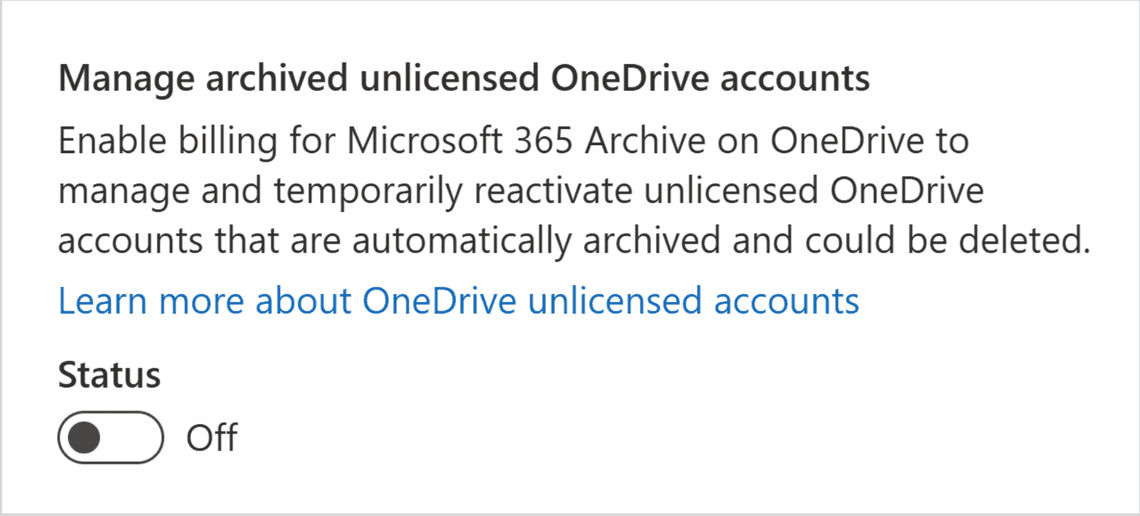
This is the third toggle in the M365 Archive admin pane. The other two control site-level archive and file-level archive (covered in the previous two articles). They are independent. Turning this one on does not affect the others.
⚠️ Once this toggle is on, the meter runs against every account in the tenant that has been unlicensed for more than 93 days, including ones that have been sitting unlicensed since 2023. Triage your report first, enable billing second.
The clock starts when the license is removed or the owner is deleted from Entra ID. The milestones are:
The day-93 archival happens regardless of whether Microsoft 365 Archive is enabled in the tenant. Per Microsoft’s FAQ: “Unlicensed OneDrive accounts will get enforced no matter what, including being put into read-only mode and eventually Archive.”
ℹ️ For a deleted user, the total time from Entra ID deletion to permanent loss is
retention period + 93 days. With the default 30-day retention that’s ~123 days. With a 180-day retention that’s ~273 days, or roughly nine months. The OneDrive is still recoverable from the recycle bin during the final 93 days, just not from the unlicensed-accounts report.
⚠️ M365 Archive (site and file archive) and the unlicensed-OneDrive lifecycle are two separate toggles in the same admin section. They are unrelated. Confusing them is the most common mistake I see.
The same OneDrive can end up in very different places depending on what you do on day zero. The table below walks six common offboarding scenarios across the timeline.
| Scenario | What you do | Day 30 | Day 60 | Day 93 | Day 123 | Day 180 | Day 273 |
|---|---|---|---|---|---|---|---|
| A. License stripped, Entra account kept | Remove license only | Active | Read-only | Archived | Archived | Archived | Archived (forever) |
| B. User deleted, default 30-day retention | Delete in Entra ID | Recycle bin | Recycle bin | Recycle bin | Permanently deleted | Gone | Gone |
| C. User deleted, 180-day retention | Delete in Entra ID | Active | Read-only | Archived | Archived | Recycle bin | Permanently deleted |
| D. User deleted, Purview retention policy on user | Delete in Entra ID + hold | Active | Read-only | Archived | Archived | Archived (locked) | Archived (locked, no deletion) |
| E. License stripped today, user deleted later | Two-step offboarding | Read-only path runs | Read-only | Archived | Archived (retention has not started) | Archived | Retention starts when Entra delete happens |
| F. Duplicate OneDrive provisioned for transferred user | Internal transfer | Active | Read-only | Archived | Archived | Archived | Archived (forever) |
A few things worth pulling out:
When you find an account in the report, the question is: how do I get it back, and what does that cost?
| Current state | Identity in Entra? | Recovery action | Cost | Time |
|---|---|---|---|---|
| Active (day 0-59) | Yes | Re-license the user | Free | Instant |
| Read-only (day 60-92) | Yes | Re-license the user | Free | 24-48 hours |
| Archived (day 93+) | Yes | Re-license the user | Free | 24-48 hours |
| Archived (day 93+) | No (user deleted) | Paid reactivation | $0.60/GB | Up to 24 hours, 30-day window |
| Archived, Purview hold | Either | eDiscovery export | Free | Depends on case |
| Recycle bin (within 93 days) | - | Restore in SPO admin center | Free | Instant |
| Permanently deleted | - | None | - | - |
💡 Every “identity in Entra” row uses the free re-license path. That’s why the
Active user with no licensebucket in the report is always the first one to attack: zero cost, zero billing setup, zero ticket to Microsoft.
You manage everything from SharePoint admin center > Reports > OneDrive accounts.
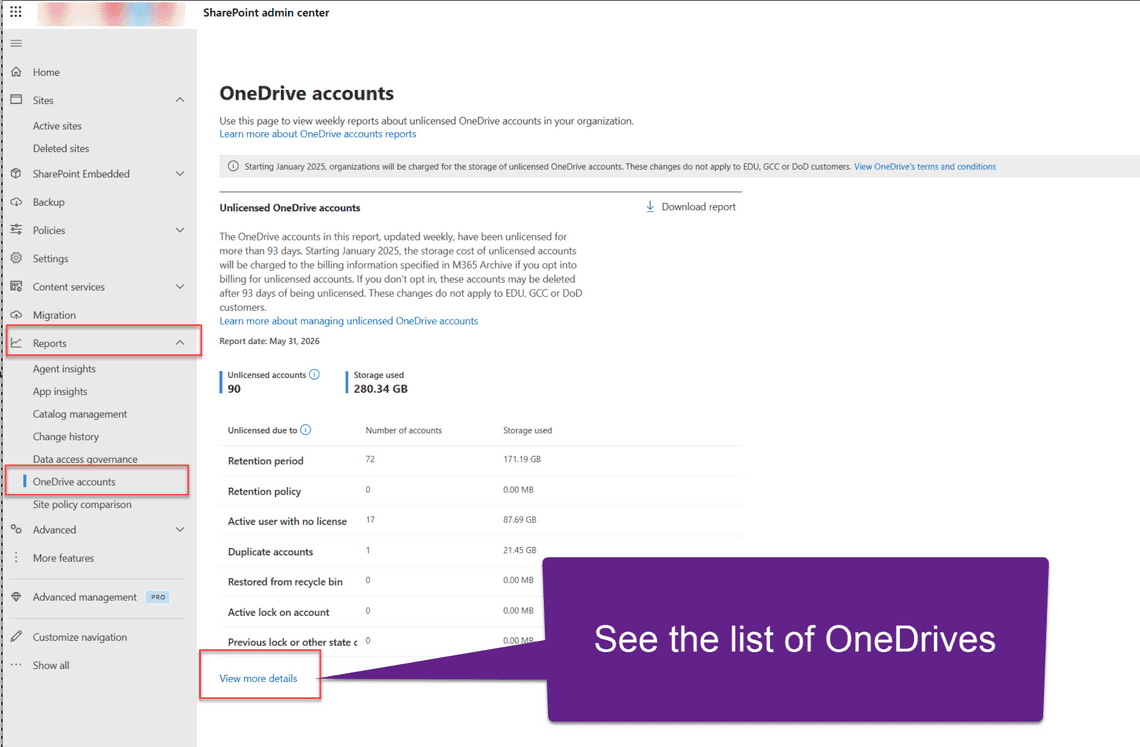
The summary view bins the unlicensed population by the reason it’s still around:
Click View more details to drill into the per-account list:
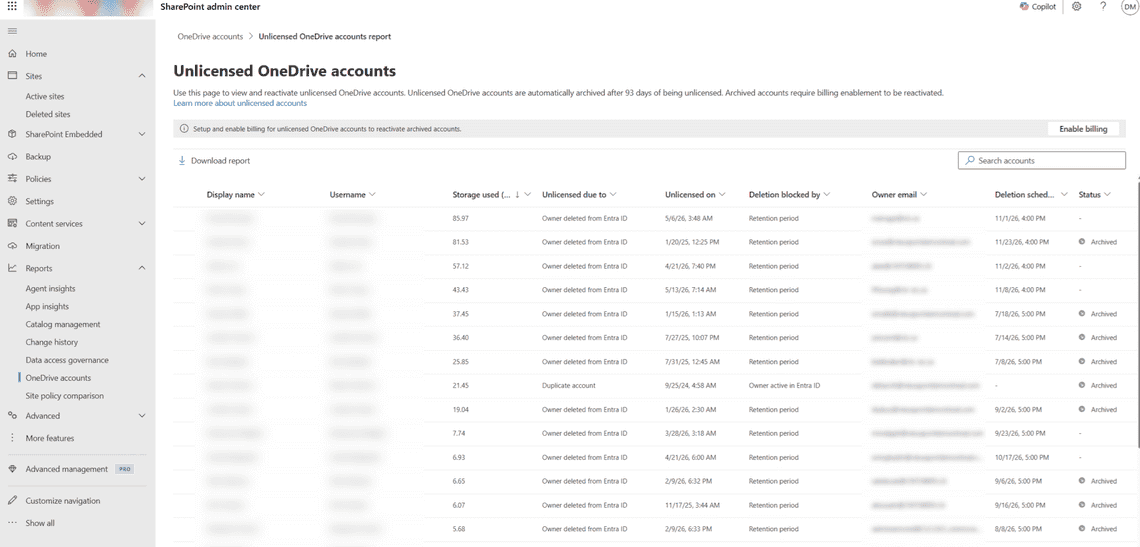
The toolbar has two important buttons: Enable billing turns on the pay-per-GB meter, and Download report exports the same data as a CSV.
The CSV has eight columns:
| Column | What it tells you |
|---|---|
| URL | The OneDrive personal site URL. |
| Owner email | Who used to own this. |
| Storage used (GB) | What the OneDrive is consuming. This is what you’d be billed on. |
| Unlicensed due to | Owner deleted from Entra ID or License removed by admin. |
| Deletion blocked by | The reason it’s still around (Retention period, Owner active in Entra ID, Previous lock, and so on). |
| Unlicensed on | When the license went away. |
| Deletion scheduled on | When the OneDrive will move to the recycle bin. Blank if not scheduled. |
| Account provisioned for (UPN) | UPN of the original owner. Filled in when the identity still exists. Empty when the user is gone. |
Open it in Excel and group by Unlicensed due to and Deletion blocked by. Rows with License removed by admin + Owner active in Entra ID are the cheap wins.
After staring at a production CSV with about 90 unlicensed OneDrives, a handful of rules popped out.
The Unlicensed due to and Deletion blocked by columns combine into a state:
| Unlicensed due to | Deletion blocked by | Deletion scheduled on | What it means |
|---|---|---|---|
| License removed by admin | Owner active in Entra ID | (blank) | Identity exists. Re-license is free. Sits archived indefinitely otherwise. |
| Owner deleted from Entra ID | Retention period | (a future date) | Retention timer running. Capture data before the date or let it delete. |
| Owner deleted from Entra ID | Retention policy | (blank) | Purview policy is preserving the content. Will not delete while the hold is active. |
| Owner deleted from Entra ID | Previous lock or other state change | (blank) | Something else is blocking deletion. Manual review required. |
| Duplicate account | Owner active in Entra ID | (blank) | A second OneDrive exists for the same user. Decide which one keeps the data. |
The decisive signal is the Deletion scheduled on column. If it’s blank, the OneDrive is not on a path to automatic deletion.
I saw accounts unlicensed on 2025-11-11 with a deletion date of 2026-06-28. That’s 229 days, not the 180 the tenant retention was set to. The retention timer starts when the user was deleted from Entra ID, not when the license was removed. If you see a wide gap between Unlicensed on and Deletion scheduled on, the account sat license-less for a while before someone finally deleted the Entra user.
Dozens of rows sharing the same Unlicensed on timestamp down to the hour is not coincidence. It’s an HR-driven bulk action: a department wind-down, a contractor batch, an acquired company merging. They’ll also share a Deletion scheduled on date, which means a large chunk of storage frees up on a single day. If billing is on, a noticeable monthly charge disappears that day too.
In any real report the top 10 by Storage used (GB) account for the bulk of the bill. Two patterns dominate:
Two cases I had to investigate that aren’t immediately obvious from the bins.
One row in my production report stood out: an account flagged as Duplicate account holding more than 20 GB, unlicensed since 2024, owner still active in Entra ID. The active OneDrive for the same user was much smaller.
What happened: the user changed roles, the new role provisioned a fresh OneDrive at a slightly different URL, and the original one was orphaned. The duplicate isn’t on a deletion path because the identity is active. It will keep sitting there. The fix is a manual decision: copy the contents to the active OneDrive, then delete the duplicate.
Two rows had Unlicensed due to = Owner deleted from Entra ID but Deletion scheduled on = (blank) and Deletion blocked by = Previous lock or other state change.
Translation: the user is gone, the retention timer should be ticking, but something else is holding the OneDrive in place. Usually a Purview hold the SPO admin didn’t know about, a legal-hold flag from years ago, or a sync conflict from a tenant migration. These accounts will not delete on their own. The lesson: treat the Previous lock or other state change bucket as a manual worklist.
Select one account in the report and the toolbar shows Delete and Reactivate.
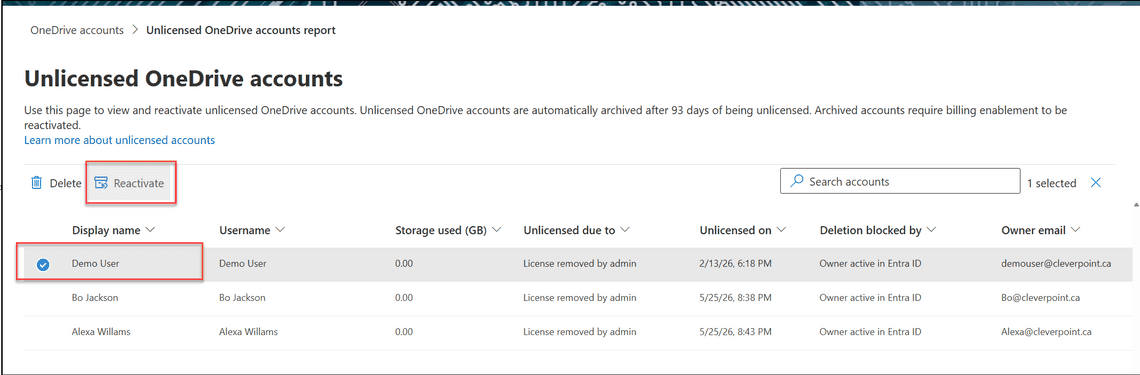
The page header spells out the policy in one sentence: “Unlicensed OneDrive accounts are automatically archived after 93 days of being unlicensed. Archived accounts require billing enablement to be reactivated.”
The recovery path depends on whether the original identity is still in Entra ID. See the Recovery options table above for the full matrix. Two quotes from Microsoft’s FAQ that come up the most:
When retention expires, the OneDrive moves to the tenant recycle bin for a final 93 days. You can list them, sort by how much time is left, and restore.
Restore a single OneDrive by URL:
Or pipe a filtered list into the restore cmdlet to bulk-recover:
⚠️ A restored OneDrive comes back with no owner if the original Entra ID user is gone. Add yourself (or an investigator account) as a site admin before you can browse the contents:
PnP.PowerShell equivalents:
OrphanedPersonalSitesRetentionPeriod to a very high number?You can set it anywhere from 30 to 3,650 days (about 10 years). A deleted user’s OneDrive will sit on the deletion-blocked list for that whole window. But “blocked from deletion” is not the same as “accessible.” The day-60 read-only and day-93 archive milestones fire regardless. With billing on, you pay $0.05/GB/month for the entire retention window.
Other gotchas:
Deletion scheduled on for every in-flight account. Bumping it up extends the dates. Lowering it can make accounts suddenly eligible for deletion.Commercial and Enterprise tenants are in scope. Education tenants with more than 50% EDU licenses, GCC, and DoD tenants are excluded.
No. Per Microsoft FAQ #2: “They’re independent.” Archived unlicensed accounts are billed against their full consumed size even when the tenant has SharePoint headroom.
Not from the UI. You select one account, click Reactivate, and pay the per-GB fee. Reactivation gives 30 days of active access before the account re-archives.
Microsoft’s worked example: 100 unlicensed accounts at 1 TB each (100 TB total) is $5,120 / month at $0.05/GB. Reactivating one of those 1 TB accounts is $614.40 one-time. Real-world unlicensed footprints in most tenants are orders of magnitude smaller, but the math scales linearly.
OneDrive archival is happening whether you opt in or not. The toggle just decides whether the archived content stays reachable. The cheapest cleanup pattern is always the same: filter the report for Active user with no license, re-license the ones that should come back, and let the rest run their lifecycle.


