





SharePoint HTML pages, part 2, a comprehensive list of experiments after GA
October 28, 2026
43 min
This is the third article in the series. Part 1 explains how HTML pages work under the hood, and part 2 lists the experiments after General Availability.
At first I was very skeptical about HTML pages, but I wanted to be fair, so I gave them a full test: an intranet home page and a replacement for each common web part, compared with a modern page holding the same content. I ran into the issues I expected, but the test also changed my mind. Most departmental home pages and secondary SharePoint pages are simple. In about 95% of cases, they need nothing beyond what an HTML page can provide, so for those pages an HTML page works just fine.
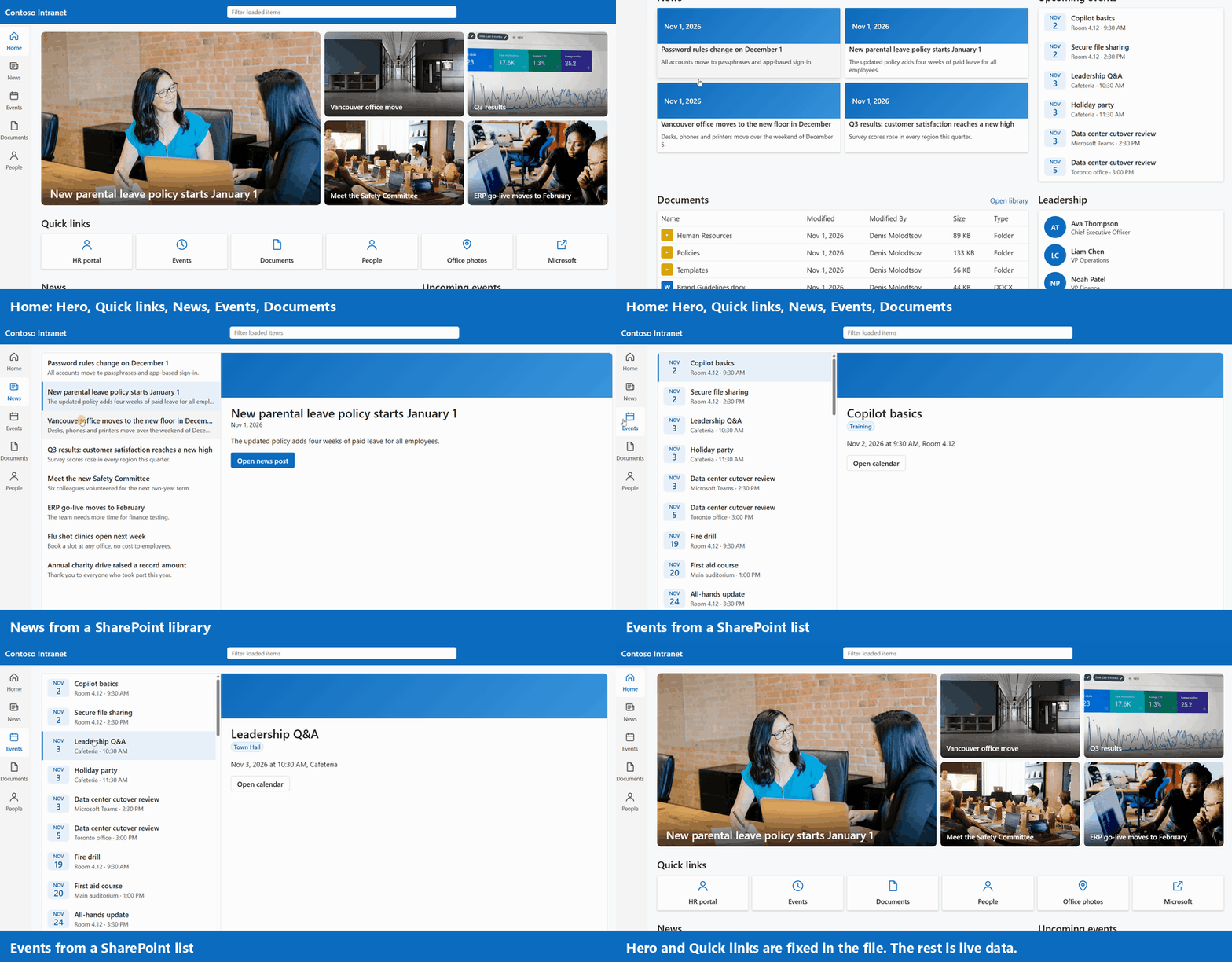
This is a home page built as an HTML page, as opposed to a modern page. Hero and Quick links are fixed in the file, and the rest comes from live data:
| Web part | Can an HTML page replace it? | The main limit |
|---|---|---|
| Hero | Yes, as a fixed banner | Changes are made in the file |
| Quick links | Yes, for internal pages | Outside sites need the allowed list, and mailto: is blocked |
| Text | Yes | Changes are made in the file |
| Image | Yes | Changes are made in the file |
| Image gallery | Yes, for a fixed set of photos | Cannot pull images from a library |
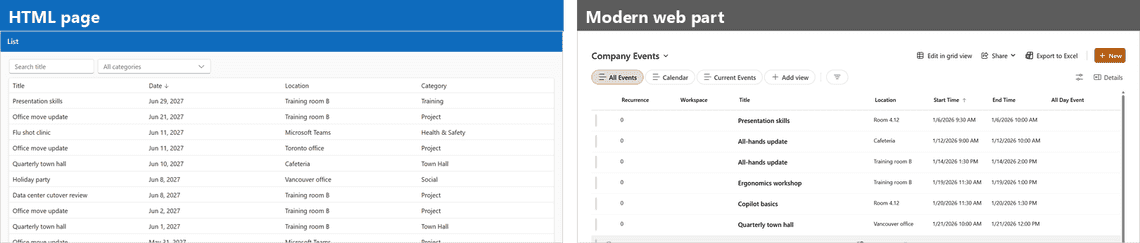
| List | Yes, for small lists | Read-only, and slow on very large lists |
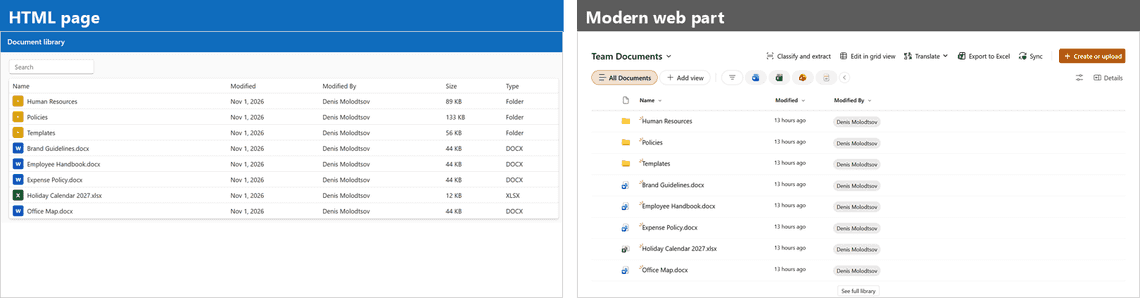
| Document library | Only as a read-only list of top-level files | No subfolders, upload or drag and drop |
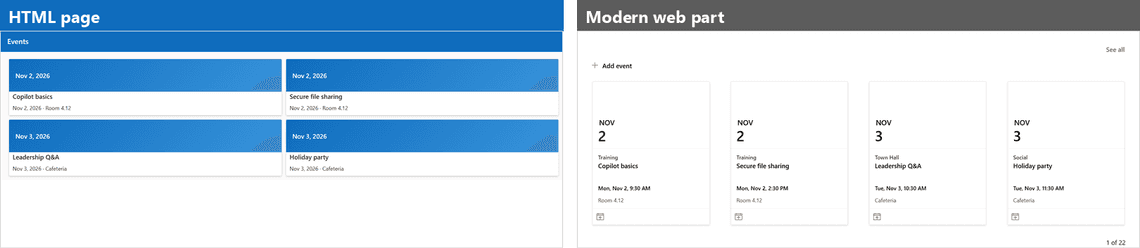
| Events | Partly | Images from live data do not display |
| News | Partly | News images do not display |
| People | Partly, as a static directory | No real Microsoft 365 profiles or photos |
| Highlighted content | No | No queries, other sites or audiences |
I built each widget as an HTML page, and a modern page with the same widget and, where possible, the same content.
I reloaded each page several times and report the median. I measured when the screen first matched the final view, from recordings in the browser’s DevTools, using the same method for both page types. The HTML pages on the two largest lists were run once each.
These are reloads by one user on one machine, so they do not show a first visit. Modern pages load more content as you scroll, so the times for them cover what is on screen, not the full page.
| Widget | HTML page | Modern web part |
|---|---|---|
| Text | 1.21 s | 1.42 s |
| Empty page | 1.43 s | 1.78 s |
| Image gallery | 1.50 s | 1.82 s |
| Image | 1.52 s | 0.73 s |
| Quick links | 1.56 s | 1.52 s |
| Documents | 1.79 s | 2.40 s |
| Hero | 1.84 s | 1.56 s |
| List, 200 items | 2.24 s | 2.05 s |
| News | 2.53 s | 1.42 s |
| Home with 6 widgets | 2.47 s | 1.59 s |
| Events | 2.81 s | 1.59 s |
For simple static widgets the two are close, and neither wins every time. HTML pages were slower for news, events and the home page. Every HTML page with data had an occasional slow run, 1.5 to 2.5 times its median or more.
The modern page uses the requests a web part can make: it asks for one page of rows. An HTML page cannot do that. SharePoint downloads the list for it before the page starts, with every column, and the page cannot filter the request or ask for only 5 or 10 rows.
| List | HTML page | Modern List web part |
|---|---|---|
| 102,077 items | About 40 to 75 s | About 2 s |
| 1,000,000 items | About 40 to 75 s | About 2 s |
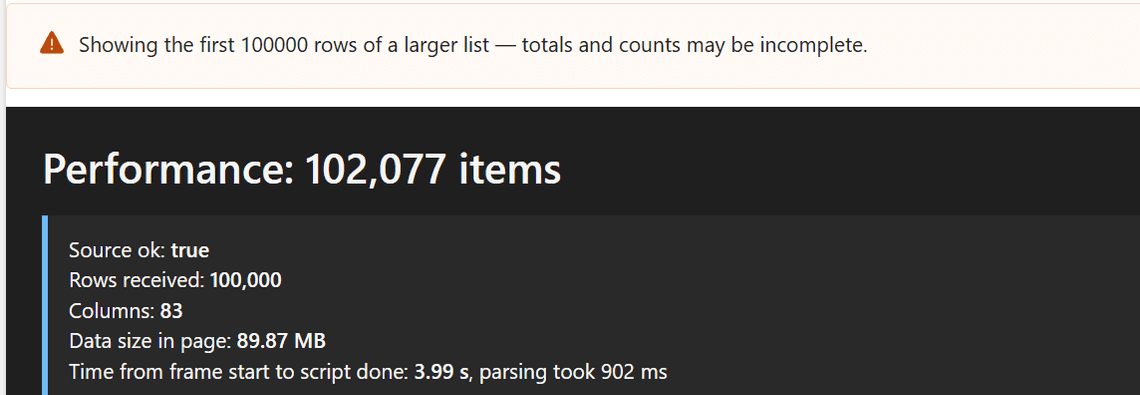
The HTML page stops at 100,000 rows, so both lists take about the same. It received about 90 MB of data in the page, in 21 requests, to show 5 rows. The modern page made 1 request of about 0.24 MB.
SharePoint shows this message at the limit:
Smaller lists are fine. On a plain page that shows 5 rows:
| Items | Content starts rendering |
|---|---|
| No data | 1.43 s |
| 12 | 1.78 s |
| 200 | 1.91 s |
| 1,020 | 2.23 s |
| 10,000 | About 5 to 10 s |
| 50,000 | About 20 to 40 s |
| 100,000 or more | About 40 to 75 s |
The estimates assume the time grows in line with the number of rows. I did not test those two sizes.
The page also stays blank until all of its data has arrived. On the largest list, the part of the page that holds the HTML was only created after about 30 s.
Dynamic images are the biggest limit for an intranet built using an HTML page. Static images work just fine. A script cannot load a SharePoint image, so an image address from live data does not display. I tried the address from the list, the full address, getpreview.ashx, the API thumbnail, news banners, the event image column and a CSS background. All of them gave a placeholder or nothing.
Here is the same home page when news and event images come from live data. The hero images in this build came from live data too:
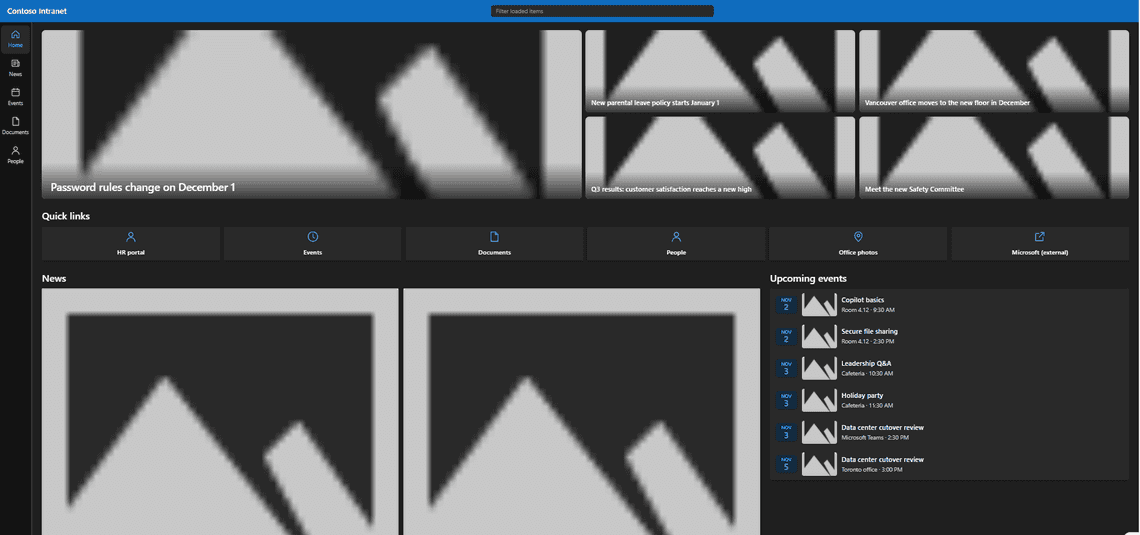
Images work in two ways: as a reference to an image in a library, with the address written in the HTML file, or as base64. That is all a Hero or an Image web part needs. Pictures that should change with the data, such as news or event images, are not possible. The home page at the top of this article uses a colored band with the date instead.
User profile photos did not display either, even with the photo address written in the file.
The standard modern Hero, Quick links, Text, Image and Image gallery web parts are static in about 99% of cases. The Image gallery is the exception, because it can show images dynamically, but in my experience that feature does not work well, so it is rarely used. This means all of these web parts are easy to recreate as widgets on an HTML page. The difference is who can change them. On a modern page, anyone who can edit the page can do it. On an HTML page, someone has to change the file, by hand, with Copilot or with another AI tool.
Replaceable as a fixed banner. The Hero web part reads no list either, so fixed text, links and images are the right comparison. It looks the same and it was slightly slower.

Replaceable for internal pages. Outside sites need the allowed list, mailto: is blocked, and links to lists, libraries and folders need specific addresses. On modern pages all of these link types work. The rules for links are further down in this article.

Replaceable, and any layout is possible. A wording change means changing the file. mailto: links are blocked. External links are hard to add, because each domain has to be allowed in the site’s HTML Field Security settings first. Text is indexed by SharePoint search, the same as in the modern web part.

Replaceable. Write the image address in the HTML file, because an image set by a script does not display.
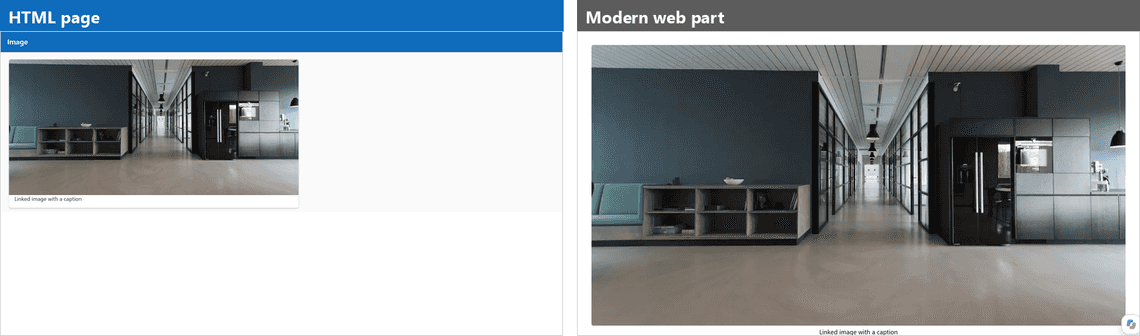
Replaceable, and for a usual fixed set of photos the better option. In my experience the modern gallery crops images badly and gives a poor experience when someone clicks a photo to zoom in or read its caption. An HTML gallery can do both well.

An HTML gallery cannot pull images dynamically from a library. A new photo does not appear until the file is changed. The modern gallery can do this, but it has limits:
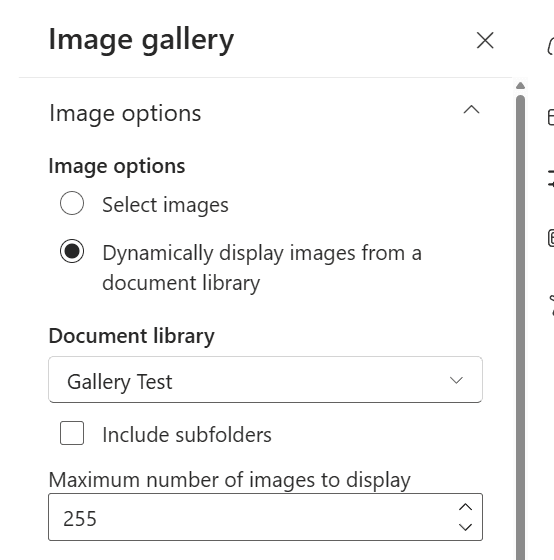
This is an old limitation. The web part uses a whole library and shows the oldest images first, so new photos appear at the end of the gallery. If it shows only 10 images, the 11th image never appears. I added a photo that sorted first by name and it still went last. The maximum in the setting was 255.
The web part also shows every image as a square, a format few photos are taken in, so most photos get cropped.
Replaceable for small lists, as a read-only view. Visitors cannot add, edit or delete items. Up to about 1,000 items it loads about as fast. On very large lists, visitors wait about 40 to 75 s, because the page downloads up to 100,000 rows to show a few.
Search and sorting work in the browser, on the rows the page received.
Replaceable only as a read-only list of top-level files. Live data sees top-level items only, so files in subfolders do not appear, while the modern web part browses folders and subfolders. Visitors cannot upload, edit, or drag and drop.
Partly replaceable. Titles, summaries and links stay live, but news images do not display, so a live news section has no real pictures. It will keep getting slower as more news is added, because the page receives every page in the library, not only the news. I estimate this will not be very noticeable until about 200 to 1,000 pages. I tested 138, and these rows are heavy because they hold the content of each page.
The modern News web part can also bring in news from other sites. A live data source reads one list or library.
The two pages pick different posts because they sort differently. All the test posts were published within seconds of each other.

Partly replaceable. Titles, dates and locations stay live, so a plain upcoming events list works. Images from live data do not display on the HTML page. The modern Events web part did not show my list’s images either, so this is less of a gap than it is for news. It will keep getting slower as events are added, because the page receives every event to show a few. Older events can be cleaned up to improve performance.
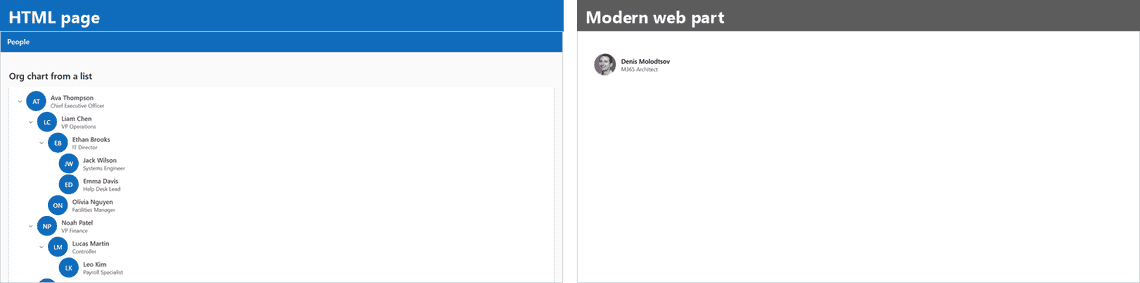
Partly replaceable, as a static directory. An HTML page can show people and an org chart from a list, but not real Microsoft 365 profiles. It does not connect to real people, the page does not know who anyone is, and profile photos do not load. Someone has to keep the list up to date.
These are different things. The HTML page shows an org chart from a list, with initials. The web part shows real profiles with photos, and my test page has one person.
Not replaceable. HTML pages have no equivalent: they cannot run queries, reach across sites, target audiences or pull images dynamically. The only alternative is a static widget with its items and images written in the file. My test page also showed that a page receives no audience columns and does not know the current user, so I found no way to build Recent documents or Site activity either.
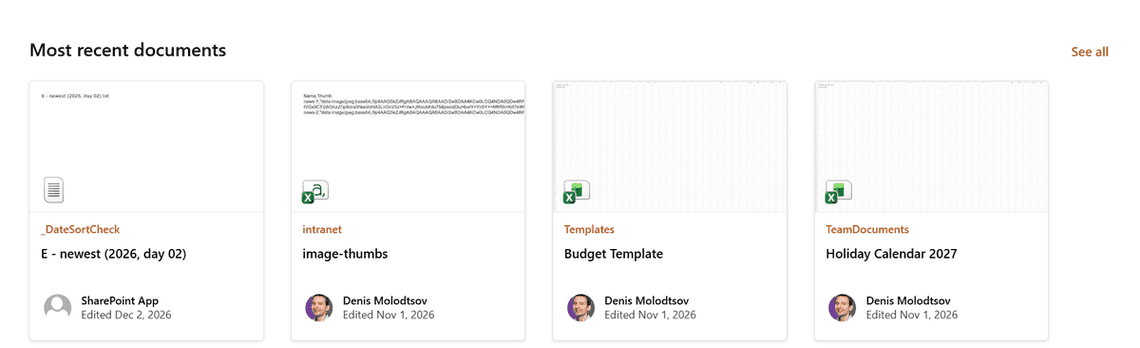
There is no HTML version to compare. This is the web part, showing the most recent documents:
<a> anchors in HTML pages: rulesThe simple rule: use a full address that ends with a page or a file.
| Link to | Use this address |
|---|---|
| A page or a file | https://contoso.sharepoint.com/sites/YourSite/SitePages/Page.aspx |
| A list | https://contoso.sharepoint.com/sites/YourSite/Lists/Events/AllItems.aspx |
| A library | https://contoso.sharepoint.com/sites/YourSite/Documents/Forms/AllItems.aspx |
| A folder | https://contoso.sharepoint.com/sites/YourSite/Documents/Forms/AllItems.aspx?id=/sites/YourSite/Documents/Folder |
If a list, library or folder address does not end with a page, it can redirect to a wrong page or to a 404 error.
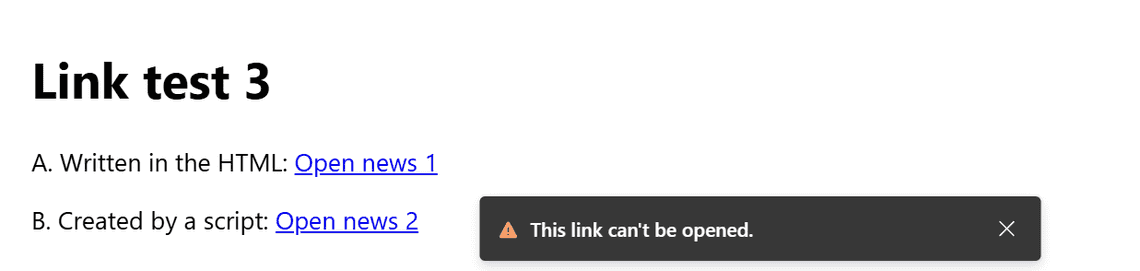
mailto: links and outside websites that are not on the allowed list are blocked. Visitors see this message:
A good fit is a departmental site or a secondary page with fixed content and a few small lists: a welcome banner, useful links, text, a list of upcoming events, a few documents.
A modern page is the better choice when the page has to:
Copilot rejects long prompts, so the examples below are short. They use the built-in Fluent UI library and the rules from this article. Replace the names and addresses with your own.
HTML pages do not replace modern pages well for news, audience targeting, libraries or large lists. For a simple departmental home page, they do the job, with a free design and about the same speed on small lists.
The cost is ownership. A modern page can be changed by anyone who can edit it. An HTML page has to be changed in the file, and changing it with Copilot requires a Copilot license. There is also no support for dynamic images. This is counterintuitive, because images are supported, but they must be defined statically as <img> tags in the HTML file. Loading images dynamically is not supported because of the strict sandbox restrictions of HTML pages. If you accept that, I no longer see a reason to rule them out for basic pages. I am still not sure I recommend creating too many HTML pages. A few here and there is fine, but please do not go all in and start creating only HTML pages.
One thing I am confident about: HTML pages are not the security Wild West that many people predicted. They are locked down well. A page cannot call a web service, submit a form or write anything back to SharePoint, so there is little it can do to cause harm. Live data is also security trimmed. A visitor with no access to a list gets no data from it, and a visitor who can read a list can already see all of its columns.
If you missed the earlier articles, part 1 explains how HTML pages work under the hood, and part 2 lists the experiments after General Availability.

