


Connect-SPOService: No valid OAuth 2.0 authentication session exists
October 18, 2026
1 min
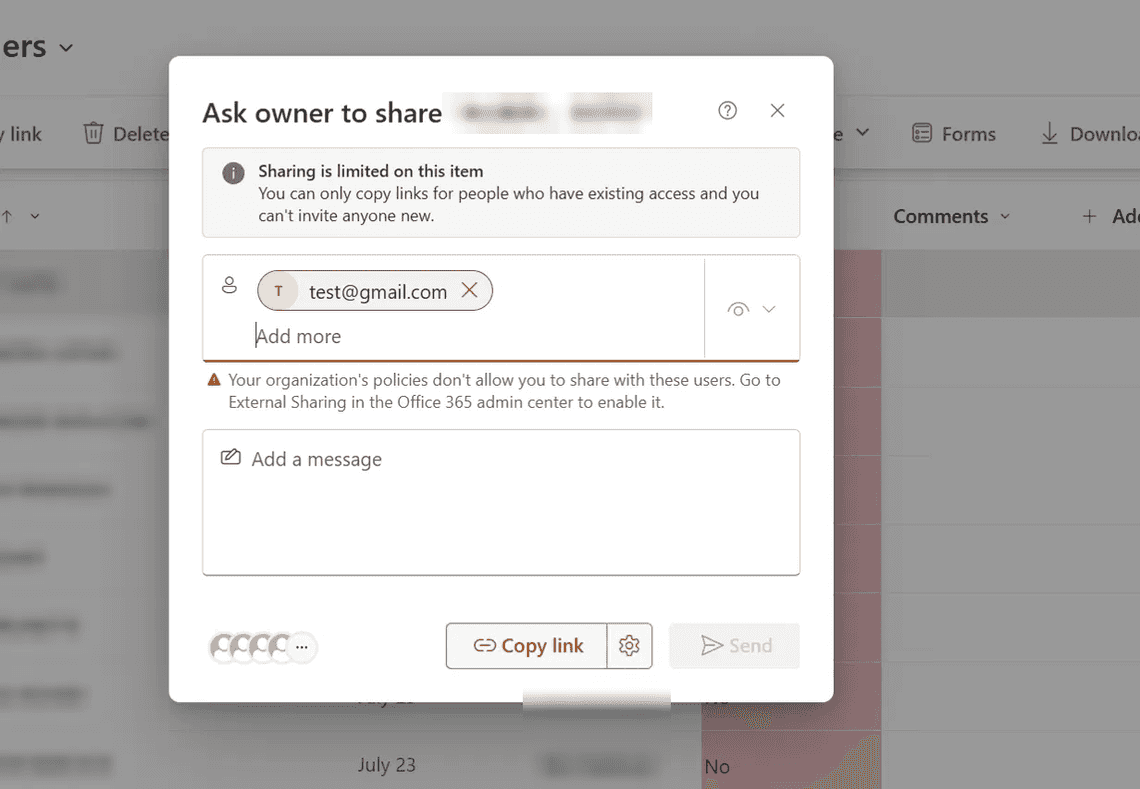
If SharePoint shows “Your organization’s policies don’t allow you to share with these users” and “Ask owner to share” when you share a folder on a migrated site, check the Limited-access user permission lockdown mode site collection feature. ShareGate activates the SharePoint Server Publishing Infrastructure feature during migration, and Publishing Infrastructure turns lockdown mode on as a side effect. Deactivate lockdown mode on the site, and sharing works again:
https://contoso.sharepoint.com/sites/YourSite/_layouts/15/ManageFeatures.aspx?Scope=Site

To confirm the cause first, open the library in classic view and share the folder from there. Classic view names lockdown mode directly.
A user tried to share a folder with a few external addresses. Instead of the normal Share dialog, SharePoint showed “Ask owner to share” with the note “You can only copy links for people who have existing access and you can’t invite anyone new.” Adding an external address returned the policy error shown above.
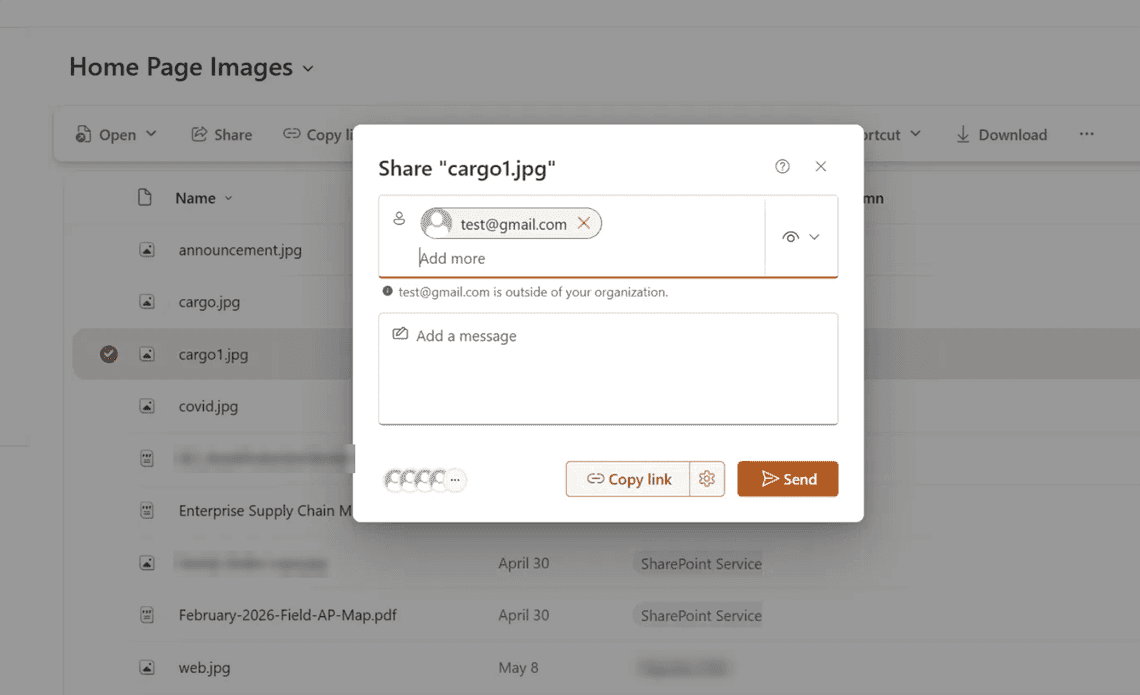
Only folders were affected. Sharing a file in the same site with the same external address worked.
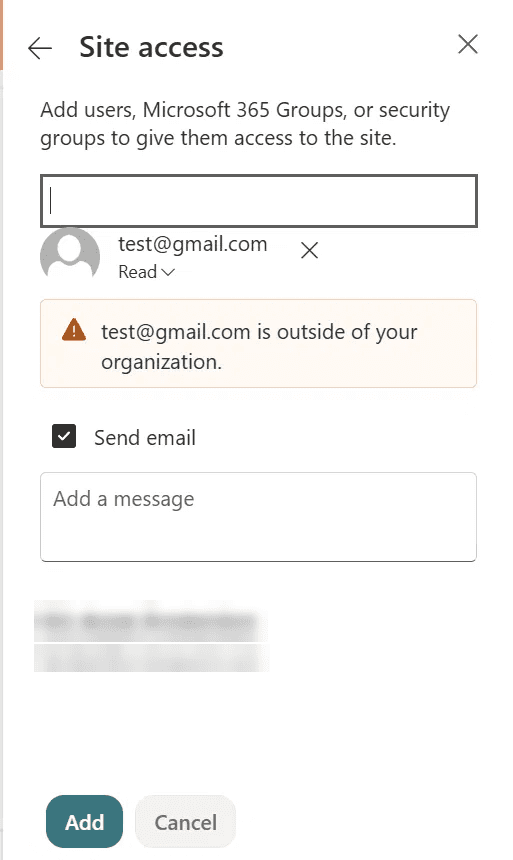
Sharing the site itself with the same address worked too.
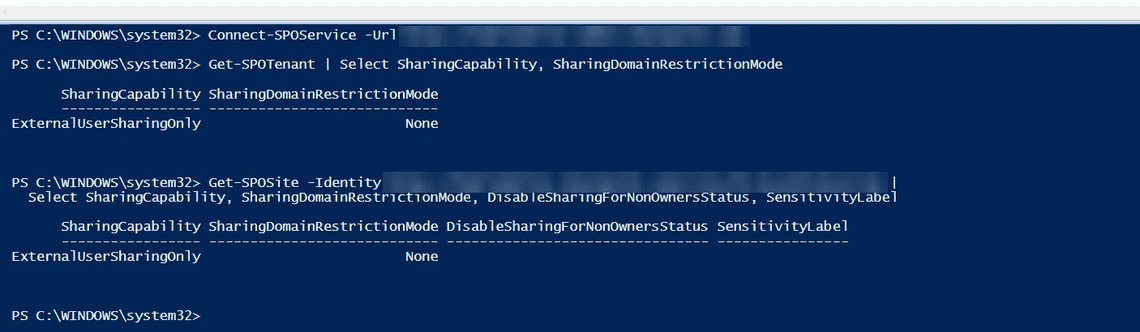
The message points to a policy, so the first round of troubleshooting went after policies. External sharing was set to “New and existing guests” at the tenant level and on the site, and neither had a domain restriction.
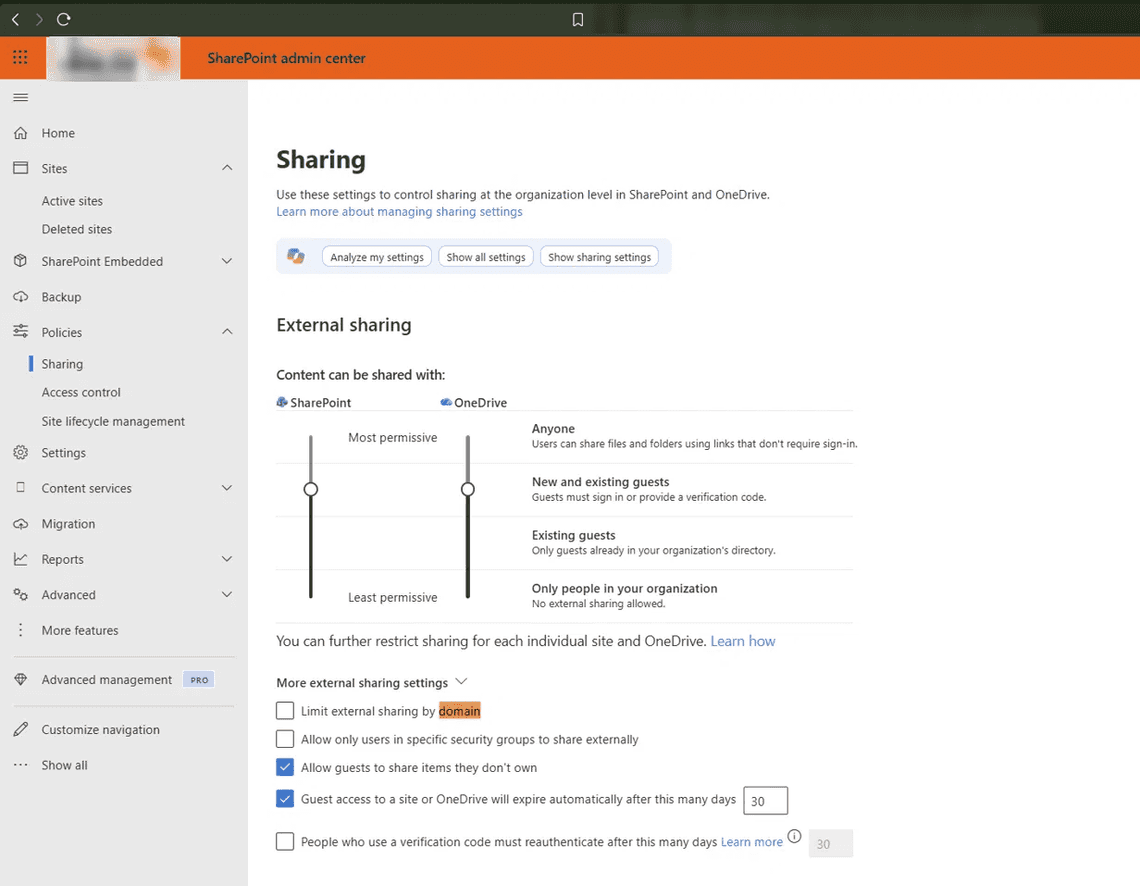
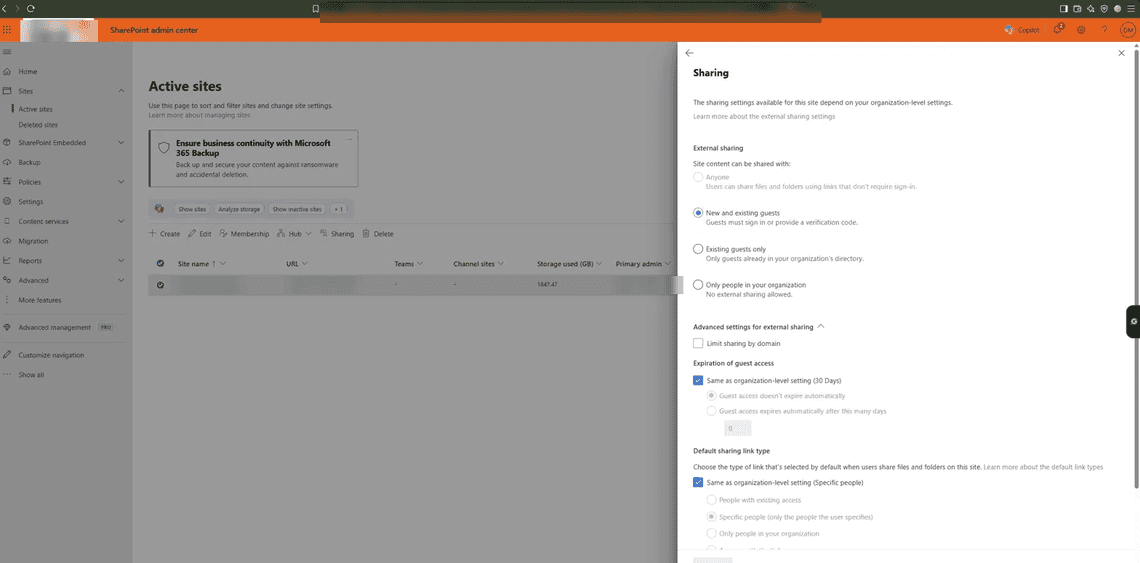
PowerShell confirmed the same: external sharing was enabled at both levels, there was no domain restriction mode, and there was no sensitivity label on the site.
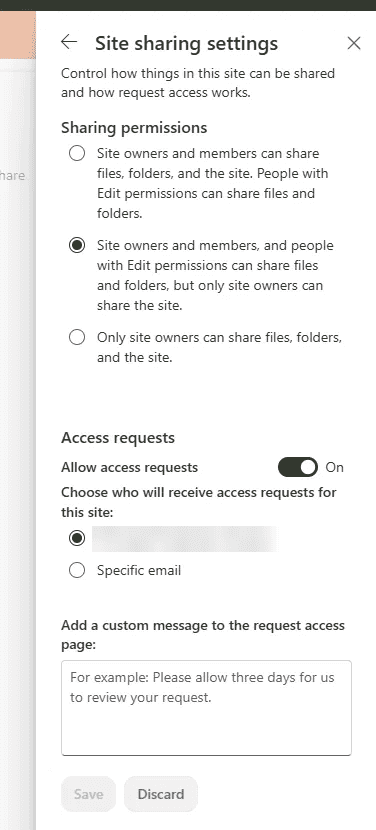
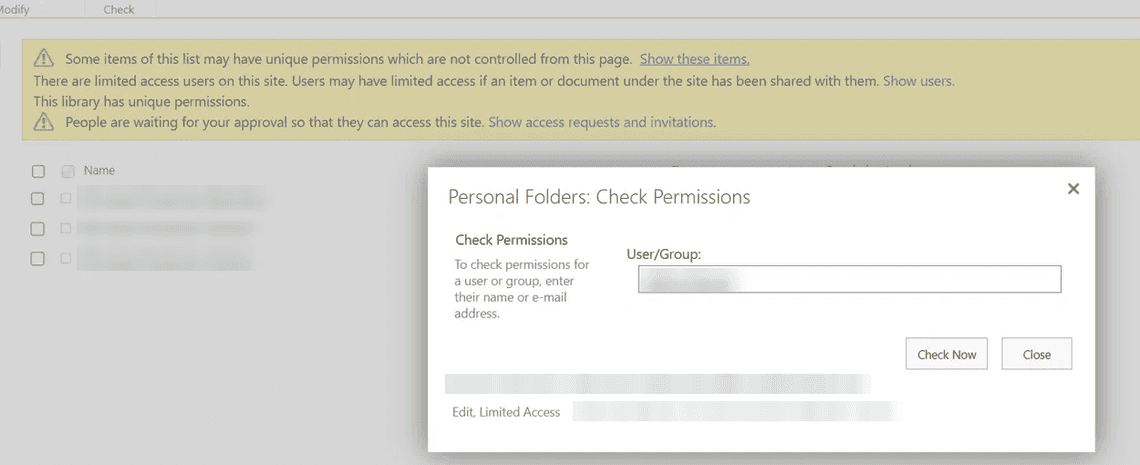
The site’s own sharing permissions allowed members and people with Edit permissions to share files and folders, and the user had Edit permissions on the library.
On the Entra ID side, anyone in the organization could invite guests, and invitations were allowed to any domain.
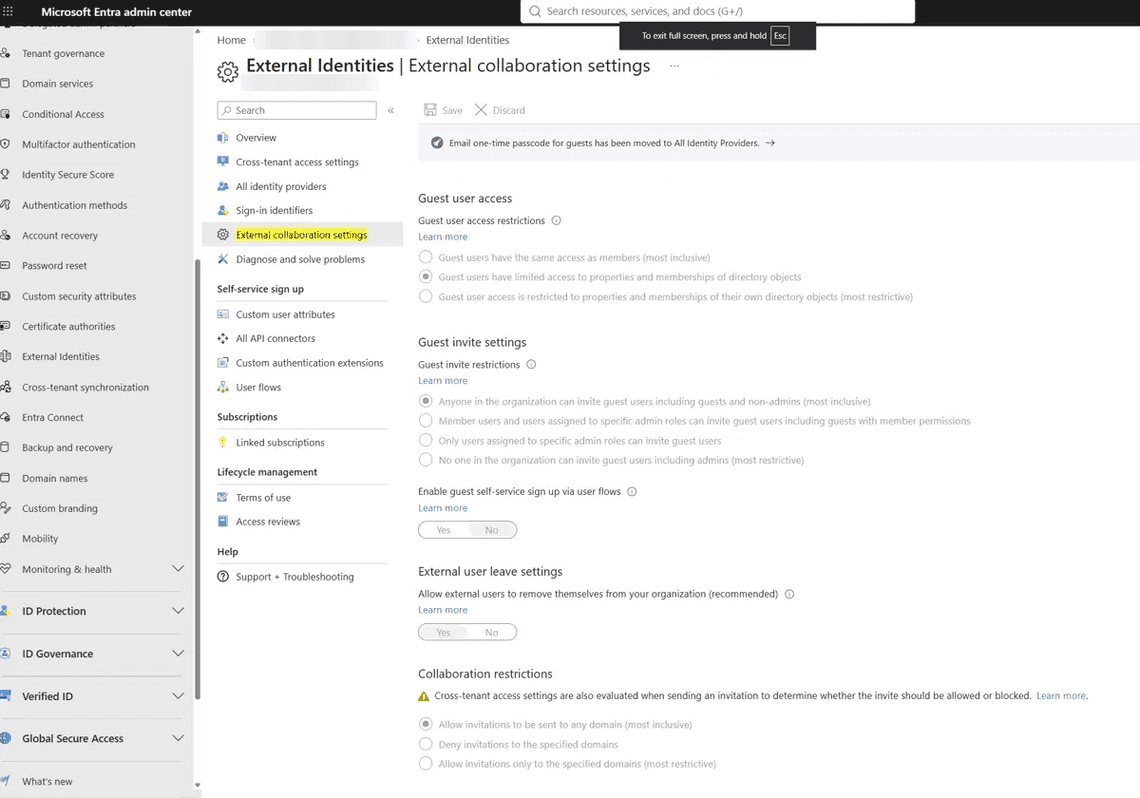
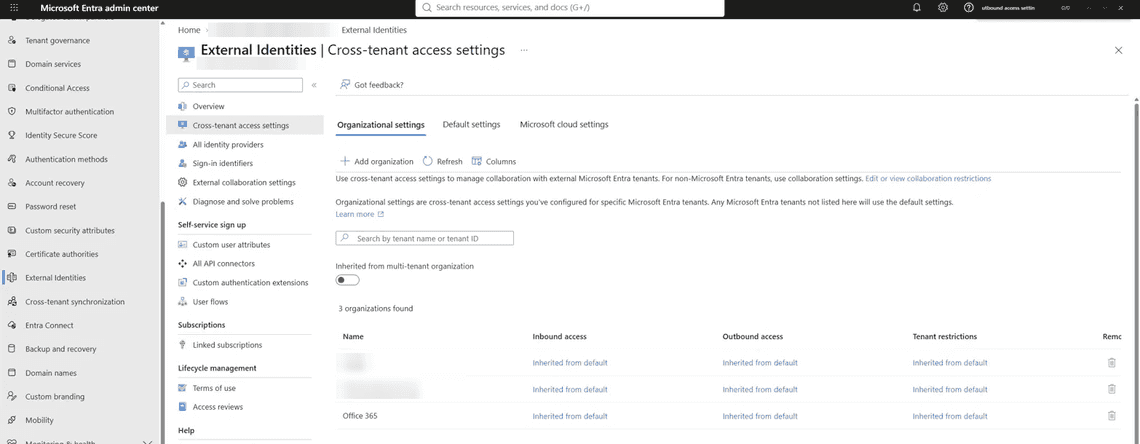
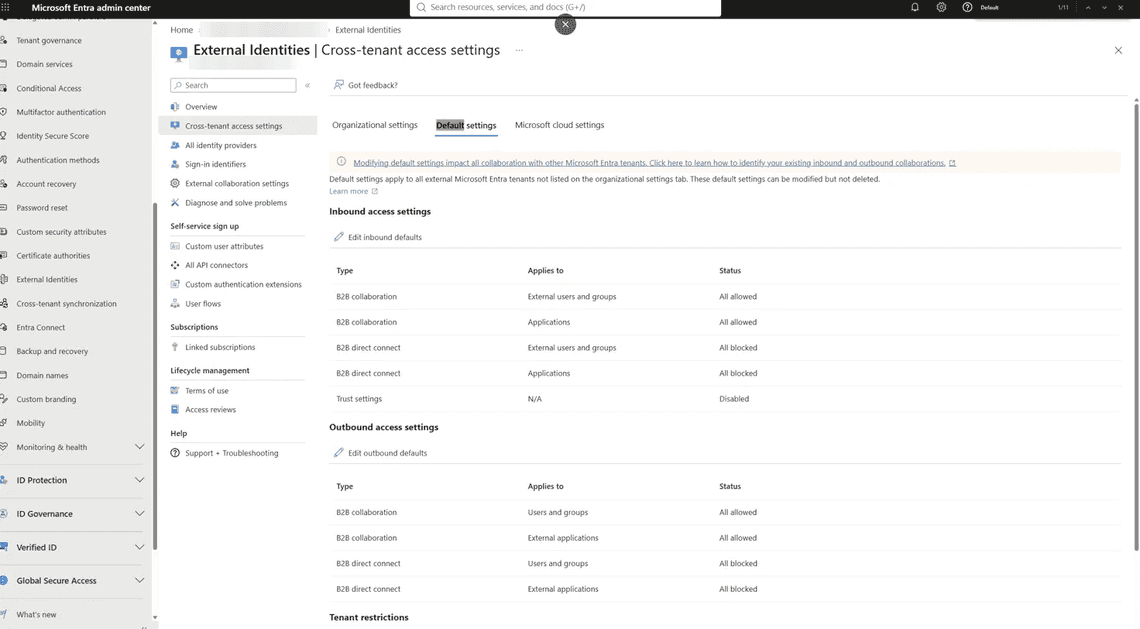
Cross-tenant access settings had no organization-specific blocks, and the defaults allowed B2B collaboration both ways.
I also checked sensitivity labels and Purview DLP. Everything was open. Nothing in the sharing configuration explained the block.

I had seen this exact behavior before, on other SharePoint migrations. Every time, the cause was lockdown mode being active on the site, and every time I deactivated it, sharing came back, and I moved on. I assumed a site collection admin had turned it on by accident. I never had the time to find out who.
This time I switched the library to classic view and tried to share the folder from there. The modern Share dialog only says that policies don’t allow it. Classic view gives the real reason: “Sharing folders is disabled. To enable sharing, disable the limited access lockdown mode feature on the Site Features page, or share individual files or the site instead.”
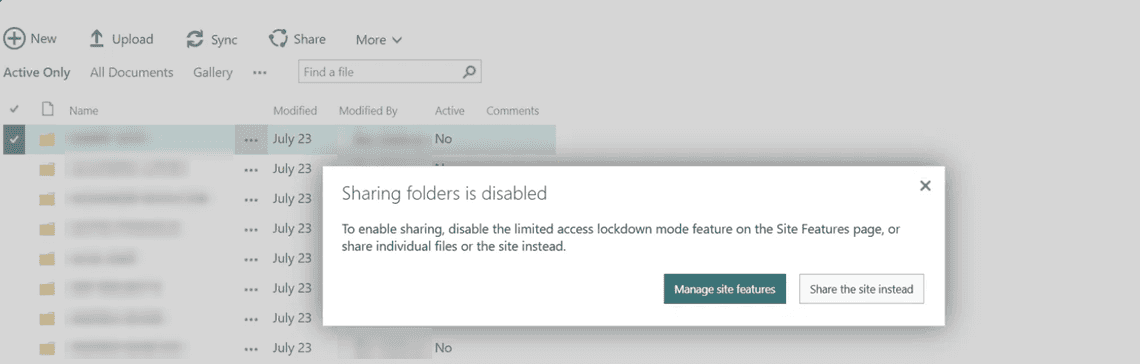
That also explains why files and the site could still be shared. I checked the source site, and lockdown mode was not active there. Only a site collection admin can activate a site collection feature, and the list of admins on this site was short. That made it worth checking who did it.

My first thought was that Purview does not capture feature activations. It does. The audit log has Feature activated and Feature deactivated activities under Site administration activities.
The search itself is simple: pick the activity, put the site URL in the ObjectId field, and set the date range to cover the migration.
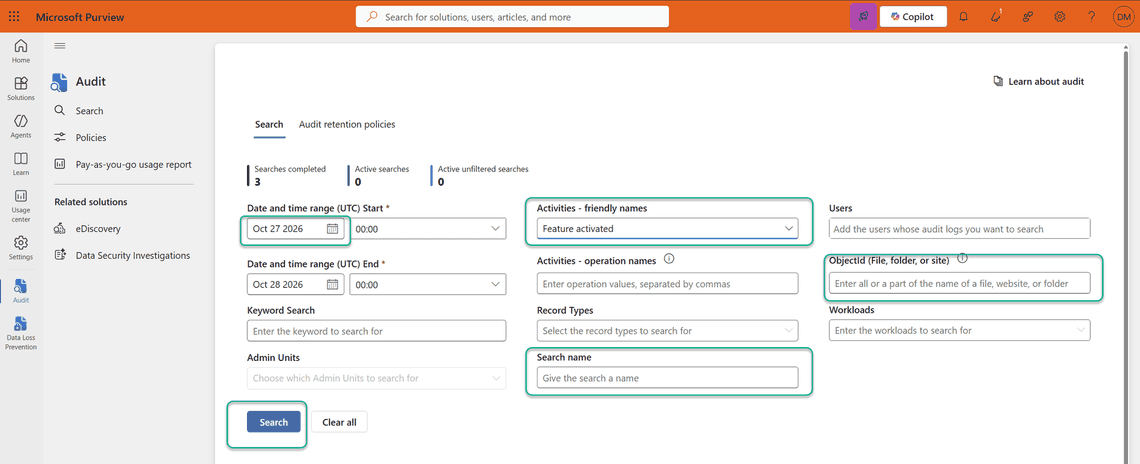
The results showed 19 feature activations within three minutes, all from the ShareGate migration account. The client app in each record is “ShareGate Migrate”. One activation was PublishingSite, which is SharePoint Server Publishing Infrastructure. None of the records were for lockdown mode itself.
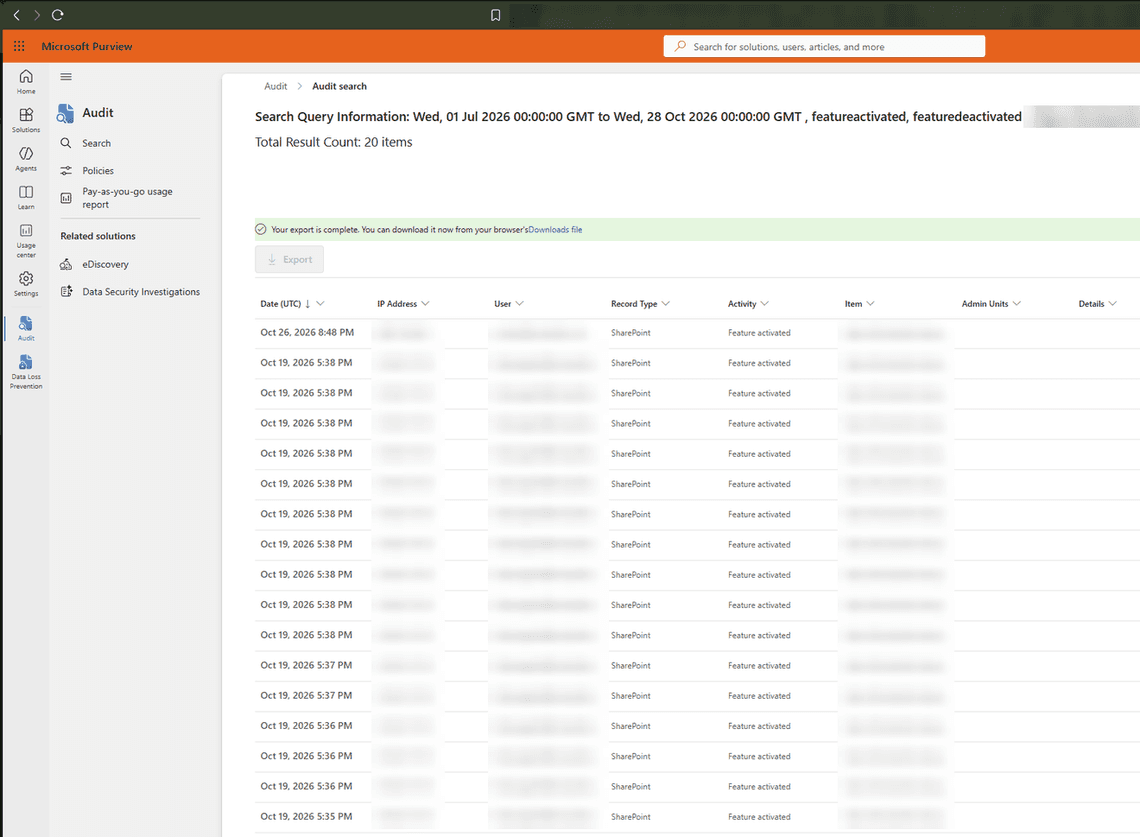
So nobody turned on lockdown mode directly. Publishing Infrastructure did it. When the Publishing Infrastructure feature is activated, SharePoint also activates lockdown mode, and that second activation does not appear in the audit log as a separate event.
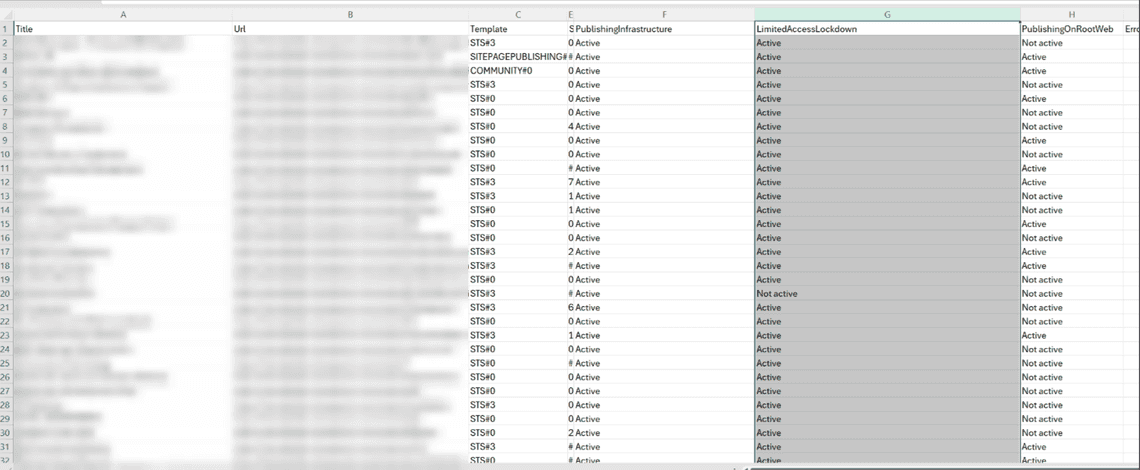
To confirm the pattern, I scanned every site in the tenant for both features. Every site with Publishing Infrastructure active also had lockdown mode active. The only exception was the site where I had already deactivated it by hand.
ShareGate copies site features from the source when the source site has them, and it activates features that migrated content depends on, such as publishing columns, page layouts and the libraries that come with them. Older sites built on SharePoint 2010 or 2013 often have Publishing Infrastructure active even when nobody uses it, so a full site migration brings it along. Lockdown mode follows.
Microsoft announced the timeline in message center post MC1464926 (admin sign-in required) and documented it in Deprecation of Classic SharePoint Pages:
| Date | Change |
|---|---|
| March 1, 2027 | Classic publishing site creation and publishing feature activation are disabled for all existing tenants. Existing publishing sites keep working. |
| October 1, 2028 | Classic user-created pages become read-only, and custom script enforcement extends to all tenants. |
Until March 2027, you can still activate the publishing feature on a site where custom script is allowed. ShareGate needs custom script enabled on the destination site anyway to migrate ASPX pages, so on most migrations that condition is already met and nothing stops Publishing Infrastructure from coming along. The earlier message center post MC1117115 added the AllowClassicPublishingSiteCreation tenant setting, which controls publishing activation at the tenant level. From March 1, 2027, Microsoft enforces it as False, and it can’t be changed.
This PnP PowerShell script lists every site where Publishing Infrastructure or lockdown mode is active:
To deactivate lockdown mode on a site:
To do the same in the browser, sign in as a site collection admin and follow these steps:
https://contoso.sharepoint.com/sites/YourSite/_layouts/15/ManageFeatures.aspx?Scope=Site. You can also get there from Site settings > Site collection administration > Site collection features.
Lockdown mode was built for classic publishing sites that served anonymous visitors, back when SharePoint Online could host public websites. It kept anonymous users away from application pages such as list forms. Public websites in SharePoint Online are long gone, so on a modern tenant the feature rarely protects anything. What it does do is block folder sharing behind an error message that never mentions it.
Unless someone can name a reason to keep it, deactivate it on migrated sites.
One more thing: another ShareGate pass (a delta or incremental copy) can activate Publishing Infrastructure again, and lockdown mode with it. Check the feature after each migration pass.


