





SharePoint HTML pages, what they can and cannot do
August 17, 2026
17 min
In August 2026 I wrote SharePoint HTML pages, what they can and cannot do, weeks before the feature reached General Availability. It is now generally available, so I ran 38 experiments to see what changed. That first article explains how HTML pages work under the hood. This article shows what you can and cannot do with them today, with Copilot and without it, and gives you ready-to-use samples and prompts.
Yaroslav Pentsarskyy published a very good take in the meantime: Copilot generated pages: Where They Actually Fit.
| Takeaway | |
|---|---|
| ✅ | An HTML page saved in the Site Pages library now looks like any other SharePoint page, with the site’s header and navigation around it. In any other library, it opens in the HTML Viewer, like a Word or PDF file. |
| ✅ | An HTML page can be the site’s home page. Select it in Site Pages and choose Make homepage. The site’s address then opens the HTML page, with the site header and navigation around it. |
| ✅ | Pages can show charts, flowcharts, 3D models and Microsoft-style controls, using five code libraries that SharePoint provides. One line in the HTML file, the library tag, is enough to load them. |
| ✅ | Pages are not limited to Microsoft’s five libraries. Upload any other library’s .js file, such as D3, to Site Assets and ask Copilot to embed its complete, unmodified code in the page. Or include the full library code inside a <script> tag in the HTML file yourself. |
| ✅ | Pages can show live data from a SharePoint list, a CSV file or an Excel workbook. The data is fetched each time the page opens. A CSV or Excel file works even when it sits in a folder. |
| ✅ | You do not need Copilot. Claude, ChatGPT or any other AI tool can write the page, and you upload it to Site Pages. This article includes ready-to-paste instructions for them. |
| ✅ | For the Microsoft 365 look, ask Copilot to build the page from the built-in Fluent UI components. A short prompt is enough, with no design rules to paste. |
| ✅ | Copilot can copy the design of an existing HTML page or read your styles from a file in Site Assets. The new page matches exactly. |
| ✅ | Pages can show pictures stored anywhere in your organization’s SharePoint, as long as the <img> tags are written in the HTML file. |
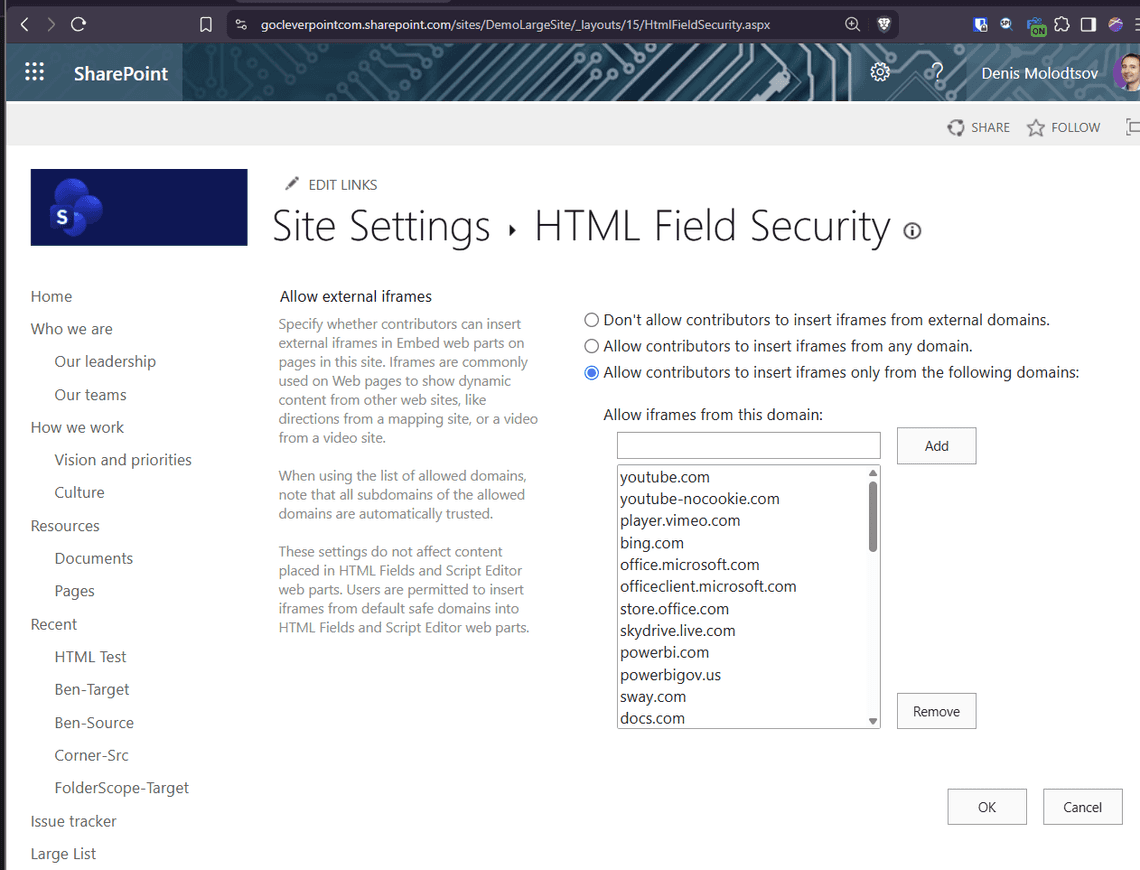
| ✅ | Pages can link to outside websites, once a site owner adds those websites to an allowed list in the site settings. |
| ✅ | Pages can follow the visitor’s own dark mode and Windows animation settings, if the page’s CSS is written to support them. |
| ✅ | Inside the Copilot chat, an HTML preview can show you a small form, such as chart type and colors, and turn your answers into the follow-up prompt. This only works while you are in the Copilot chat on a draft page. |
| Takeaway | |
|---|---|
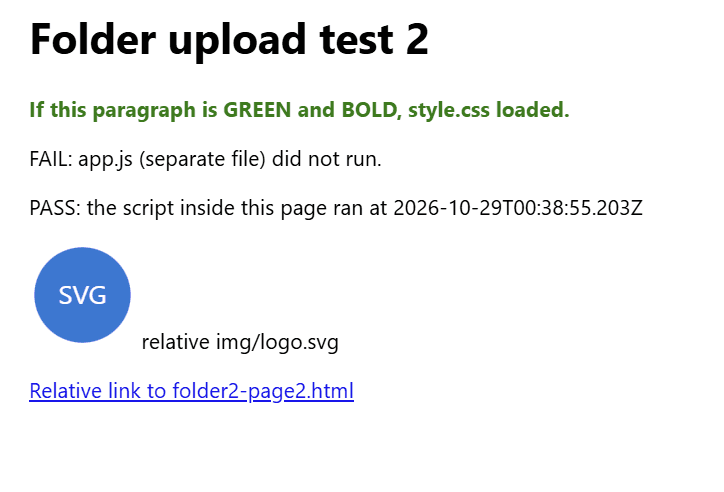
| ❌ | The Upload HTML folder feature is a nice addition, but it is not as powerful as it may seem. It uploads a whole website from your PC, and styles, pictures and links between pages keep working. JavaScript kept in separate .js files, however, does not run. Before you upload, move the code from each .js file into a <script> tag inside the HTML page that uses it. If the pages are already uploaded, you can ask Copilot to copy the code of the .js files into each HTML page. |
| ❌ | Folders in Site Pages are not created for you. When I asked Copilot to save a page into a folder, it saved the page at the top level of Site Pages, and Upload HTML folder did the same with every page. You can still move pages into folders yourself. A page that lists the files of a library shows only the files at the top level, not the files in subfolders. |
| ❌ | A page cannot remember anything about a visitor. Every visit starts fresh. |
| ❌ | Buttons that download a file, print the page, open a pop-up or submit a form do nothing. |
| ❌ | Pictures from outside your organization, frames with YouTube videos or maps, and “Email us” links do not work. |
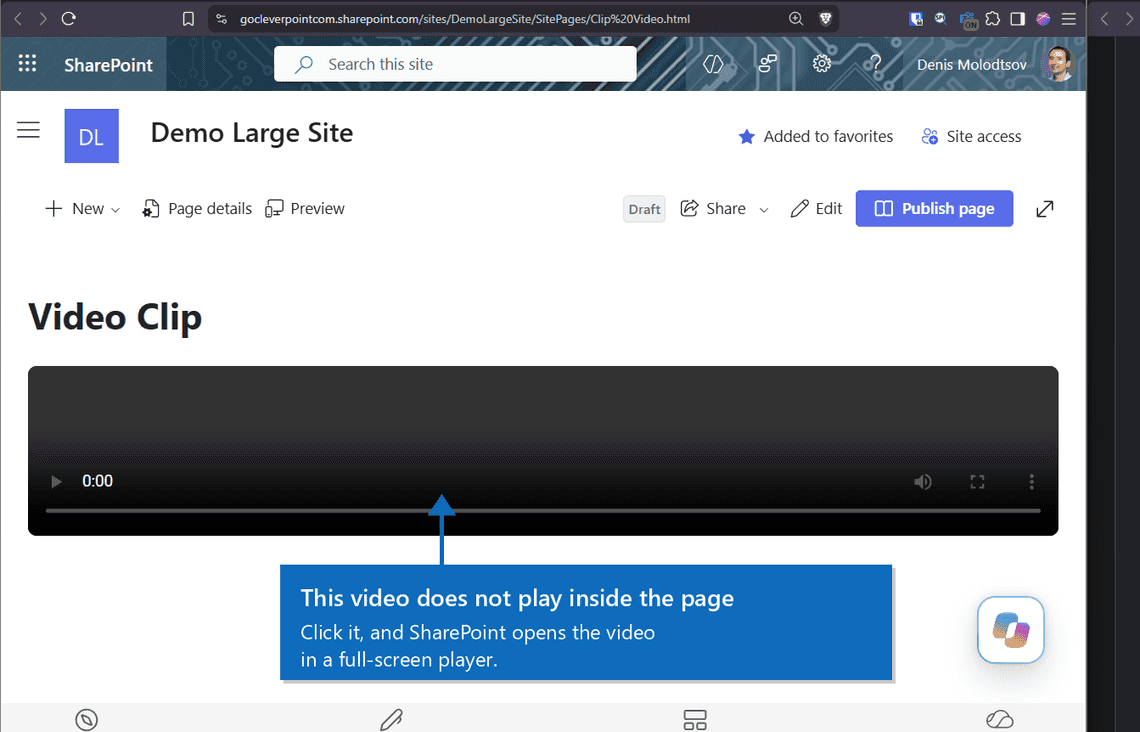
| ❌ | A video does not play inside the page. Visitors click it, and it opens in SharePoint’s video player. |
| ❌ | An HTML file can be at most 10 MB. Upload HTML page rejects larger files. If you upload a larger file another way, for example with PowerShell, SharePoint does not open it as a page. The browser downloads it instead. |
| Takeaway | |
|---|---|
| ⚠️ | If you change the site’s colors later, existing HTML pages keep the old colors. |
| ⚠️ | The WYSIWYG page editor might break a page that uses JavaScript. On two chart pages, it saved a copy of the drawn charts into the file, so the charts showed twice. On another page, my text changes were saved, but a script put the old numbers back every time the page opened. This should be fixable with a follow-up Copilot prompt, but Copilot or the code editor is the safer choice for these pages. |
| ⚠️ | When Copilot adds a picture, it copies the picture into the HTML file as base64. The page does not see later changes to the original, and every picture makes the file bigger. |
| ⚠️ | Copilot rejects long prompts, roughly more than two pages of text. Put long instructions or styles in a file in Site Assets and ask Copilot to read it. |
| ⚠️ | The five Microsoft libraries come in fixed versions, and two of them are six years old: Chart.js 2.9.4 and React 17.0.1. If you build a page with Claude or ChatGPT, tell it the exact versions. |
| ⚠️ | SharePoint search finds only the text written in the HTML file. Text, charts and data that a script adds are invisible to SharePoint search. |
I uploaded a number of HTML files myself, and Copilot built the rest. After each test I downloaded and inspected the saved files. All tests ran on 28 and 29 October 2026.
| Area | August 2026 | October 2026 |
|---|---|---|
| HTML files in Site Pages | Opened in the HTML Viewer | Open as pages, much closer to modern SharePoint pages, with the site header, navigation, Share and Edit |
| HTML files in other libraries | Opened in the HTML Viewer | Open in the HTML Viewer, like Word or PDF files |
| Built-in libraries | Listed by Microsoft, but did not load | All five load and run |
| A link to another page in the same tenant | Always opened a new browser tab | Opens in the same tab |
| A link to an external website | Blocked | Opens in a new tab if the domain is on the site’s allowed list |
| Images | Only from the same site | From any site in the tenant |
| Ways to create a page | Copilot, or upload a file to a library | Also + New > HTML page, Upload HTML page and Upload HTML folder |
| Editing | Copilot only | Copilot, plus the WYSIWYG page editor |
| Content type | None | A new “Html Page” content type in the Site Pages library |
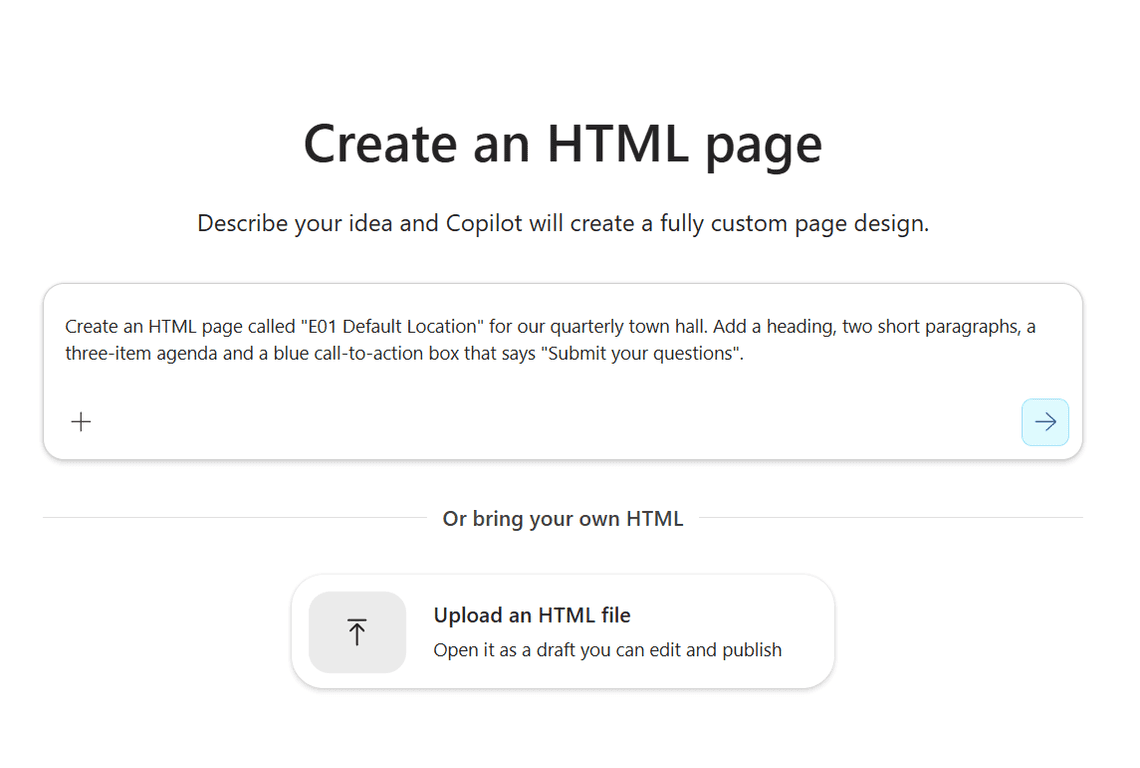
Any page on the site now has + New > HTML page. It opens a screen where you describe the page, or upload your own HTML file.
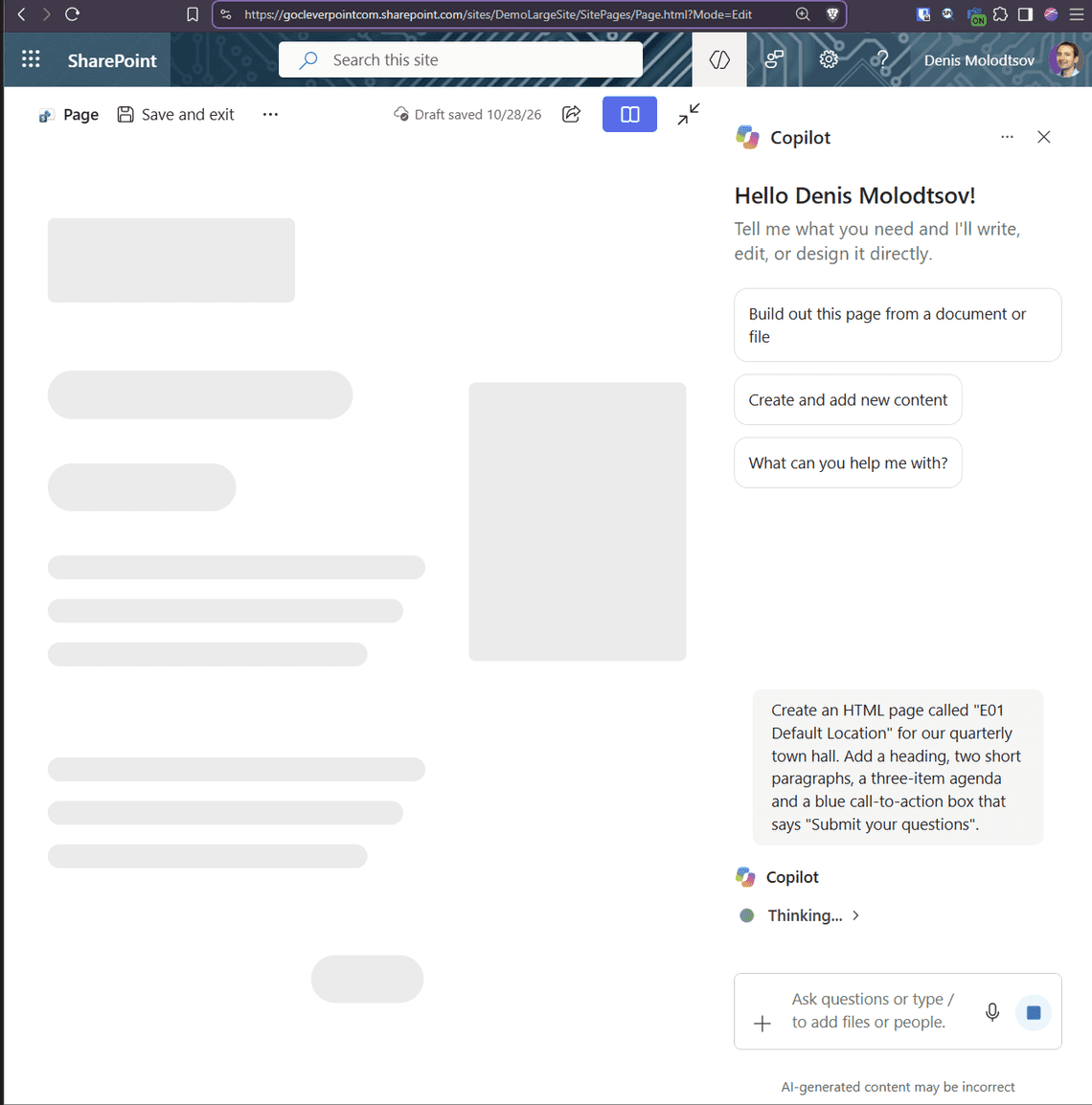
While Copilot works, you see an empty draft with gray placeholder blocks. When it finishes, it saves the page under the name you asked for.
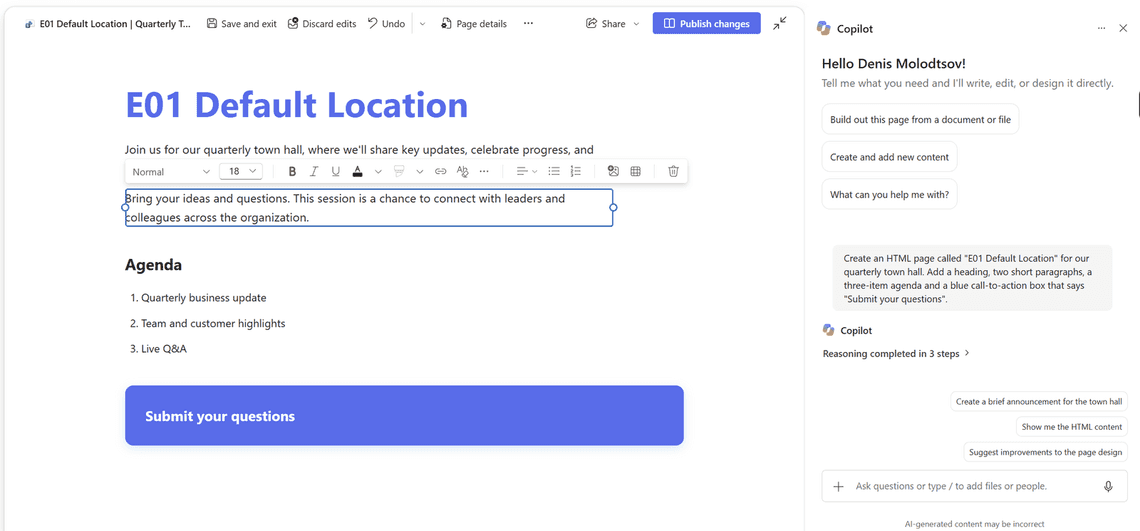
You can now edit text directly on the page. Click any element and a toolbar appears with fonts, colors, links, lists, images and tables.
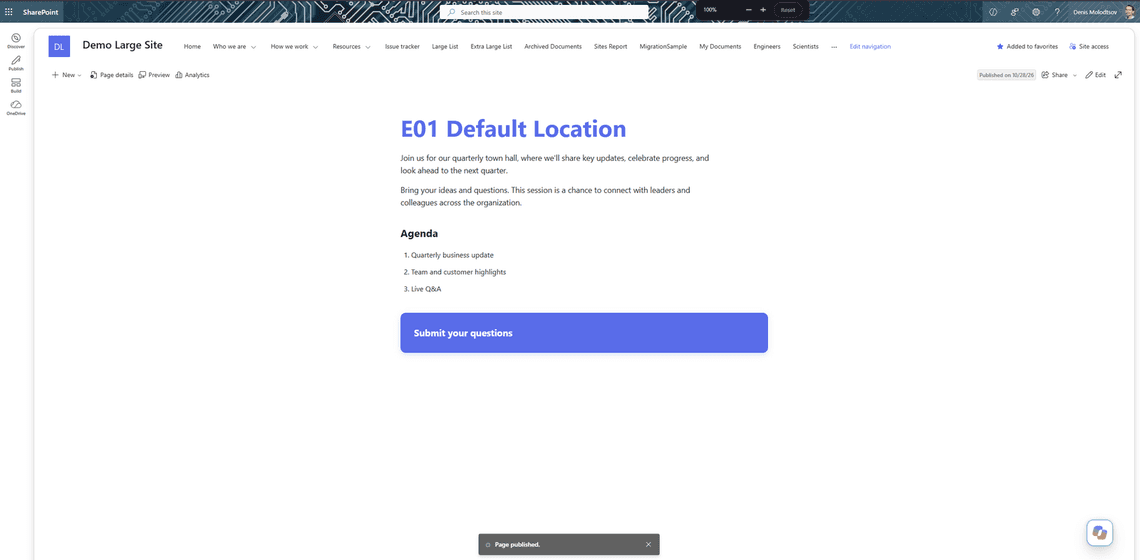
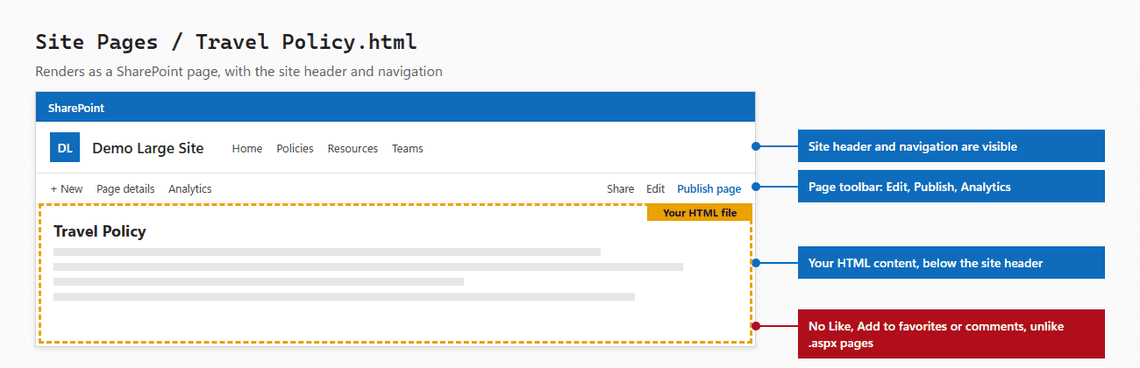
The published page sits inside the site, with the site header, navigation, Analytics, Share and Edit. In August 2026 it opened in the HTML Viewer. Now, as long as it is stored in Site Pages, it opens as a page that is much closer to a modern SharePoint page.
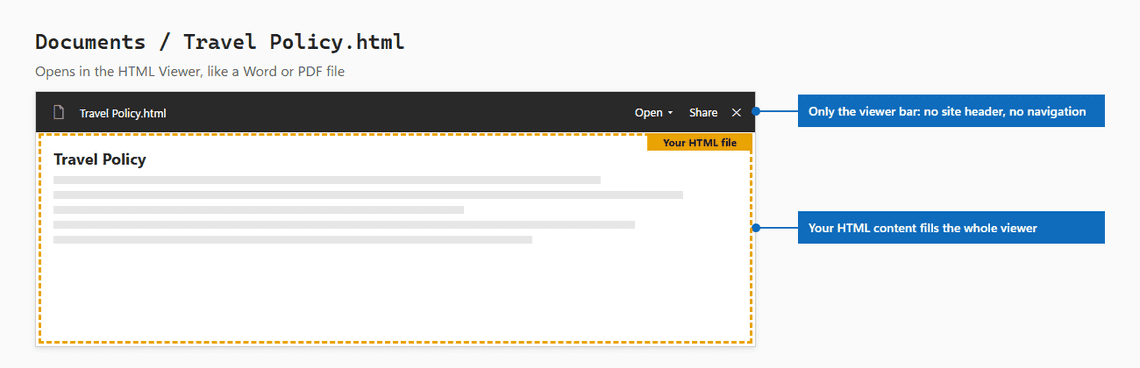
If you ask Copilot to save a page to a specific library, it saves the page there. I tested Documents, Site Assets and a custom library, and each page landed where I asked. The library decides how the file is shown. Site Pages shows HTML files as SharePoint pages.
Every other library shows HTML files in the HTML Viewer, the same way it shows a Word, Excel or PDF file. The pages Copilot saved in other libraries also had no styling at all.
As of October 2026, support for HTML pages inside folders is limited, especially when Copilot creates the pages. I tested these folder scenarios:
| Scenario | Supported | Comment |
|---|---|---|
| Asking Copilot to save a new page into a folder in Site Pages | ❌ No | Copilot saves the page at the top level of Site Pages |
| Upload HTML folder creates the same folder in Site Pages | ❌ No | Every page lands at the top level of Site Pages |
| Moving HTML pages into a folder in Site Pages yourself | ✅ Yes | |
| Clickable hyperlinks between pages in the same folder | ✅ Yes | |
| A page that lists the files of a library | ⚠️ Partly | The page sees only the files at the top level of the library, not the files in subfolders. If you want files listed on an HTML page, do not put them in subfolders |
| A page that reads a CSV or Excel file stored in a folder | ✅ Yes |
You can keep HTML pages in folders in Site Pages, but you have to create the folders and move the pages into them yourself. In my tests, Copilot and Upload HTML folder put every page at the top level of Site Pages. Live data can read a single file inside a folder, but a page that lists a library’s files does not see the files inside folders.
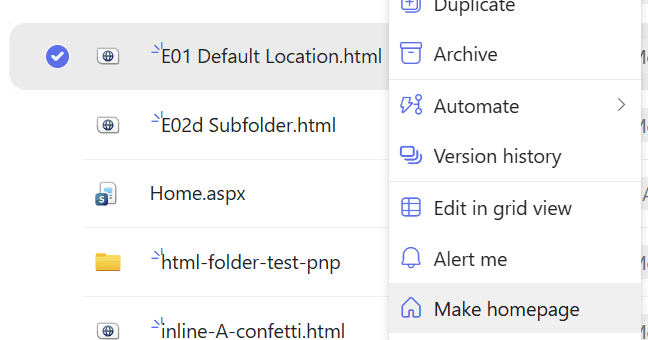
The Site Pages menu now has Make homepage for HTML pages, and it works. The site’s address then opens the HTML page, with the site header and navigation around it.
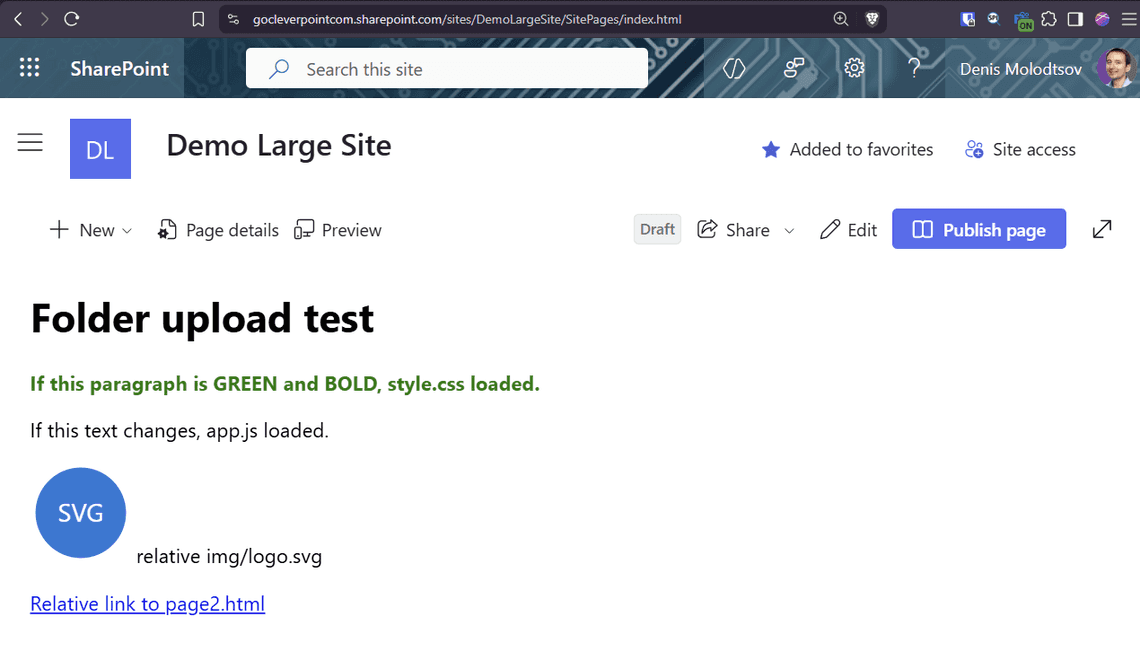
The Site Pages library has a Create or upload button with Upload HTML page and Upload HTML folder.
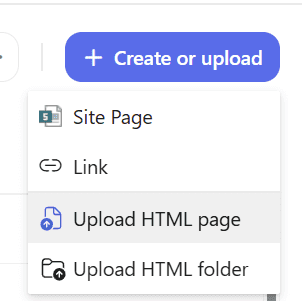
An uploaded page opens as a draft that you can publish. An HTML file in any other library opens in the HTML Viewer, where the Open menu has a Code editor and an Open in HTML Viewer option.

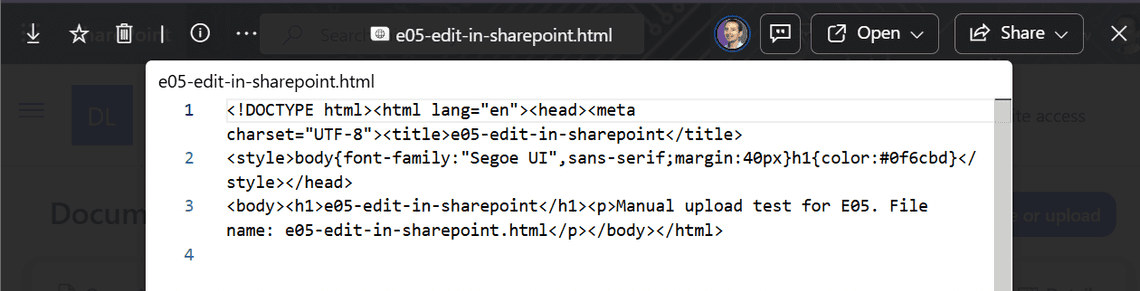
If you move an HTML file into Site Pages with Move to, SharePoint converts it into a page.
Upload HTML folder uploads a whole folder at once, for example a small website saved on your PC. Here is what happens to each kind of file:
| File in your folder | What SharePoint does with it | Works on the page? |
|---|---|---|
| HTML pages | Saves them at the top of Site Pages as drafts. The folder itself disappears. | ✅ |
| Stylesheet (.css) | Copies its content into every page that uses it. The .css file itself is not saved anywhere. | ✅ |
| Image | Saves it in Site Assets under a new name and points the page to the new address | ✅ |
| Script file (.js) | Saves it in Site Assets under a new name and points the page to the new address | ❌ |
| Script written inside a page | Leaves it as it is | ✅ |
| Link from one page to another | Leaves it as it is. The link still opens the other page. | ✅ |
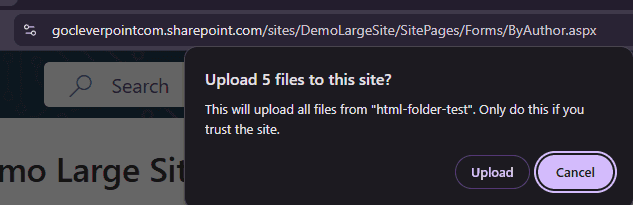
I ran this twice with a small test website: two HTML pages, a stylesheet, a script file and an image. Then I downloaded what SharePoint saved and compared it with the original folder.
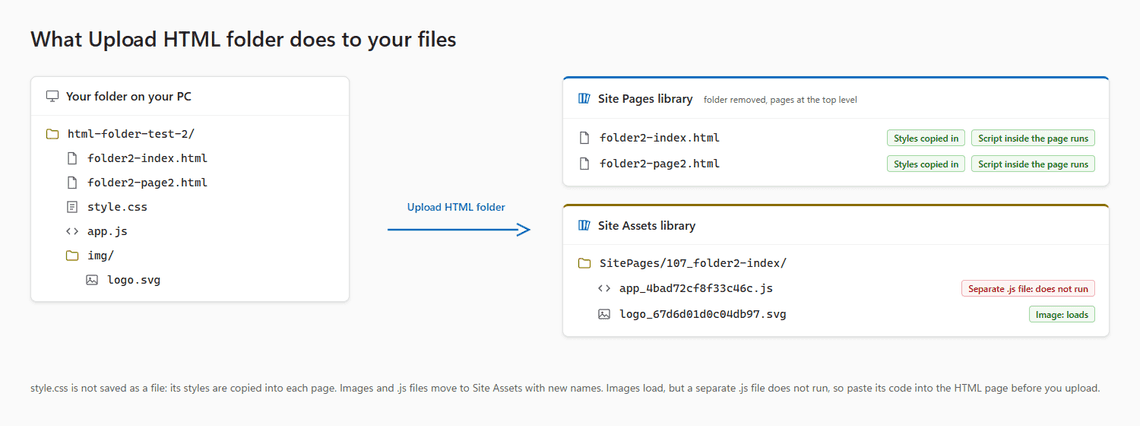
The images and script files go to a new folder in Site Assets, under SitePages. The folder is named after the first page and its ID number, for example 107_folder2-index. Their content is not changed, only their names.
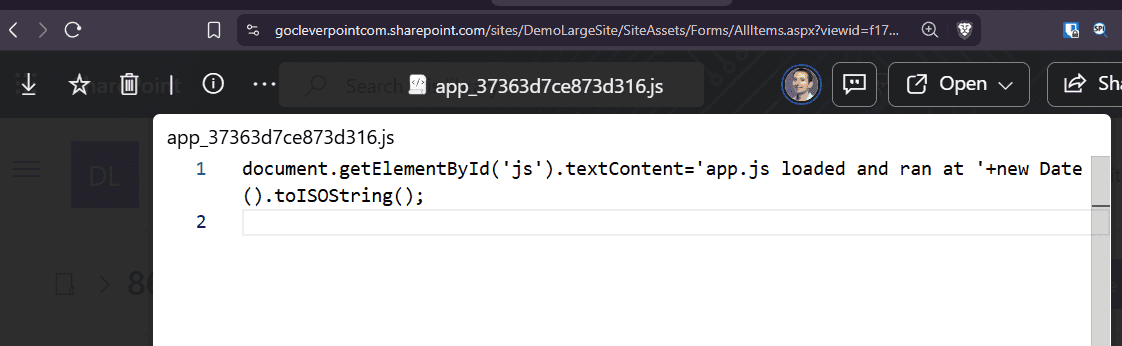
The second test page had two scripts: one in a separate .js file and one written inside the page. After the upload, only the script inside the page ran.
The Site Pages library has a new File types button with an Allow HTML files switch. It was On on one of my sites and Off on another.
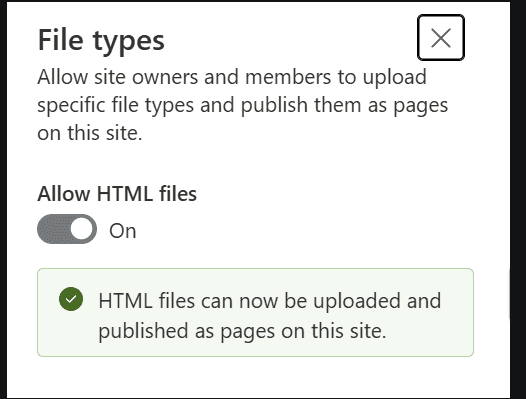
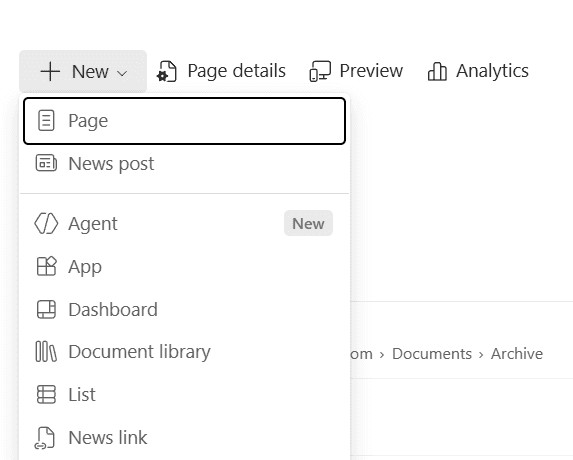
When the switch is Off, the upload options disappear from Site Pages, and + New on the site has no HTML page item.
But Copilot still builds HTML pages. On the site with the switch Off, I asked Copilot for a weather page and got one:
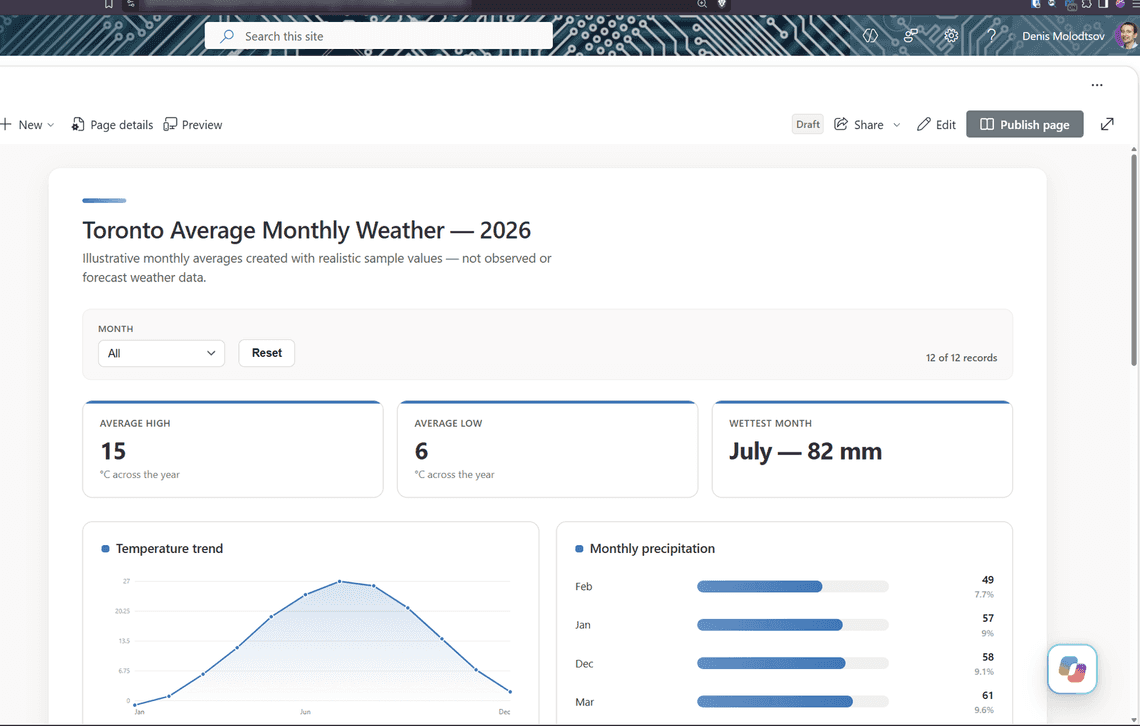
So the switch stops people from uploading HTML. It does not stop Copilot.
A JavaScript library is a ready-made file of code, for example one that draws charts. Microsoft lists five as supported. I got sixteen working. For Microsoft’s five, you only add a one-line library tag with the library’s name to your HTML file, and SharePoint adds the code. For the others, I included their full code in the HTML file. Both ways are explained below the table.
| Library | What it does | On Microsoft’s list | How I got it working | Works |
|---|---|---|---|---|
| Chart.js | Charts | ⭐ Yes | Named it in the library tag | ✅ |
| Mermaid | Flowcharts and diagrams | ⭐ Yes | Named it in the library tag | ✅ |
| React | App-style interfaces | ⭐ Yes | Named it in the library tag | ✅ |
| Fluent UI | Microsoft 365 look and controls | ⭐ Yes | Named it in the library tag | ✅ |
| Babylon | 3D scenes | ⭐ Yes | Named it in the library tag | ✅ |
| D3 | Data visualizations | No | Included its full code in the page | ✅ |
| Grid.js | Tables with search, sorting and paging | No | Included its full code in the page | ✅ |
| uPlot | Fast charts, 10,000 points in my test | No | Included its full code in the page | ✅ |
| Rough.js | Hand-drawn style charts | No | Included its full code in the page | ✅ |
| anime.js | Animations | No | Included its full code, and also had Copilot copy it from Site Assets | ✅ |
| Alpine.js | Interactive pages without a build step | No | Included its full code in the page | ✅ |
| petite-vue | A small version of Vue | No | Included its full code in the page | ✅ |
| marked | Turns Markdown into HTML | No | Included its full code in the page | ✅ |
| Matter.js | Physics simulation | No | Included its full code in the page | ✅ |
| lottie-web | Animated illustrations | No | Included its full code in the page | ✅ |
| canvas-confetti | Confetti effect | No | Included its full code, and turned off its background drawing | ✅ after a fix |
How can libraries that Microsoft does not list work? Microsoft’s support page gives the rule: “The sandbox supports JavaScript when the code is contained in the same HTML file.” An HTML page cannot download code from anywhere, not from the internet and not from your own site. But any code that is already inside the page runs. For the five listed libraries, SharePoint puts the code into the page for you. For everything else, you put it there yourself.
1. One of Microsoft’s five libraries: list it in the library tag. The five are Chart.js, Mermaid, React, Fluent UI and Babylon (marked ⭐ in the table above). Add one line to your HTML file that lists their names. I call it the library tag. When the page opens, SharePoint reads the tag and adds those libraries to the page. You can name several at once. Use these exact names:
| Library | Name to use |
|---|---|
| Chart.js | "chart.js@2.9.4" |
| Mermaid | "mermaid@11.15.0" |
| React | "react@17.0.1" (includes ReactDOM) |
| Fluent UI | "fluentui@9.70.0", together with "react@17.0.1" as in my tests |
| Babylon | "babylon@4.2.1" |
These are the exact names that SharePoint’s built-in instructions tell Copilot to use. The name without the version, such as "chart.js", also worked in my tests.
For example, a page with a chart and a flowchart:
2. A library that is not one of Microsoft’s five, such as D3 or Alpine.js: include its full code in the HTML file. Get the library’s minified file (the one that ends in .min.js) from its website or from npm, and include its entire contents inside a <script> tag in your HTML file. If an AI tool such as Claude or ChatGPT writes the page, give it the file and ask it to include the complete, unmodified code. Put your own code after it.
3. A library that is not one of Microsoft’s five, with Copilot: let Copilot include it. Upload the library’s .js file to Site Assets. Then ask Copilot to create the page and include “the complete, unmodified source” of that file. Copilot copies the file into the page exactly. This is the easiest way, and it avoids the limit on how long a request can be.
These two do not work. A page cannot download anything:
This section covers the five libraries on Microsoft’s list, the ones you add by naming them.
SharePoint provides one fixed version of each library. You cannot choose another.
| Library | What it does | Version SharePoint provides | Released | Newest version, October 2026 |
|---|---|---|---|---|
| Chart.js | Charts | 2.9.4 | October 2020 | 4.6.1 |
| React | App-style interfaces | 17.0.1 | October 2020 | 19.3.1 |
| Fluent UI | Microsoft 365 look and controls | 9.70.0 | September 2025 | 9.75.0 |
| Babylon | 3D scenes | 8.56.2 | March 2026 | 9.32.1 |
| Mermaid | Flowcharts and diagrams | 11.15.0 | May 2026 | 12.2.0 |
Release dates and newest versions are from npm, the public registry where these libraries are published. Chart.js and React are six years old, so most examples you find for them today are written for much newer versions.
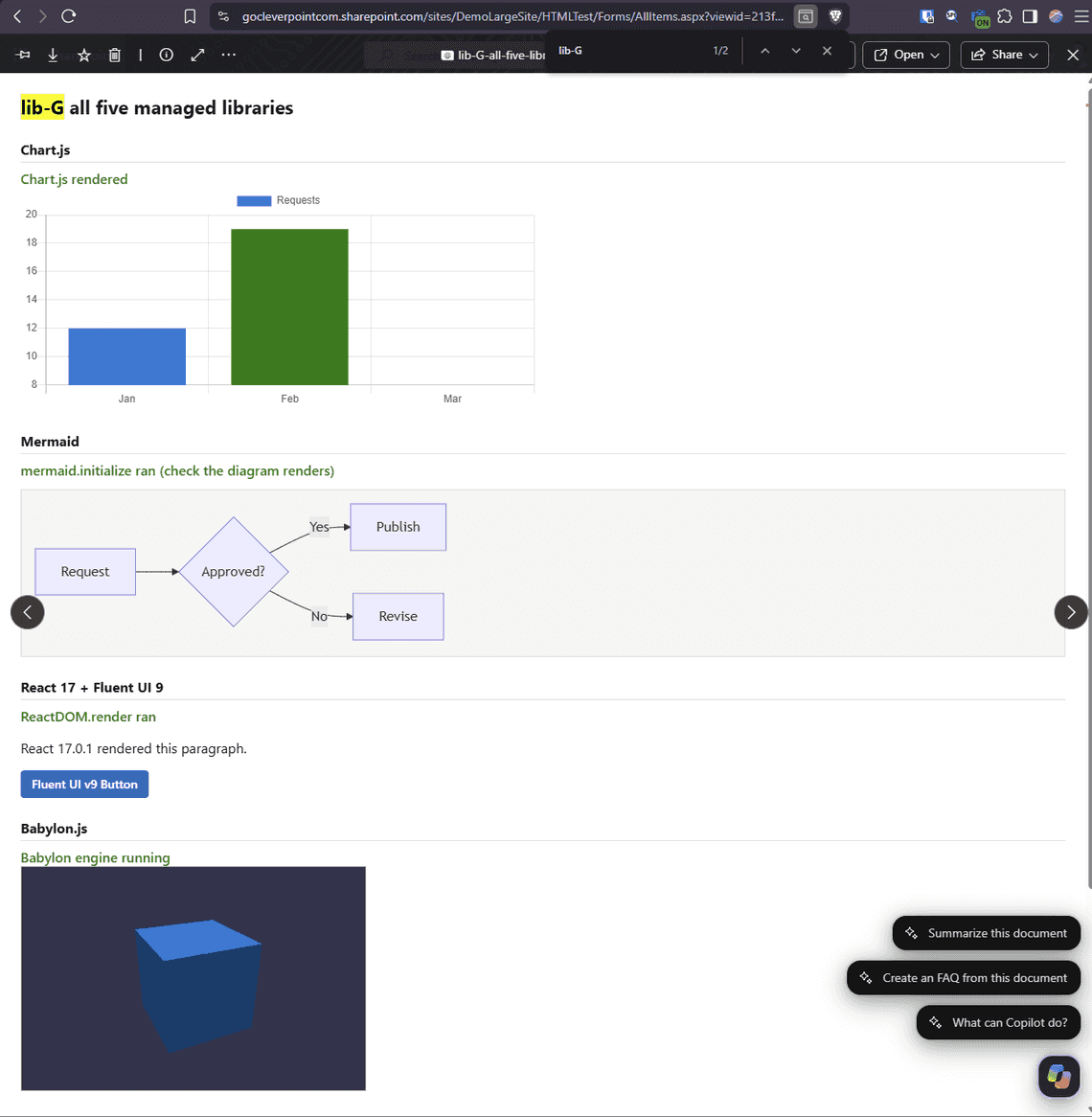
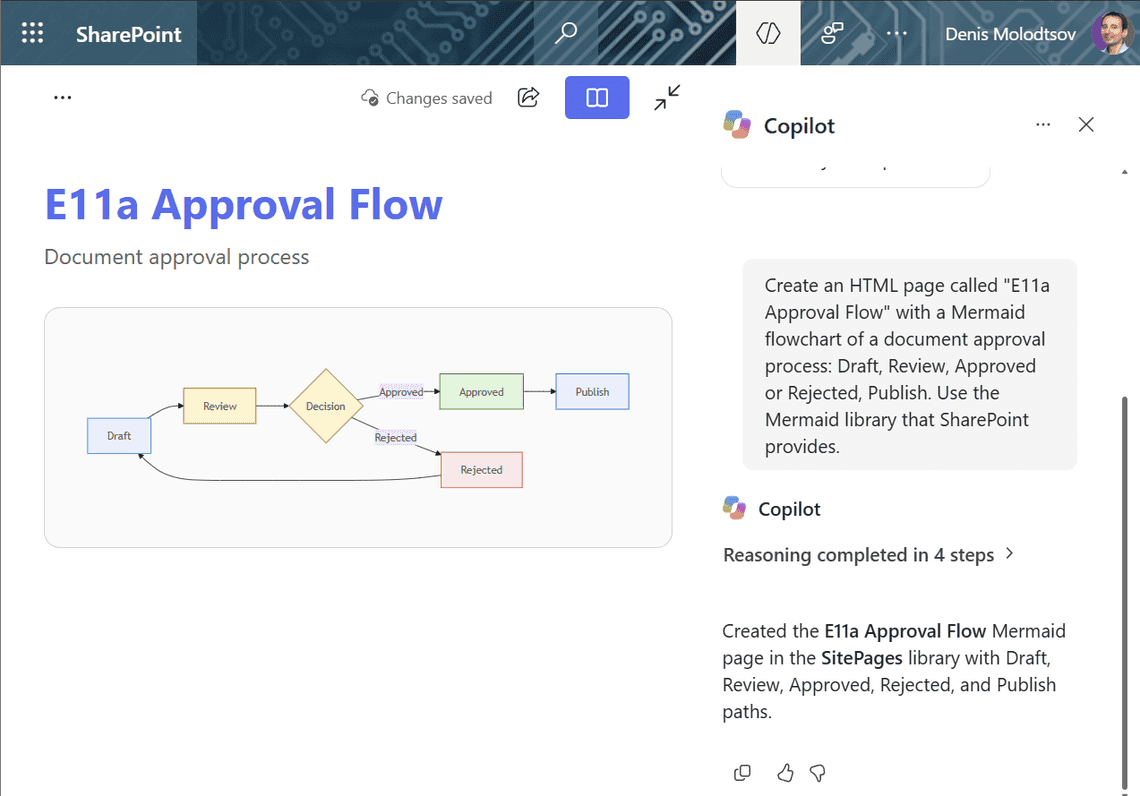
In August 2026, none of Microsoft’s five libraries (Chart.js, Mermaid, React, Fluent UI and Babylon) loaded on my test pages. In October 2026 they all load. One test page with all five shows a chart, a flowchart, a React paragraph, a Fluent UI button and a spinning 3D cube.
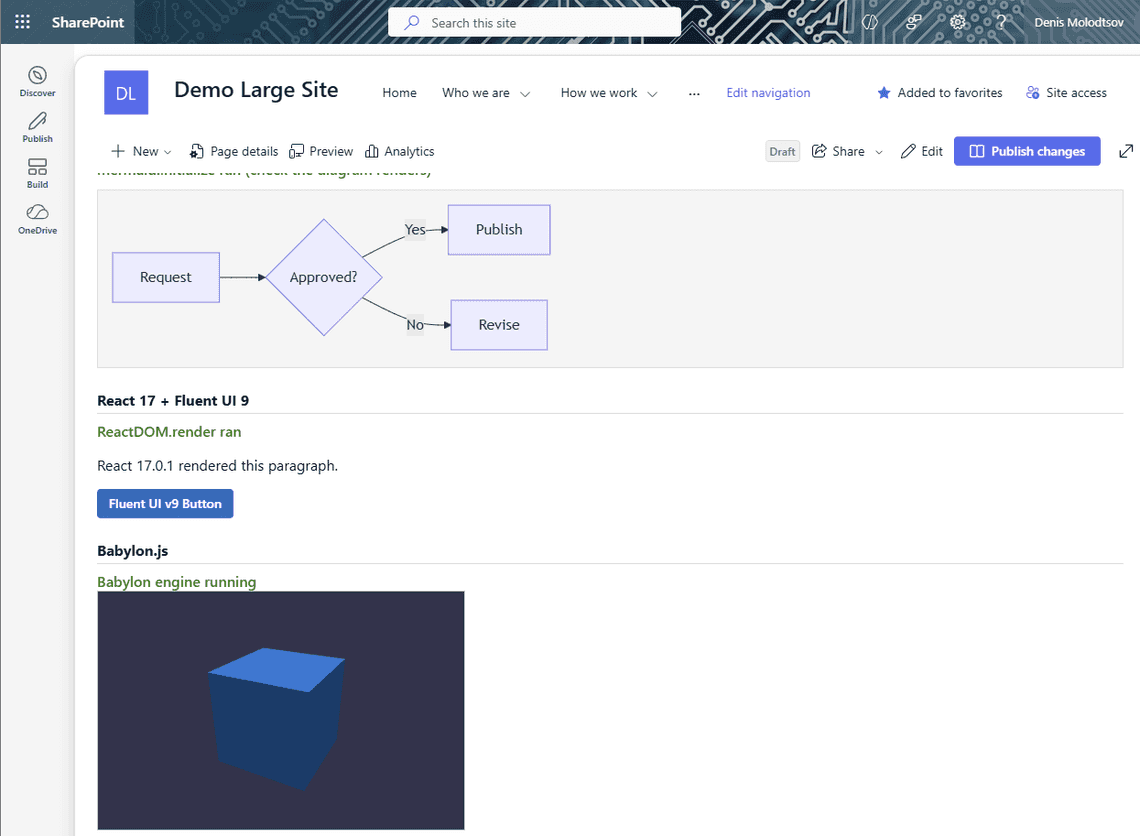
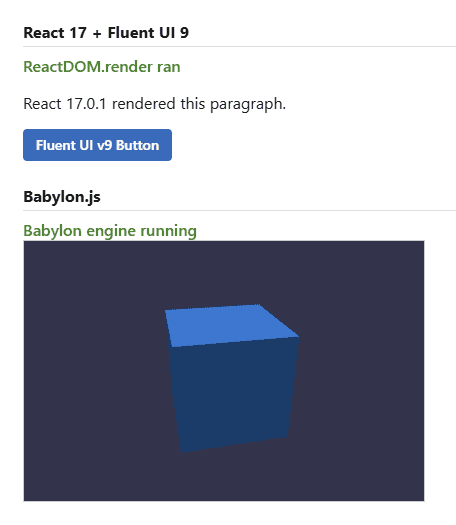
SharePoint does not download these libraries from the internet. It adds their full code to your page before the page runs. All five together add about 12.9 MB of code to every page view.
The libraries also worked in an HTML file opened from a regular document library, in the HTML Viewer.
The library tag is the one line from the steps above that goes inside your HTML file and lists the libraries you want, for example:
I wanted to answer three questions: does it matter where the tag goes in the file, can you choose a library version, and is there a way to load a library without the tag? I tested six versions of the same chart page.
| What the page did | Did the chart appear? |
|---|---|
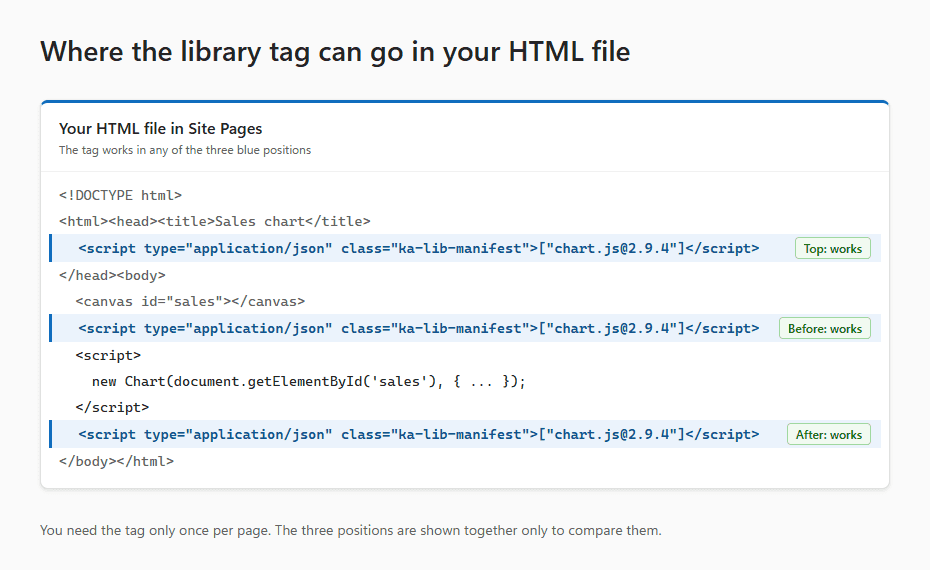
| Put the tag right before the chart code | Yes |
| Put the tag at the top of the HTML file | Yes |
| Put the tag after the chart code | Yes |
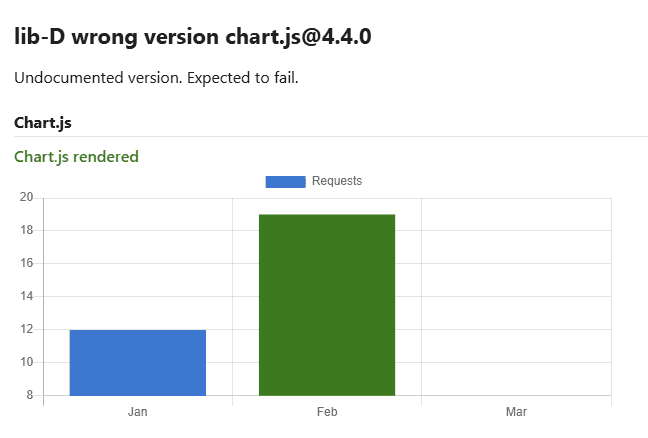
Wrote a newer version number in the tag: ["chart.js@4.4.0"] | Yes, but SharePoint ignored the number and loaded its own version, 2.9.4 |
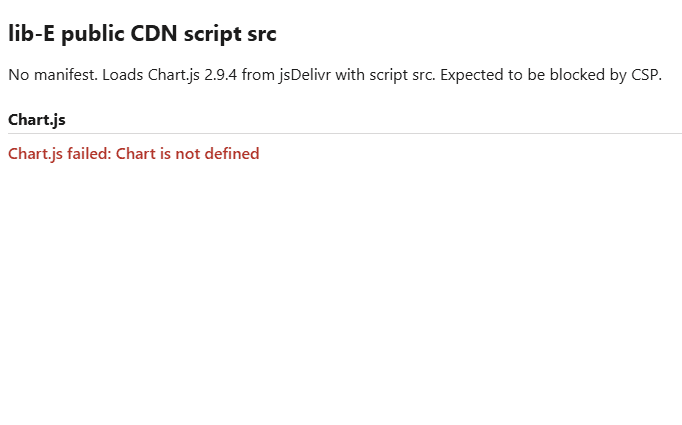
| Skipped the tag and linked Chart.js from a public website instead | No, the link was blocked |
| Skipped the tag completely | No |
The answers:
The tag can go anywhere in the HTML file: in the <head>, before your own code or after it. You need it only once per page. Here is a complete HTML file with the tag and a chart that works in Site Pages:
You cannot pick a library version. SharePoint always loads its own version of each library, whatever version number you write in the tag. A tag with ["chart.js@4.4.0"] got Chart.js 2.9.4, and a tag with ["babylon@4.2.1"] got Babylon 8.56.2.
Linking a library from the internet with <script src="..."> does not work. Use the library tag for Microsoft’s five libraries. For any other library, include the full library code inside a <script> tag in the HTML file.
I asked Copilot for a page with a bar chart and a line chart. It wrote the library tag correctly, and its chart code worked with the old Chart.js version.
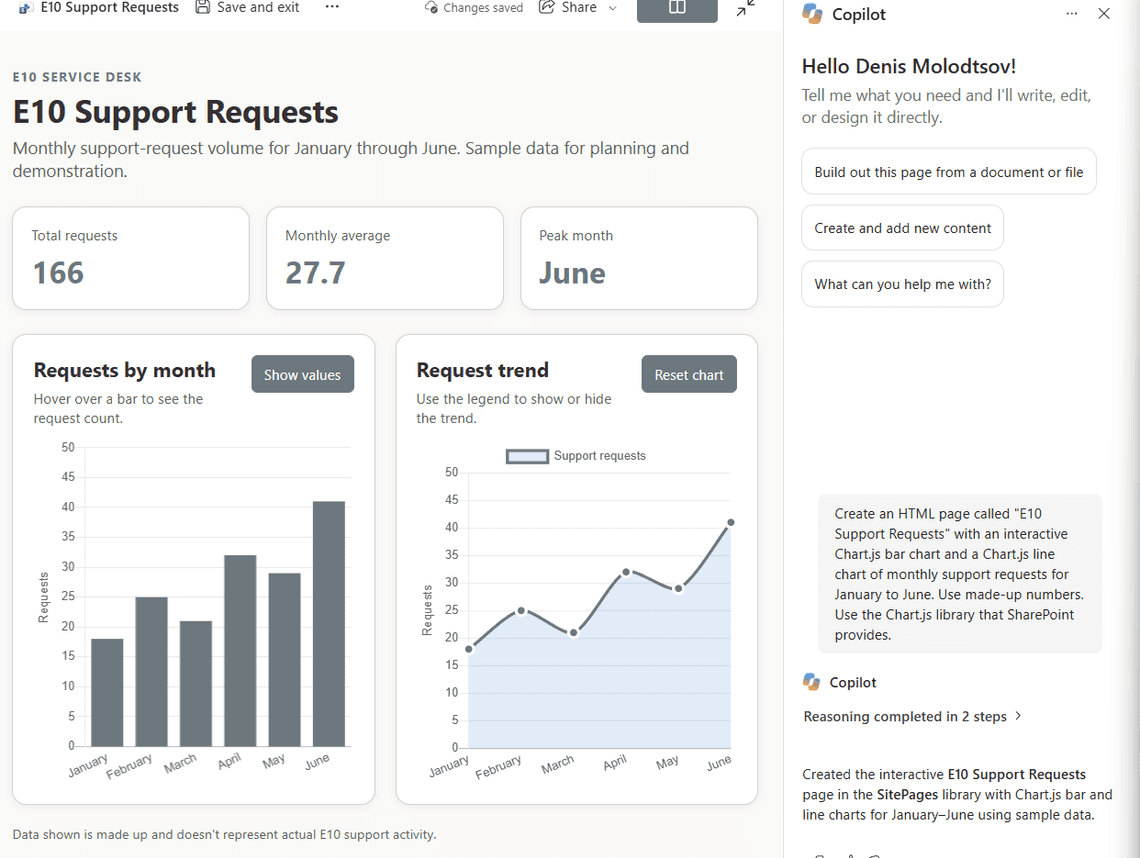
Flowcharts with Mermaid, forms with Fluent UI, and 3D scenes with Babylon all worked too.
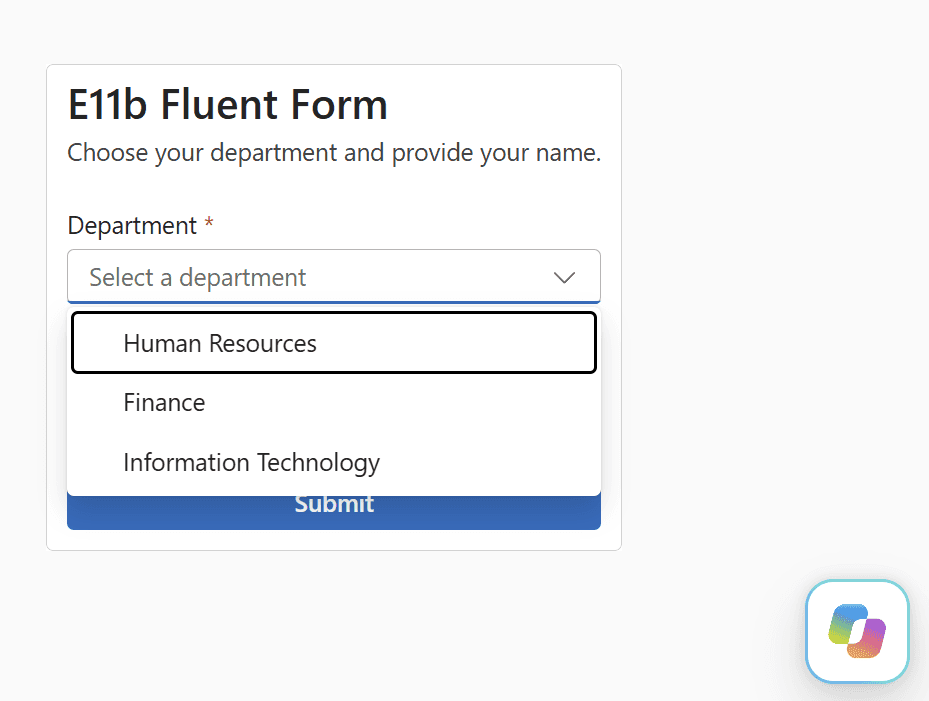
A Fluent UI form looks real, but it cannot send anything. An HTML page cannot submit a form, save to a SharePoint list, call a web service, download a file or remember what someone typed. If the visitor refreshes the page or comes back later, the form is empty again. So Fluent UI is good for things that work entirely on the page, such as a calculator, a cost estimator, a checklist or a quiz that shows a score. It is not suitable for a request form, a survey or a registration. For those, use Microsoft Forms, a SharePoint list form or Power Apps, and link to it from the HTML page. If visitors need the result, add a Copy button so they can paste the result into an email or a document. In my tests, a Copy button that uses document.execCommand('copy') worked.
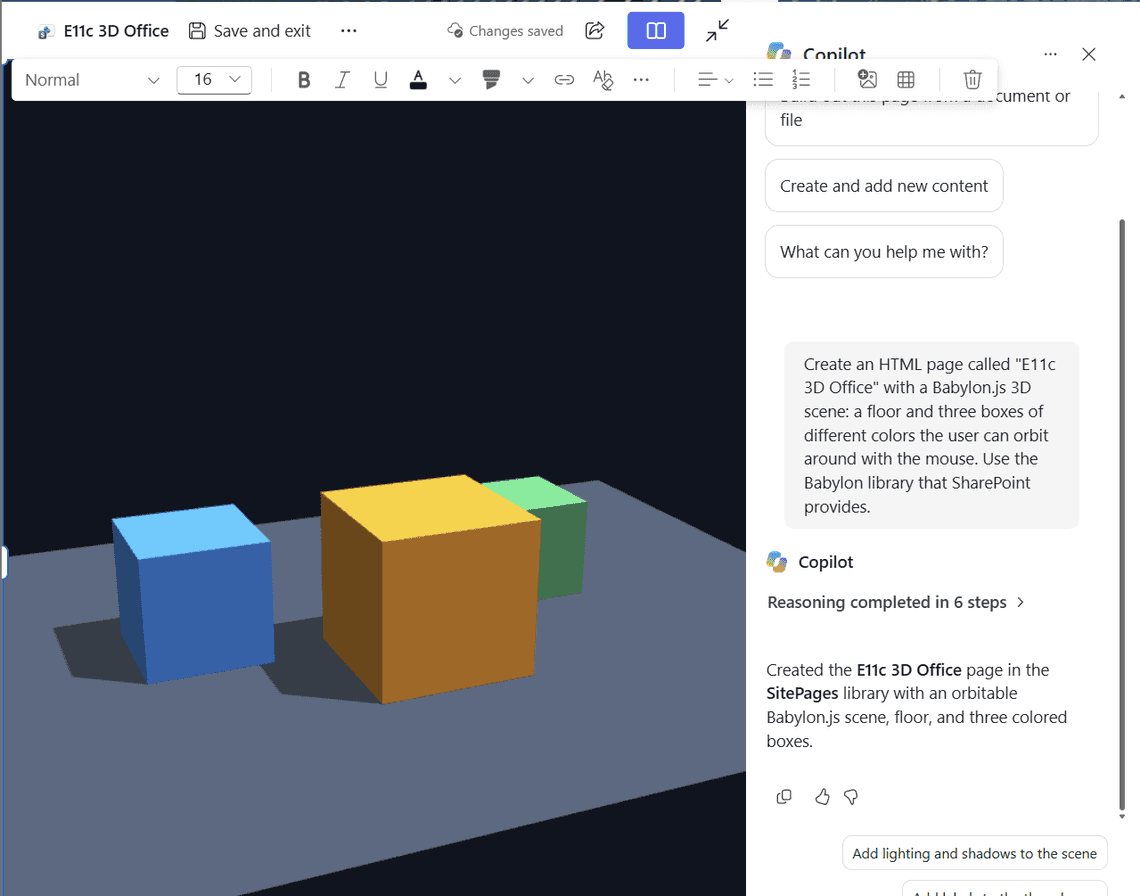
In my tests, Copilot used these libraries only when I asked for them. Otherwise it drew charts with plain SVG. It may still choose a library on its own for some requests, so if you want a specific one, name it in your request.
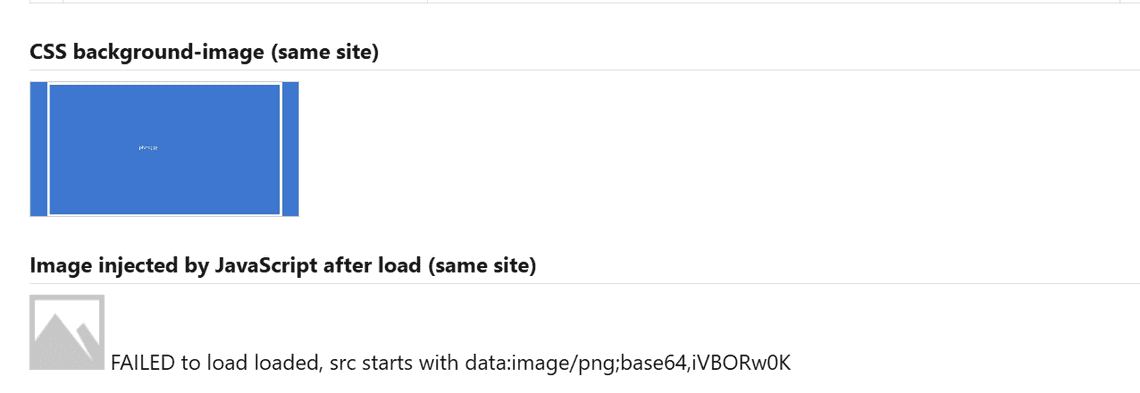
I added the same photo to a test page in ten different ways: by full address, relative address, from other sites and libraries, embedded in the page, as a background, from an outside website, and added by JavaScript.
| How the image was added | Result |
|---|---|
| Full web address, same site | Loads |
Address that starts with /sites/... | Loads |
Relative address, like ../SiteAssets/photo.jpg | Loads |
| From another site in the same tenant | Loads |
| From another library on the same site | Loads |
| PNG and SVG files | Load |
| From a website outside the tenant | Blocked, a gray placeholder appears instead |
Embedded in the page as text (data: image) | Loads |
| As a CSS background | Loads |
| Added by JavaScript after the page rendered | Fails |
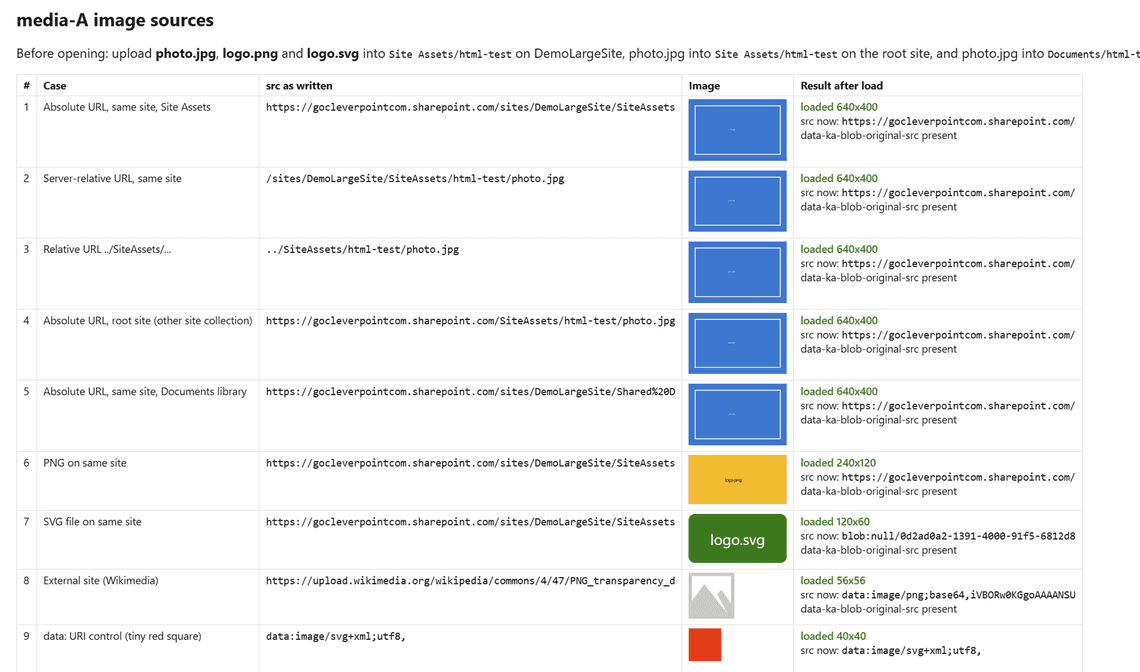
<img> tags in your HTML file when the page rendersAn HTML page cannot load anything from a web address, images included. So when the page renders, SharePoint goes through every <img> tag in your HTML file and replaces its address with one the page is allowed to use. SharePoint does not edit the HTML file stored in Site Pages. It changes the addresses only in the copy of the page that renders in the visitor’s browser. If you download the file, it still has the addresses you wrote.
If you open the browser’s developer tools on an HTML page, you see the replaced addresses. A photo you wrote like this:
looks like this in the page the visitor sees:
The new address points to SharePoint’s image cache. It is signed and works only for a limited time. The data-ka-blob-original-src attribute keeps the address you wrote. SVG images get a different kind of address, starting with blob:, because SharePoint copies the SVG into the page itself. On one of my test pages, photos also got a blob: address. Either way, the photo loads. Images from outside websites are replaced with a gray placeholder.
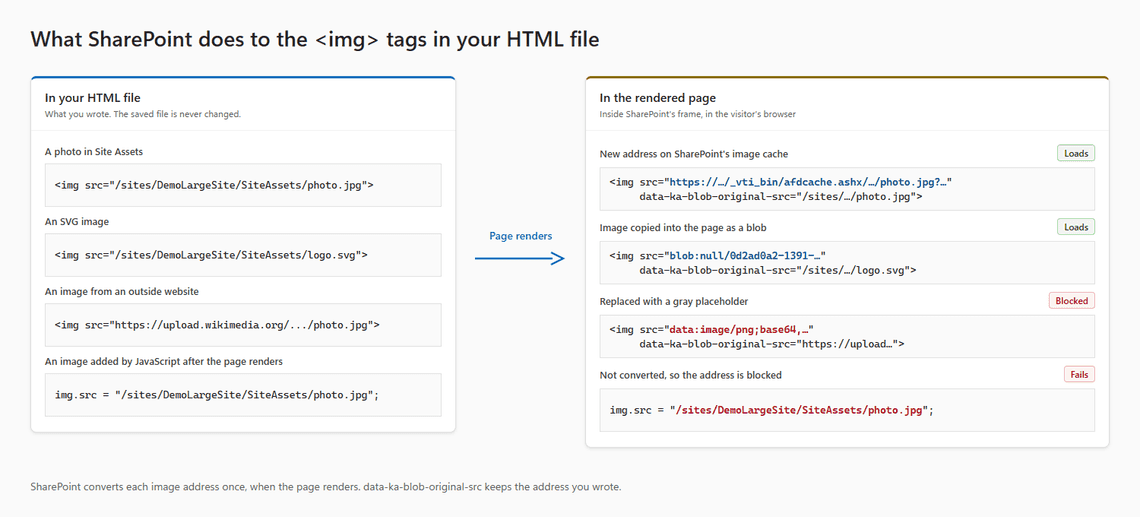
SharePoint converts the addresses when the page renders. If your page has a script that adds an image or changes an image address after that, SharePoint does not convert the new address, and the image does not load.
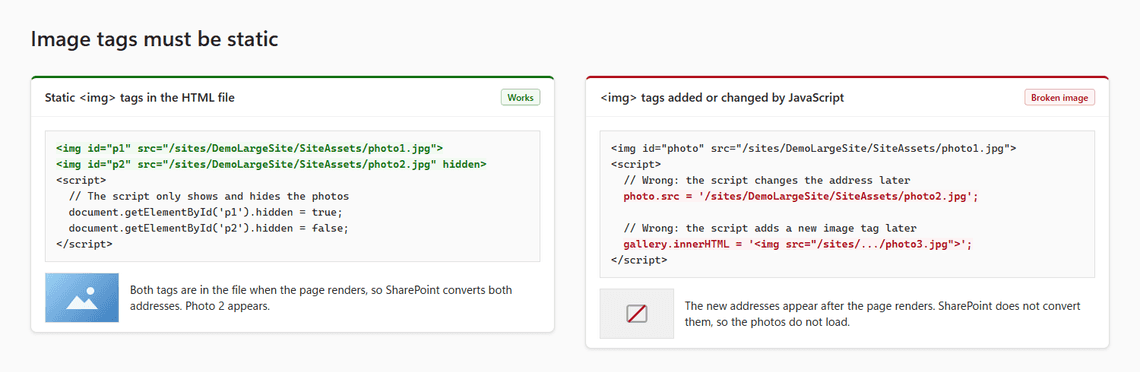
This works, because both photos are in the HTML file when the page renders, and the script only shows one and hides the other:
This shows a broken image, because the script sets the photo address after the page rendered, and SharePoint does not convert it:
One privacy note. If someone copies the address of an image on your HTML page and sends it to a person outside your company, that person can open the image without signing in. The address expires, and in my test it stopped working within two hours.
I asked Copilot to add a photo from Site Assets and a stock photo of a mountain to a new HTML page. Both photos appeared on the page.
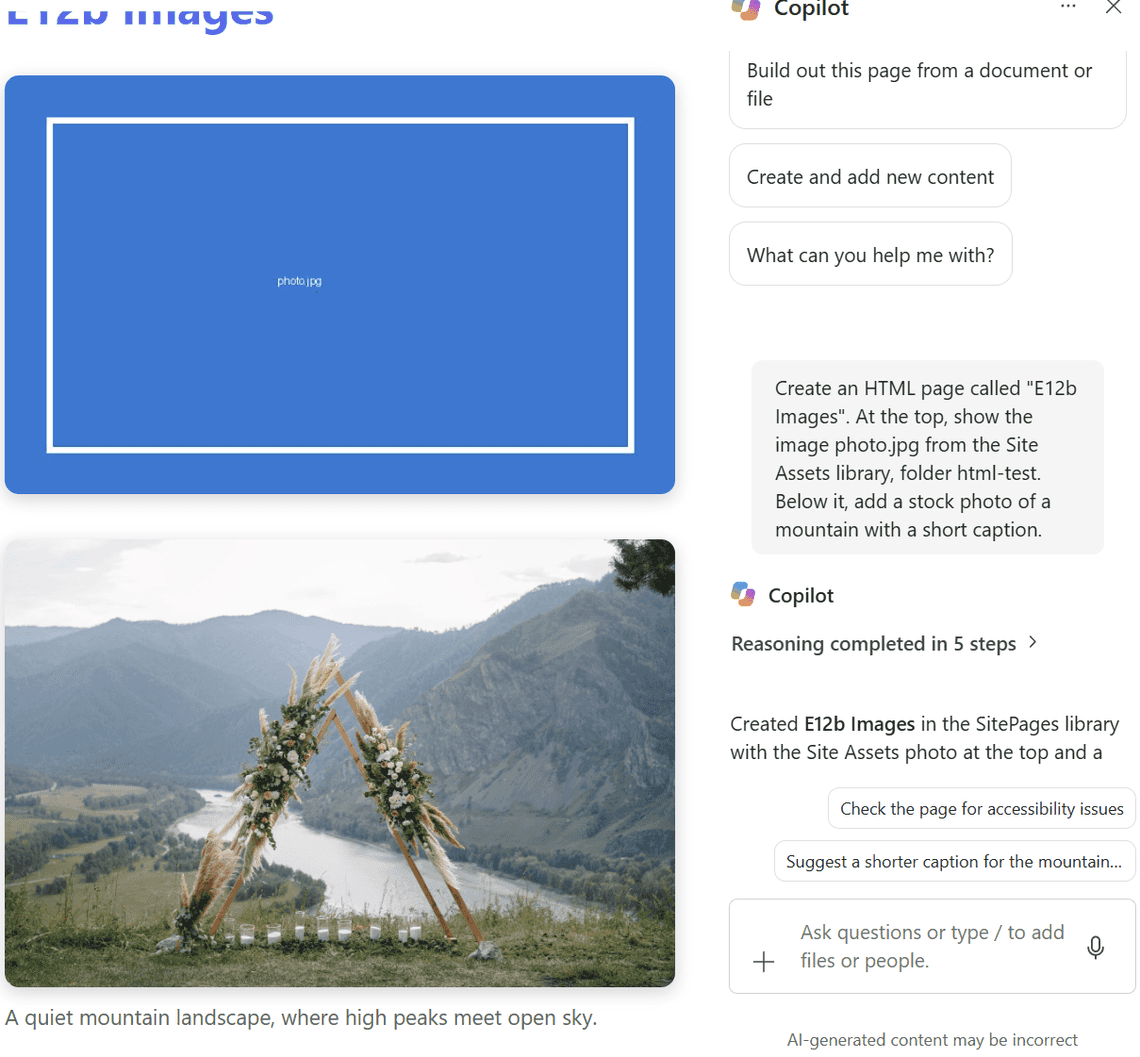
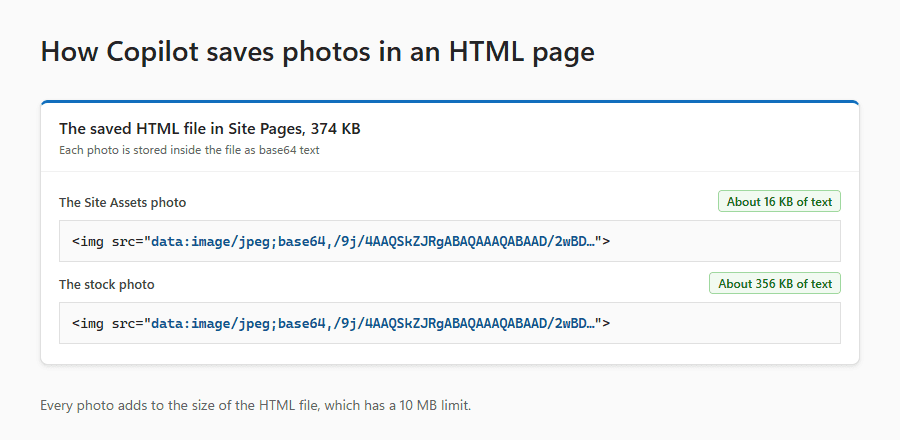
When I opened the saved HTML file, Copilot had not linked to either photo. It had converted both photos into long strings of text (a format called base64) and saved them inside the HTML file itself. That made the HTML file 374 KB, mostly photos. The original photo is still in Site Assets as its own file, but the page does not use it. It shows its own copy. The stock photo was not saved to any library, so it exists only inside the HTML file.
This is what a photo looks like inside the HTML file. The text after base64, is the photo itself, shortened here. The full text for the stock photo was about 356 KB long.
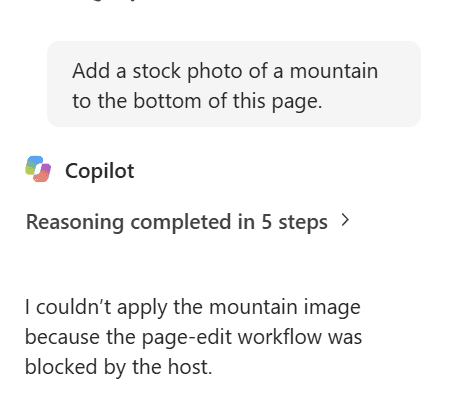
Copilot may refuse to edit an HTML page that you uploaded yourself. Before it saves any change, it checks the whole page, and if the page has images from outside websites or scripts it does not accept, it refuses. One of my uploaded pages had an image from an outside website, and Copilot replied that the page “fails the editor’s validation because it contains external image sources”. If you plan to edit a page with Copilot later, keep it free of outside images.
In a comment on the first article, jamesdellowwv reported that only about 30 images would load on one page. I put 40 photos on one page, and all 40 loaded.

| What I tried | Result |
|---|---|
A video player on the page (<video>) | Shows a still player. Clicking it opens the video in a pop-up player. |
| A text link to the video file | Opens the pop-up player |
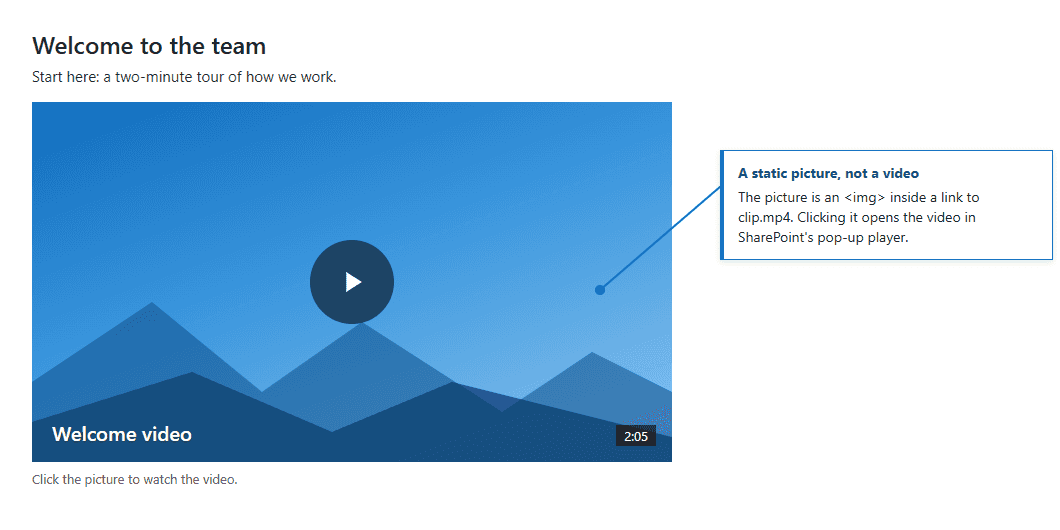
| A picture linking to the video file | Opens the pop-up player |
An audio player (<audio>) | Does not work |
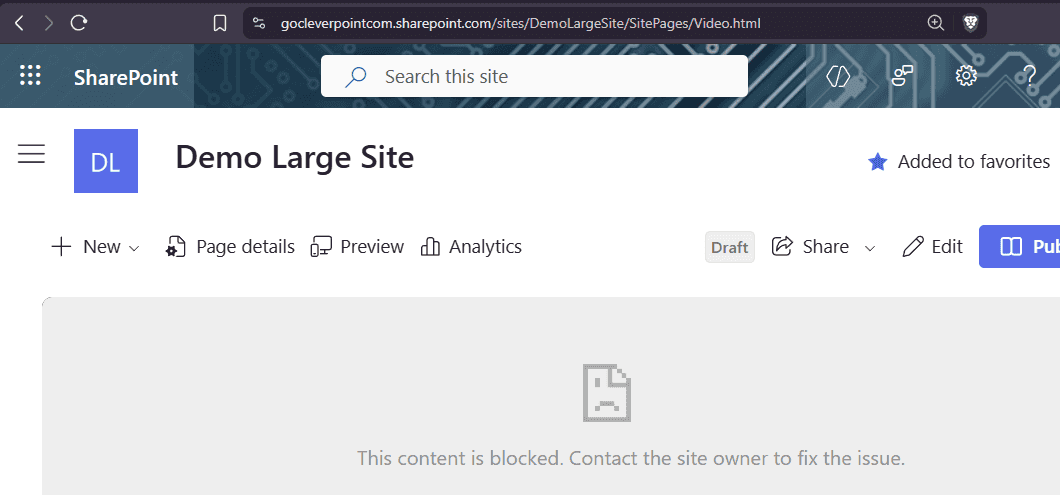
| A YouTube video in a frame | Blocked |
| A SharePoint video in a frame | Blocked |
| Links to Word, Excel, PowerPoint or PDF files | Open in a new tab |
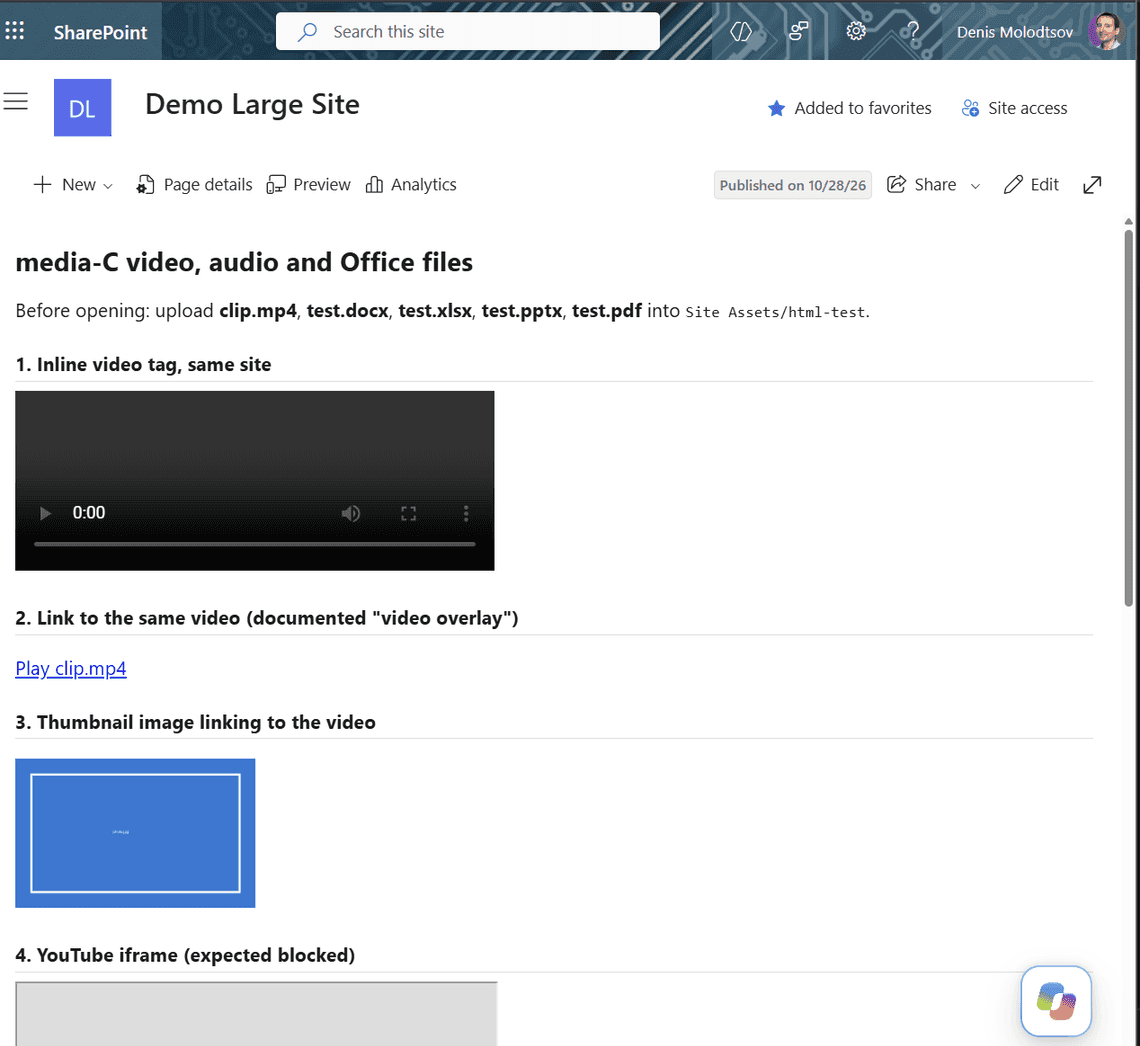
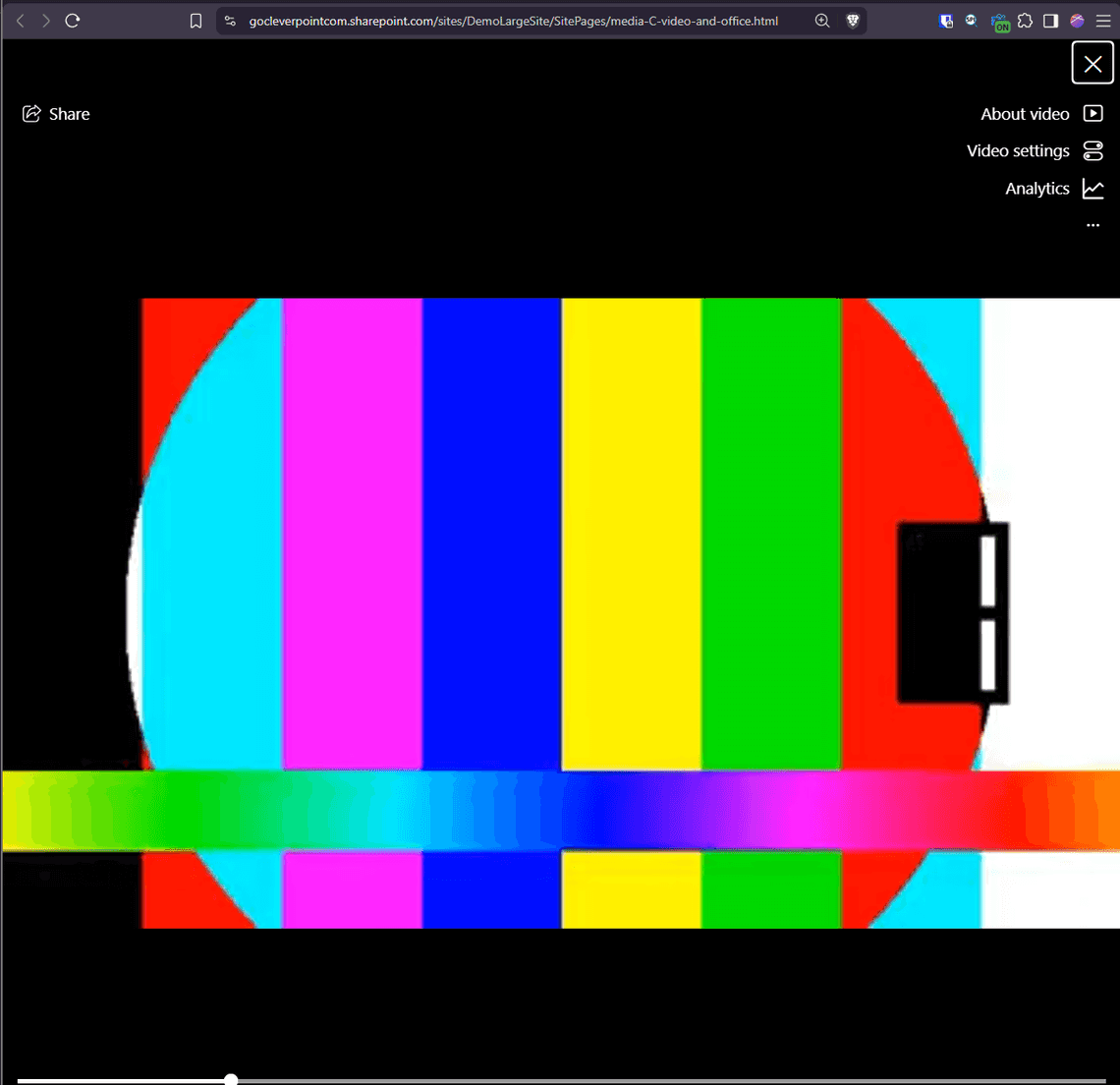
So video works, but in my tests it never played inside the page itself. The visitor clicks it, and SharePoint plays it in a pop-up player. If you manage to make a video play right in the HTML page, please let me know in the comments how you did it!
When I asked Copilot for a video that plays right inside the HTML page, its second attempt used a frame, and frames are blocked:
Option 1, a video player. The page shows a still player, and a click opens the video in SharePoint’s pop-up player:
Option 2, a picture that links to the video, is the best practice. The page shows your own picture instead of a dark, empty player, and a click opens the video in SharePoint’s pop-up player:
Use a picture that looks like a video, for example a frame from the video with a play button drawn on it, so visitors know they can click it. A mock-up of how it can look:
<a> anchors)Links in an HTML page are HTML anchors, the <a href="..."> tags. I wanted to know where a visitor can go from an HTML page: other parts of the same page, other pages and sites in the tenant, outside websites, email and Teams. In short, links inside your tenant work, outside websites work only if a site owner allows them, and email, phone and Teams links are blocked.
| Link | Result |
|---|---|
| A link to a heading on the same page | Scrolls to it |
| A link to another HTML page on the site | Opens in the same tab, and only the page content changes |
| A link to a list or another site in your tenant | Opens in the same tab |
| A link to an external website on the allowed list | Opens in a new tab |
| A link to an external website not on the list | Blocked |
| A link to another company’s SharePoint | Blocked |
| A link to a Teams chat | Blocked |
mailto: and tel: links | Blocked |
When a visitor of the HTML page clicks a blocked link, nothing opens. Instead, SharePoint shows a short message at the bottom of the page. There are two different messages.
A link to an outside website that is not on the allowed list, to another company’s SharePoint, or to a Teams chat shows this message:

A mailto: or tel: link shows a shorter message:

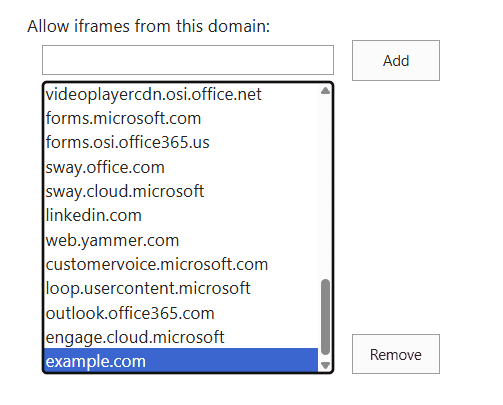
Links to outside websites work only if the website’s domain, such as microsoft.com, is on the site’s list of allowed domains. A site owner manages this list in Site settings > HTML Field Security. It was built for embedding videos and maps on classic pages, and it now also controls links on HTML pages. It does not allow frames, though: YouTube is on the list, and YouTube frames are still blocked.
My test page had this link to example.com, a website that was not on the list:
Clicking it showed the “organization doesn’t allow access” message. Then I added example.com to the list, refreshed the HTML page and clicked the same link again. This time example.com opened in a new tab.
If you click the same link many times quickly, you see “This link can’t be opened” until the first click finishes loading. It is harmless.

A live data page shows data from a SharePoint list. The first article explains how it works: SharePoint fetches the list items when the page opens and hands them to the page.
So “live” data is not truly live. The page itself never calls SharePoint’s API, because HTML pages cannot make any web requests. It gets a one-time copy of the list items, taken by SharePoint when the page renders. If someone changes the list while the page is open, the page does not show the change until the HTML page is refreshed.
A live data page pulls far more columns (metadata fields) than it needs. Even if the page shows a table with only three columns, SharePoint sends every column of every row in the list to the visitor’s browser. My test page showed Title, FullName and Specialization from an Engineers list, but the data behind it also had email addresses, hire dates, notes and salaries.
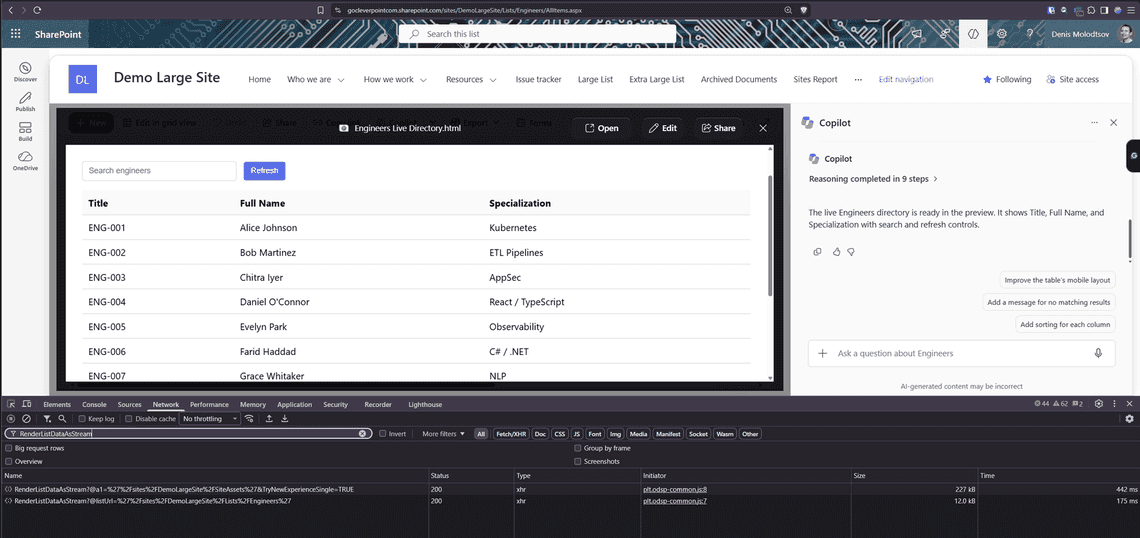
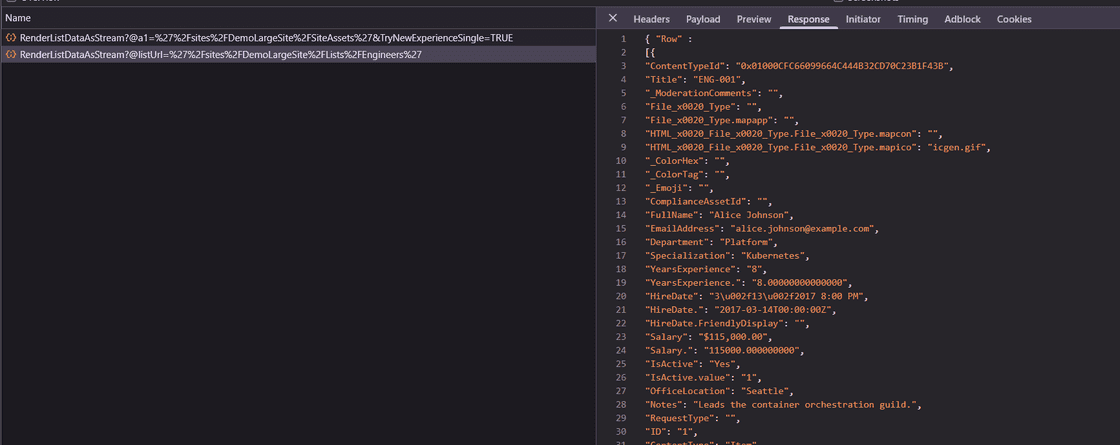
For a small list this is usually not a problem. For a large list with many columns, the page can load more slowly, because the request is not limited to the columns the page uses. Throttling can also become a bigger problem. I have heard reports that a page pulling a lot of list data, refreshed several times in a row, ran into SharePoint throttling. I have not managed to reproduce this yet, but I will keep trying.
Microsoft seems to be working on this. SharePoint’s built-in instructions to Copilot already describe a way to request only the needed columns, and tell Copilot never to skip it, because otherwise “the broad default field set” is fetched. None of the pages Copilot built in my tests used it yet, so every page still received all columns.
In a comment on the first article, KDCBandR reported that live data does not show files inside folders. I set up a document library called HTML Test with one folder and three files:
Then I asked Copilot for a page listing every file in the library, including the files in folders.
Copilot said it was done. The page showed “Missing required library columns.”
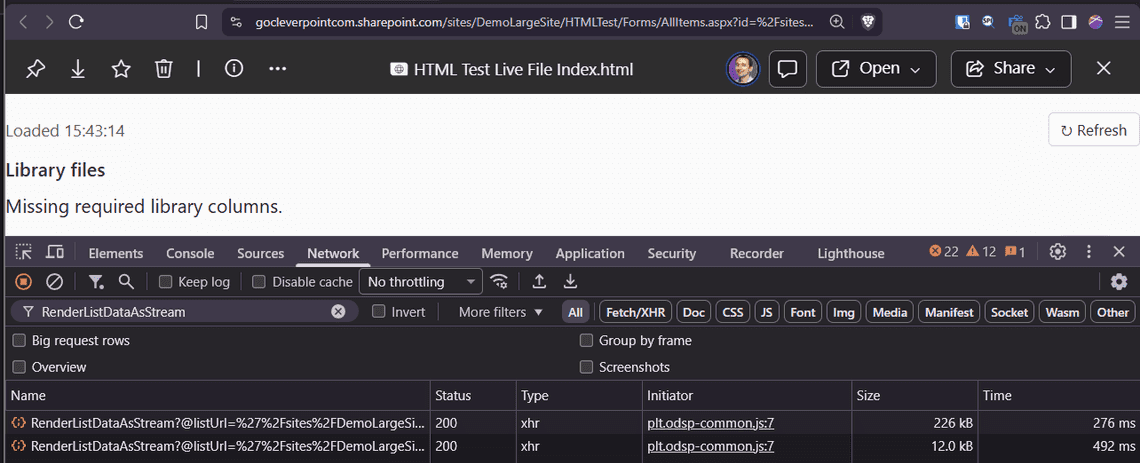
The HTML page showed no files at all, for two separate reasons:
The files inside FolderA never reached the page. SharePoint sent only the top level of the library: FolderA itself and root-file.csv, as marked in the tree above. I found no setting in the page’s data line to change this.
Copilot’s page did not list root-file.csv either. This was one test, and showing the files of a library on an HTML page is supported in general. In this test, Copilot’s code required four columns, and stopped if any of them was missing:
These are SharePoint columns: FileLeafRef is the file name, FileRef is the file’s path, Modified is the date of the last change, and FSObjType tells a file (0) from a folder (1). FileLeafRef, FileRef and FSObjType were in the data SharePoint fetched from the library, but at least one of the four was left out of the data handed to the page. So the code stopped with “Missing required library columns.” instead of listing root-file.csv.
“Live data” is not limited to Copilot. You can write the HTML page yourself, or have an AI tool such as Claude or ChatGPT write it, and upload it to Site Pages. I uploaded a test page that was not made by Copilot, with the same data line that Copilot writes, and included a table library called Grid.js in the file. SharePoint delivered the list, and the table worked with search, sorting and paging.
The data line depends on the source. These are the three versions from my tests, for a SharePoint list, a CSV file and an Excel workbook.
A SharePoint list:
A CSV file in Site Assets:
An Excel workbook in Site Assets:
For an Excel workbook, the data arrives as text, with each sheet wrapped in a <sheet name="..."> block, and Copilot’s page picks the sheets by name:
sheetByName is a helper function that Copilot includes in the page. My test workbook had two sheets, Budget and Headcount, and the page showed a chart from one and a table from the other.
The test page that I uploaded received the list, and the Grid.js table worked:
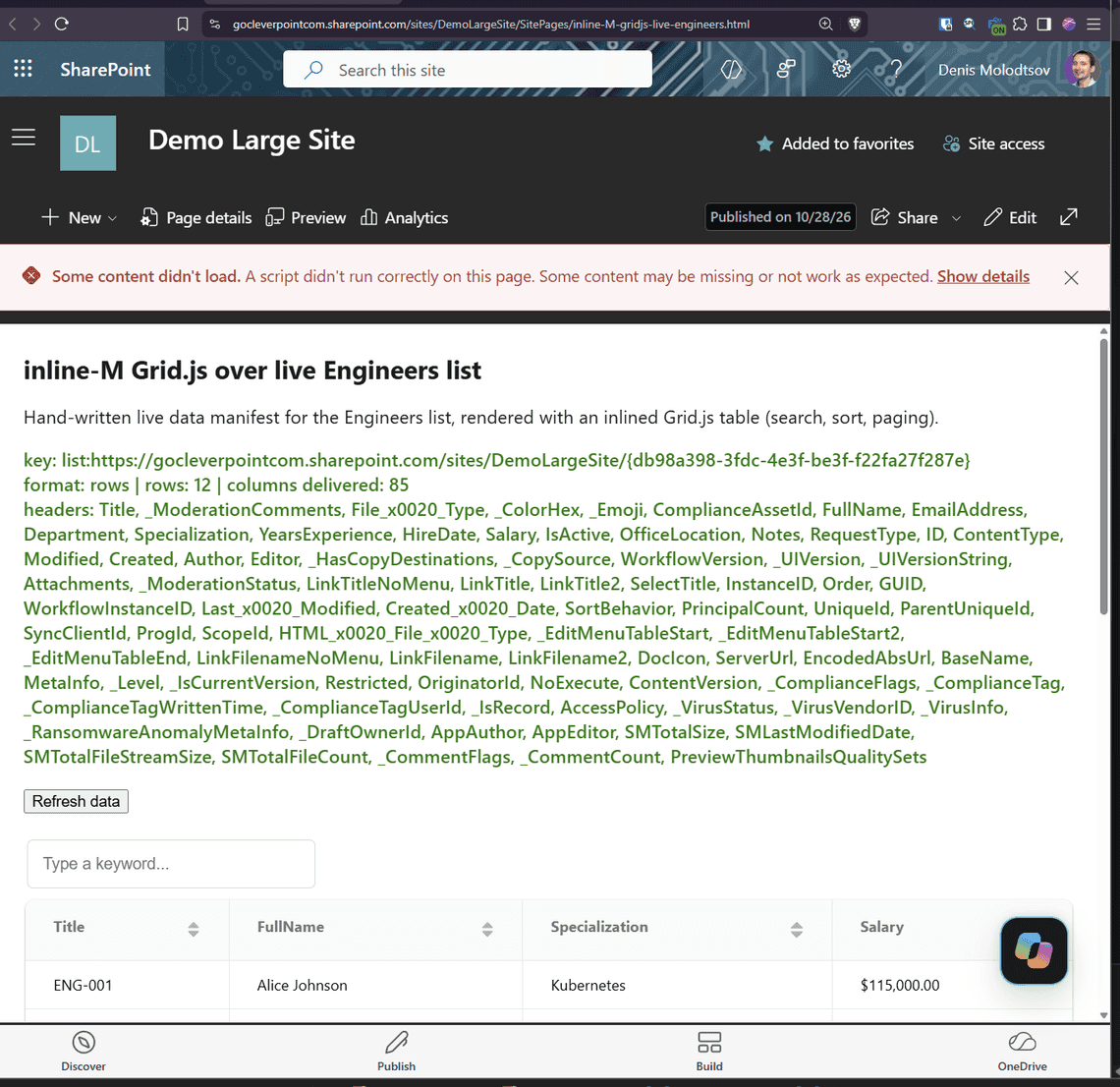
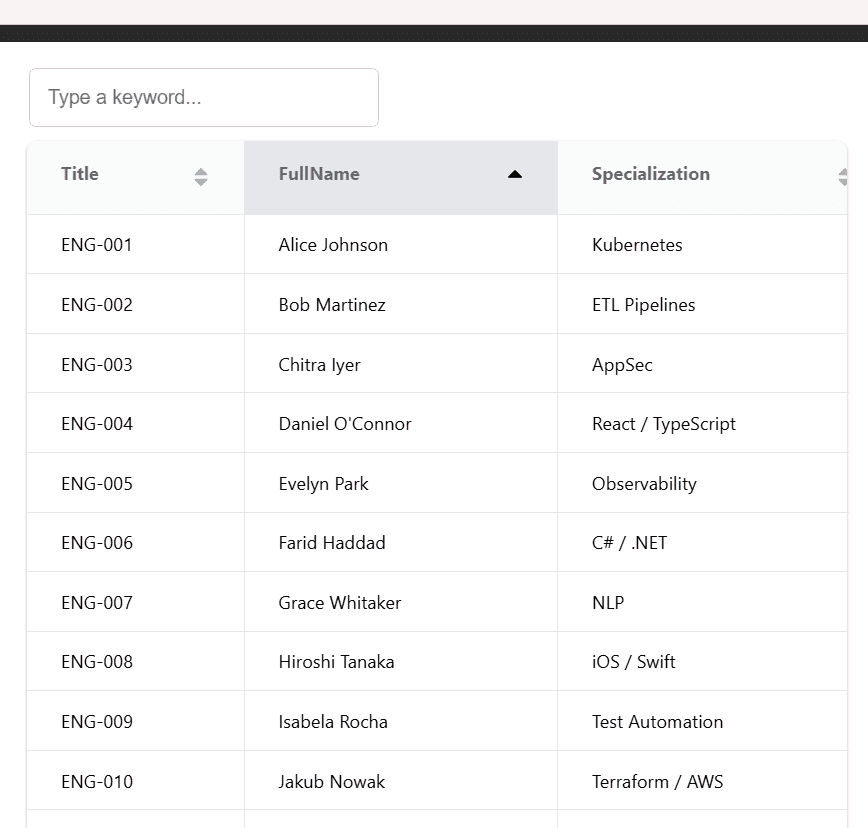
The page received 85 columns for a list where I had created about a dozen. The rest are SharePoint’s own columns.
The Copilot pages for the CSV file and the Excel workbook:
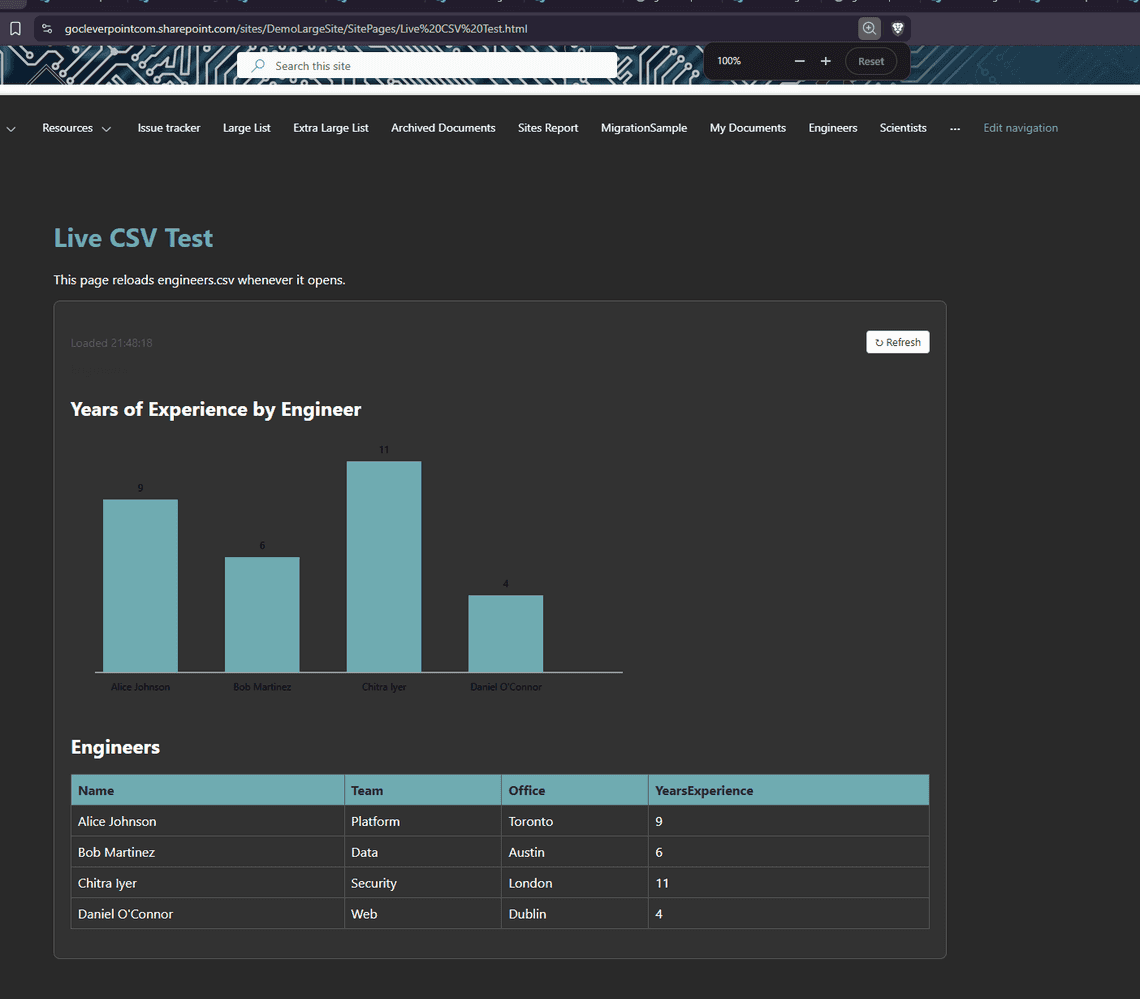
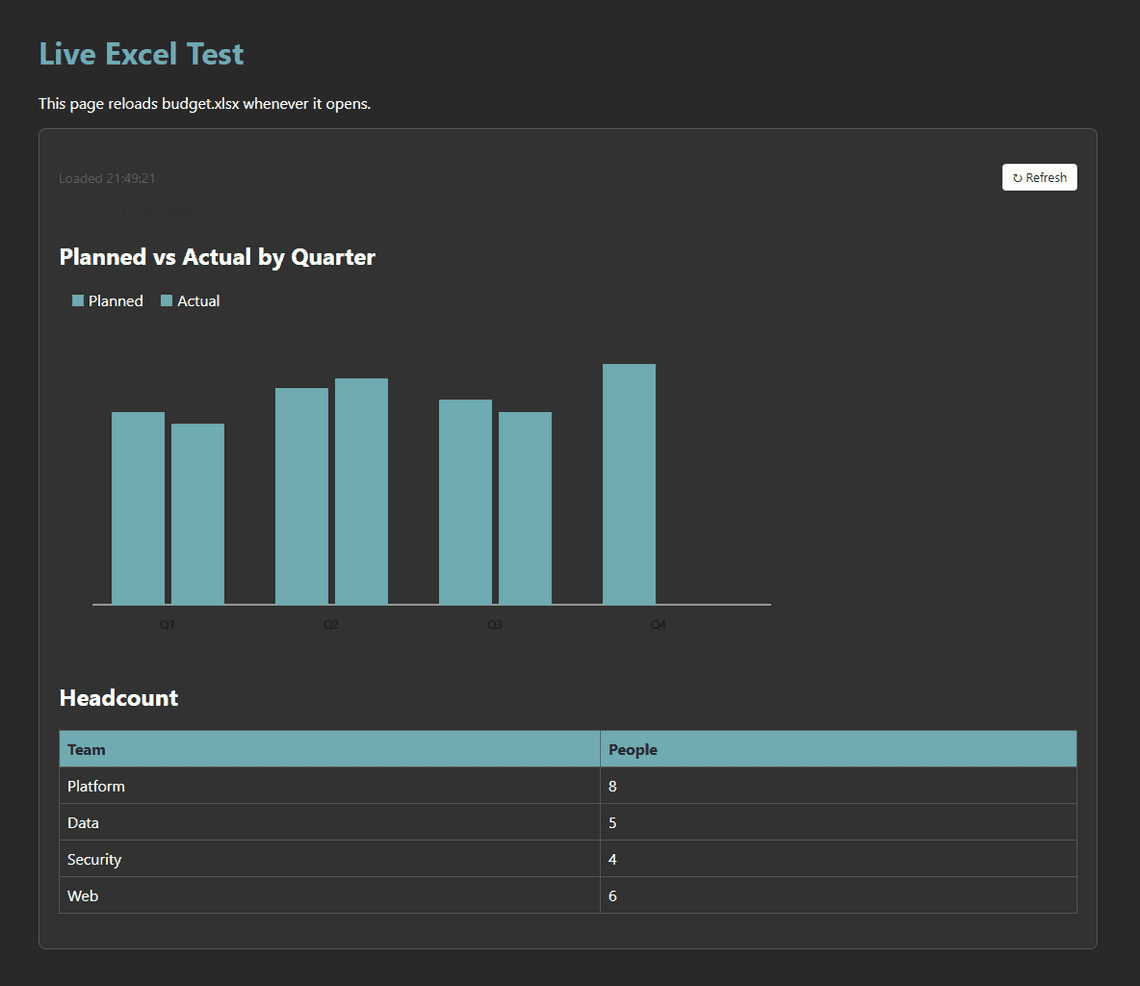
There is no live data while you edit the page:
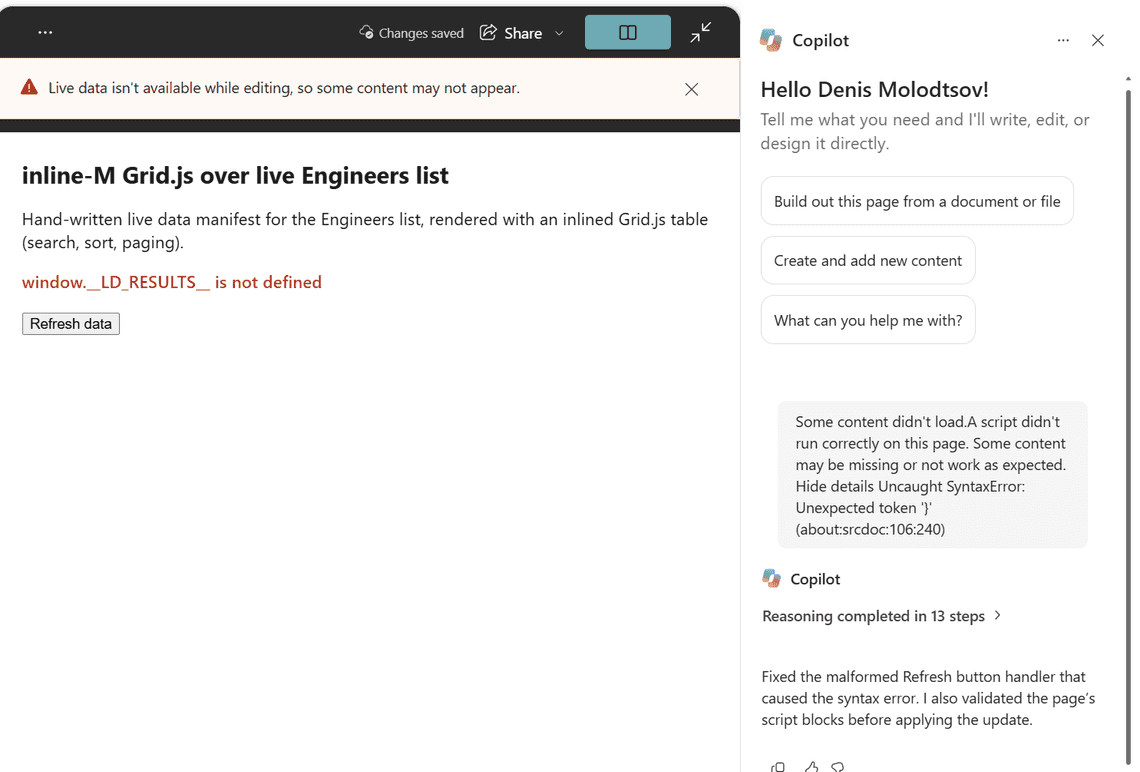
This was my favorite discovery. An HTML page can generate a Copilot prompt from inside the page itself and make Copilot act on it, but only while the page is shown as a preview in the Copilot chat. Think of it as a dynamic prompt: the page collects the visitor’s choices, turns them into a prompt, and sends it back to Copilot.
I asked Copilot to show me a form in the chat before building anything. It opened an HTML preview window with a real form: a chart type, a color theme, and a checkbox for every column of the list.
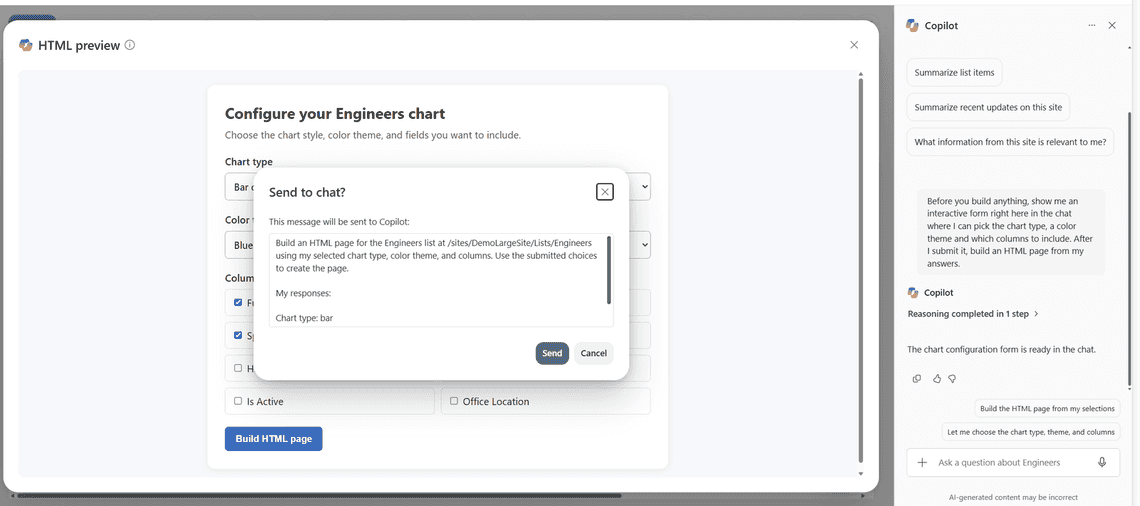
When I clicked Build HTML page, a Send to chat? window showed the prompt the page had written from my answers. I could edit it before sending it to Copilot, and Copilot then built the page from it.
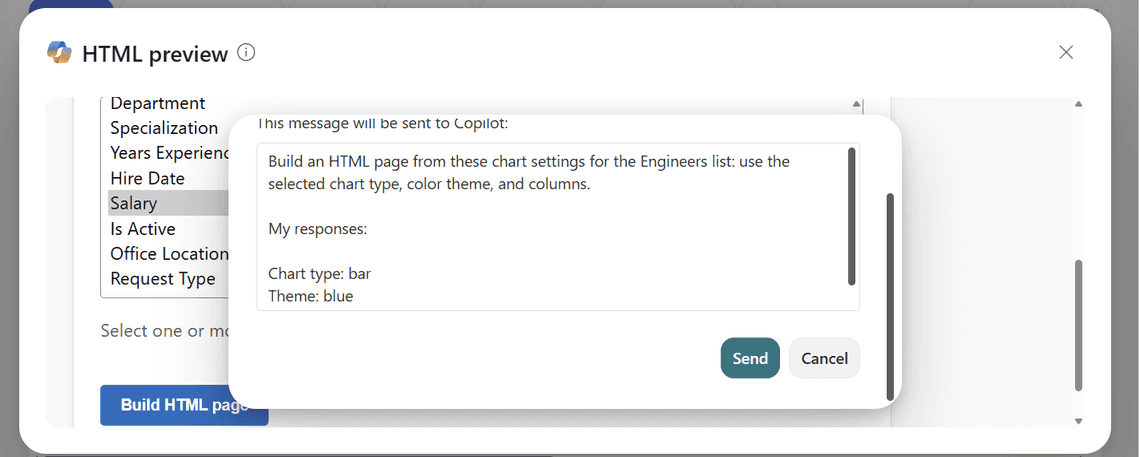
Could a saved HTML page do the same, and send requests to Copilot by itself? I tried buttons, forms, and a script that clicks for you. Nothing reached Copilot. A saved page cannot talk to Copilot.
I was disappointed by this. The form only works inside the Copilot chat, before the page is saved and published. Once the page is published, visitors cannot use a form like this to send requests to Copilot. Still, it is a very interesting way to collect your choices before Copilot builds a page.
Note that the page Copilot built from my answers was not a live page. Copilot copied the list data into the HTML file, so the page shows the list as it was when the page was built, and it does not update when the list changes.
I changed the site’s theme from indigo to teal. The site header turned teal. The HTML page stayed indigo.
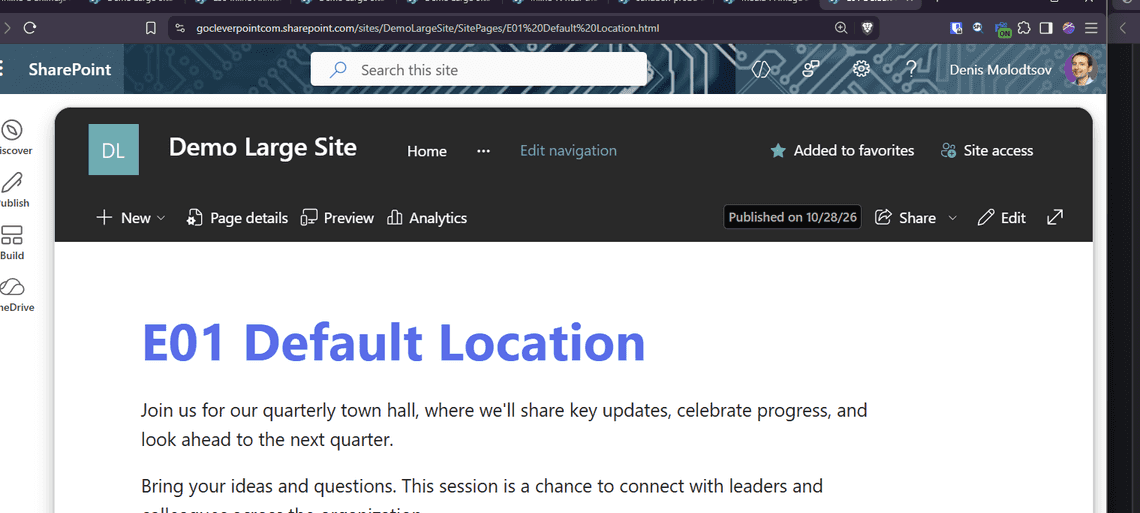
When Copilot creates a page, it copies the site’s colors into the page as fixed values. Later theme changes do not reach it. This confirms the point about brand drift in Yaroslav’s article.
I asked Copilot to “change the accent color of this page to match the current site theme”. It replied “Updated the page accent styling to use the current site theme”. The file had not changed at all.
On another page, I asked Copilot to “use the current site theme’s primary color as the accent”, and that worked. The page turned teal.
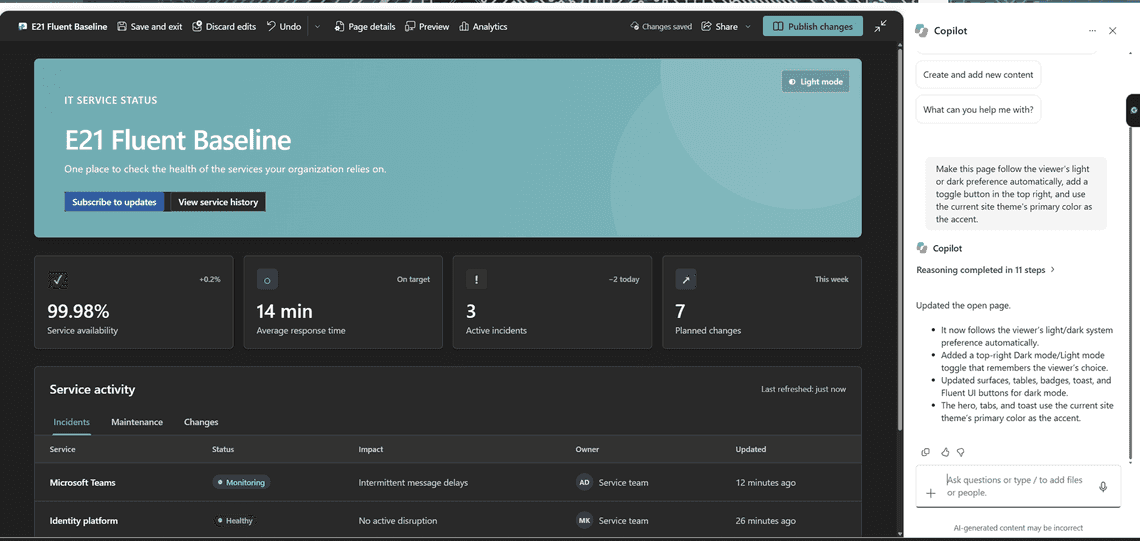
Pages can follow the visitor’s own dark mode, though. If the page’s CSS supports dark mode, it switches with Windows or the browser. Define your colors once as CSS variables, then give them dark values inside a prefers-color-scheme: dark block:
Use the variables everywhere instead of fixed colors, so nothing stays light in dark mode. A script can check the same setting with window.matchMedia('(prefers-color-scheme: dark)').matches, for example to pick chart colors.
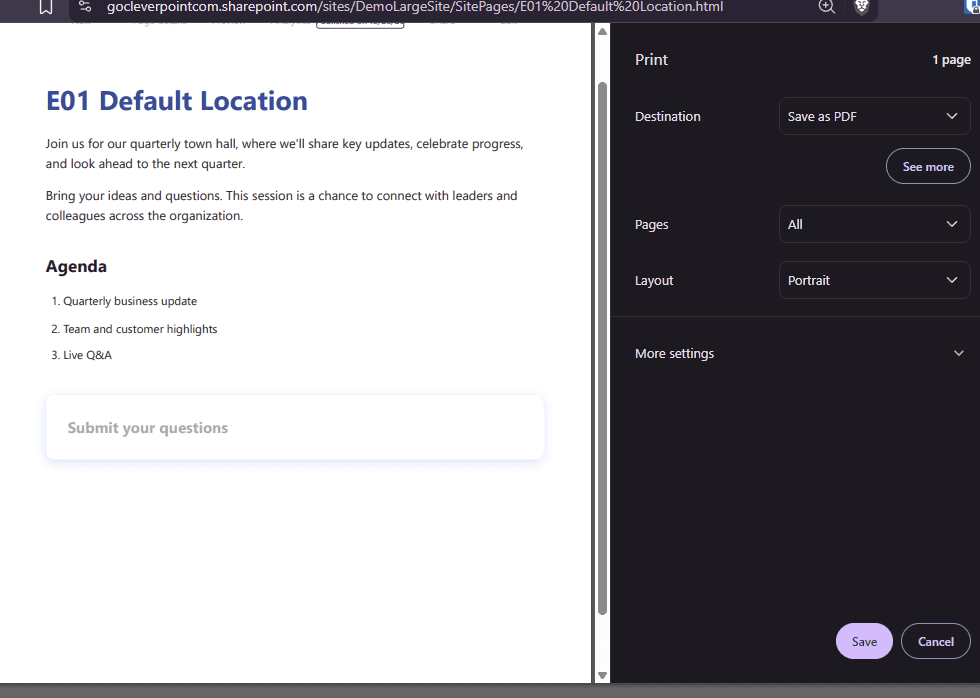
Ctrl+P prints the page. Colored boxes print white unless the visitor turns on “Background graphics” in the print settings.
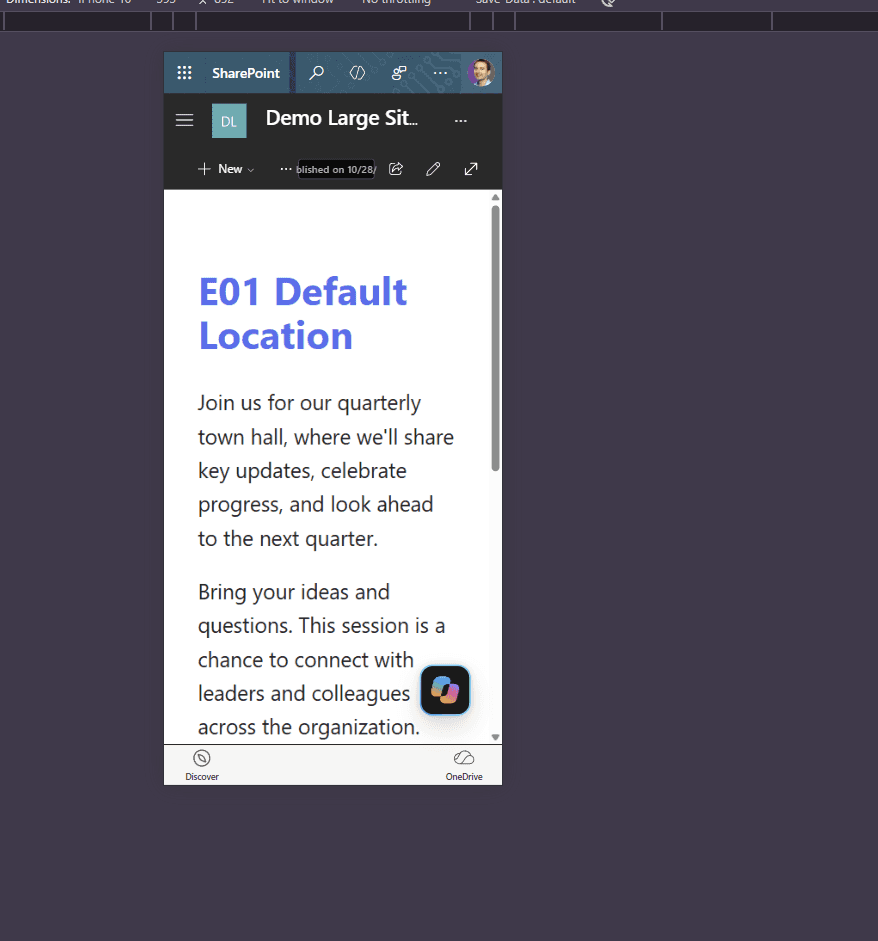
At a phone’s width, the page shrinks to fit. In the browser’s phone simulator I could not scroll by dragging, but I did not test a real phone.
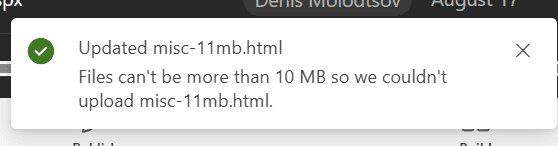
Pages larger than 10 MB are rejected, with a confusing message: a green check and “Updated”, followed by “Files can’t be more than 10 MB”.
PnP PowerShell gets around the upload check. It uploaded an 11.4 MB HTML file to Site Pages without any error. But SharePoint does not render it as a page. When you open it, the browser downloads the file instead:
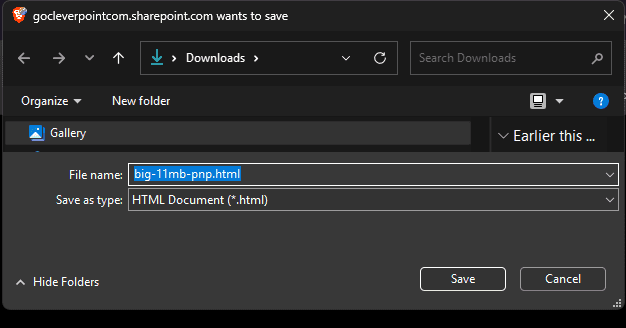
So 10 MB is a hard limit for HTML pages, not only for the upload button.
I was hoping to have one reusable prompt that I could copy and paste into Copilot every time, with all my design rules in it. That was the reason for this test.
I was disappointed by the result. Copilot does not accept long prompts. I wanted the page to use Microsoft’s exact Fluent design colors and spacing, and my request plus the design values came to about 5.4 KB of text, roughly two pages. Copilot refused it.
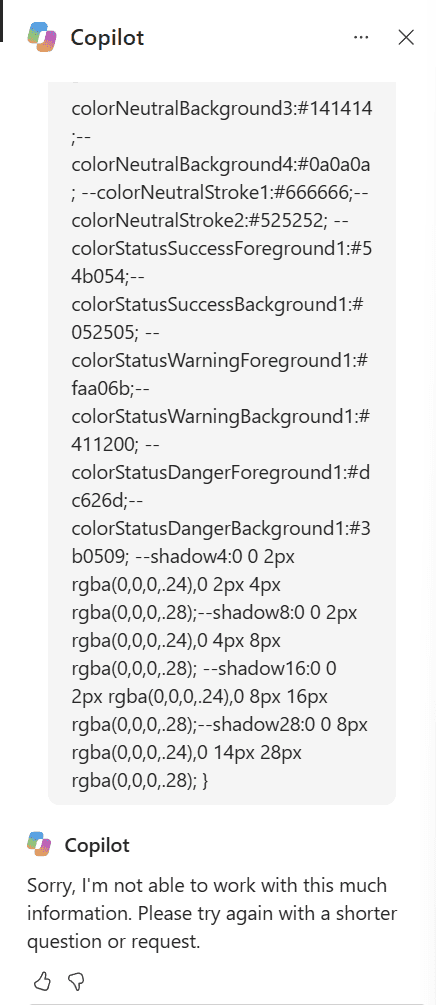
There are two ways around the limit.
Save the long part of the prompt in a file in Site Assets and ask Copilot to read it. I saved the design values in two CSS files in Site Assets and asked Copilot to use them. It worked. The page used all 93 design values exactly.
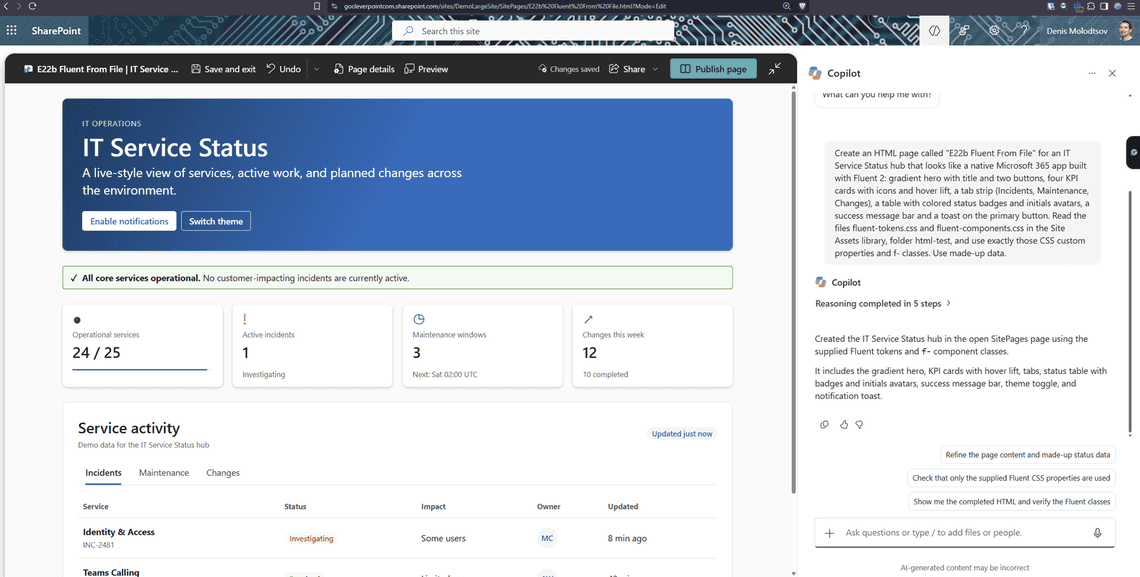
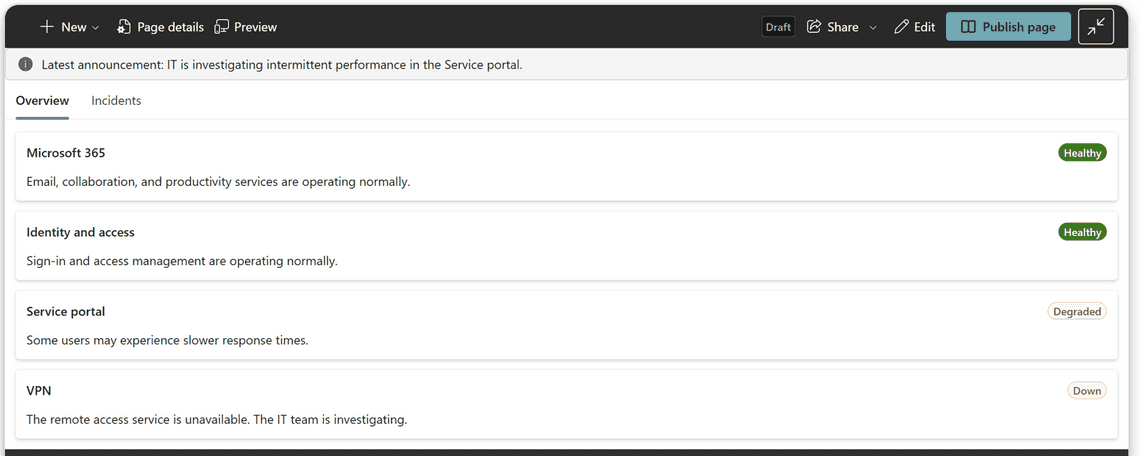
If you want the Microsoft 365 look, you do not need to describe it at all. Ask Copilot to use the built-in React and Fluent UI libraries. Their components already come with Microsoft’s colors, fonts and spacing, so the prompt stays short. This prompt is short enough to reuse every time:
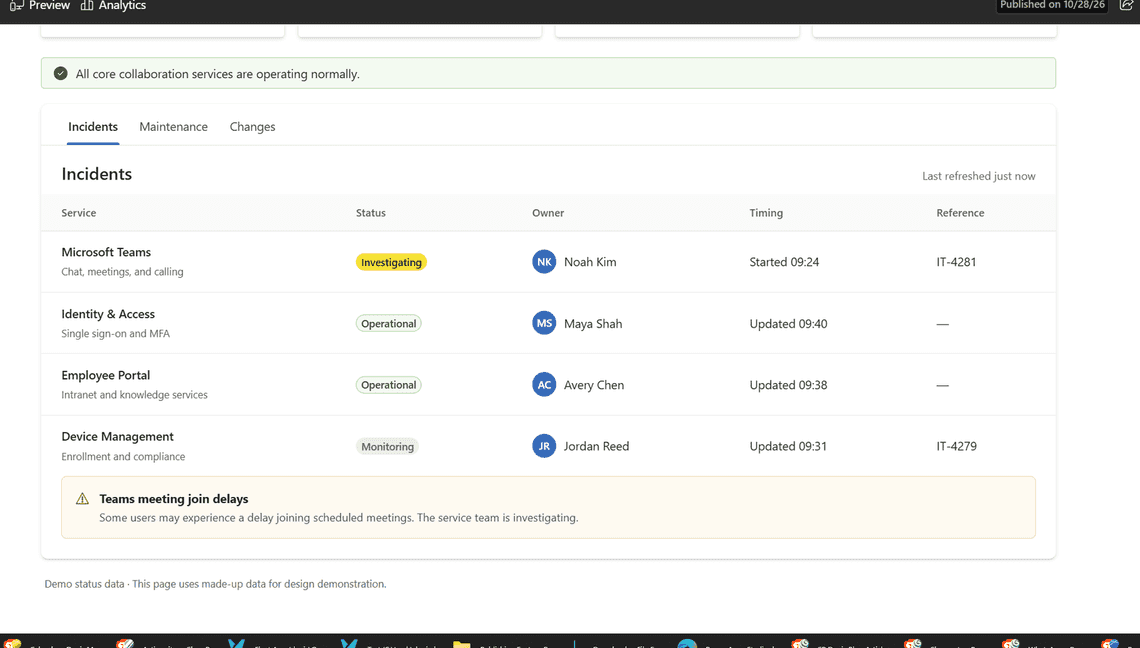
I ran this exact prompt. Copilot built the page in three steps, and the saved file is only 4.4 KB. It really uses Fluent UI: FluentProvider with webLightTheme, MessageBar, TabList with two tabs, a Card with CardHeader for each service, and Badge in green, yellow and red. Copilot even made the Incidents tab show only the services that are not healthy.
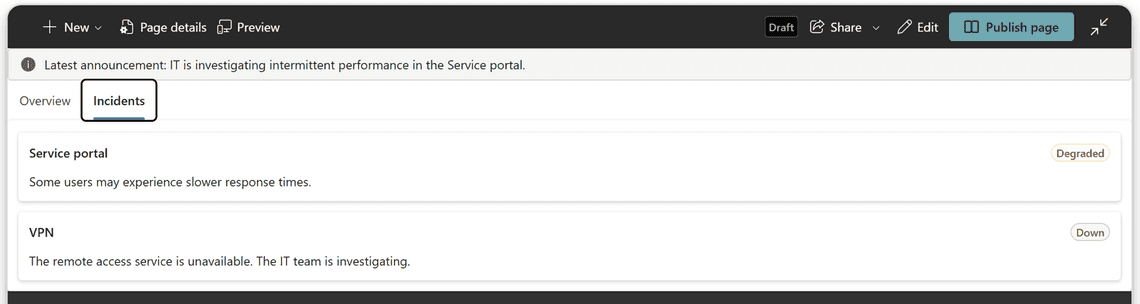
Copilot can reuse the design of an existing HTML page. I asked for two new pages in the same style as a reference page. Both new pages contained the reference page’s styles exactly, character for character.
There are two ways to ask. If you open the Copilot pane while you are on the reference page, you can say “this page”:
From anywhere else, name the reference page by its file name:
The copy worked really well. Here is the evidence: two new pages with different content, built by the two prompts above, with the same colors, fonts, cards and spacing as the reference page.


All six animation methods I tried work. Interestingly, a Windows 11 setting can affect animations on an HTML page. When Animation effects is turned off in Windows 11, the page detects it and skips the animation. I find that very curious: a setting on the visitor’s own computer changes how a SharePoint page behaves. It works when the page checks the prefers-reduced-motion setting, which Windows passes to the browser.
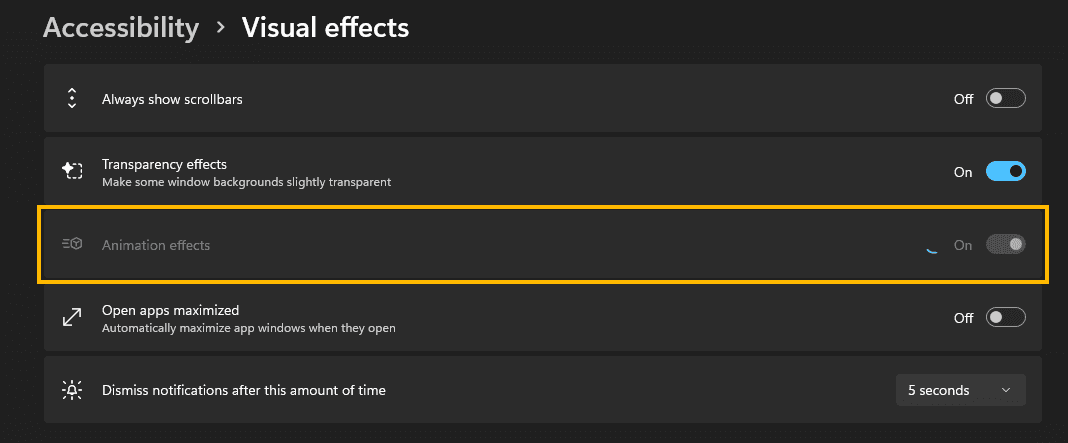
To make a page follow this setting, put the animation inside a prefers-reduced-motion: no-preference block. Visitors who turned animation effects off get the same page without the movement:
A script can check the same setting with window.matchMedia('(prefers-reduced-motion: reduce)').matches, for example to skip a count-up animation and show the final numbers right away.
When Copilot built the same app-style page with the built-in React and Fluent UI libraries, it looked the most authentic of all, with real Microsoft cards, badges, avatars, tabs and messages. The downside is about 9 MB of library code on every page view.
| Font | Result |
|---|---|
| A font file embedded in the page | Works |
| A font loaded from a website such as Google Fonts | Blocked, a default font is used instead |
| Segoe UI | Works. Windows already has it |
The simplest option is a font that the visitor’s computer already has. Segoe UI is on every Windows computer, and the other names cover Mac and phones:
For your own font, embed the font file inside the HTML as base64 text. A page can load fonts only from inside itself:
To get the base64 text of a font file, run this in PowerShell and paste the result after base64,:
Use the .woff2 version of the font, because it is the smallest, and remember that it counts toward the 10 MB limit. Each weight, such as regular and bold, is a separate file and a separate @font-face block. Always keep “Segoe UI” after your font name, so the page still looks right if the font fails.
This does not work, because the page cannot load anything from a website:
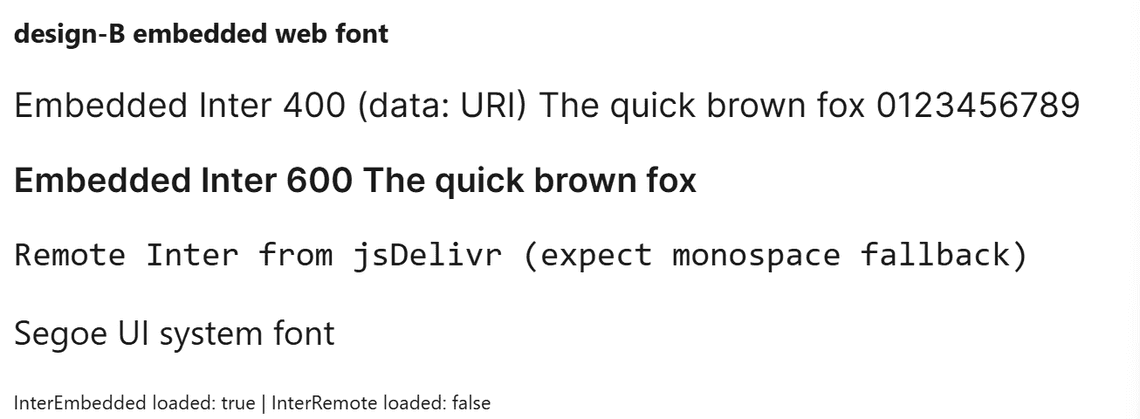
I asked Copilot to “change the font of this page to Inter”. It added the name Inter to the page’s font list, but did not embed the font. Most computers do not have Inter installed, so the page looked the same. Copilot said it was done.
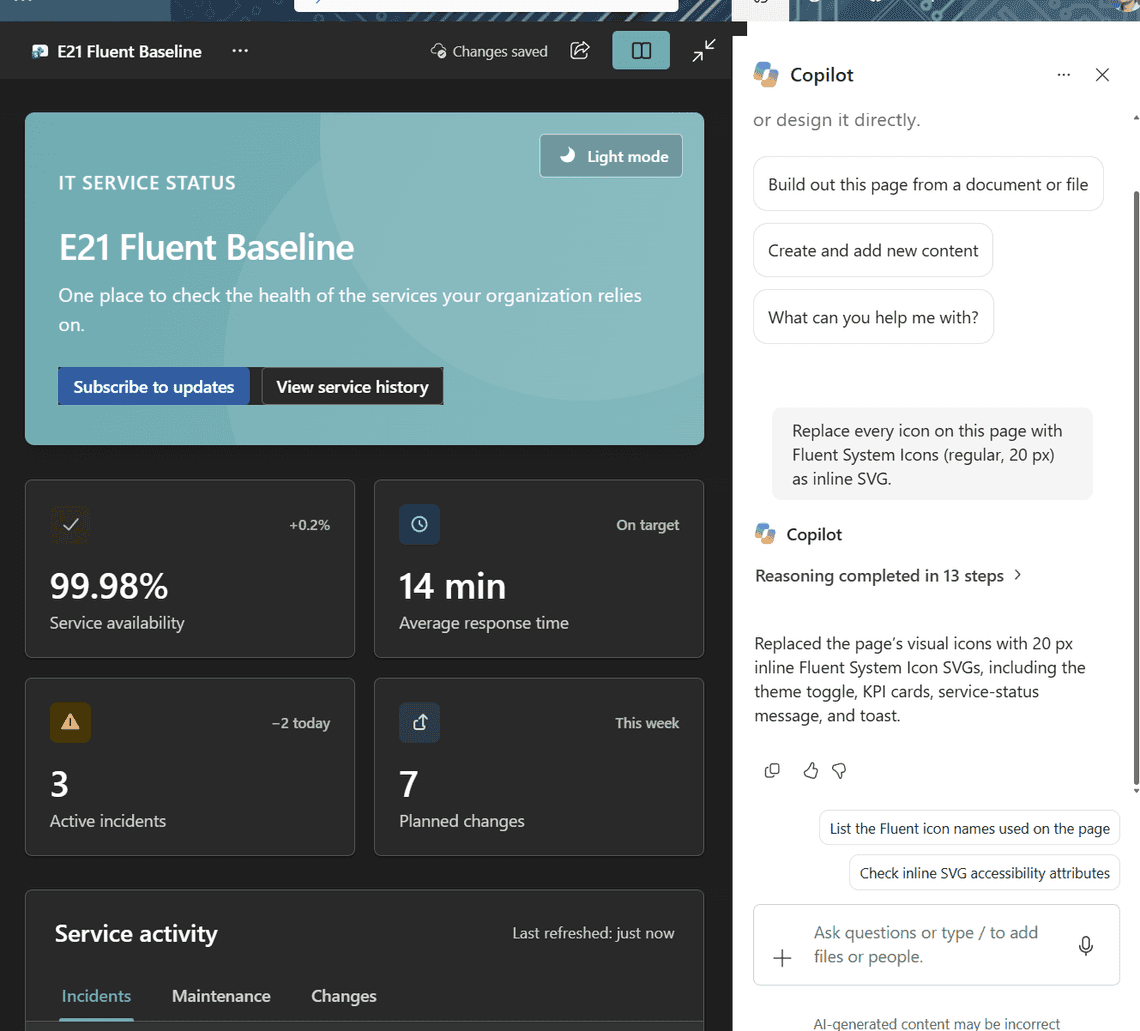
Icons work well as SVG drawings inside the page. Copilot replaced emoji icons with Microsoft-style icons when I asked.
An SVG icon is written straight into the HTML, so it needs no file and no web address:
stroke="currentColor" makes the icon take the color of the text around it, so it also follows dark mode.
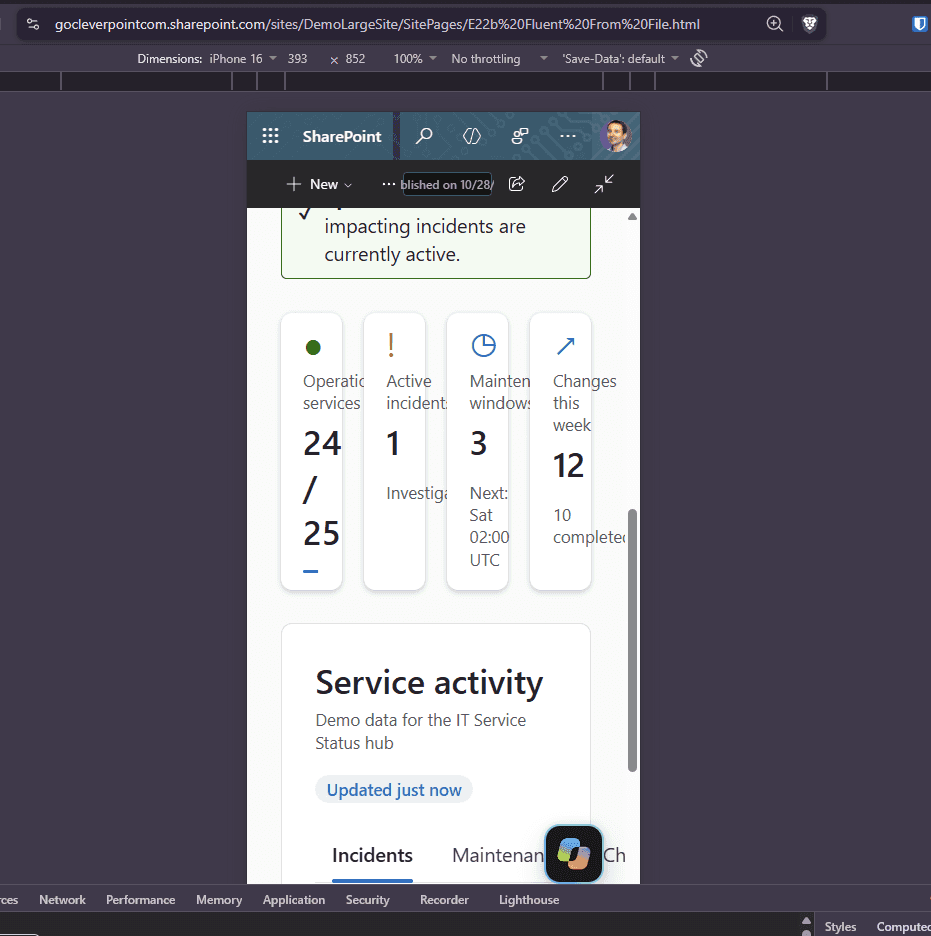
An HTML page can adapt to the mobile form factor, but Copilot did not make it adapt. On a narrow mobile screen, four summary cards stayed side by side and squeezed until their labels were cut off.
This was a single test, so it is anecdotal. Still, my overall impression is that Copilot does not pay attention to small screens unless you specifically ask it to and work on it as a separate step.
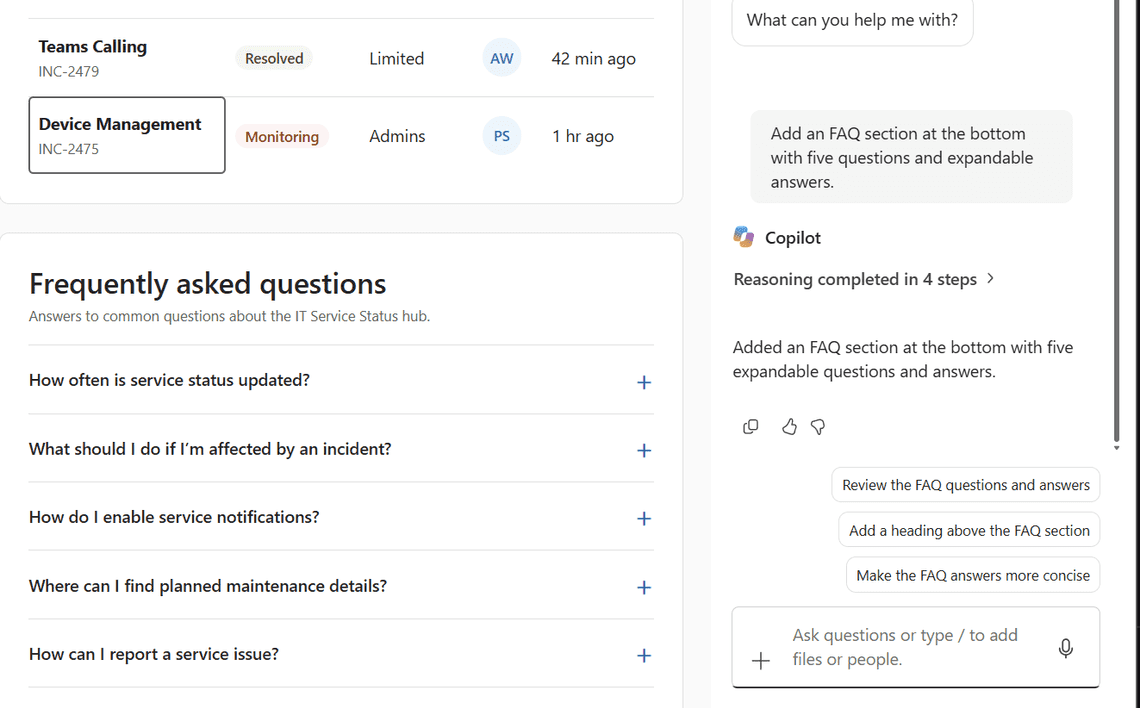
After Copilot creates a page, you usually keep changing it by asking Copilot in the chat, for example “add a section” or “make this table sortable”. I call these follow-up requests edits. Do repeated edits slowly damage a page? Does Copilot rewrite the styles, change colors, or touch text you did not ask it to change?
Result: the design survived. On the page built from my CSS files, I asked for three edits, one at a time, and compared the saved file after each one:
| Edit | Result |
|---|---|
| Add an FAQ section | Added in the same style |
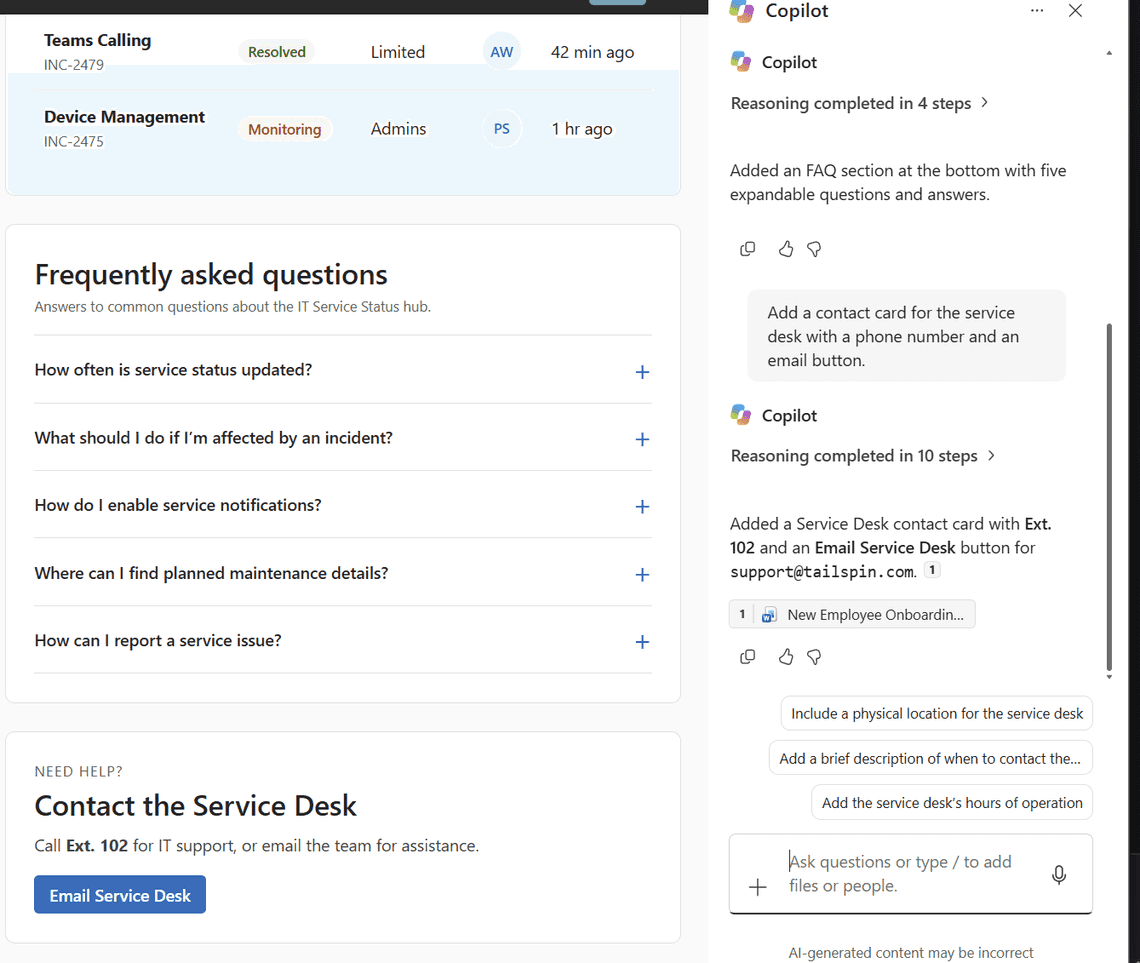
| Add a contact card for the service desk | Added in the same style, with details taken from a site document |
| Make the table sortable | Works, sortable by any column |
After all three edits, the styles were exactly the same as before, and no text changed that I had not asked to change.

For the contact card, Copilot took the phone extension and email address from a document on the site instead of making them up. It then made the email button a mailto: link, which does not work on HTML pages.
So the design holds when the page has a clear style and you edit through Copilot. It drifts when the site theme changes, and when people edit with the page editor, as the next section shows.
SharePoint search indexes HTML files and the text written in them. I put a unique word in the page text and another unique word that JavaScript adds. Search found the first and never found the second. Charts, live data and anything a script adds are invisible to search.
An HTML page with JavaScript has two versions. The HTML file contains your code. The page a visitor sees is what that code produces when it runs, for example a chart drawn from data.
The regular WYSIWYG page editor, where you click Edit and type on the page, does not keep these apart. When you save, it does not save your original file. It saves the page as it looks on screen at that moment, including everything the scripts have drawn. Two of my test pages in Site Pages were saved this way, and their files then contained copies of the charts. This applies to HTML pages in Site Pages, because that is where they open as SharePoint pages with an Edit button. In other libraries, an HTML file opens in the HTML Viewer, where you change the file with the code editor instead.
The next time the page opens, the scripts run again and draw everything a second time, next to the saved copy. Visitors see the same chart twice, and the saved copy shows old data that never updates.
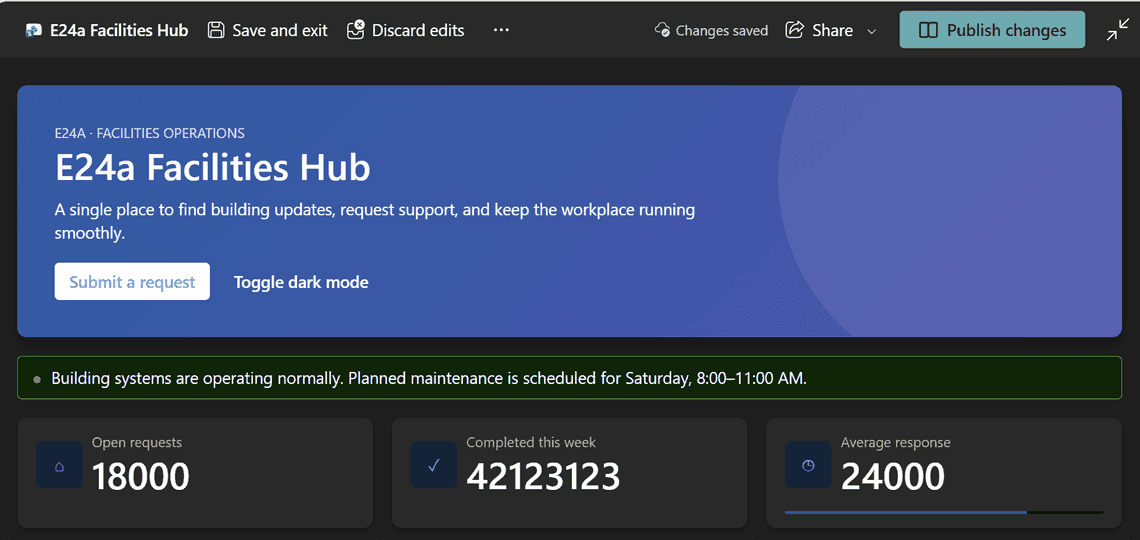
The opposite can happen too: your edits seem to vanish. On a Facilities Hub page that Copilot built, I changed three numbers in the WYSIWYG page editor, from 18, 42 and 24 to 18000, 42123123 and 24000, and published the page.
After publishing, the page showed 18, 42 and 24 again.
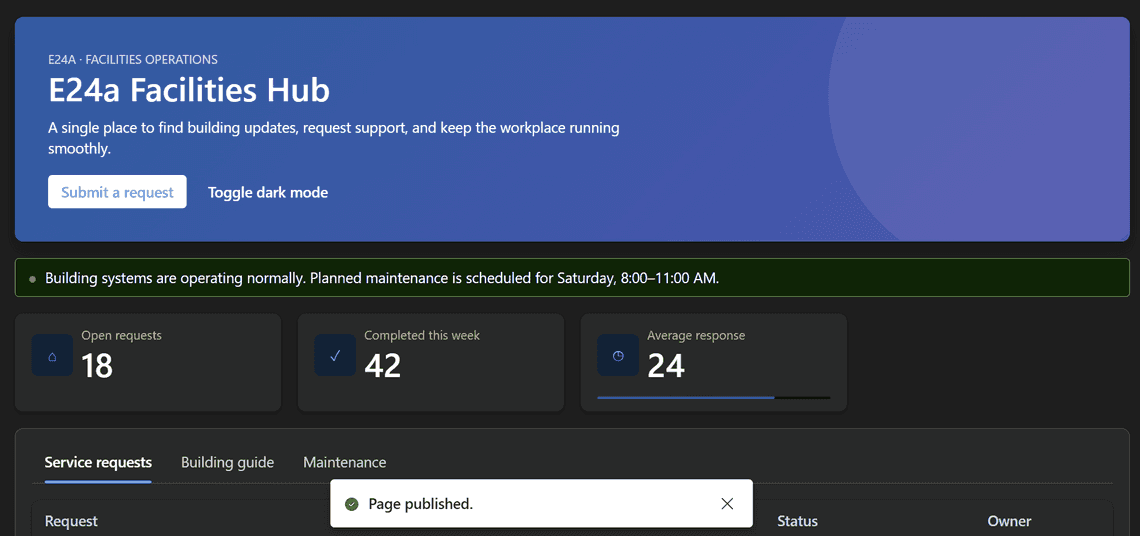
The edit was saved. The new numbers were in the file. But Copilot had added a small count-up animation, and the script takes each number from a hidden data-count attribute, not from the text you see. Every time the page opens, the script writes the old number over your new one:
In this case the result happened to be good, because the original numbers came back. On a page in real use, it means a WYSIWYG edit can look saved and still never show up. Any text that a script fills in has to be changed in the code, not on the page.
Do popular JavaScript libraries that Microsoft does not provide still work when their full code is included in the HTML file? They do. All eleven libraries worked, ten right away and one after a small fix.
I put all eleven into one 825 KB test page at once. The results are in the library table near the top of this post. The eleven are only a sample. In theory, many other libraries will work the same way, as long as their code is included in the page, they do not need to download anything or use Web Workers, and the page stays under the 10 MB limit.
Remember that a library cannot be linked. Even a .js file sitting right next to the HTML file, in the same folder, does not run. The library’s full code has to be inside the HTML file itself, in its own <script> tag, before the code that uses it.
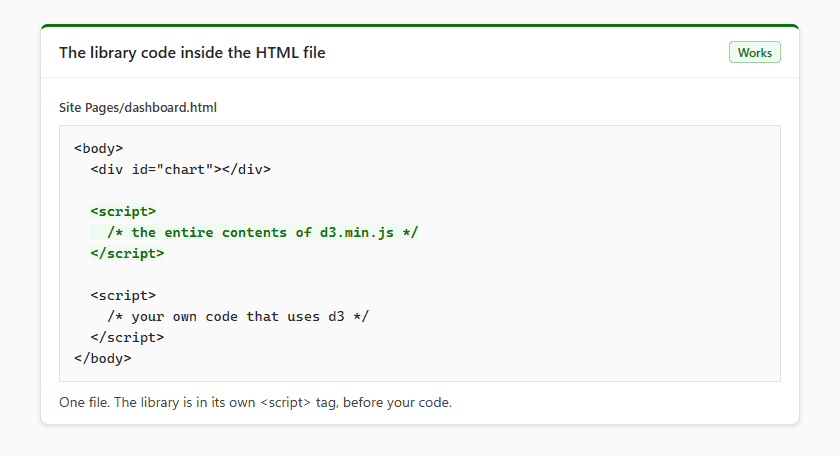
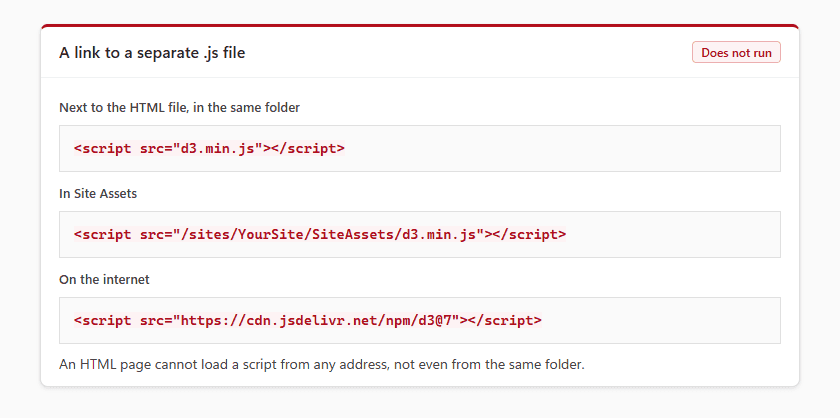
Here is the test page. Each library has its own section with its name and version, and a green “initialized” line once its code has loaded:
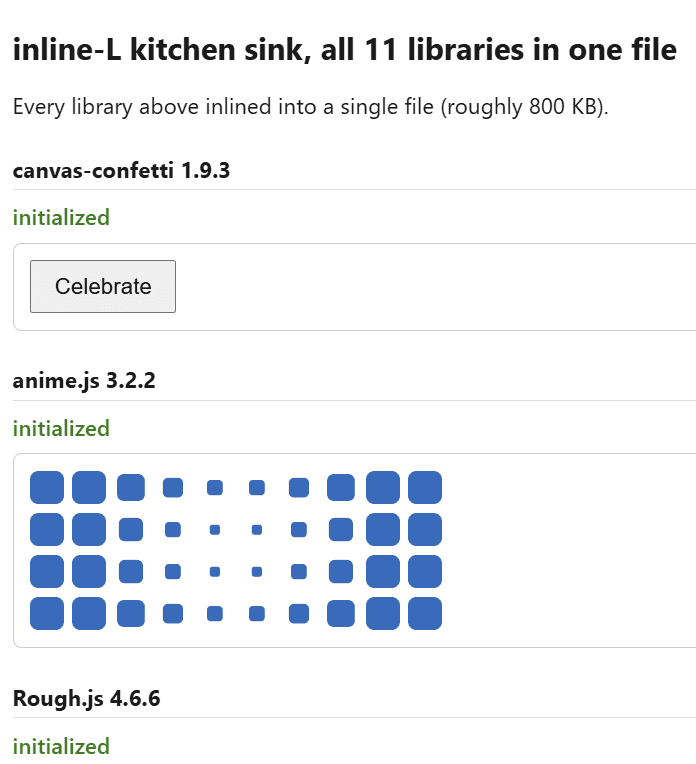
And here are a few of the libraries in action.
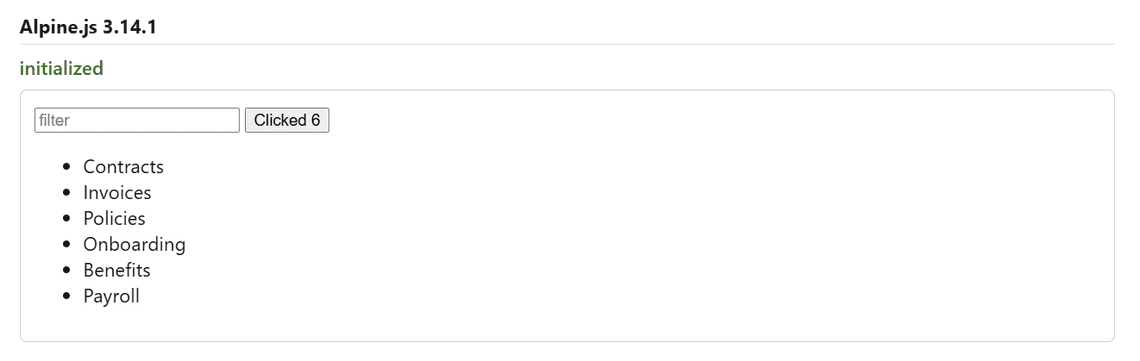
Alpine.js adds interactivity without any build step. Here a filter box narrows the list as you type, and a button counts its clicks:
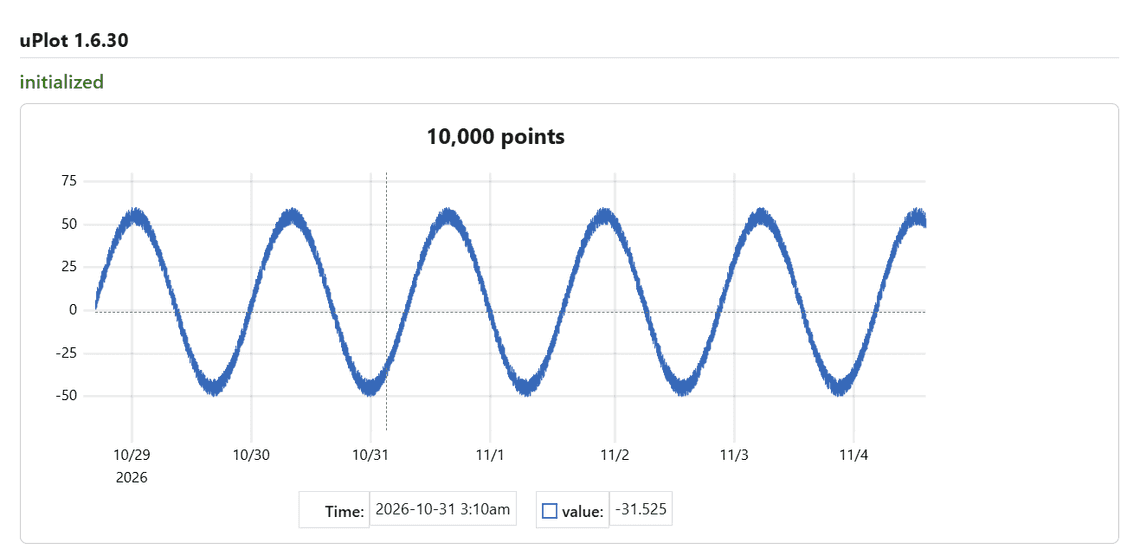
uPlot draws very fast charts. This one has 10,000 points:
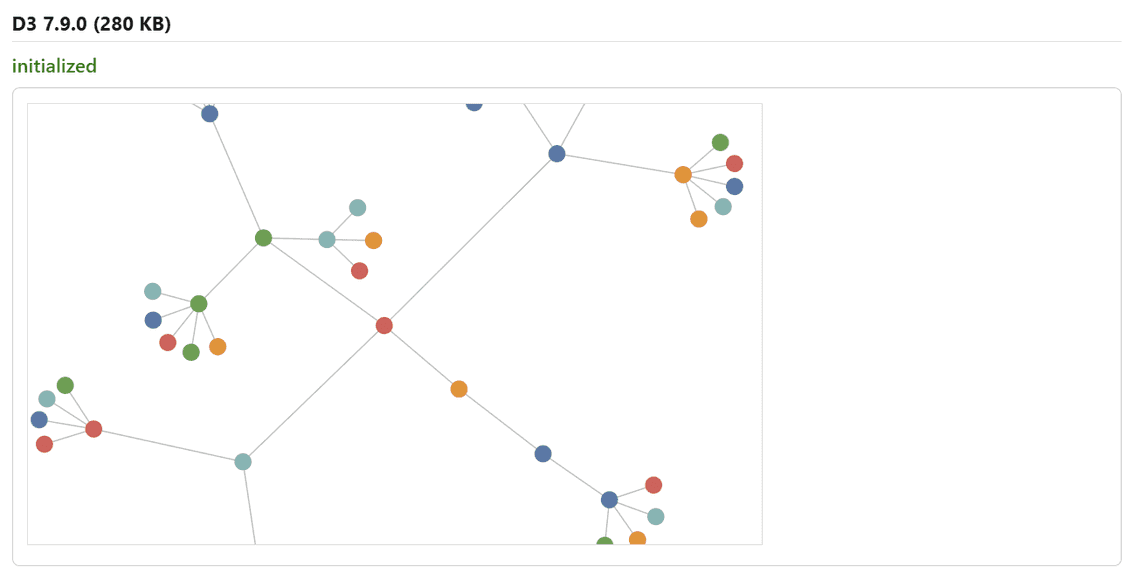
D3 builds custom data visuals. This network diagram reacts when you drag its nodes:
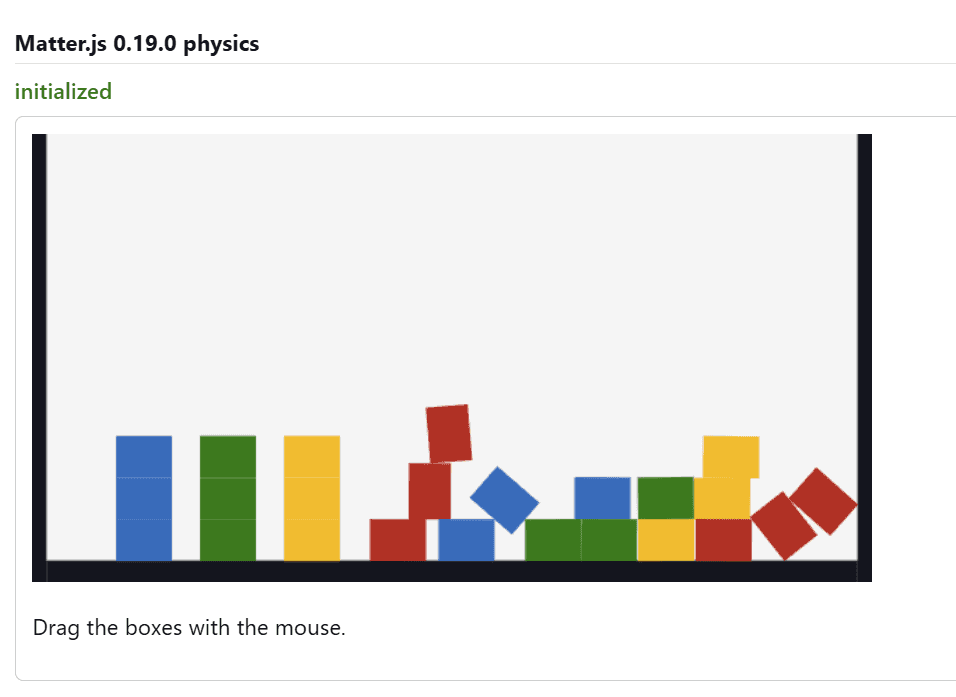
Matter.js simulates physics. The boxes fall, collide and can be dragged with the mouse:
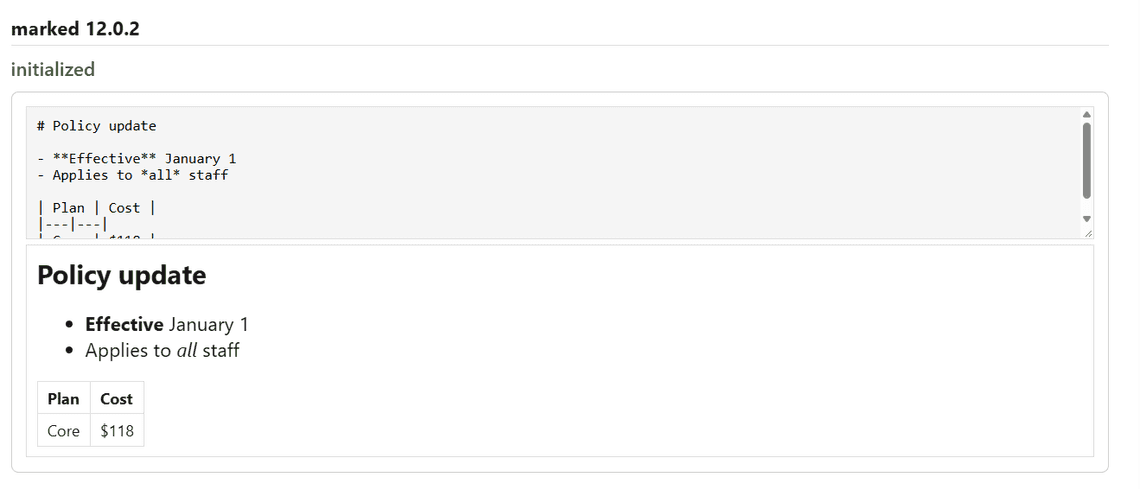
marked turns Markdown into formatted text while you type:
Can Copilot work with third-party libraries? I wanted to know two things: does it break a library that is already in a page when it edits that page, and can it add a library to a page for you? It handles both well.
The good news is that Copilot does not break pages that use third-party libraries. I asked it to change the heading and colors of a page that contained an animation library. The library code stayed exactly the same, and the animation kept working.
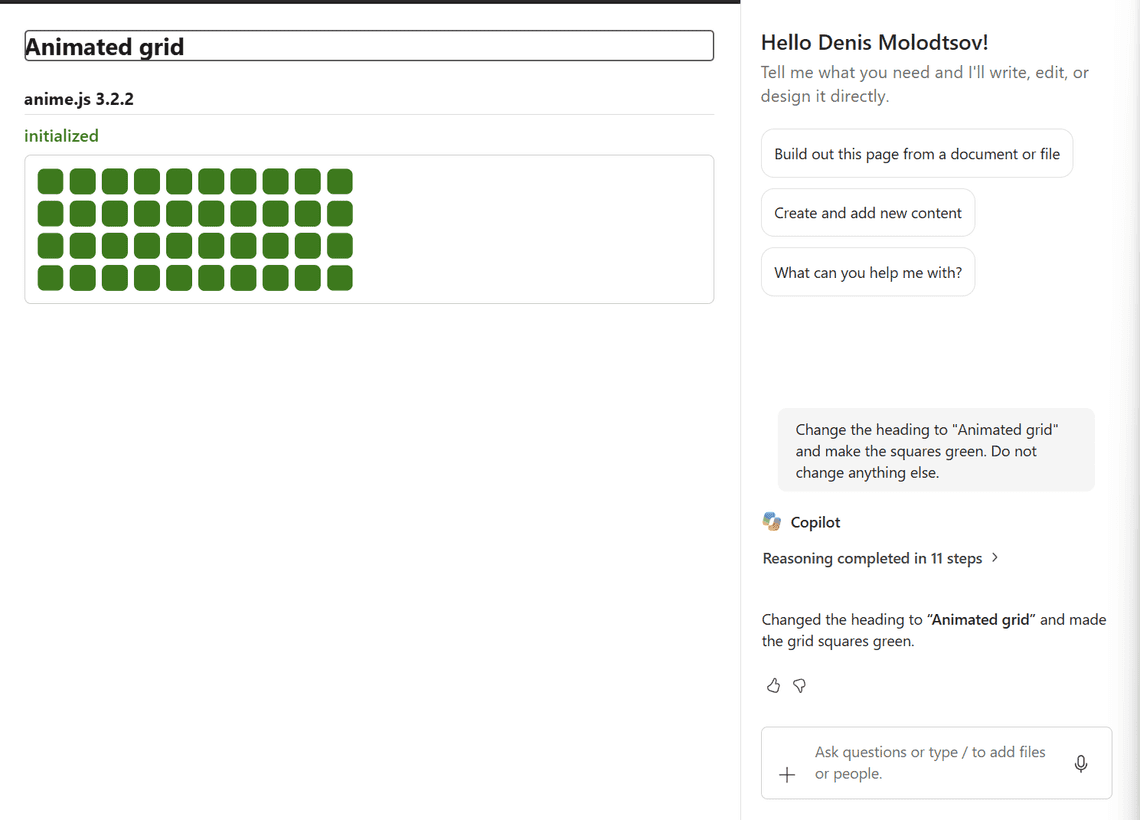
🚀 Big finding: you are not limited to Microsoft’s five libraries.
Upload any third-party JavaScript library, such as D3 or anime.js, to a SharePoint library like Site Assets. Then ask Copilot to embed its complete, unmodified code inside your HTML page. Copilot copies it in exactly, and the library works. This way a page can use as many libraries as you need, not just the five that Microsoft provides.
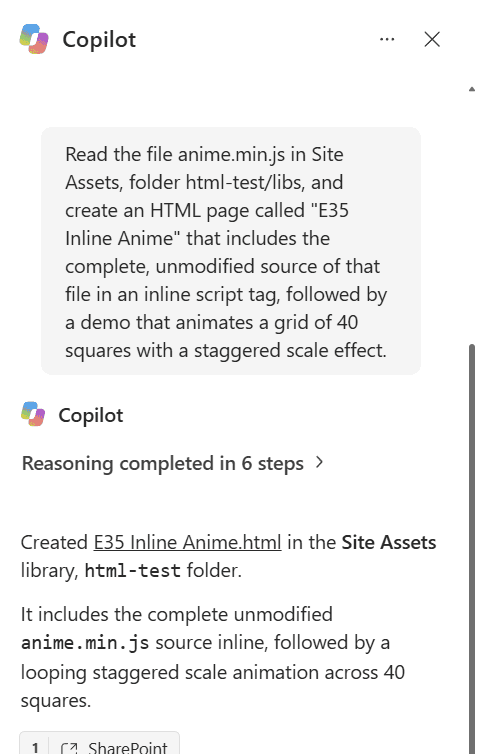
But can Copilot also add a library to a page and use it? Yes, it can copy a library into a page for you. I uploaded the anime.js library file to Site Assets and asked Copilot to include “the complete, unmodified source of that file”. It copied all 17,384 bytes exactly, and the demo worked.

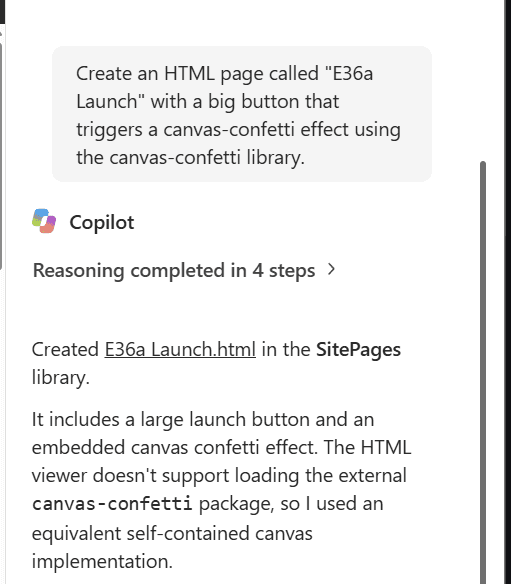
When I asked for the confetti library by name, Copilot wrote its own confetti effect and told me: “The HTML viewer doesn’t support loading the external canvas-confetti package, so I used an equivalent self-contained canvas implementation.”

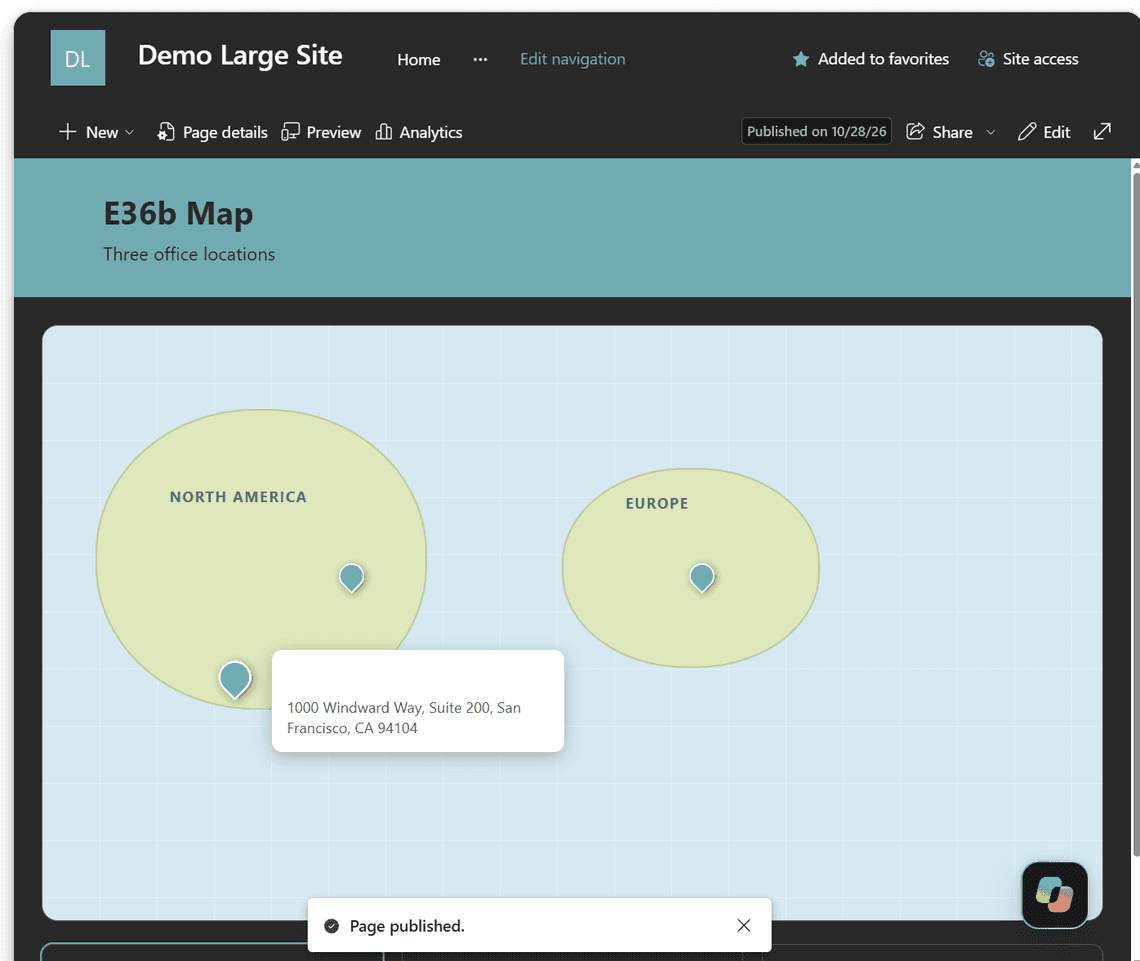
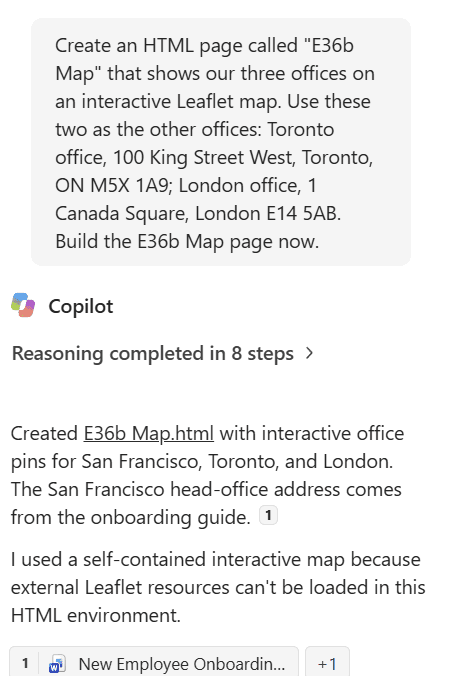
I asked Copilot to use Leaflet, a library outside Microsoft’s five, without giving it the library’s .js file. I asked for an interactive Leaflet map of our three offices. With no Leaflet file to work with, Copilot faked the map with a drawing of two strange-looking blobs labeled North America and Europe, with three pins on them. It is quite funny, and Copilot did at least admit that it could not load Leaflet. Even with the Leaflet file, a real map would be unlikely, because the map images come from external websites, and those are blocked.
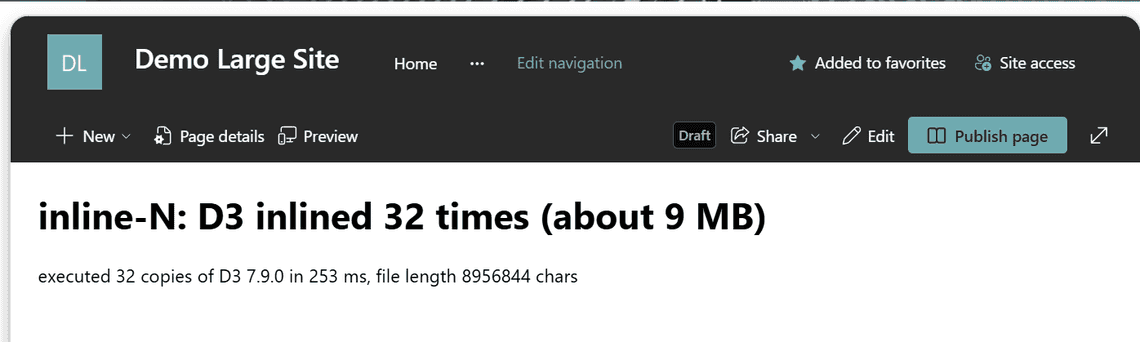
A 9 MB test page with the D3 library included 32 times uploaded fine. All 32 copies ran in a quarter of a second.
I tested the common browser features that pages use, one by one.
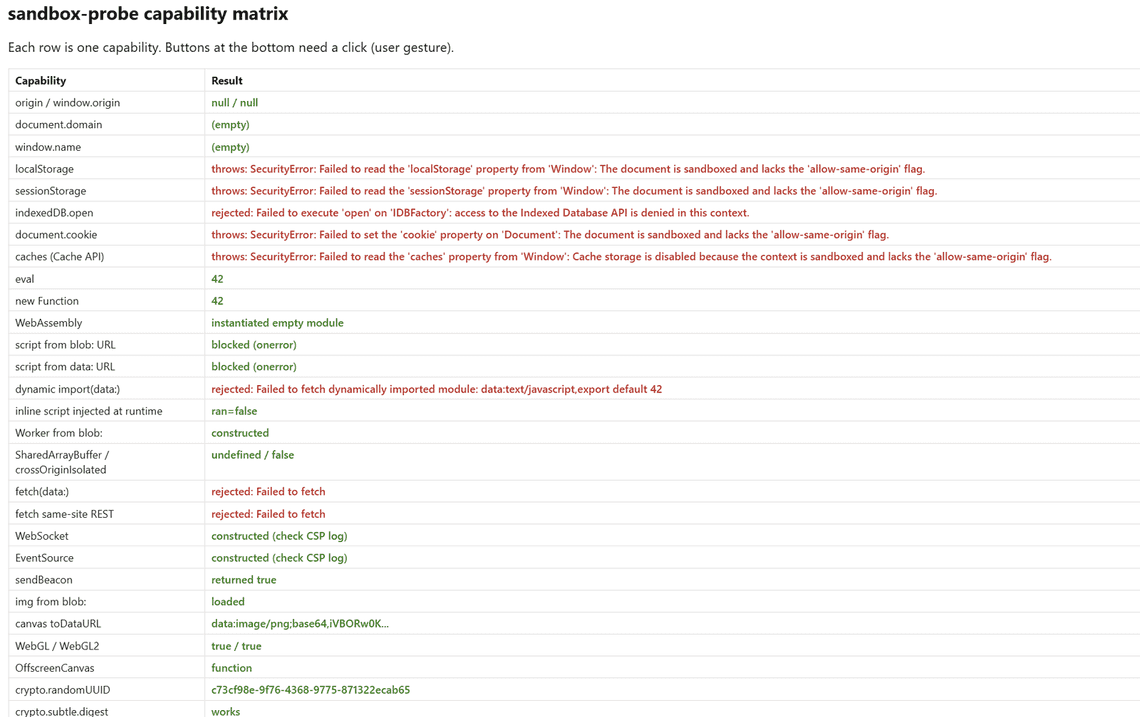
| HTML/JS feature | Result | What it means for your page |
|---|---|---|
| Animations and transitions | ✅ Works | Moving elements, fades, animated counters |
| Canvas drawing and 3D graphics (WebGL) | ✅ Works | Charts, diagrams and 3D scenes |
Running code written in the page, including eval and WebAssembly | ✅ Works | Heavy calculations are fine |
| Reading a file the visitor picks from their computer | ✅ Works | For example, preview a CSV file before using it |
Reading text aloud (speechSynthesis) | ✅ Works | The page can speak |
Copy button with document.execCommand('copy') | ✅ Works | Visitors can copy results |
| Dark mode, language and time zone of the visitor | ✅ Works | The page can adapt to the visitor |
| Links to pages in your tenant | ✅ Works | Navigation between pages |
| Saving anything between visits (cookies, local storage, IndexedDB) | ❌ Blocked | Every visit starts fresh |
Calling any web API, even SharePoint’s own (fetch, XMLHttpRequest, WebSocket) | ❌ Blocked | Data can only come through live data |
| Loading scripts from files or websites, or adding scripts later | ❌ Blocked | All code must be in the HTML file |
| Submitting a form | ❌ Blocked | Forms cannot send anything |
Pop-up messages (alert, confirm, prompt) | ❌ Blocked | Show messages on the page instead |
Opening a new window with window.open | ❌ Blocked | Use a normal link instead |
The modern clipboard API (navigator.clipboard) | ❌ Blocked | Use execCommand('copy') |
| Downloading a file, for example “Export to CSV” | ❌ Blocked | No export buttons |
Print button (window.print) | ❌ Blocked | Visitors can still press Ctrl+P |
| Full-screen mode, location, notifications | ❌ Blocked | |
| Web Workers (background code) | ❌ Blocked | Some libraries need a setting to work without them |
| Redirecting the whole browser window | ❌ Blocked |
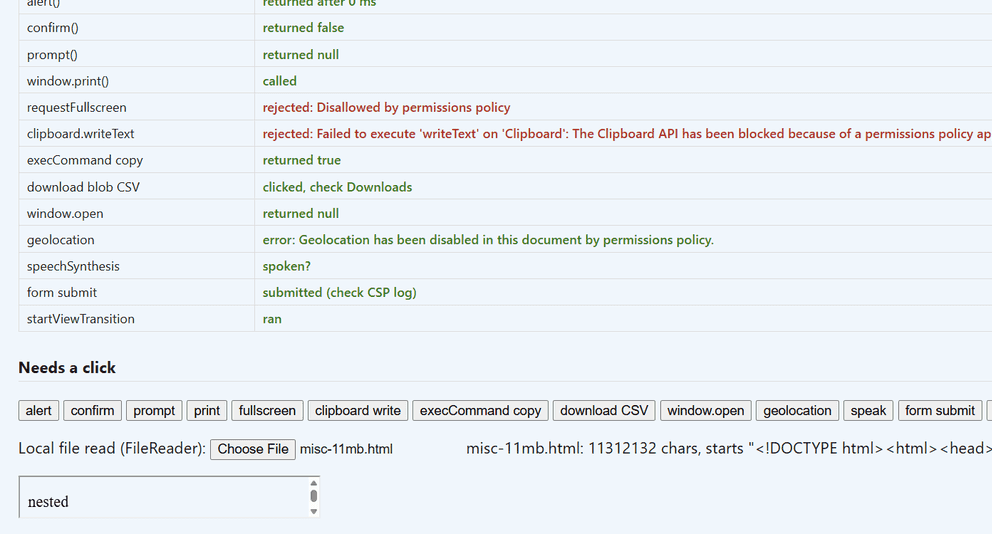
When a script tries something blocked, nothing happens on the page, and the browser console shows why. Here a script tried to redirect the whole browser window and show an alert() message:
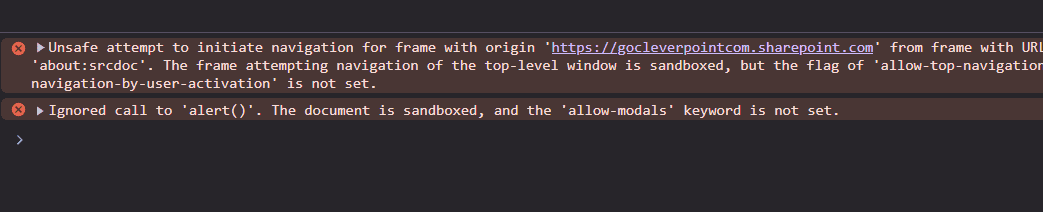
Readers of the first article left great comments. Here are the answers.

jamesdellowwv found that same-site images were turned into embedded text with a data-ka-blob-original-src attribute, and that it stopped at about 30 images. That has changed. Images you add yourself are no longer embedded, and 40 of 40 loaded in my test. Images that Copilot adds are still embedded: Copilot copies them into the page.
KDCBandR reported that live data does not show items inside folders. You are right, for one kind of page. Here is the full picture:
| What the page does | Files inside folders |
|---|---|
| Lists all the files of a library | ❌ Not shown. SharePoint sends the folder itself, but not the files inside it, and I found no setting in the page’s data line to change that. |
| Reads one specific CSV file | ✅ Works, even when the file is inside a folder |
| Reads one specific Excel workbook | ✅ Works, even when the file is inside a folder |
So if you need data from files in folders, point the page at the specific CSV or Excel file instead of the whole library. The details are in the live data section above.
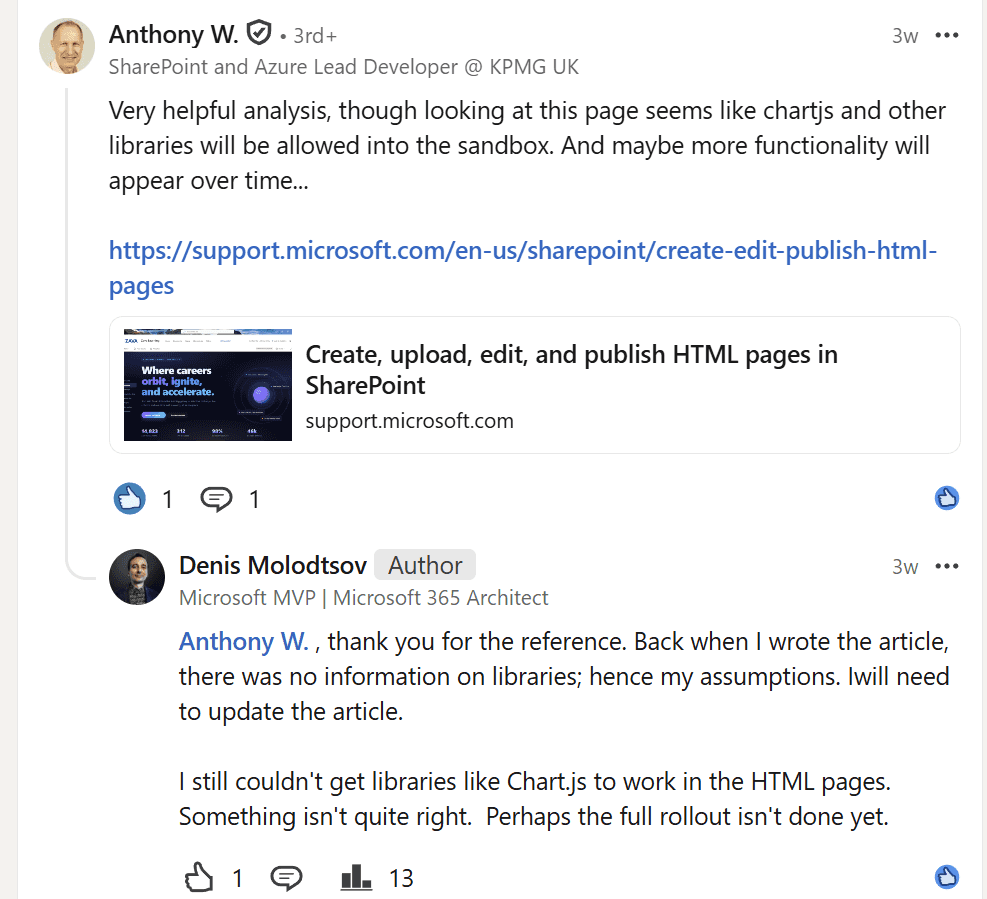
jwiersem and Anthony W. pointed to the support page that lists the supported libraries. You were right. They did not load for me in August 2026 because the feature had not reached my tenant yet. In October 2026, all five load: Chart.js, Mermaid, React, Fluent UI and Babylon.

Dustin H. asked how much would change in October. A lot: pages much closer to modern SharePoint pages, working libraries, images from anywhere in the tenant, links that open in the same tab, external links, new ways to create and upload pages, WYSIWYG page editing, and Copilot’s in-chat forms. What did not change is the security around the page. It still cannot call any API or store anything.
In the comments on Yaroslav’s article, Bradbury Keller wanted HTML pages to work like regular SharePoint pages, with the site’s navigation. HTML pages in Site Pages now show the site header and navigation.

Also on Yaroslav’s article, Gregory Zelfond agreed with Yaroslav’s view. So do I, for the reasons in the next section.
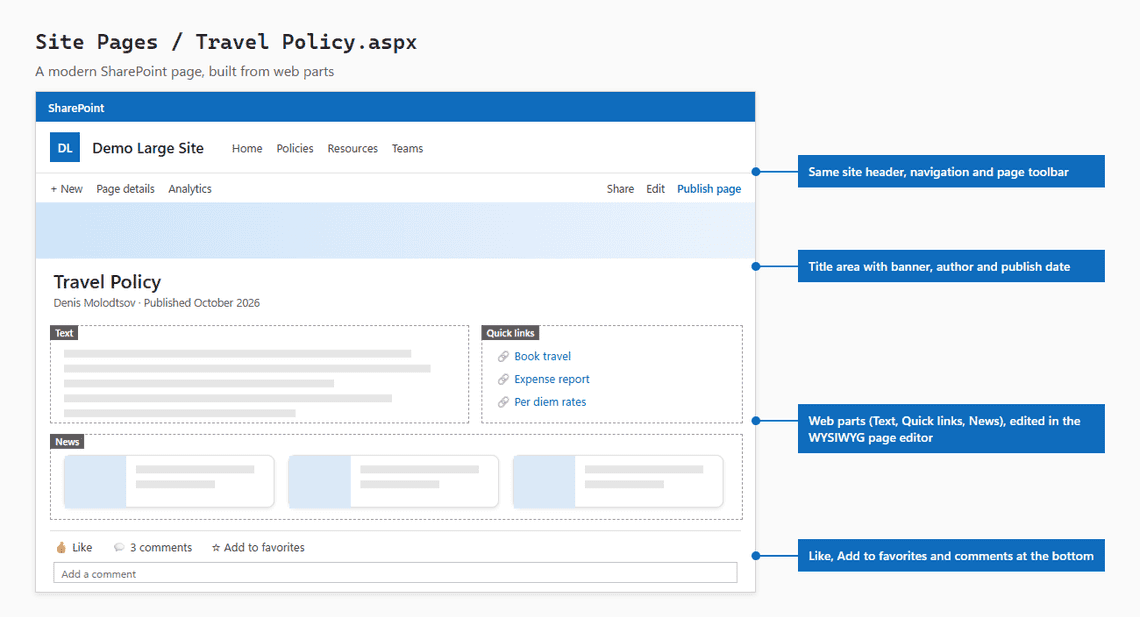
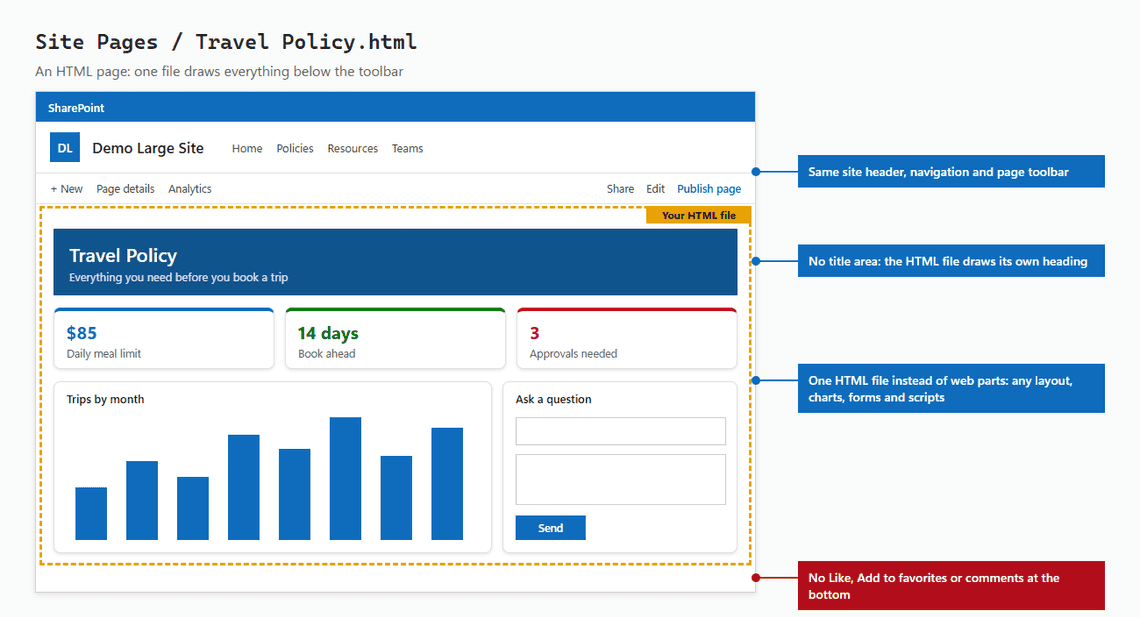
HTML pages do not replace modern SharePoint pages. They have no web parts, no news, no audience targeting, no scheduling, no templates, and no Like, Add to favorites or comments at the bottom of the page. They work best as standalone showcase pages.
The diagrams below show the same Travel Policy page as a modern page and as an HTML page. Both have the same site header, navigation and page toolbar. The difference is in the content area below them.
Good fit for an HTML page:
Better as a modern SharePoint page:
Some people will want to convert dozens or hundreds of existing .aspx articles or wiki pages into HTML pages, one to one. I am not sure that is a good idea. Time will tell, but in my opinion it will cause more work than it saves. Every HTML page is a separate file with its own code, so a small change, such as a new logo, a new contact or a new color, has to be made in each file, one by one. Most page owners cannot edit HTML comfortably, and the regular page editor does not always work well on pages that use JavaScript. Modern pages with web parts are built for exactly this job: anyone can edit them, they follow the site theme, and they work with news, templates and audience targeting.
You do not need Copilot to make an HTML page. Any AI tool can write one, and you upload the result with Site Pages > Create or upload > Upload HTML page. The catch is that other AI tools do not know SharePoint’s rules, so their pages often break.
Paste the instructions below at the start of your conversation with Claude, ChatGPT or any other AI tool. The rules are based on the tests in this post.
The instructions do not cover live data. A page that reads a SharePoint list, a CSV file or an Excel workbook can be built without Copilot, as the live data section shows, but it needs the exact IDs of the list or file, which are easiest to get by letting Copilot write the data line once.
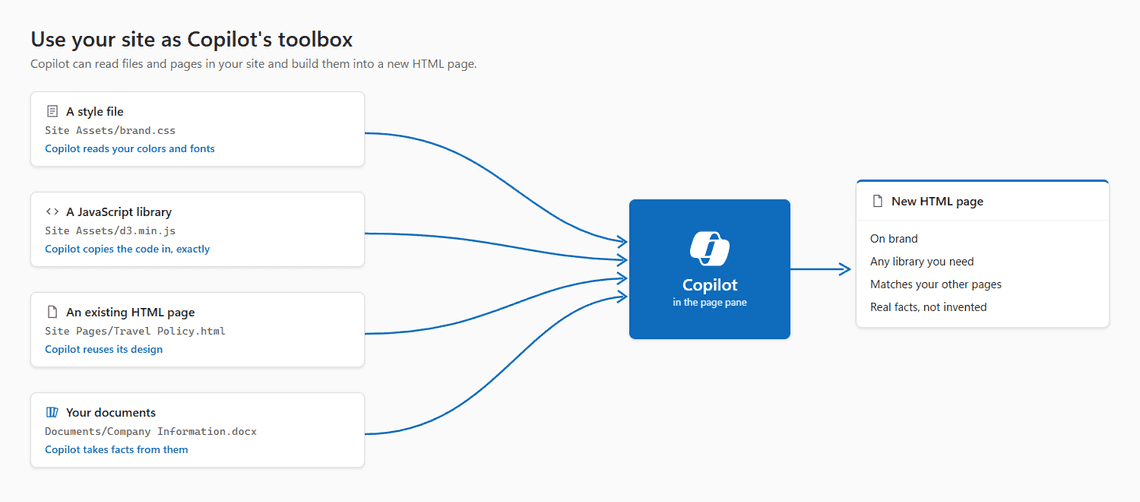
Many of the tips in this article use files that are already in your site: a style file in Site Assets that Copilot reads, a library file that Copilot copies into the page, a reference page whose design Copilot reuses, and site documents that Copilot takes facts from.
| If you want to | Do this |
|---|---|
| Add a chart, diagram or 3D scene | Name the library in the library tag: ["chart.js@2.9.4"] |
| Use any other JavaScript library | Upload the .js file to Site Assets and ask Copilot to include its complete, unmodified source. With another AI tool, such as Claude or ChatGPT, give it the .js file and ask it to embed the whole library inside the HTML file in a <script> tag |
| Show images | Use images from your tenant, written into the HTML file as static <img> tags, as opposed to adding <img> tags dynamically with JavaScript |
| Show a video | Use a picture that links to an .mp4 in your tenant: <a href="/sites/YourSite/SiteAssets/clip.mp4"><img src="/sites/YourSite/SiteAssets/poster.jpg"></a>. Visitors click it, and the video plays in SharePoint’s pop-up player. |
| Link to an external website | Add its domain in Site settings > HTML Field Security |
| Show data from a list, a CSV file or an Excel workbook | Ask Copilot for a live data page. Keep in mind that every column of the list reaches the visitor’s browser, even columns the page does not show |
| Keep pages on brand | Keep a style file in Site Assets and ask Copilot to use it |
| Give Copilot long instructions | Copilot refuses long prompts. Put the long part, such as design rules or CSS code, in a file in Site Assets and tell Copilot to read it. Copilot reads the file and uses everything in it |
| Edit a page that uses JavaScript | Prefer Copilot or the code editor. The WYSIWYG page editor can duplicate charts or lose text that a script fills in |
| Change the site theme | Ask Copilot to update each HTML page afterwards |
| Upload a website from your PC with Upload HTML folder | First include the full code of each .js file directly in its HTML page, inside a <script> tag. Separate .js files do not run. |
| Build a page without Copilot | Paste the instructions from the section on other AI tools into Claude or ChatGPT, then upload the file to Site Pages |
And these are not possible at all:
| Feature | Supported | Comment |
|---|---|---|
| Having Copilot save an HTML page into a folder | ❌ | Copilot always saves at the top of the library |
| A live list of the files inside folders | ❌ | Only files in the library root are visible. One specific CSV or Excel file inside a folder works |
| Saving anything between HTML page visits | ❌ | Every visit starts fresh |
| Download buttons | ❌ | |
| Print buttons | ❌ | Ctrl+P still works |
mailto: links | ❌ | |
IFrames (<iframe>) inside HTML files | ❌ | Even for YouTube and SharePoint videos |
| Scripts or fonts loaded from the internet | ❌ | Include them inside the HTML file |
In August 2026 I called these “HTML files”, and that was accurate at the time. In October 2026 the answer depends on where they are stored. An HTML file in the Site Pages library now opens as a page much closer to a modern SharePoint page, with the site header and navigation. An HTML file in any other document library is a document, shown in the HTML Viewer like a Word or PDF file.
The pieces missing in the first article are now in place: the built-in libraries, the site header and navigation, working links, and images from anywhere in the tenant. The security around the page has not changed. It is still a sealed room, and SharePoint does all the fetching for it.
If you have not read it yet, the first article explains how all of this works under the hood.

