





Beautiful Power BI Backgrounds
April 01, 2024
1 min
This is a common situation. Someone builds a Power BI report that reads on-premises data through a gateway, it works for months, and then it quietly stops refreshing. The author has moved on or is away, the schedule has switched itself off, the failure emails go to an inbox nobody reads, and the people using the report see old numbers.
The usual first guess is that the gateway is broken. Often it is not. A saved sign-in expired, an account lost access to a source, or the only person who could change the settings is gone. This article is the path from “the report stopped updating” to a report that refreshes again and has an owner who will keep it that way.
| Takeaway | |
|---|---|
| ✅ | Read the first failure in Refresh history, not the last one. Later entries only say the schedule was disabled. The first one names the source and the reason. |
| ✅ | A Fabric admin can reach everything, but not automatically. You add yourself to the workspace, then the gateway, then each connection. |
| ✅ | Turn on Tenant administration in Manage connections and gateways to see every gateway and connection in the tenant. |
| ✅ | The Scanner API tells you which reports use a gateway or a connection. The portal does not. |
| ✅ | The gateway’s Device column tells you which computer it runs on. Check that it is a server and not someone’s desktop. |
| ❌ | Gateway Admin does not give you access to the connections on that gateway. Each connection has its own users. |
| ❌ | Personal-mode gateways are invisible to admins. Only their owner can see them. |
| ⚠️ | Take over wipes the gateway mapping. You remap every source afterward, and every connection has to pass its test, or Refresh now is rejected. |
| ⚠️ | Expand the share link people actually use before fixing anything. There may be more than one copy of the report. |
| ⚠️ | Turn the schedule on only after a manual refresh completes. Otherwise it fails and switches itself off again. |
| Term | What it is |
|---|---|
| Semantic model | The dataset behind a report. It holds the queries, data sources and refresh schedule. |
| Owner (“Configured by”) | The account the model refreshes as. Only the owner can change its schedule, mappings and credentials. |
| On-premises data gateway | A Windows service on some computer in the network that fetches on-premises data for Power BI. |
| Personal-mode gateway | A gateway installed for one user. Admins cannot see it. |
| Connection | A saved target on a gateway (database, DSN, file, SharePoint site) with stored credentials and its own list of users. |
| Personal cloud connection | Cloud credentials stored per user, not on a gateway. |
| Mapping | The link from each data source in a model to a connection (“Maps to”). |
A refresh works only when everything lines up: the gateway computer is on, every source maps to a connection, every connection has working credentials, and the owner may use every connection.
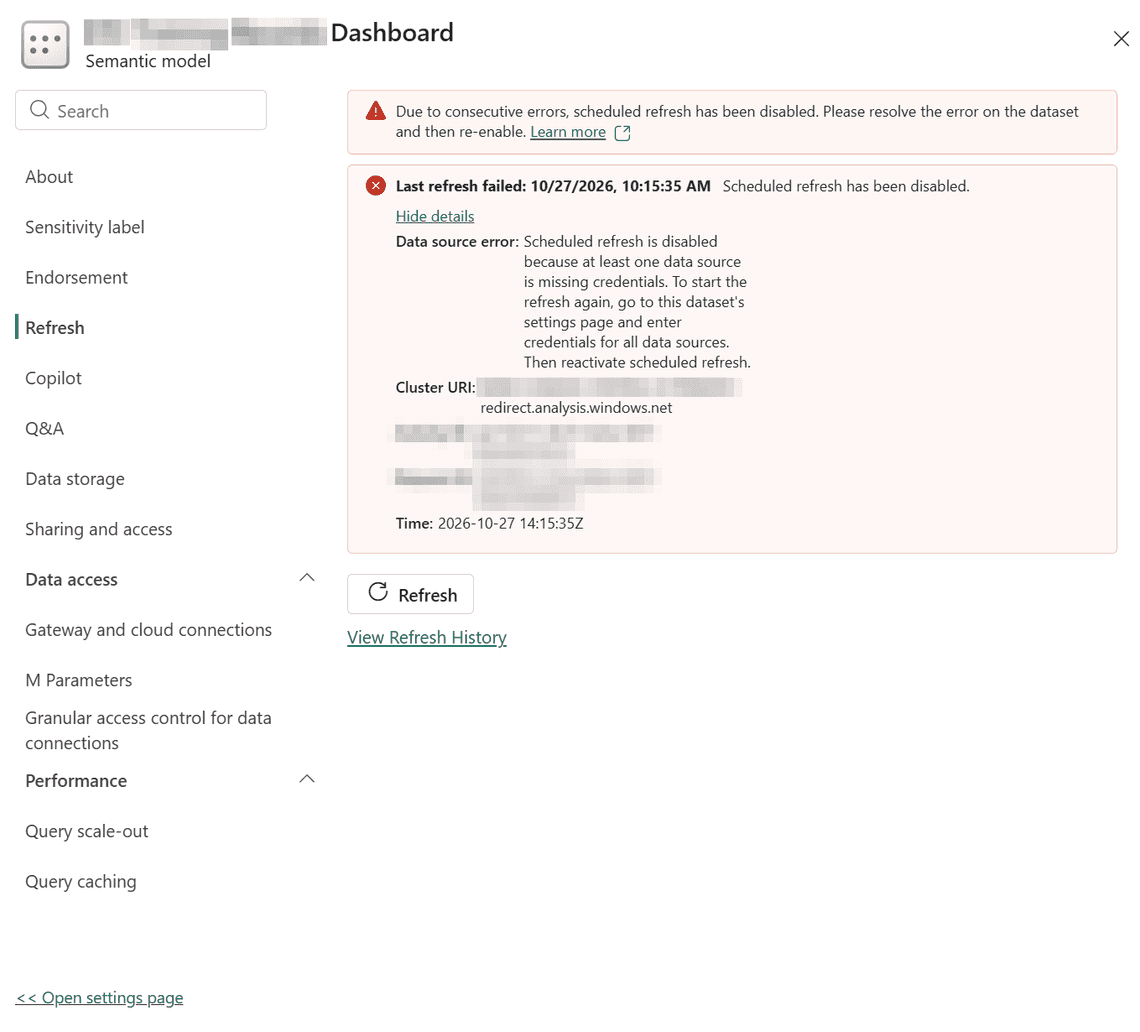
Open the semantic model’s Settings > Refresh and click Show details.
Then open Refresh history. The first failure after a run of successes holds the real cause.
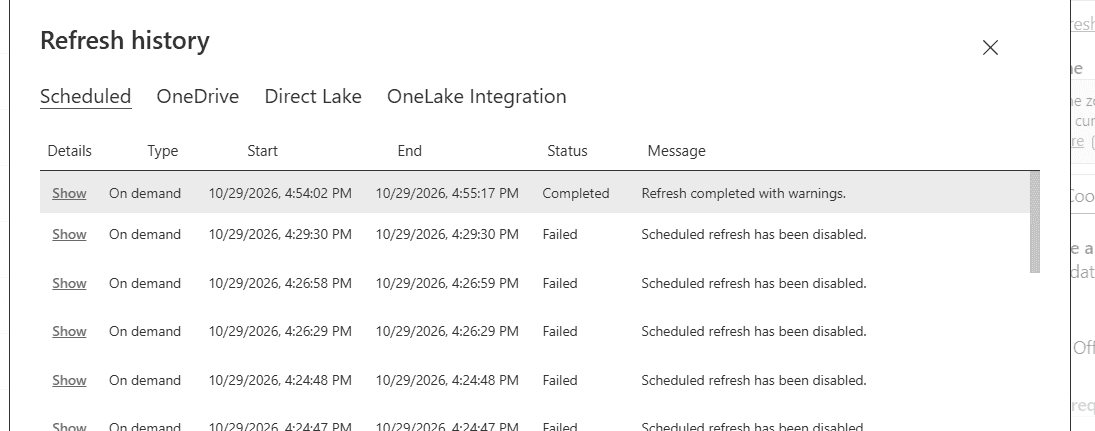
| Message | What it usually means |
|---|---|
Scheduled refresh is disabled because at least one data source is missing credentials | A source has no mapping or its connection fails its test. Also appears right after a takeover. |
InvalidConnectionCredentials with AccessUnauthorized on SharePoint | The account saved on the connection can no longer read the site, or its token expired. |
Gateway_Offline | The gateway computer was off or disconnected. |
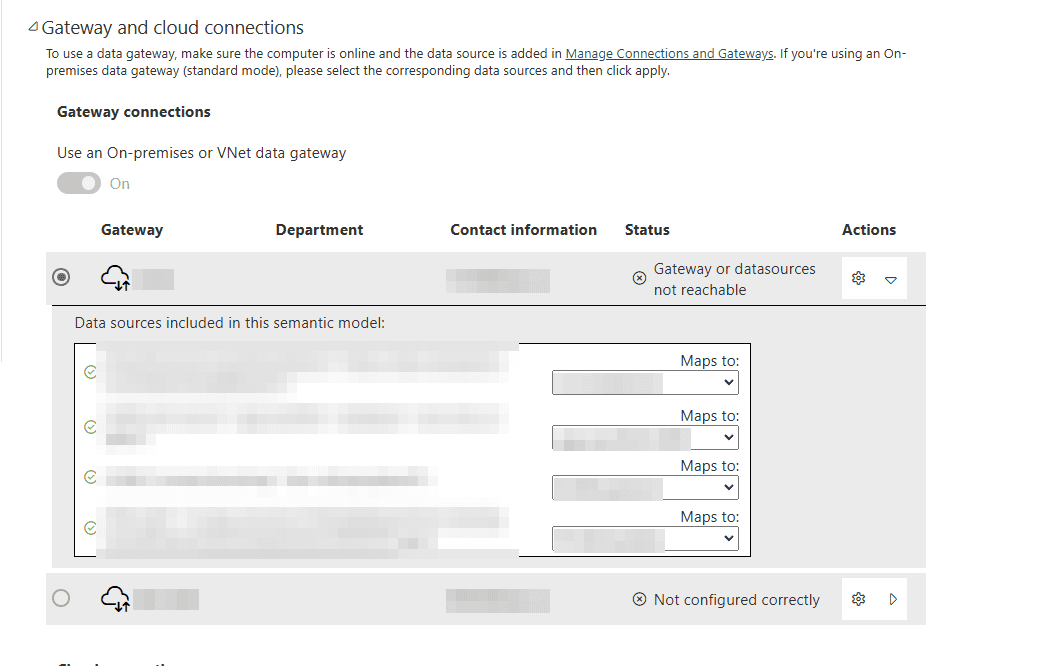
Gateway or datasources not reachable | One or more mapped connections fail their test. |
Column 'X' in table 'Y' cannot be found (warning) | The source schema changed. The refresh still completes. The report author fixes the model. |
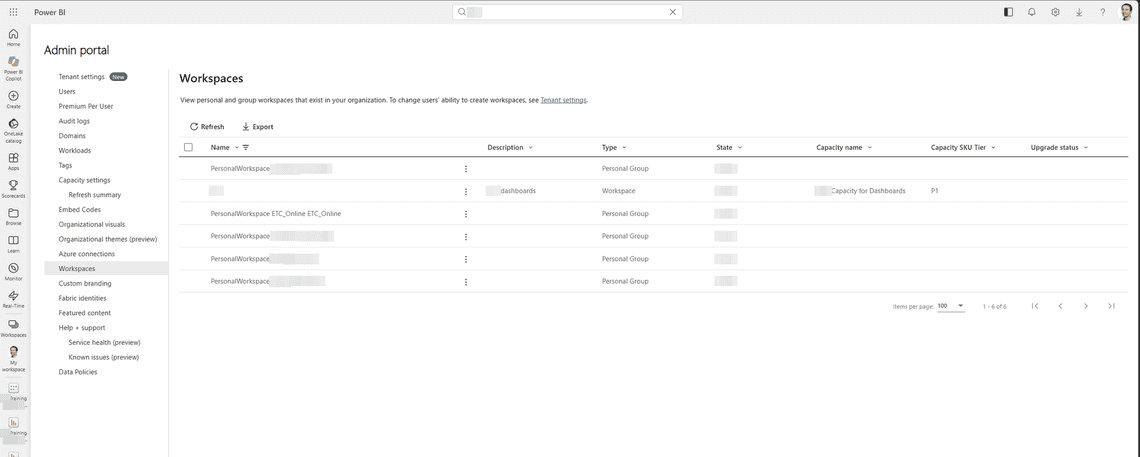
Workspaces you are not a member of do not appear anywhere, including search. Open the admin portal at https://app.powerbi.com/admin-portal/workspaces, find the workspace, click … and then Access, and add yourself.
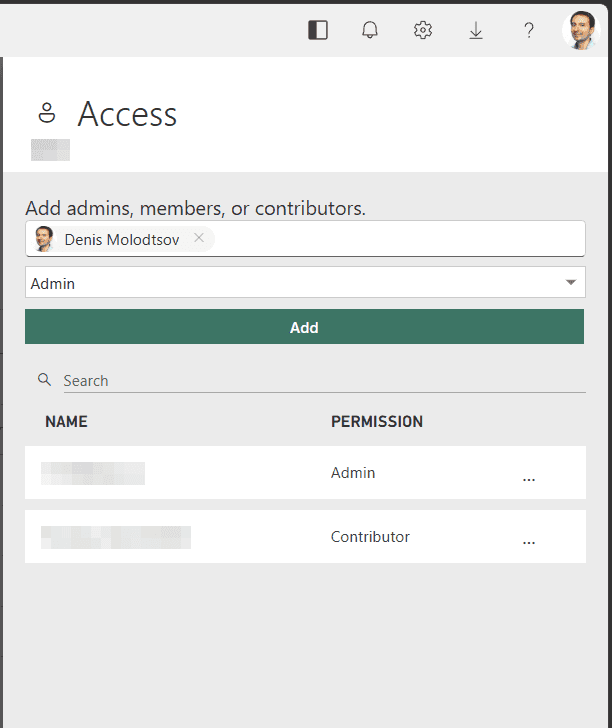
Or in PowerShell:
Open Manage connections and gateways at https://app.powerbi.com/groups/me/gateways and switch on Tenant administration. Without it, you only see the gateways you already administer.
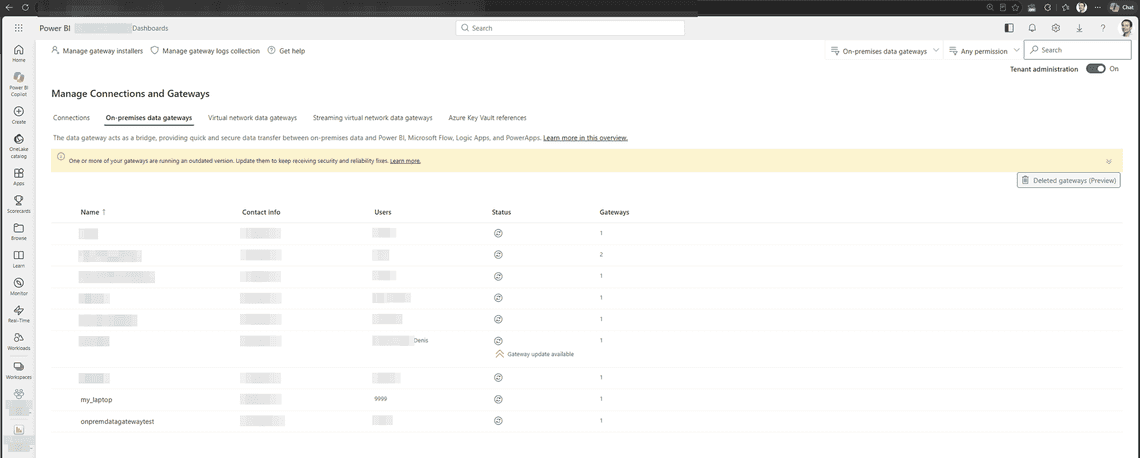
The round arrows in the Status column are buttons. Click them to check which gateways are online.
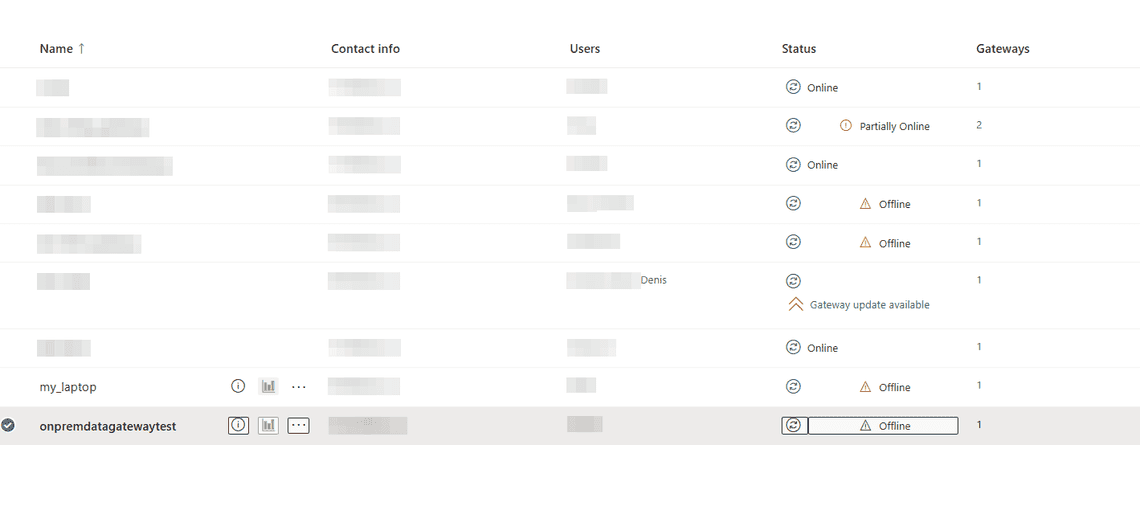
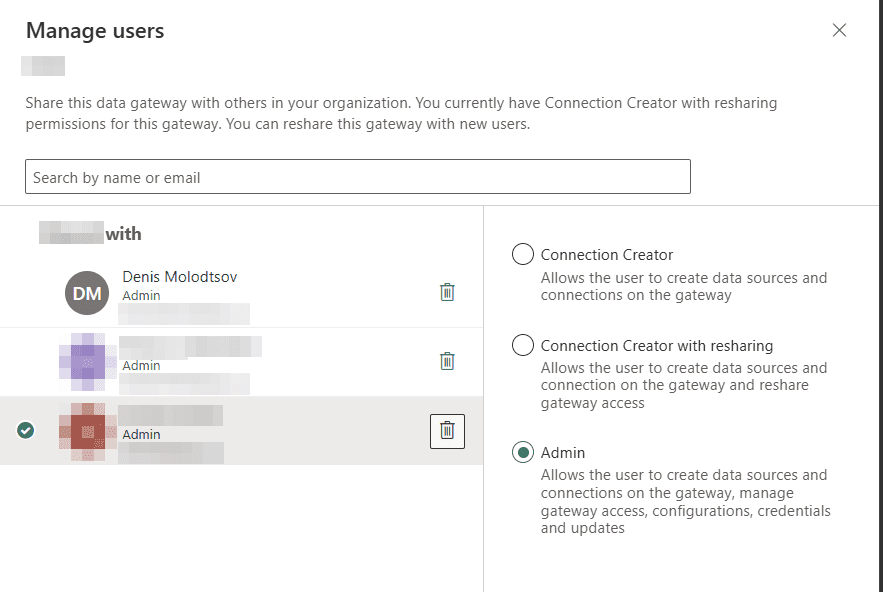
To manage one, click … then Manage users on its row and give yourself a role.
This step catches most people. Being a gateway Admin does not let you use the connections other people created on that gateway. When you take over a model, its sources show Add to gateway instead of a dropdown:
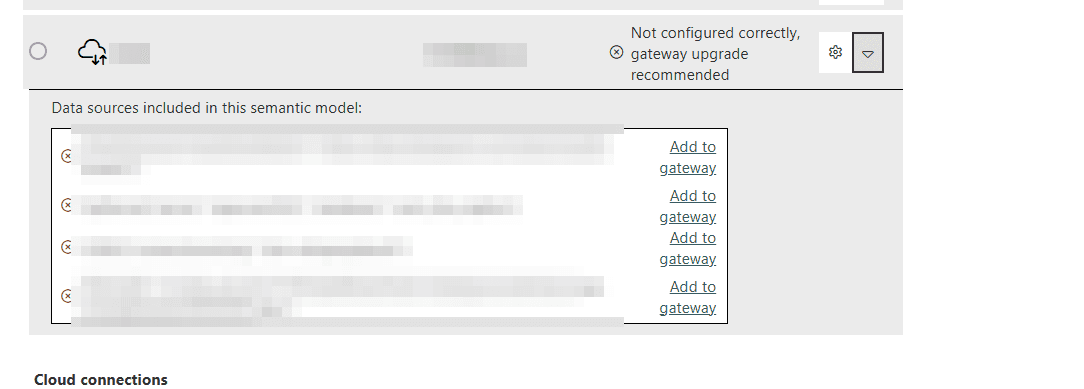
Do not click Add to gateway. It creates duplicate connections and asks for every password again. Go to the Connections tab instead, click … then Manage users on each connection, and add yourself as Owner or User. Press F5 and the dropdowns appear.
Open the gateway in Manage connections and gateways. The Device column is the computer name.
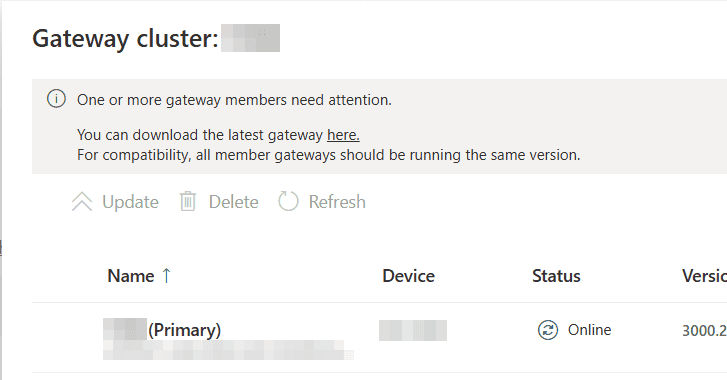
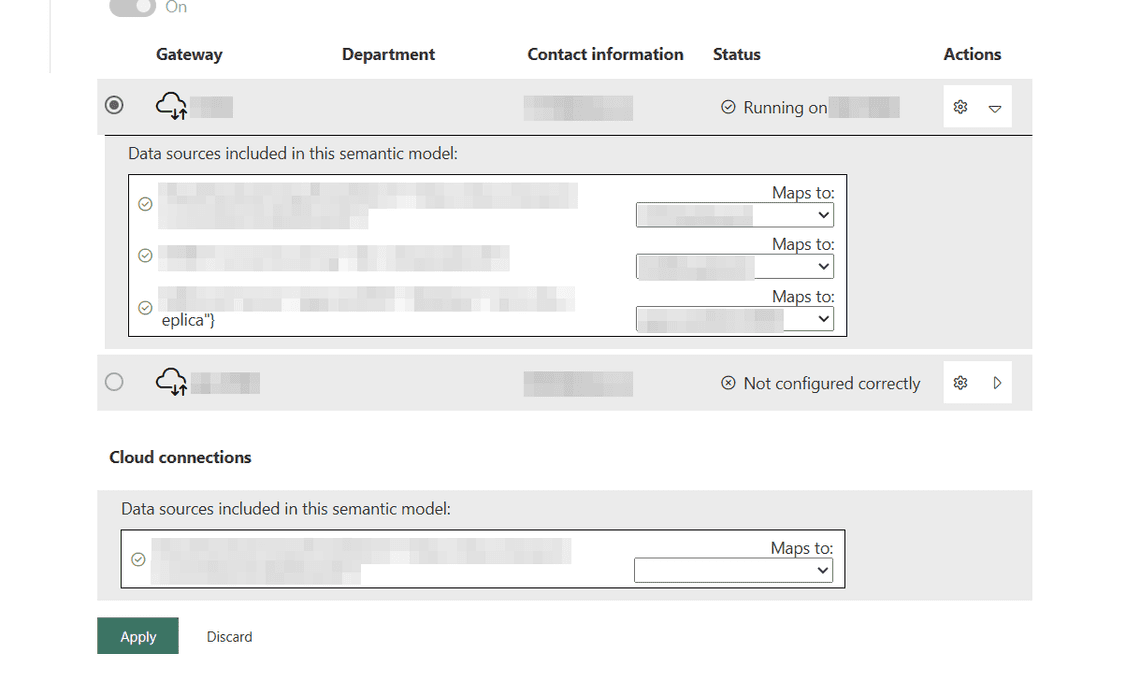
Once a model is mapped, its settings show the same thing as “Running on”:
For every gateway at once, the DataGateway module works:
Then confirm in Intune or Entra ID who that computer belongs to. Gateways often end up on the report author’s desktop. Power BI shows them as online and healthy until the day the desktop is switched off, reimaged or replaced.
The portal shows connections but not which reports use them. The admin Scanner API does. It returns every model in a set of workspaces with its data sources and their gateway IDs:
Join datasourceInstances back to each dataset’s datasourceUsages to get the report names and owners. Scan in batches of 100 workspaces.
Two things to look for in the result:
The ForEach-Object { $_ } matters on Windows PowerShell 5.1. There, ConvertFrom-Json returns a top-level JSON array as one object, and your loop runs once.
For one model, the Refresh section shows the last successful refresh and the next one.
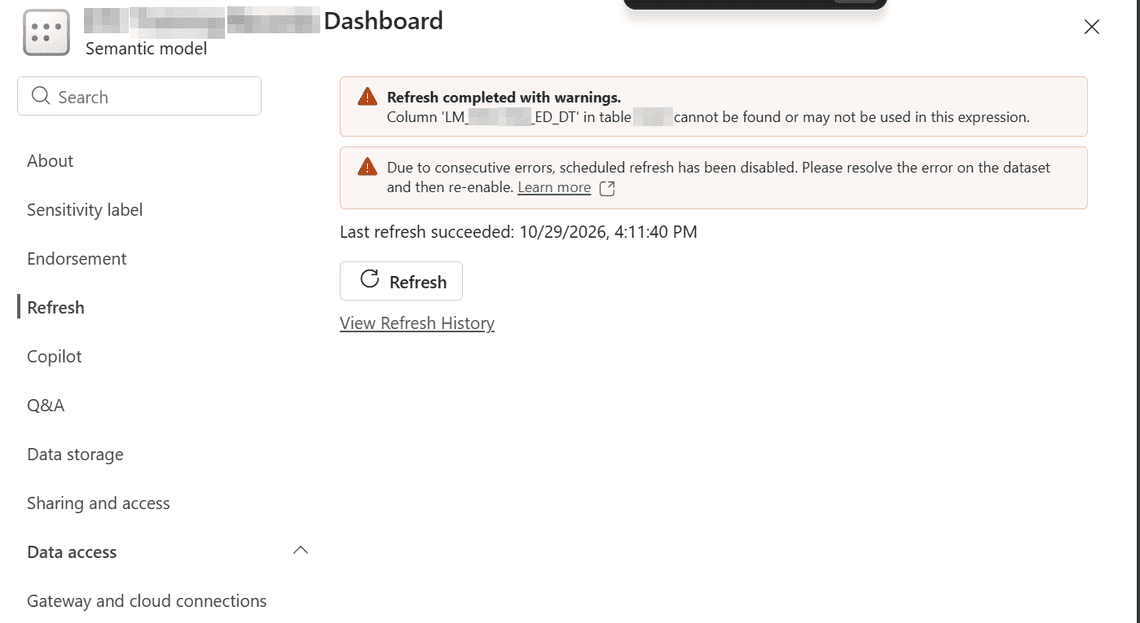
For every model on a Premium or Fabric capacity, one admin call returns the last refresh of each:
To see who did what in the last 30 days (refreshes, takeovers, credential changes, exports), read the activity log one day at a time:
The activity log also shows how many people open each report. If there are two copies of the same report, check both before deciding one of them does not matter.
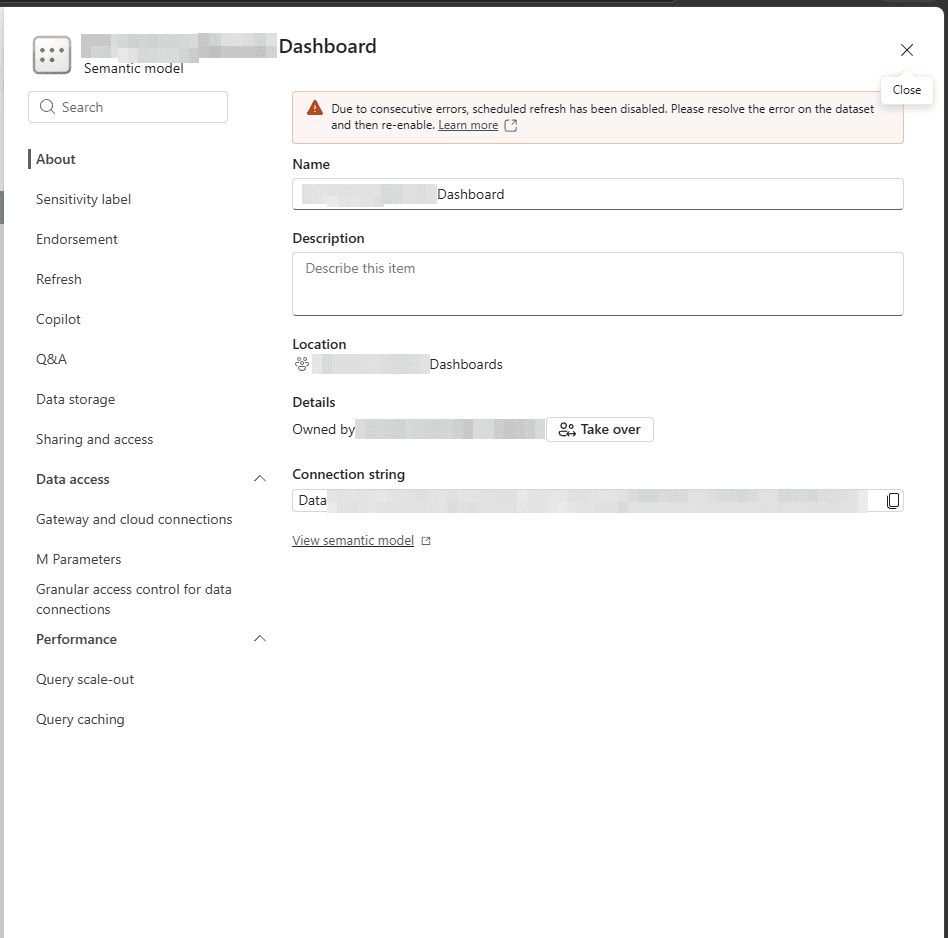
Before you click Take over, check how the model connects. This one used its owner’s personal cloud connection, which a takeover drops:
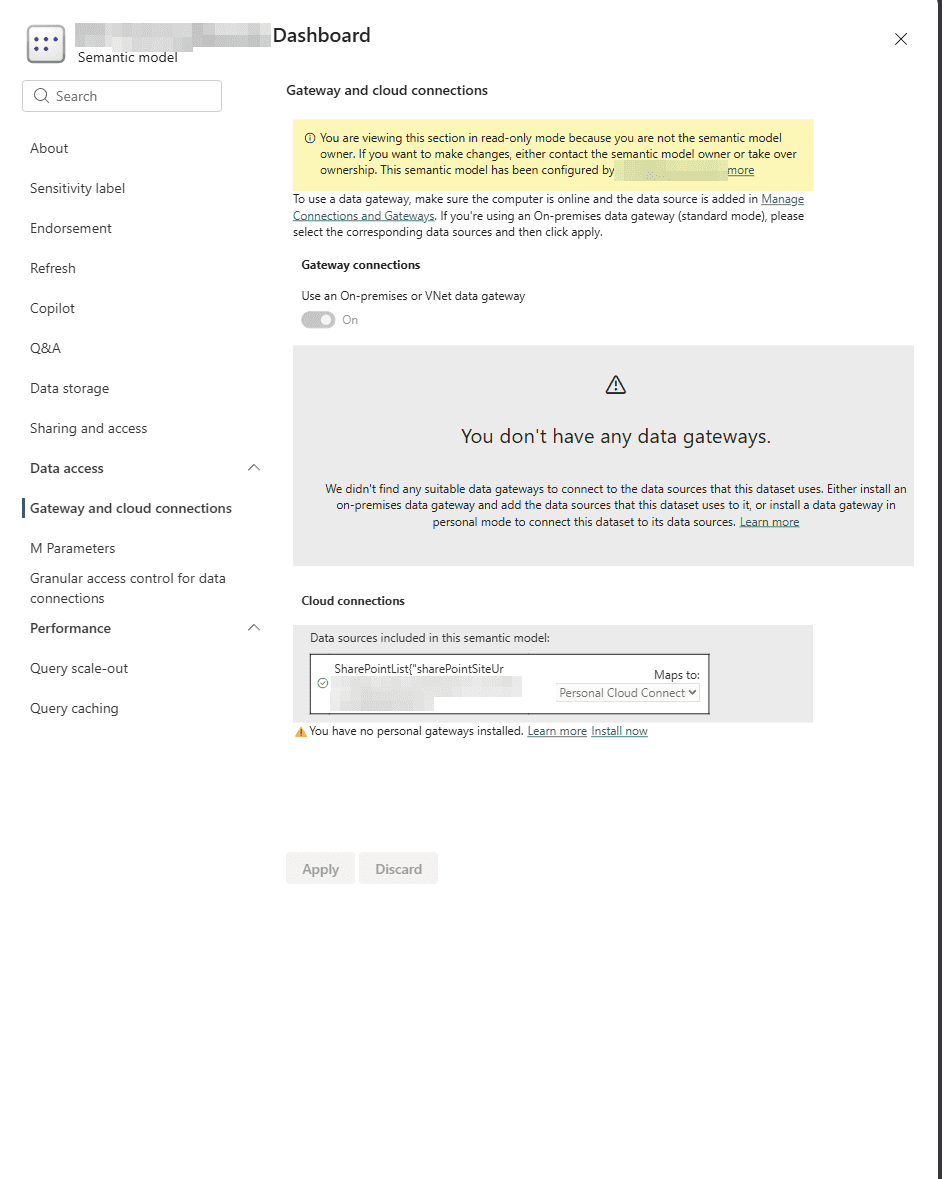
After the takeover, the gateway mapping is empty:
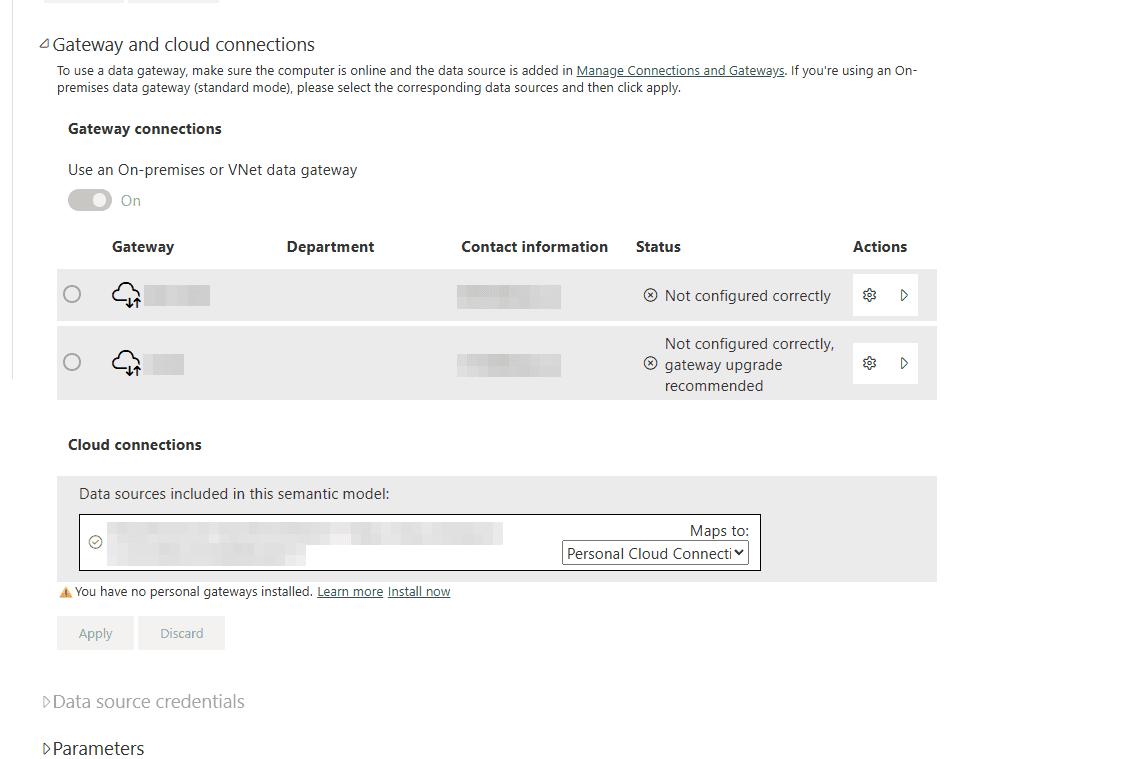
Click the arrow next to the gateway, pick a connection in every Maps to dropdown, select the gateway’s radio button, and click Apply. Leave the Cloud connections row empty when the same source is already mapped through the gateway.
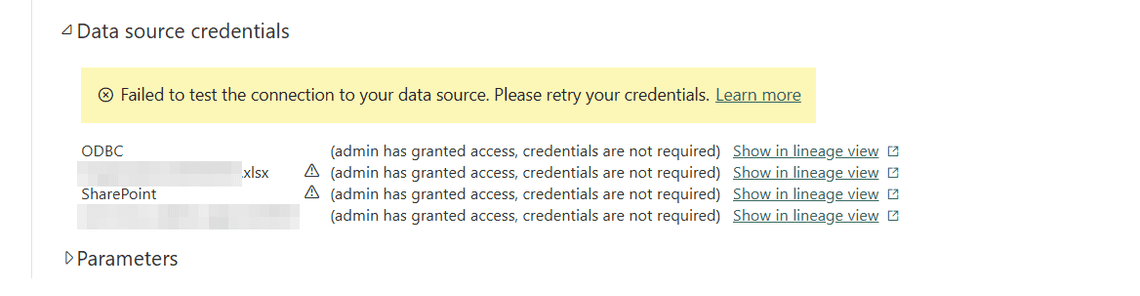
The model’s Data source credentials section shows which connections fail their test:
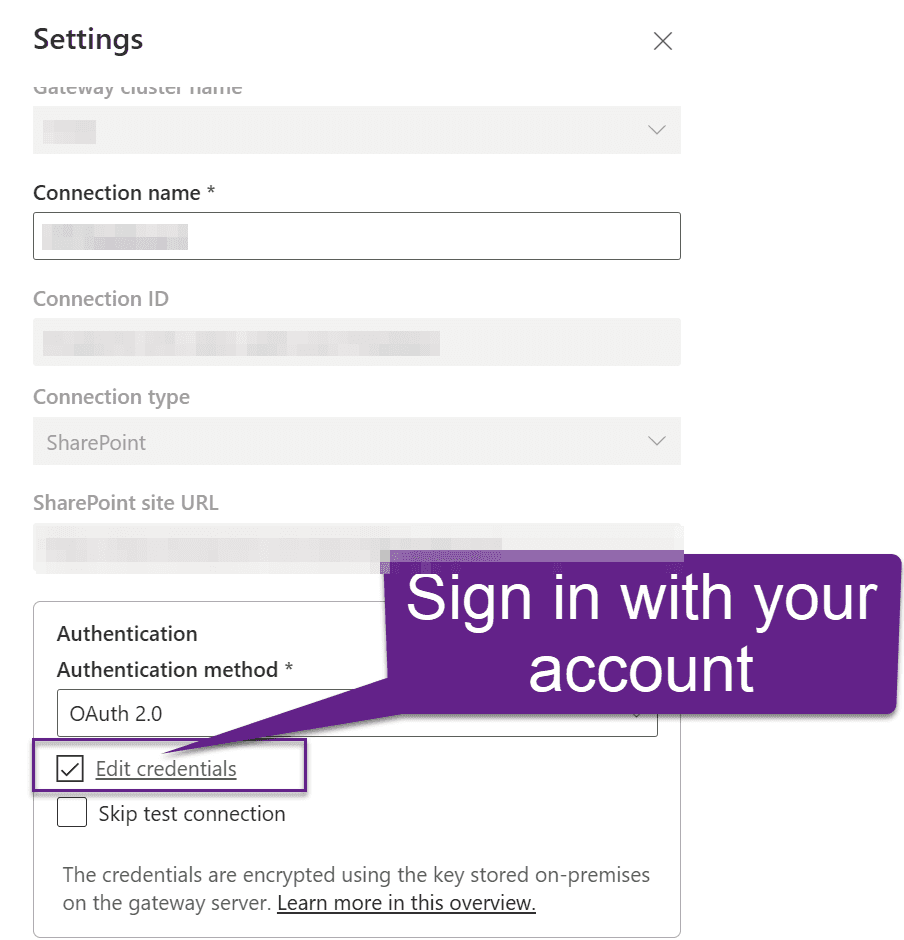
To fix one, open the connection’s Settings, click Edit credentials, sign in, and click Save:
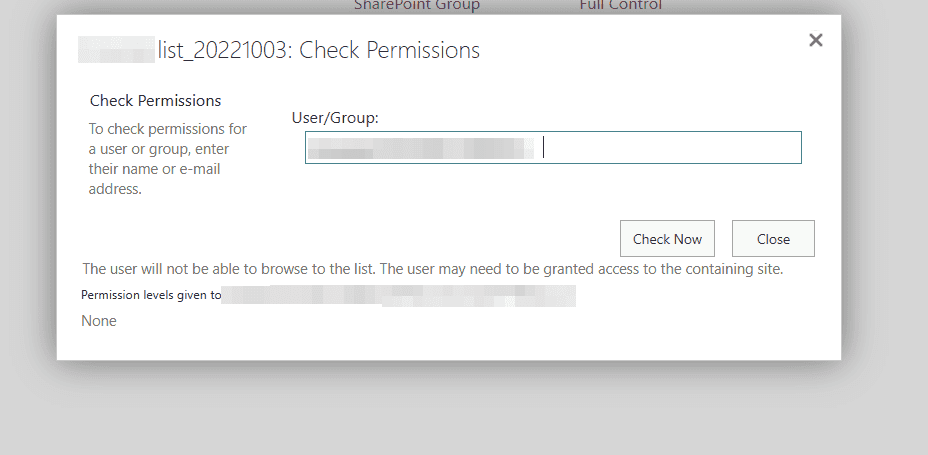
For a SharePoint AccessUnauthorized, check the account on the site with Check Permissions. Check the list too, because lists can have their own permissions:
Watch for files in a person’s home folder, such as an Excel lookup table. Their connection usually holds that person’s Windows password, which breaks when the password changes. After a takeover every mapped connection has to pass its test, so one forgotten file can block the whole refresh. The real fix is to move the file to SharePoint and change the query in Power BI Desktop.
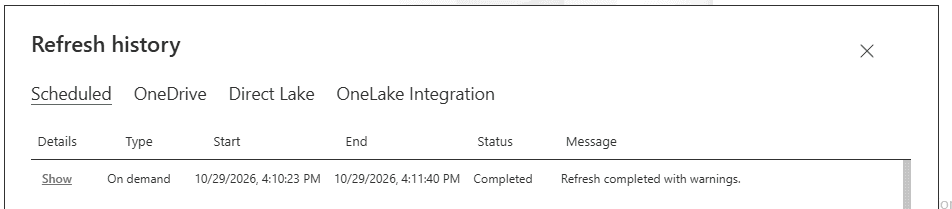
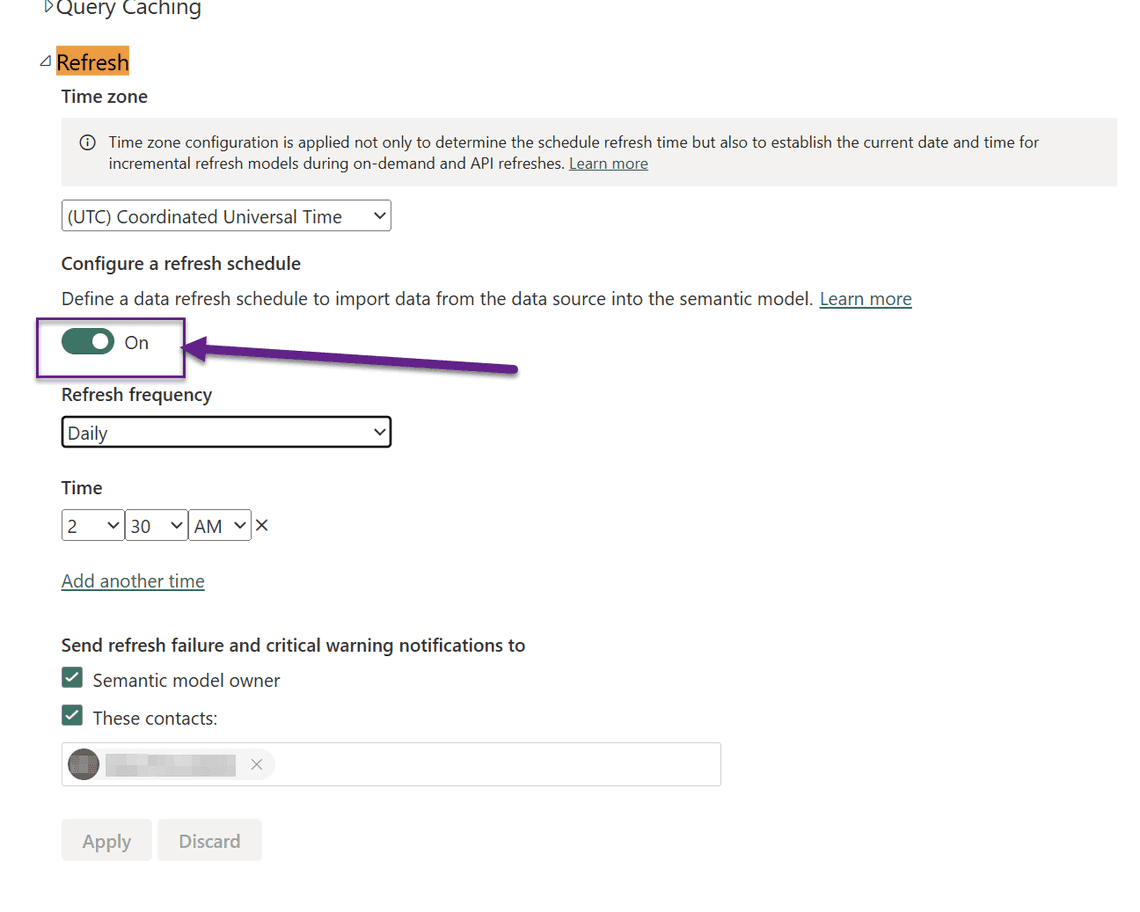
Run Refresh now first. Only when it completes, turn the schedule on, check the time zone, and replace departed people in the notification contacts.
The fix leaves the model running under the admin’s account. To move it to someone who will stay:

