


Applying SharePoint AI Autofill Prompts Programmatically

Table Of Contents
The problem
I had to roll out the same SharePoint “AI in SharePoint” autofill column prompts across 20 sites, each with up to 9 fields carrying AI prompts - roughly 170 prompts that needed to land on freshly deployed document libraries. Clicking through the UI was not an option.
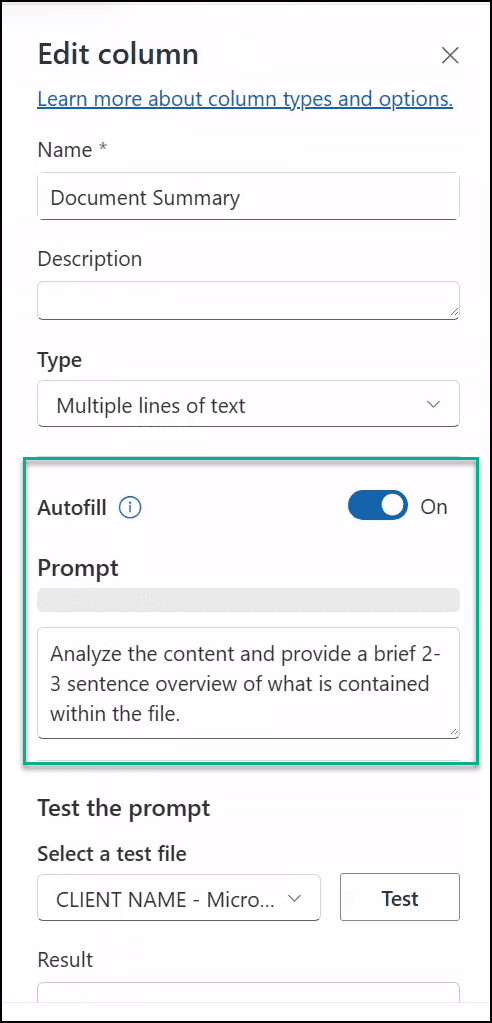
The source libraries already had the prompts configured by a human who had
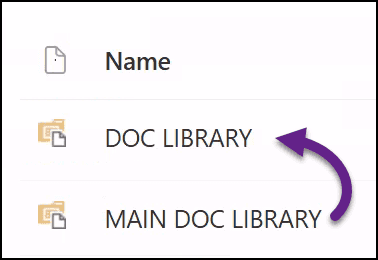
lovingly written each one. My job was to lift them from the old MAIN DOC
LIBRARY on each site and drop them onto the new DOC LIBRARY.
This post is the honest version of how that went, including the two dead ends before the approach that actually worked.
TL;DR - apply an autofill prompt to a single field
If you just want to attach an AI prompt to one column on one library, use the read-modify-write approach
on the field’s SchemaXml via PnP.PowerShell CSOM:
Newly uploaded files will be processed automatically; existing files need to be selected and run through the UI’s Autofill command once.
Quick primer on autofill columns
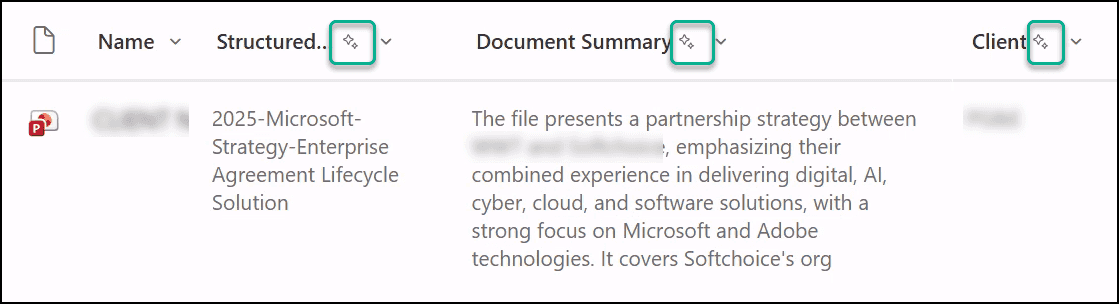
SharePoint Premium / “AI in SharePoint” lets you attach a natural-language prompt to a column. When a file is uploaded, GPT-4 Turbo reads the file and writes an answer to that column. You can see the feature in the UI as a small AI sparkle icon next to column names. Microsoft’s docs call it Autofill Columns.
The interesting question for automation is: where are those prompts actually stored? That turns out to be a moving target.
Dead end 1: the old list property bag
The first approach I found in community posts (Leon Armston wrote about this
in mid-2024) said prompts were stored in a list-level property bag key called
Vti_SyntexPoweredColumnPrompts. One JSON blob per list, holding every
column’s prompt.
I used the PowerShell script that read it the obvious way:
Ran it against all 20 sites. Found zero prompts on any of them. But the sparkle icons were right there in the browser. So the storage location had clearly changed.
Dead end 2: the AutofillInfo field property via REST
Digging further, I found that in late 2025 Microsoft moved the configuration
from the list property bag to a per-field property called AutofillInfo.
The undocumented REST endpoint for writing is
/_api/machinelearning/SetColumnLLMInfo.
Reading worked fine - GET /_api/web/lists(guid'X')/fields returns each
field’s AutofillInfo as a top-level property. I re-ran the export, found
about 170 real prompts spread across the 20 sites, and confirmed the JSON
schema:
Writing was the problem. I tried every reasonable shape: MERGE against the
field entity with and without __metadata, PATCH, POST to
SetColumnLLMInfo in both camelCase and PascalCase, wrapped in {request:
{...}}, lowercase URL variant, Set-PnPField -Values. Nine strategies. The
test script wrote each attempt to a log with a readback verification step so I
could not be fooled by a silent “success.”
Every REST attempt failed with the same error:
A possible object cycle was detected which is not supported. This can either be due to a cycle or if the object depth is larger than the maximum allowed depth of 0.
Set-PnPField gave me a more informative failure:
WARNING: No property ‘AutofillInfo’ found on this field. Value will be ignored.
The CSOM SDK simply does not expose AutofillInfo as a first-class property.
The discovery
While staring at the diagnostic dump, I noticed the source field’s SchemaXml
contained everything I needed:
The AutofillInfo is an XML attribute on the <Field> element. And
SchemaXml is a documented, writable CSOM property. Every SharePoint field has one. You can read it, modify it, and write it back.
The approach that worked
The core operation is maybe ten lines of PowerShell:
To scale it across 20 sites, I wrapped this in the same iteration pattern already used by the other deployment scripts in the project:
References
- Leon Armston - Automating SharePoint Autofill Columns: List/Site Columns and the Content Type Hub (Dec 2025)
- Leon Armston - Automating SharePoint Premium Autofill Columns with PowerShell (Jul 2024)
- Microsoft Learn - Create autofill columns
- Microsoft Learn - Overview of autofill columns
- Chris O’Brien - Automate AI prompts across your files
Related Posts


Troubleshooting SharePoint "Sorry, You Don't Have Access"
March 26, 2026
12 min

Broken OneNote Notebook Shows as Folders after Migration to SharePoint Online
February 25, 2026
1 min

Free SharePoint Backup. Getting Started with Veeam for Microsoft 365
December 23, 2025
3 min