HomeAboutAll Posts

Free SharePoint Backup. Getting Started with Veeam for Microsoft 365

By Denis Molodtsov
Published in SharePoint
December 23, 2025
3 min read
Free SharePoint Backup. Getting Started with Veeam for Microsoft 365

Table Of Contents

01
Introduction
02
Why Back Up SharePoint?
03
The Free Tier: What You Get
04
Step 1: Download and Install Veeam
05
Step 2: Connect to Your Microsoft 365 Tenant
06
Step 3: Create a Backup Job
07
Step 4: Restore Deleted Content
08
Conclusion

Introduction

A while back, one of my clients accidentally deleted a critical SharePoint site. To make things worse, they emptied the recycle bin before realizing their mistake. By the time they reached out to me, it was too late, and the site was gone.

Thankfully, they had a backup. We restored the entire site in minutes, and the crisis was averted.

That experience reminded me how critical it is to have a real backup of your SharePoint data. Not just Microsoft’s built-in retention. In this article, I’ll show you how to set up free SharePoint backups using Veeam Backup for Microsoft 365 Community Edition.

If you have a small company or just want to protect your SharePoint sites without spending a dime, this guide is for you.

Why Back Up SharePoint?

Microsoft provides some native protection, but it has limitations:

  • 93-day retention max. Deleted items are only kept for a limited time
  • No point-in-time restore. You can’t roll back to a specific date
  • Permanent deletes are unrecoverable. Once it’s gone from the recycle bin, it’s gone
  • No external backups. Your data only exists in Microsoft’s cloud

Microsoft recently introduced Microsoft 365 Backup, but it’s still new and can get expensive. Veeam is a solid alternative, especially when you need granular restores, such as recovering a specific file or list item.

The Free Tier: What You Get

Veeam’s Community Edition gives you:

  • 10 user licenses (for mailboxes and OneDrive)
  • Unlimited SharePoint team and communication sites. Free up to 1 TB of data
  • 10 Teams
  • Same functionality as the paid version

Here’s the key insight: SharePoint sites (except personal sites under /personal/) don’t consume licenses. So if you’re only backing up SharePoint sites, you can protect up to 1 TB of data at no cost.

One caveat: You must renew the free license annually. It takes about two minutes, but if you forget, backups will stop.


Step 1: Download and Install Veeam

Head to the Veeam download page. Select “Community Edition” and download the ISO file (about 1.5 GB).

Mount the ISO in Windows by double-clicking it, then run Veeam.Setup.exe.
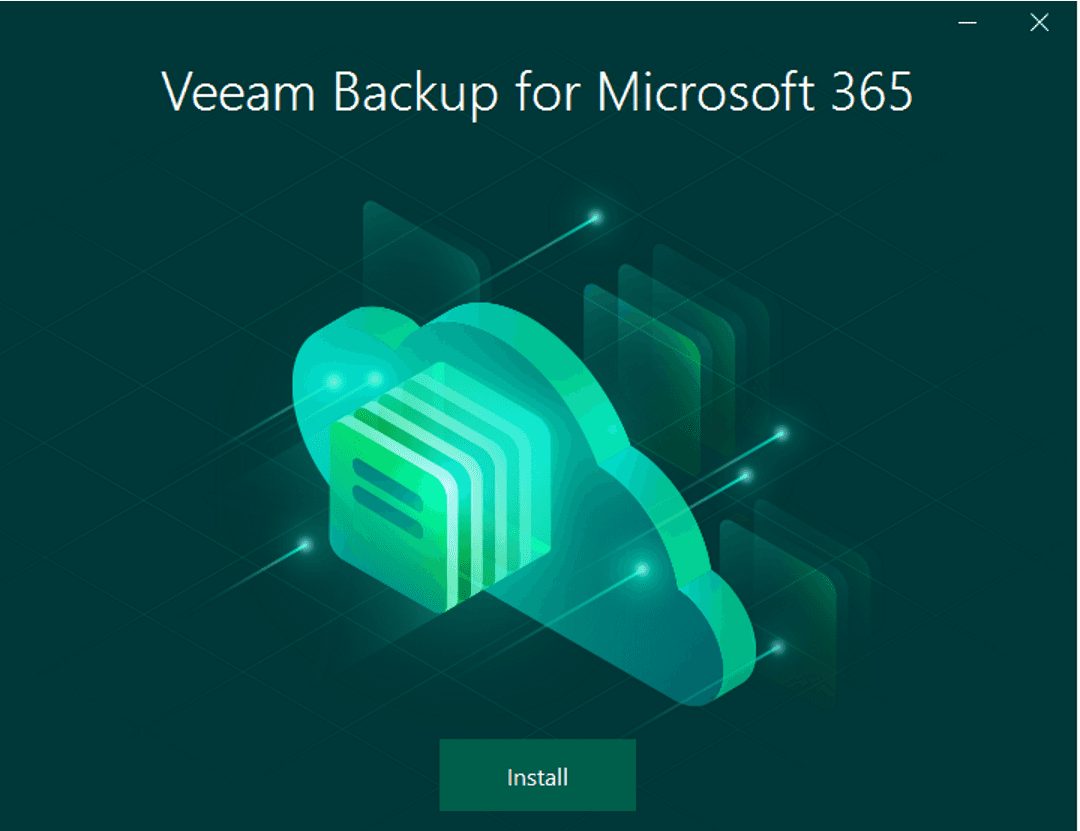
Veeam installer
Veeam installer

During installation:

  1. Select Veeam Backup for Microsoft 365
  2. On the License screen, click Next to install the Community Edition
  3. Choose Install new instance for the PostgreSQL database
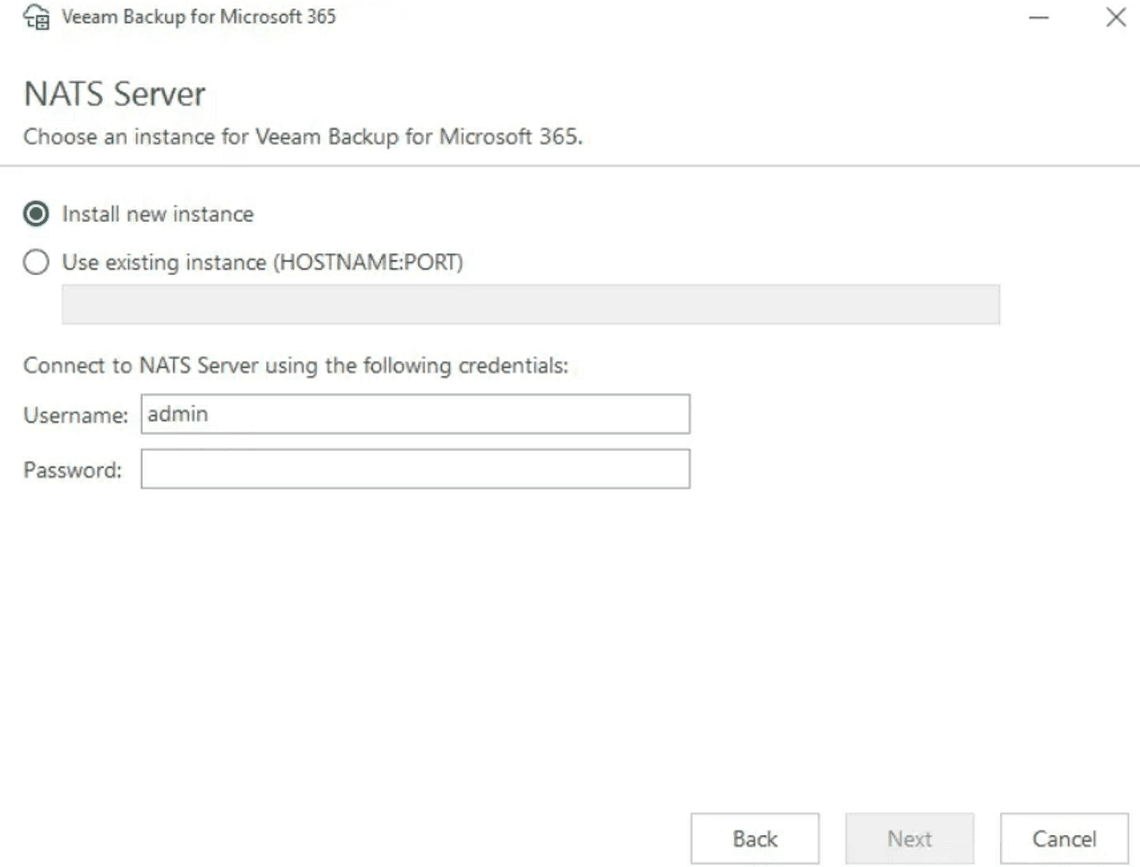
  4. Choose Install new instance for the NATS Server and set a password

NATS Server
NATS Server

Once the installation completes, launch the application.


Step 2: Connect to Your Microsoft 365 Tenant

When you first open Veeam, you’ll see a connection prompt. Use Windows session authentication and click Connect.
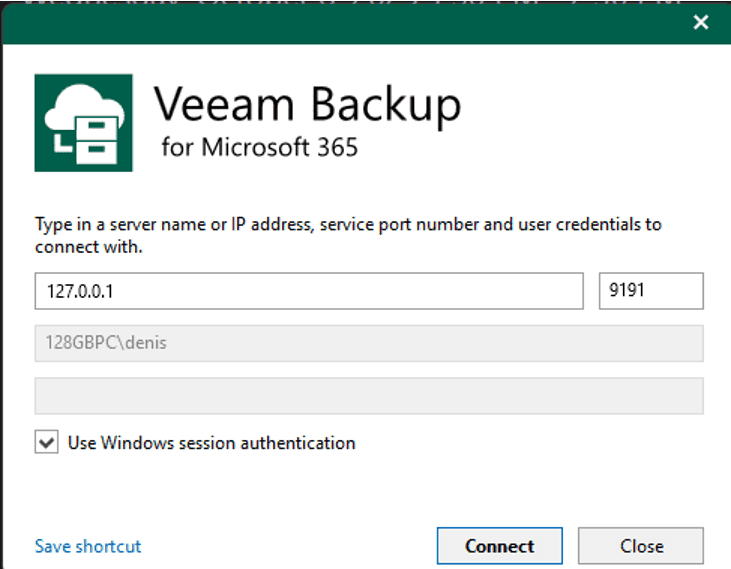
XX
XX

Next, add your Microsoft 365 organization:

  1. Click Add Org

  2. Select Microsoft 365 as the deployment type
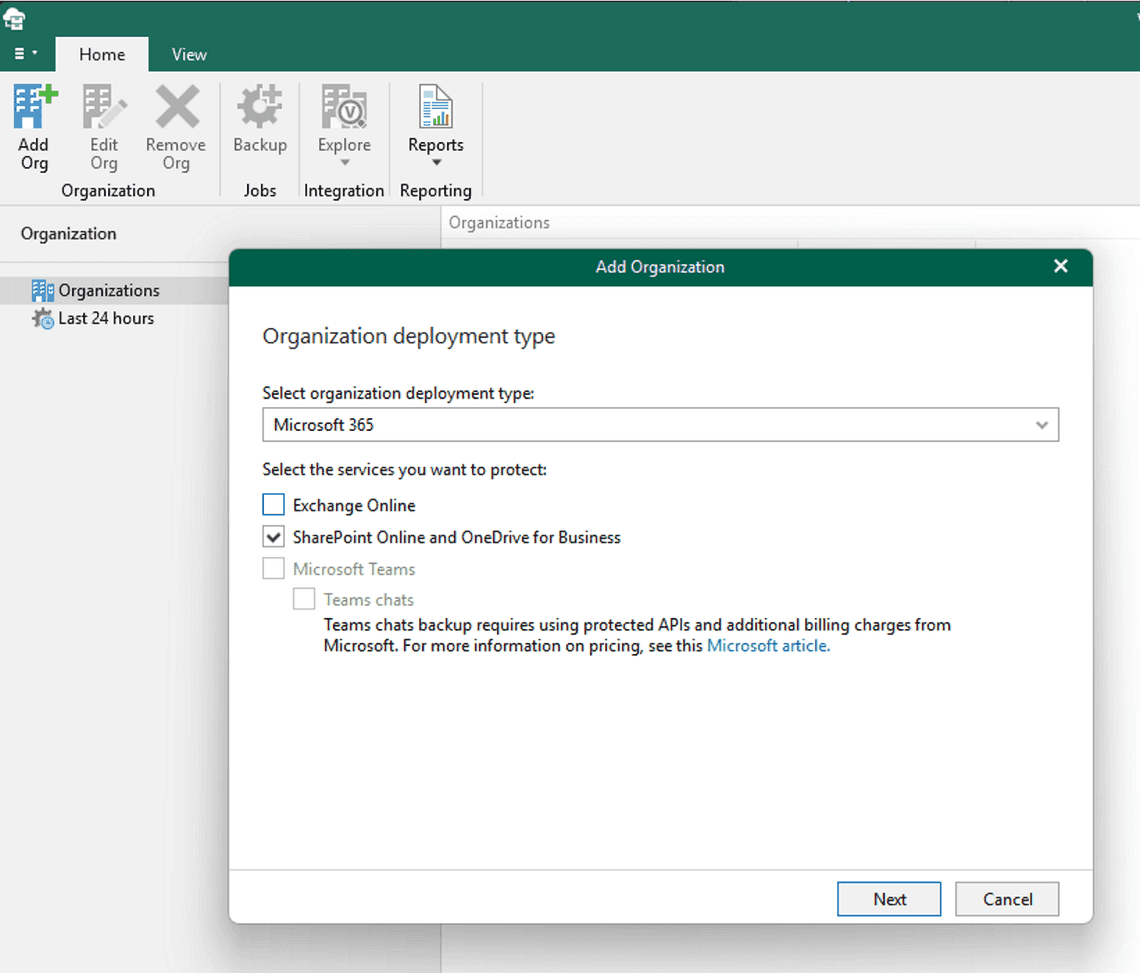
    Launching Veeam
    Launching Veeam

  3. Check SharePoint Online and OneDrive for Business

  4. Select Modern authentication

  5. Choose Register a new Microsoft Entra ID application automatically
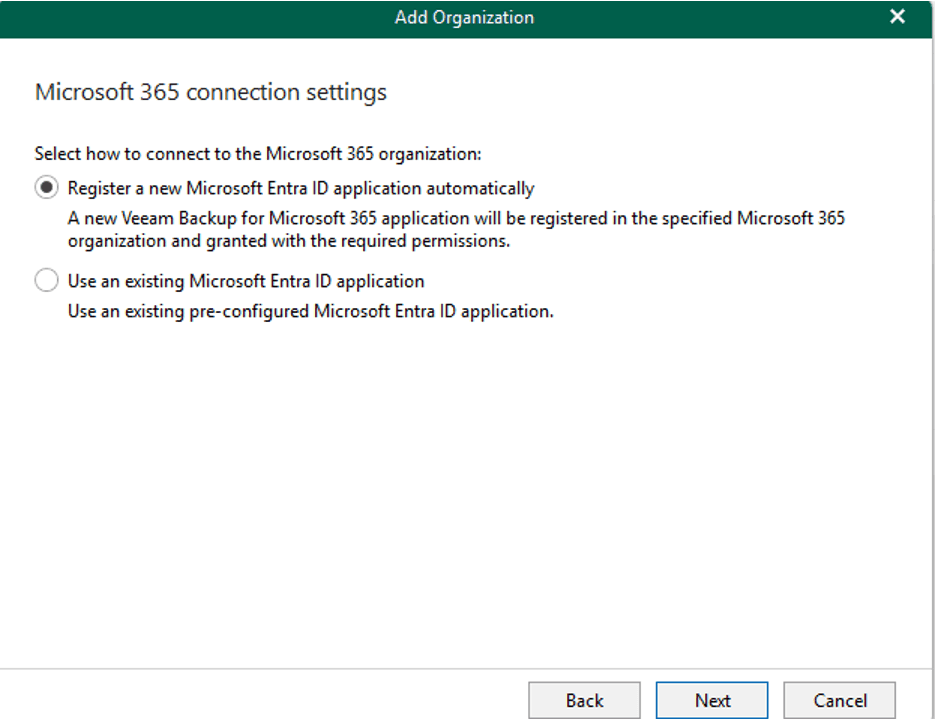
    Add organization
    Add organization

  6. Keep the default app name and click Next
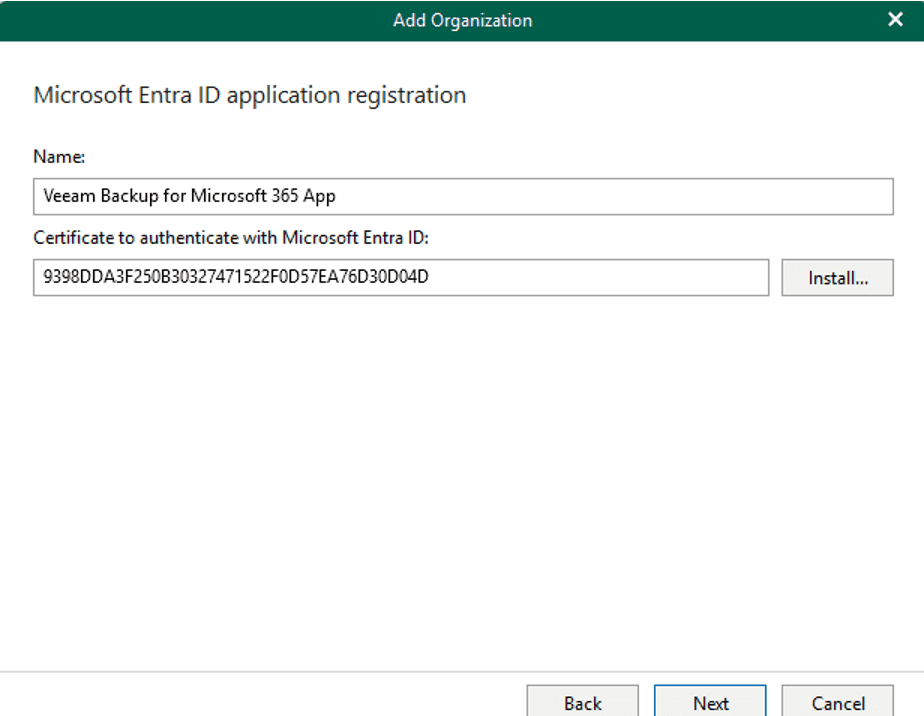
    Add organization. Entra ID App
    Add organization. Entra ID App

Veeam will prompt you to authenticate. Copy the device code, go to microsoft.com/devicelogin, and sign in with a Global Administrator account.
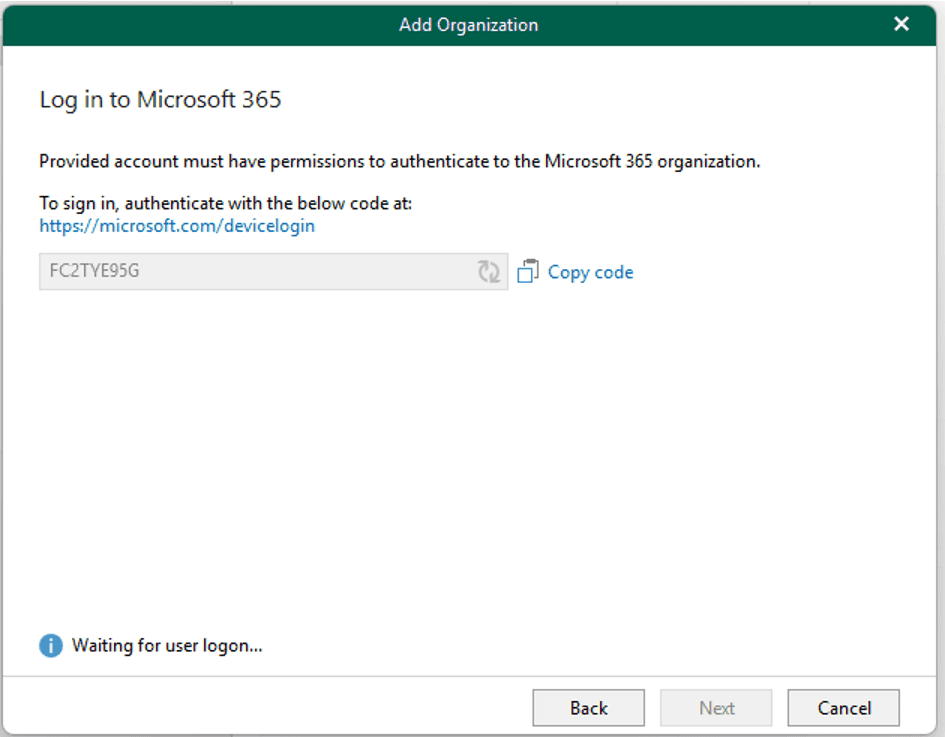
Veeam. Entra ID app registration

Once authenticated, Veeam will verify the connection and automatically configure everything.
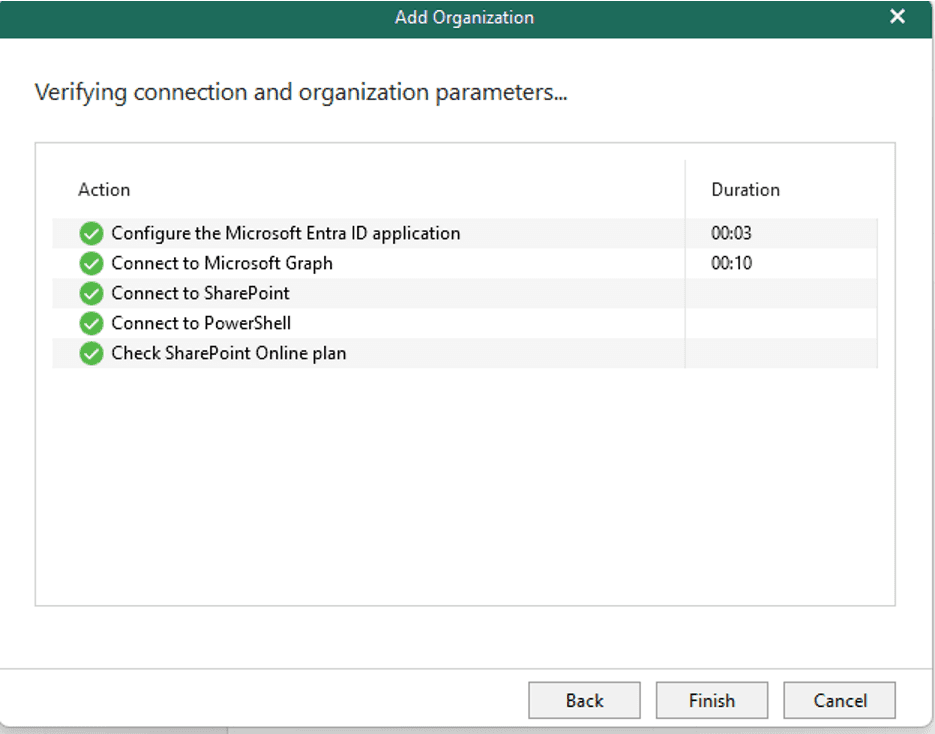
Log in to M365 with a global admin account to provide consent


Step 3: Create a Backup Job

Now let’s create a backup job for your SharePoint site:
Veeam Verification
Veeam Verification

  1. Click Backup in the toolbar
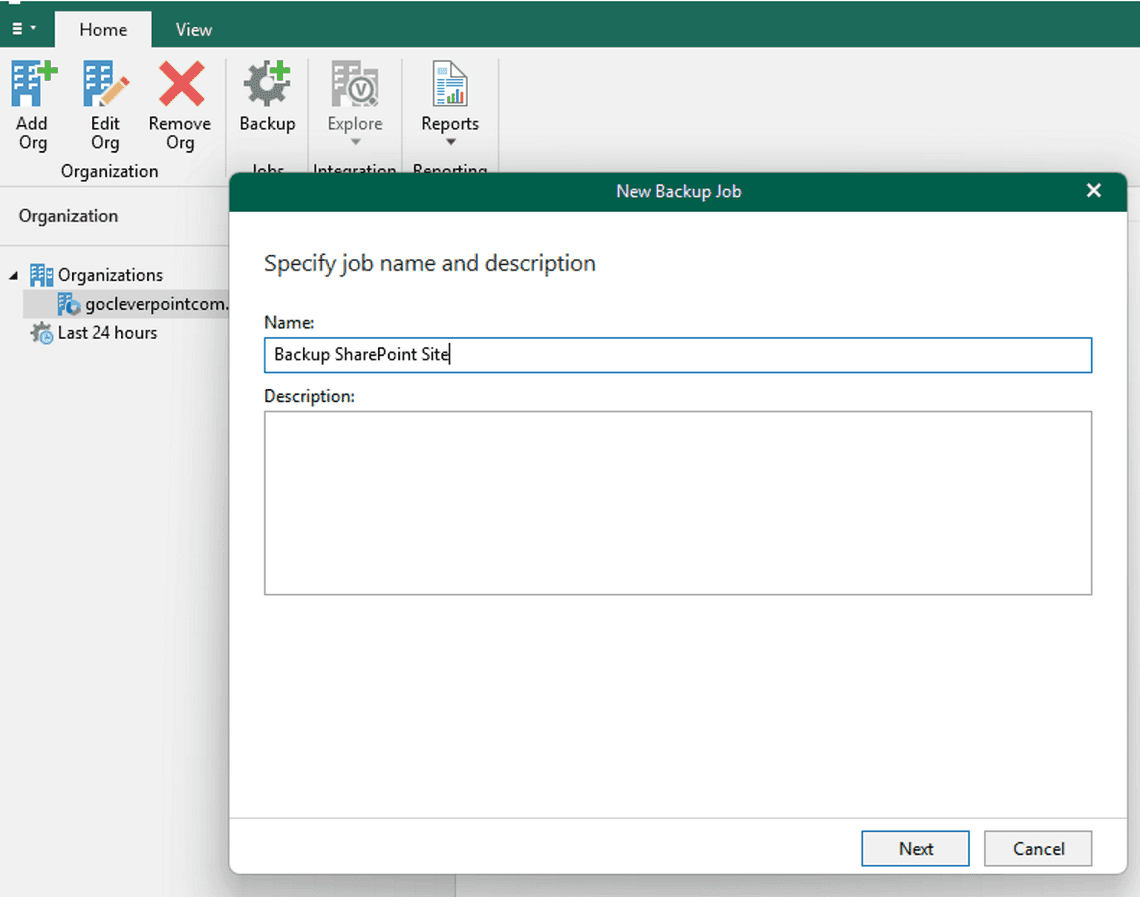
  2. Name your job (e.g., “Backup SharePoint Site”)
    Veeam home screen
    Veeam home screen
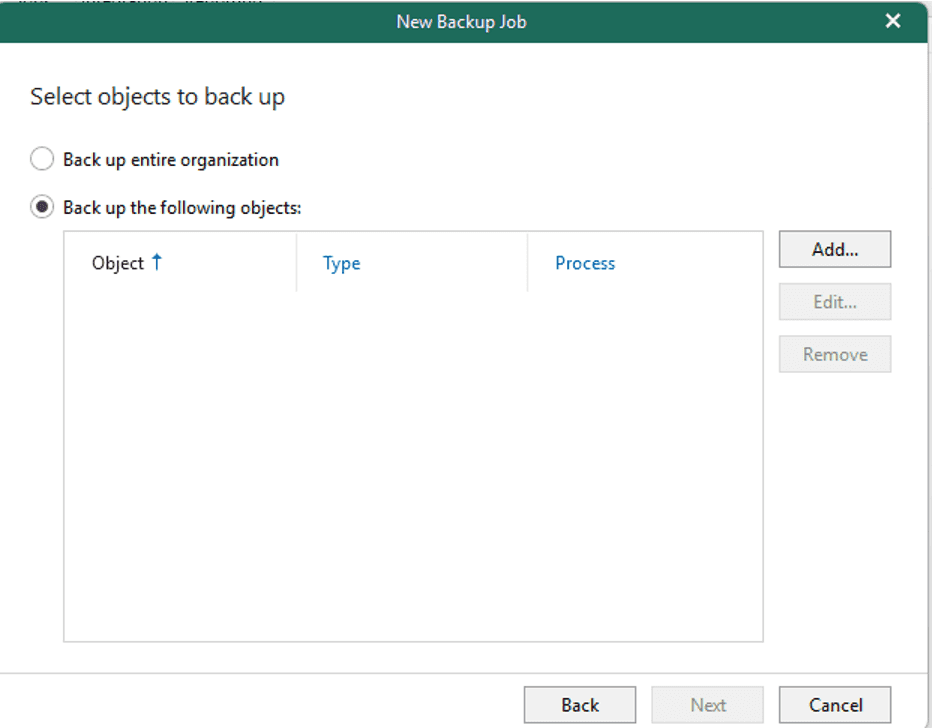
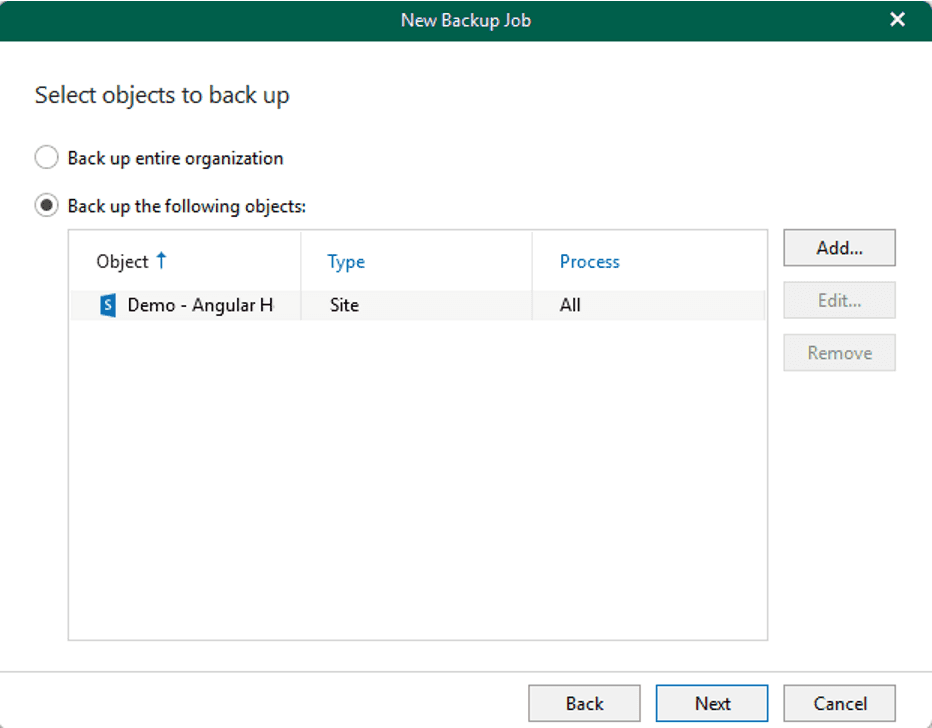
  3. Select Back up the following objects
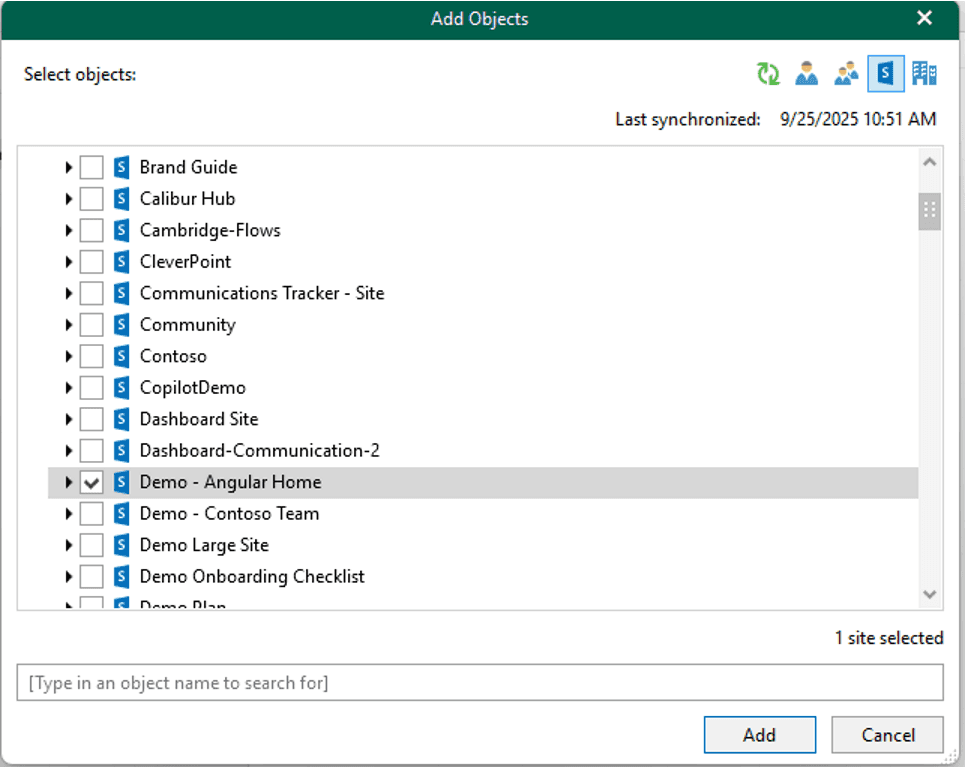
  4. Click Add, then select one or more SharePoint sites from the list
    Backup job name
    Backup job name
    Select objects to back up
    Select objects to back up
    Select objects to back up
    Select objects to back up
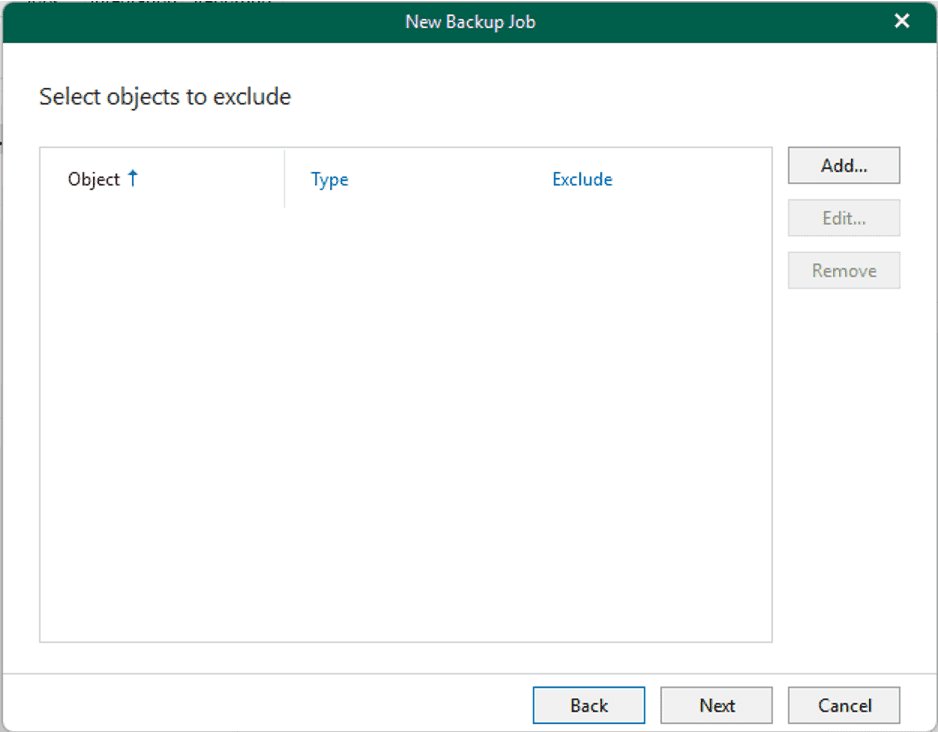
  5. Skip the exclusions screen (or add exclusions if needed)
    Objects to exclude
    Objects to exclude
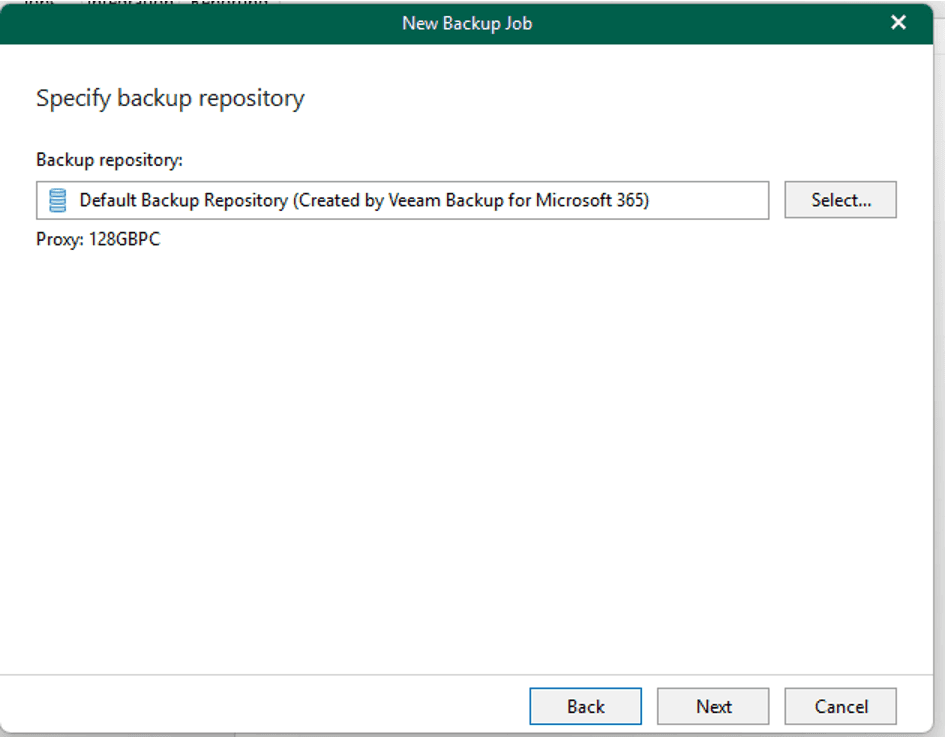
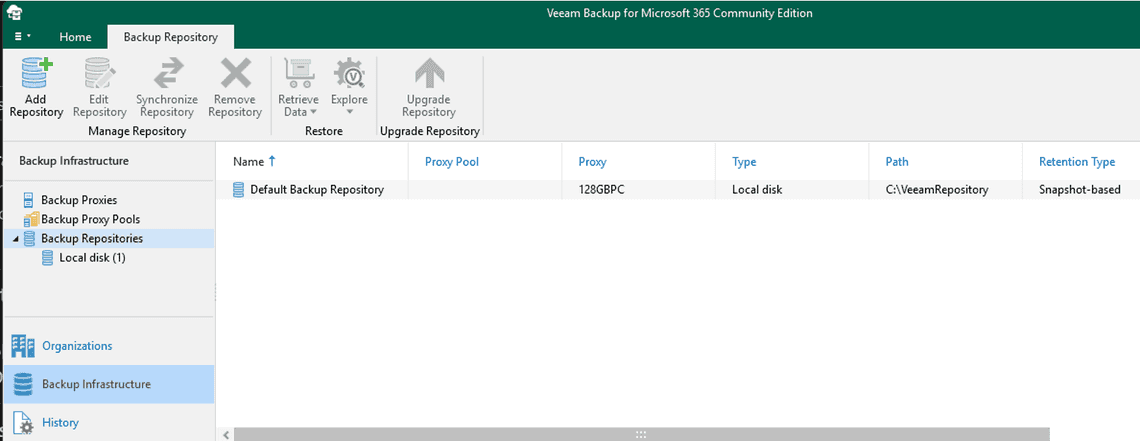
  6. Select the Default Backup Repository
    Backup repository
    Backup repository
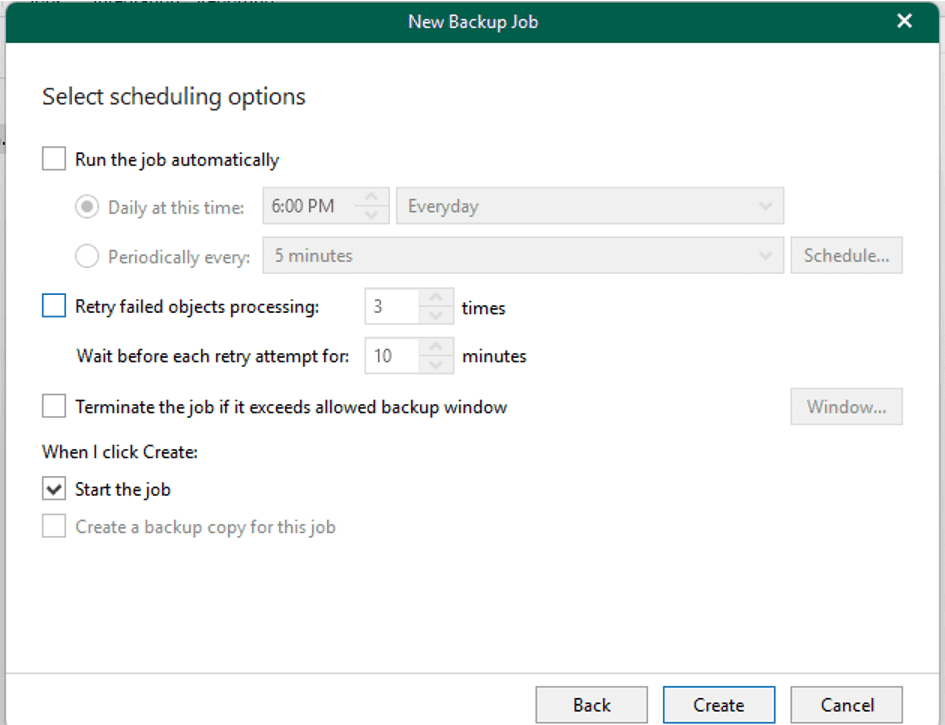
  7. Configure the schedule or check Start the job to run immediately
    Schedule
    Schedule
  8. Click Create

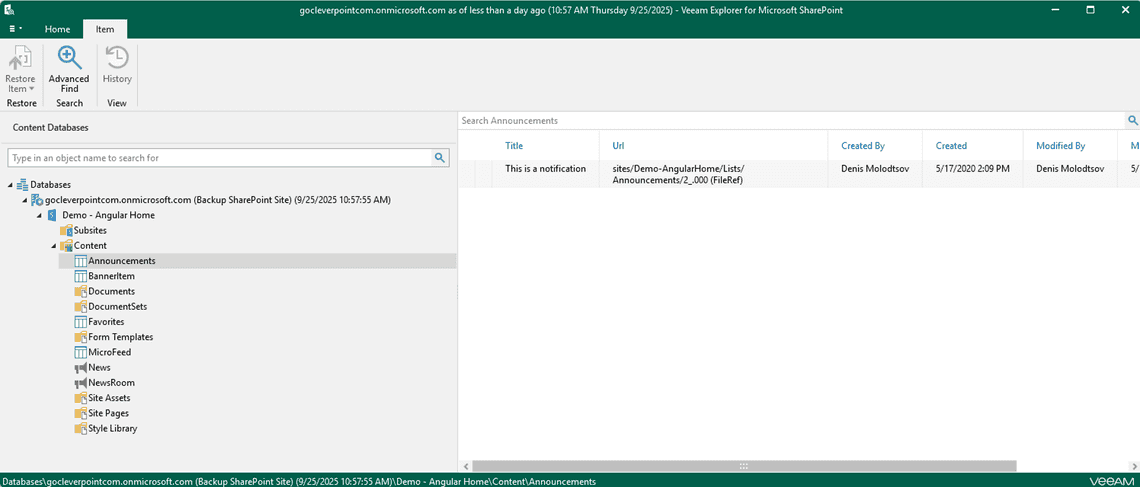
The backup job will start running. Notice at the bottom of the screen: Licenses used: 0. That confirms SharePoint sites are free to back up!

Backup job is running


Step 4: Restore Deleted Content

Let’s say someone accidentally deletes a document. Here’s how to restore it:
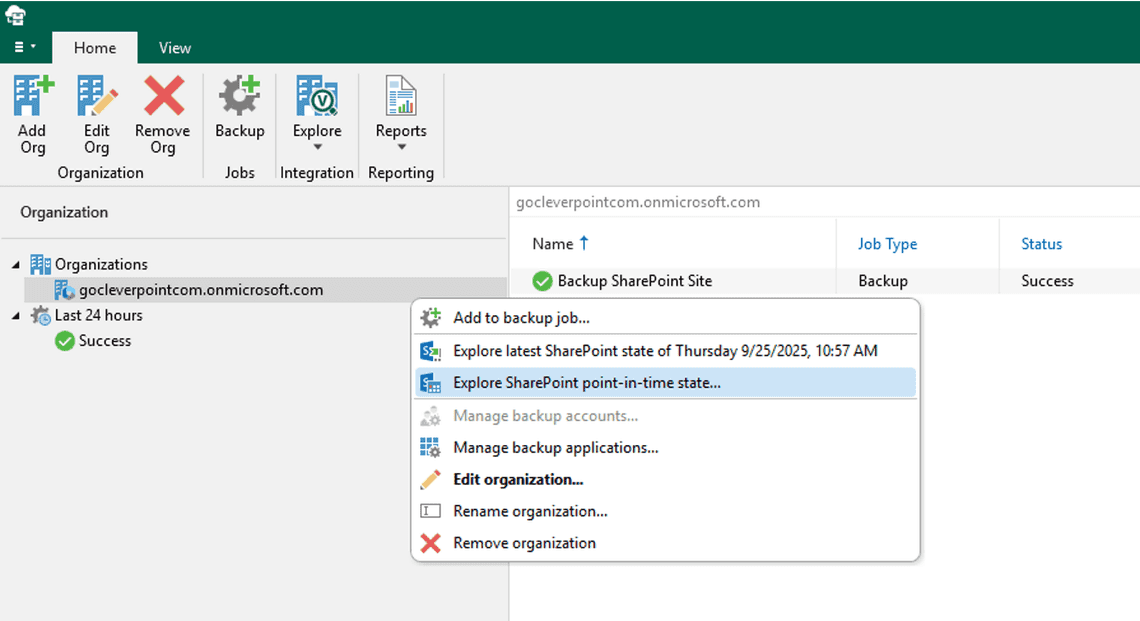
  1. Click Explore in the toolbar
    Explore SharePoint backups
    Explore SharePoint backups
    Browsing lists and libraries in the backup
    Browsing lists and libraries in the backup
  2. Select SharePoint and choose your restore point
  3. Browse to the site and library where the file was located
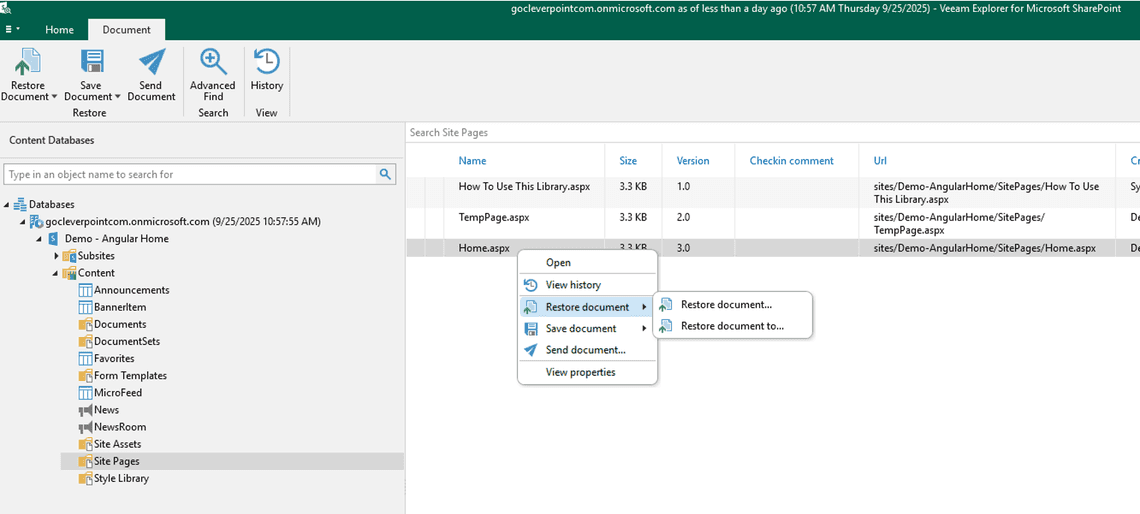
  4. Right-click the item and select Restore
    Restore specific document
    Restore specific document

You can restore individual files, folders, list items, or even entire sites. All with granular control.


Conclusion

Veeam Backup for Microsoft 365 Community Edition is a powerful, free solution for protecting your SharePoint sites. You get unlimited site backups (up to 1 TB), granular restore options, and peace of mind — without spending a cent.

Just remember to renew your free license once a year, and you’re all set.

If you found this helpful, check out my video walkthrough (to be available soon) that demonstrates the entire process step by step.


Tags

SharePointVeeamBackup

Share

Previous Article
Get History of Server Reboots
Denis Molodtsov

Denis Molodtsov

Microsoft 365 Architect

Related Posts

SharePoint News Webpart Dimensions for Designers
August 05, 2025
2 min

Quick Links

AboutAll Posts

Social Media