


Deep Dive into SharePoint Site Attestation - What the Docs Don't Tell You

Table Of Contents
01
What's Inside the Attestation Email
02
The Adaptive Card's Four States
03
What Happens When You Click "Yes, settings are accurate"
04
There Is No Browser Fallback
05
Exchange Server 2016-2019: Dead on Arrival
06
No PowerShell, No Graph API, No Audit Log
07
The Reporting Problem: Dashboard vs CSV
08
The Simulation Diff: How to Find Attested Sites
09
Workarounds for Exchange On-Prem Environments
10
Can Power Automate Complete the Attestation?
11
Sending the Adaptive Card to Teams
12
Licensing
13
The Bottom Line
SharePoint Advanced Management introduced Site Attestation Policies as part of Site Lifecycle Management. The premise is straightforward: periodically ask site owners to confirm their site’s settings are still accurate. If they don’t respond, enforcement actions like read-only lockdown or archival can kick in.
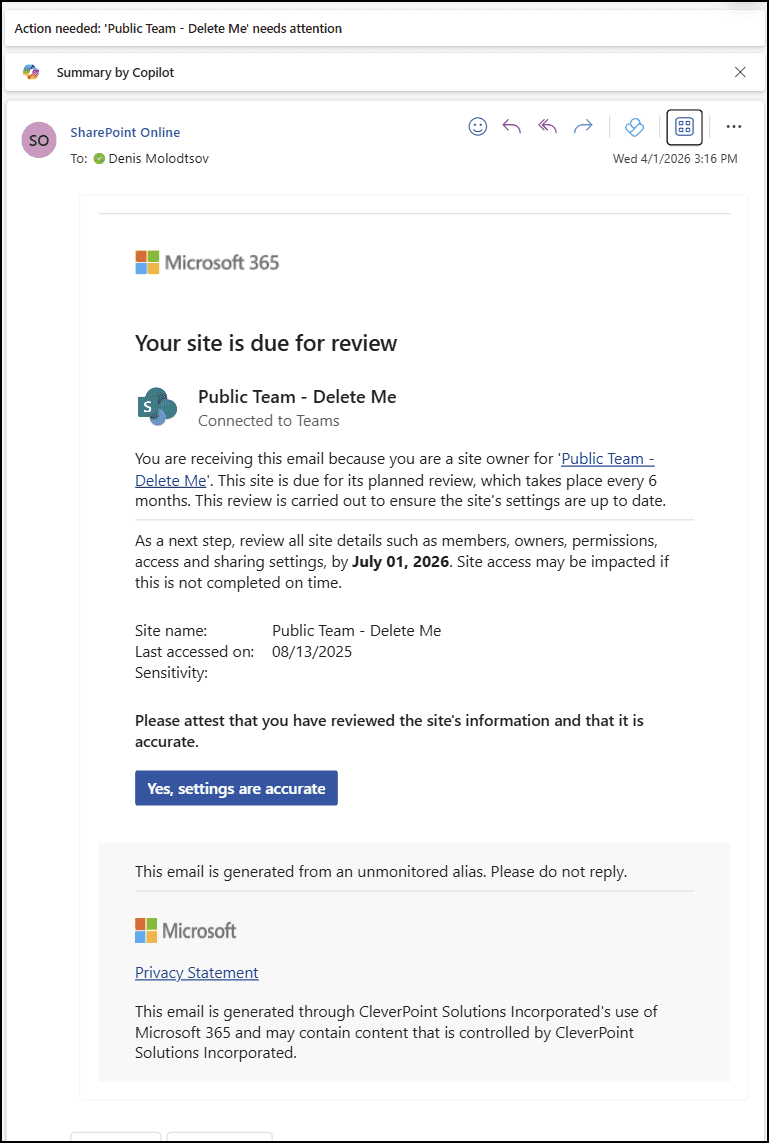
I spent a day digging into this feature — decoding the emails, intercepting the HTTP requests, and testing the reporting. What I found was a feature with some significant gaps that can catch you off guard. Here’s everything I learned.
What’s Inside the Attestation Email
When a site attestation policy runs, SharePoint sends an email from no-reply@sharepointonline.com (default email) to site owners and admins. But this isn’t a regular email with a link. It contains a Signed Adaptive Card — an Outlook Actionable Message embedded as a JWT inside a <script type="application/ld+json"> block.
You can decode the JWT to extract the full Adaptive Card JSON. Here’s how:
The decoded JWT claims reveal:
- Sender:
no-reply@sharepointonline.com - Originator:
F1877EE3-B0A8-4F01-A8CF-1F3C01D0216E - Recipients: the site owner’s email
- Issued at: timestamp of the policy run
The Adaptive Card itself contains the site name, URL, last accessed date, sensitivity label, review deadline, review frequency, and — crucially — the attestation API endpoint.
The Adaptive Card’s Four States
The card is cleverly designed with four pre-built containers. Only one is visible at a time:
| Container ID | When Shown |
|---|---|
main-body | Initial state — site info + “Yes, settings are accurate” button |
primary-action-success | After successful attestation |
request-expired | When the attestation deadline has passed |
request-revoked | When the user is no longer a site owner/admin |
The server response toggles visibility between these containers, so the card updates in place without a page refresh.
What Happens When You Click “Yes, settings are accurate”
I intercepted the HTTP request when clicking the attestation button in Outlook. The flow is more complex than you might expect — the button does not call SharePoint directly. It’s a three-step proxy chain.
Step 1: Outlook sends a POST to its own Actionable Messages proxy:
POST https://outlook.cloud.microsoft/actionsb2netcore/userid/messages/{messageId}/adaptiveCard/executeAction
Step 2: The POST body wraps the original action along with the card’s cryptographic signature:
Step 3: The proxy validates the signature, authenticates the user, and forwards the request to SharePoint’s internal attestSite endpoint.
The bearer token is scoped to ActionableMessages.SecPermission.AccessAsApp and Connectors.AdaptiveCards.Actions. This is not a standard SharePoint or Graph API token. The {token} in the URL is a one-time opaque value tied to the specific policy run and site. You cannot call this endpoint with Invoke-PnPSPRestMethod, a Graph API token, or any other standard authentication method.
The response includes cardUpdates that toggle the visible container from the action form to the success message:
There Is No Browser Fallback
This is the first major gap. There is no browser-accessible attestation page in SharePoint. I tested:
/_layouts/15/siteaccessreview.aspx— exists, but it’s for Data Access Governance site access reviews, a completely different feature/_layouts/15/SiteReview.aspx— I expected a page like this to exist, but alas it does not ion.
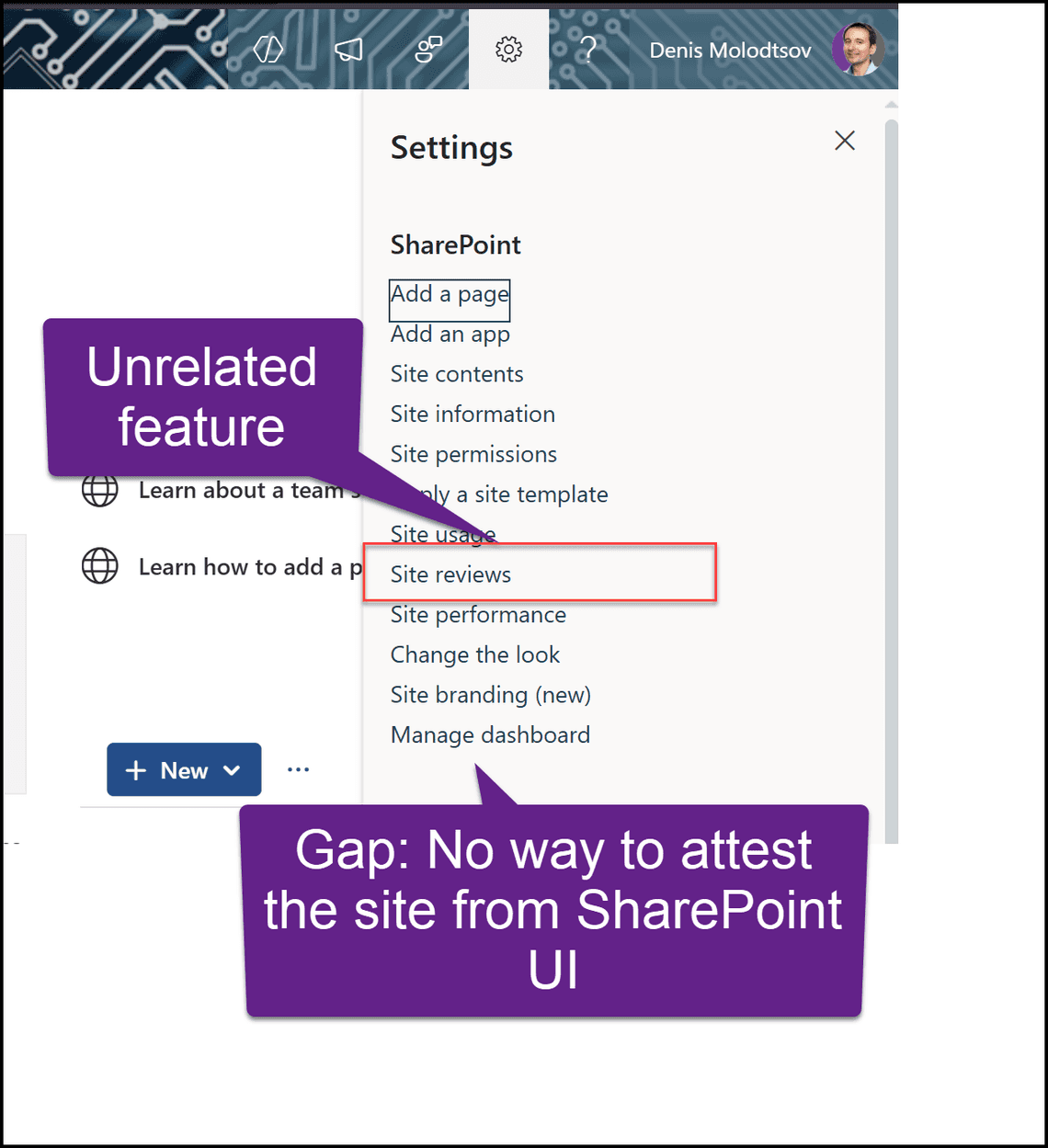
The entire attestation workflow is designed to happen exclusively inside the Outlook Actionable Message. If you can’t render the card, you can’t attest. The only alternative is the SharePoint Admin Center, which requires admin privileges and is not self-service.
Exchange Server 2016-2019: Dead on Arrival
This design becomes a real problem for organizations running Exchange Server 2016 on-premises. Exchange 2016-2019 does not support Outlook Actionable Messages. The <script type="application/ld+json"> block containing the Signed Adaptive Card is stripped entirely.
What site owners see instead of the interactive card:
Your site is due for review This email contains actionable items that aren’t supported by this client. Use a supported client to view the full email.
No button. No link. No way to act. The email is a dead end. If your organization runs Exchange on-prem, this feature is effectively broken for end users.
No PowerShell, No Graph API, No Audit Log
If you’re hoping to manage attestation programmatically, here’s the current state as of April 2026:
| What You’d Want | Reality |
|---|---|
Get-SPOSite attestation properties | None exist |
Set-SPOSite to complete attestation | No such parameter |
| Graph API for attestation status | No endpoint (v1.0 or beta) |
| PnP PowerShell attestation cmdlets | None exist |
Calling attestSite API directly | Requires Actionable Messages JWT |
| Unified Audit Log for attestation events | No event type defined |
| Browser-based attestation page | Does not exist |
Note: Set-PnPTenant -EmailAttestationEnabled is for guest/external sharing email verification — completely unrelated to site lifecycle attestation. Don’t be fooled by the similar name.
The only PowerShell action available is unlocking sites that were put into read-only by the policy, which does not mark them as attested:
The Reporting Problem: Dashboard vs CSV
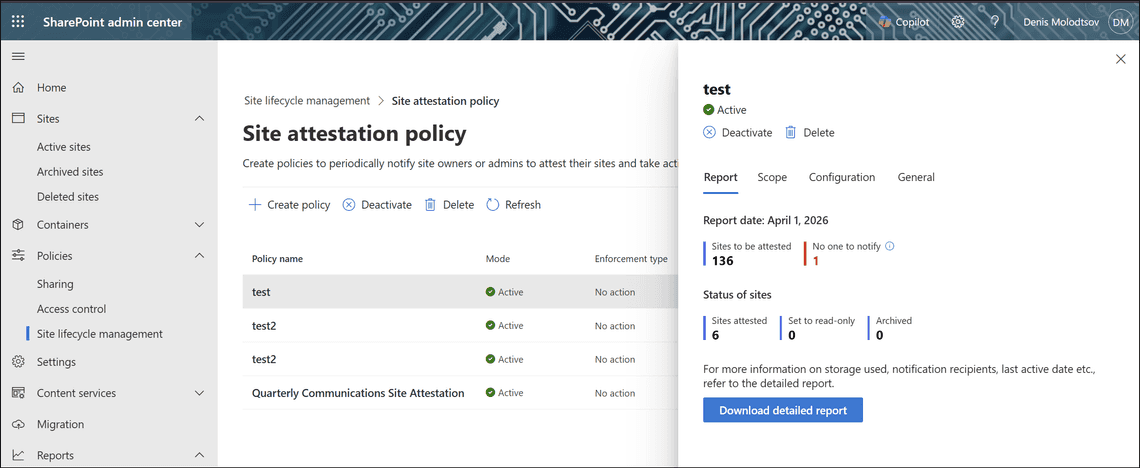
The dashboard updates in real-time
The policy detail page in the SharePoint Admin Center shows live counters: sites to be attested, sites attested, set to read-only, and archived. These update within minutes of an attestation being completed.
The CSV report is a frozen snapshot
The “Download detailed report” button serves a CSV generated when the policy last ran (monthly). It is never updated between runs. I tested this by attesting 6 sites and downloading the report three minutes later — the CSV was byte-for-byte identical to the one downloaded before attesting.
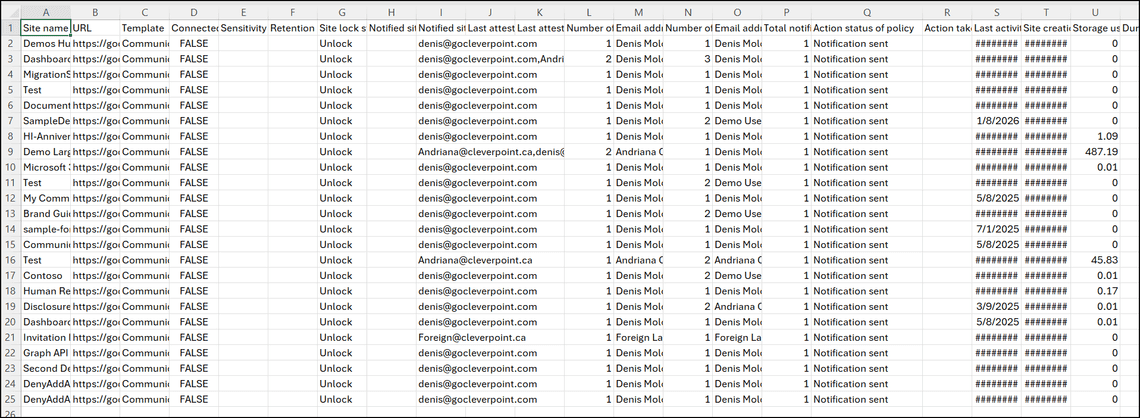
The CSV includes columns like “Last attested by” and “Last attestation date (UTC)”, which sound useful. But here’s the catch:
Attested sites vanish from the report
When the next policy run generates a new report, attested sites are skipped entirely rather than appearing with their attestation details filled in. The documentation says “recently attested sites are skipped.” This means the “Last attested by” and “Last attestation date” columns only populate for sites that were attested in a previous cycle and are now due for review again.
So you have a dashboard that tells you how many sites were attested, but no way to see which ones — at least not through the normal download.
The Simulation Diff: How to Find Attested Sites
After hitting this wall, I found a workaround. Create a simulation policy with the same scope as your active policy. Simulation mode runs once and generates a fresh report. Since it skips recently attested sites, you can diff the two CSVs to identify them.
Step 1: Create a simulation policy with identical scope in the Admin Center.
Step 2: Wait for it to complete (minutes to hours).
Step 3: Compare the reports:
Sites in the active report but missing from the simulation are the attested ones.
I verified this with real data: the active policy had 136 sites, the dashboard showed 6 attested, and the simulation report had 130 sites. The 6 missing sites matched exactly.
Workarounds for Exchange On-Prem Environments
If your users can’t render the Actionable Message:
- Set enforcement to “No action” — Prevents lockout while you find a real solution.
- Power Automate + Teams — Build a flow that intercepts attestation emails (they still arrive, just without the card), sends a Teams Adaptive Card or Approval to the site owner, and has an admin complete attestation upon approval.
- Migrate to Exchange Online — The long-term fix. The entire feature assumes Exchange Online.
- Unlock locked sites as a stopgap — if enforcement has already locked sites, an admin can unlock them via PowerShell, but this does not mark them as attested:
It’s worth noting that there is no way for a SharePoint admin to manually attest a site through the Admin Center or SharePoint sites. The Admin Center lets you view reports, unlock sites, and reactivate archived sites, but the attestation action itself can only be completed through the Outlook Actionable Message. If an admin needs to attest a site, they must be listed as a site owner or admin for that site and respond to the email in a supported Outlook client.
Can Power Automate Complete the Attestation?
Having decoded the attestation URL from the email JWT, I wanted to see if Power Automate could call SharePoint’s attestSite endpoint directly — bypassing Outlook entirely. If this worked, it would be a complete workaround: intercept the email, send a Teams card, and on approval, attest the site programmatically.
Attempt 1: SharePoint HTTP Action with Body
I created an instant flow using the Send an HTTP request to SharePoint action:
- Site Address:
https://gocleverpointcom.sharepoint.com/sites/privatem365group-delete-me - Method: POST
- URI:
/_api/v2.1/policyAutomation/actionableMessages/{token}/attestSite - Body:
{}
Result: 400 Bad Request. The Power Automate SharePoint connector returned “Unexpected response from the service.” The error came from the connector’s middleware (sharepointonline-cc.azconn-cc-001.p.azurewebsites.net), not directly from SharePoint — so the real error was being swallowed.
Attempt 2: SharePoint HTTP Action with Empty Body
Same action, but with the body left completely empty and no headers. Same result: 400 Bad Request, identical error message.
Checking the Dashboard
After both attempts, I checked the attestation policy dashboard in the SharePoint Admin Center. The “Sites attested” counter remained at 6 — unchanged. Neither call went through. The endpoint genuinely rejected the requests.
Why It Fails
The attestSite endpoint is designed to accept requests only from the Outlook Actionable Messages proxy. The proxy authenticates with a specialized JWT bearer token scoped to ActionableMessages.SecPermission.AccessAsApp — not a standard SharePoint access token. Power Automate’s SharePoint connector uses a different token type (delegated SharePoint permissions), which the endpoint does not accept.
This means Power Automate cannot complete attestation programmatically. The flow can only serve as a notification and logging mechanism.
Sending the Adaptive Card to Teams
Since we can’t automate the attestation itself, the next best thing is delivering the review request to users via Teams — especially useful when Exchange on-prem can’t render the Outlook Actionable Message.
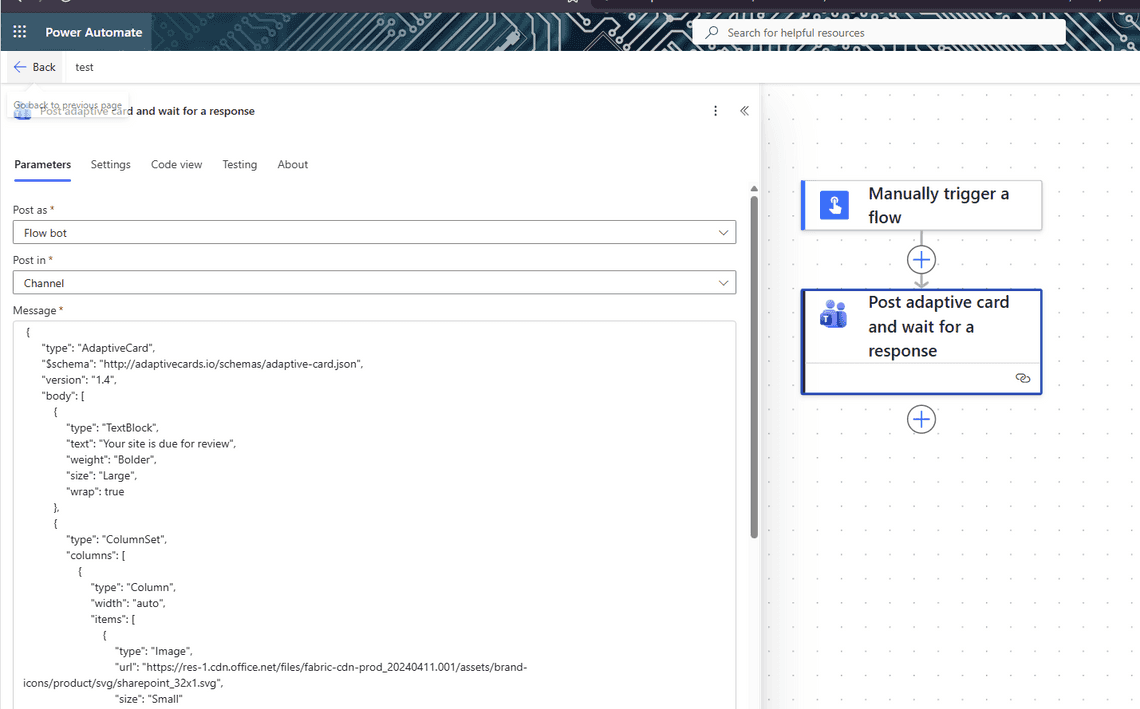
I built a flow using Post adaptive card and wait for a response (Microsoft Teams connector). The card mirrors the original SharePoint attestation card:
Sample Flow
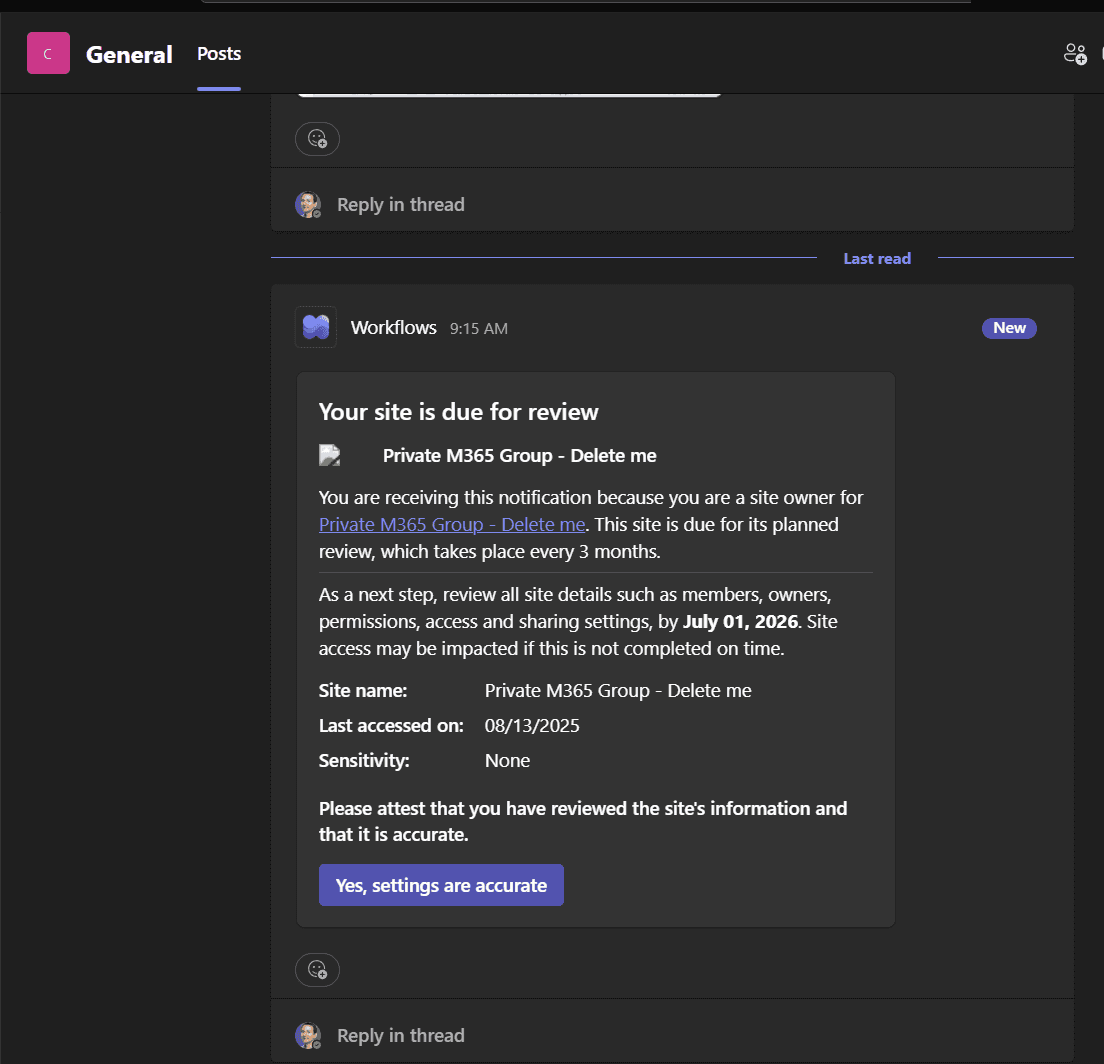
Results
The card renders cleanly in Teams:
When the user clicks the button, the flow captures the full response — who responded, when, and for which site:
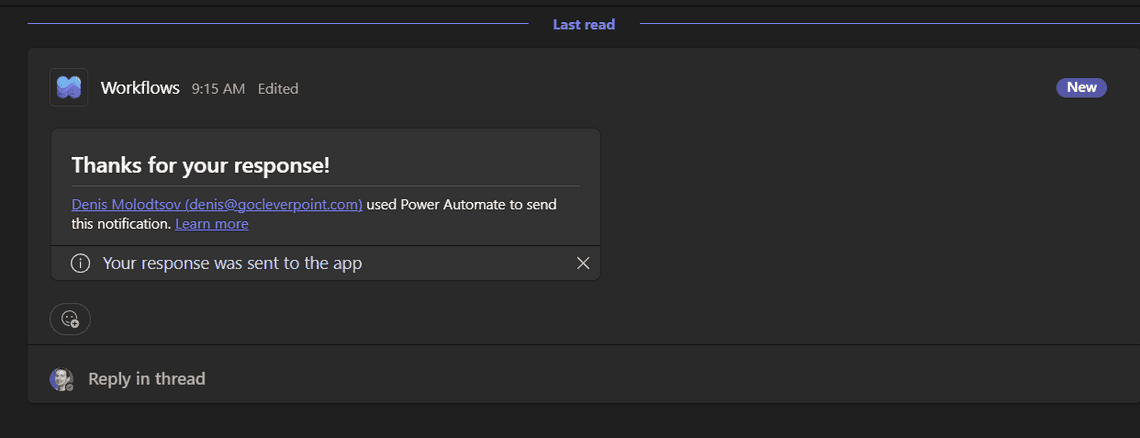
But checking the SharePoint Admin Center dashboard after clicking: Sites attested stayed at 6. The Teams card collected the user’s intent, but it didn’t trigger the actual SharePoint attestation. The response lives only in the Power Automate run history.
What This Gives You
Even though the flow can’t complete the official attestation, it provides:
- A delivery mechanism that works on Exchange on-prem — Teams doesn’t depend on Actionable Messages support
- An audit trail — the flow logs who reviewed which site and when (write responses to a SharePoint list for reporting)
- A notification pipeline — site owners are at least informed and can confirm their review, even if an admin still needs to handle the official attestation through Outlook
Licensing
Site attestation policies require SharePoint Advanced Management (SAM): a Microsoft 365 E3/E5 base license plus either a Microsoft 365 Copilot license or the SharePoint Advanced Management standalone add-on.
The Bottom Line
Site Attestation is a useful governance concept, but the implementation has real gaps. It’s entirely dependent on Outlook Actionable Messages with no browser fallback. There’s no API to query or complete attestation. The detailed reports are monthly snapshots that exclude the very sites you want to track. And if your users are on Exchange on-prem, the feature is non-functional.
The simulation-diff workaround is clunky, but it’s currently the only reliable way to identify which specific sites have been attested between policy runs. Hopefully Microsoft will close these gaps with Graph API support, audit log events, and a self-service browser page. Until then, plan accordingly.
Related Posts


Troubleshooting SharePoint "Sorry, You Don't Have Access"
March 26, 2026
12 min

Broken OneNote Notebook Shows as Folders after Migration to SharePoint Online
February 25, 2026
1 min

Free SharePoint Backup. Getting Started with Veeam for Microsoft 365
December 23, 2025
3 min

PnP.PowerShell App Registration
August 05, 2025
1 min