


Broken OneNote Notebook Shows as Folders after Migration to SharePoint Online

Table Of Contents
A Monday Morning Migration Panic (A Personal Story)
I remember migrating a massive SharePoint Server site for a client to Microsoft 365. The weekend migration completed without many errors, and I was feeling pretty good about it. That is, until Monday morning at 8:00 AM when the engineering team called the IT support, panicking because their critical OneNote notebook was replaced by “just a bunch of weird files and folders.”
I spent hours digging into the issue trying to find a fix. It turned out the files were perfectly fine; SharePoint Online just needed a metadata nudge to recognize the folder as a notebook. The lesson I learned the hard way? Always audit your file types pre and post-migration, especially problematic formats like OneNote, and never assume a successful file copy means a functional application!
The Problem
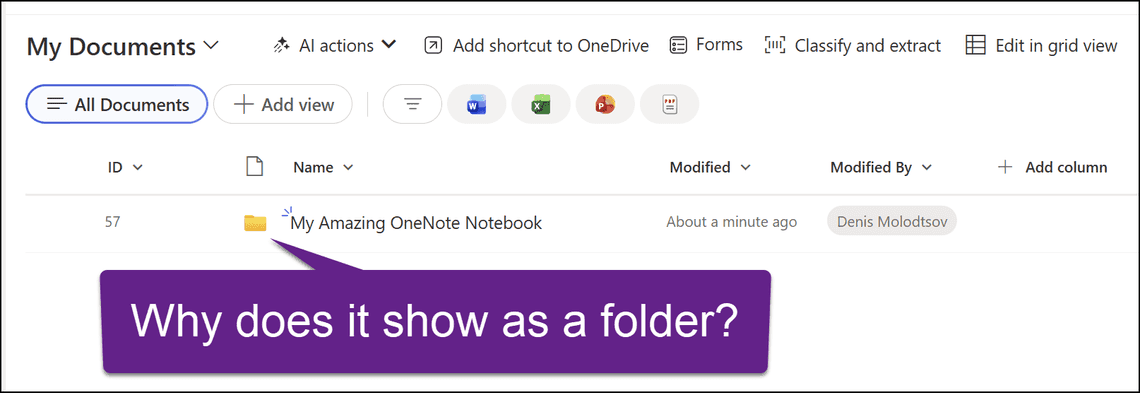
Frequently, after a migration to SharePoint Online, you can end up in a situation where your OneNote notebooks appear as folders:
If you open this folder, you will see the .onetoc2 file and at least one .one file:
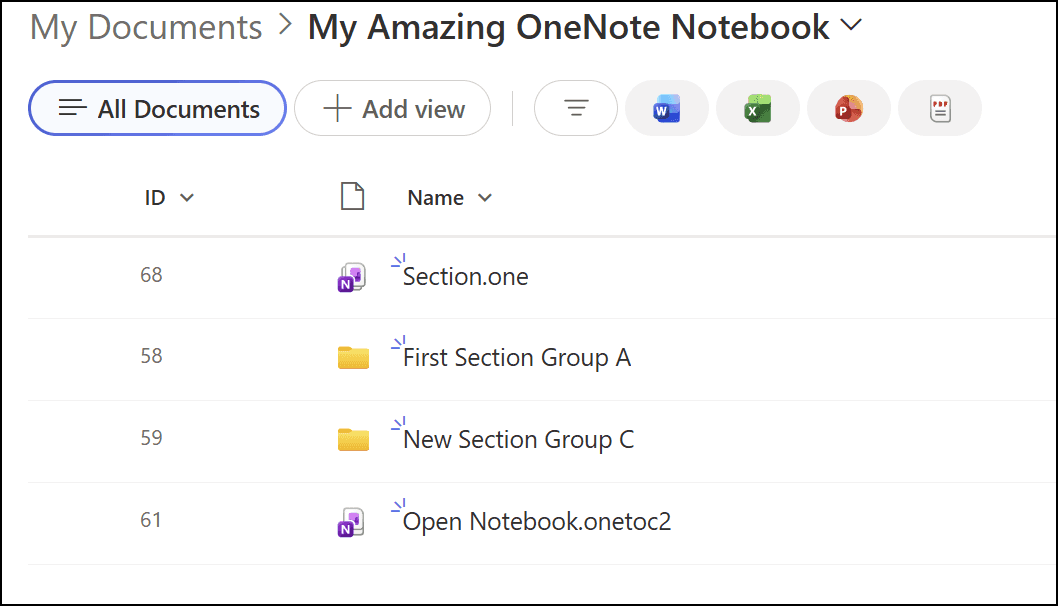
This happens because the HTML File Type column is not set to OneNote.Notebook. This can be easily fixed using PnP PowerShell.
The Fix
Open PowerShell and run the following command:
Make sure to replace the URL, list name, and item ID with the appropriate values for your environment. Identity refers to the folder ID. You can find it by updading the list view to include the ID column. After running this command, the OneNote notebook should display correctly in SharePoint Online.
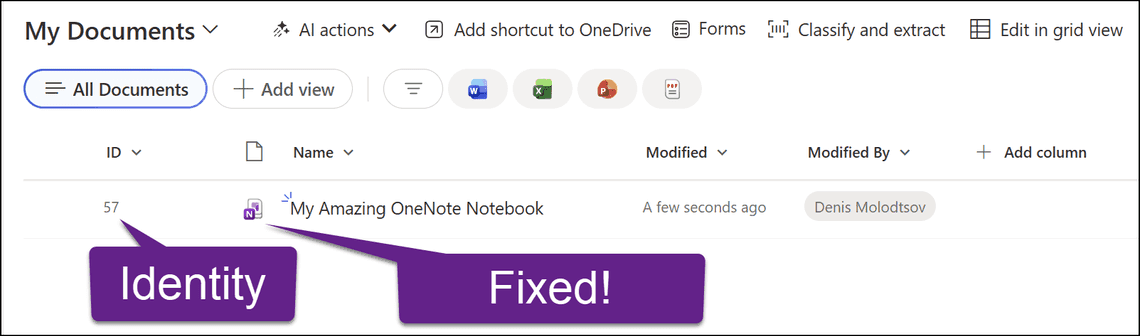
By updating the HTML_x0020_File_x0020_Type via PowerShell, SharePoint automatically cascades the changes to the folder’s internal ProgID and flips the WOPI rendering flag so it opens in the browser.
Conclusion
So as you can see, the fix is very simple. However, the devil is in the details. In many cases, OneNote notebooks contain section groups, which are also presented as nested subfolders. Each of these subfolders will likely have an associated .onetoc2 index file.
If you are writing a script to automate this fix at scale, it is very important to find the topmost folder that contains the topmost .onetoc2 file and only target that with your PowerShell script. Taking the time to validate this hierarchy will save you from fracturing a cohesive notebook into multiple broken pieces. Happy migrating!
Share
Related Posts


Troubleshooting SharePoint "Sorry, You Don't Have Access"
March 26, 2026
12 min

Free SharePoint Backup. Getting Started with Veeam for Microsoft 365
December 23, 2025
3 min

PnP.PowerShell App Registration
August 05, 2025
1 min